<?xml version="1.0" encoding="utf-8"?>
<!DOCTYPE html PUBLIC "-//W3C//DTD XHTML 1.0 Transitional//EN" "http://www.w3.org/TR/xhtml1/DTD/xhtml1-transitional.dtd">
<html xml:lang="en" lang="en" xmlns="http://www.w3.org/1999/xhtml">
  <head runat="server">
    <!-- PageID 382 - published by RedDot 7.5 - 7.5.1.69 - 22111 -->
    <META name="PublicArticle" content="True" />
    <META http-equiv="Content-Type" content="text/html; charset=utf-8" />
    <META name="keywords" />
    <META name="summary" />
    <META name="product" content="apdata,apemail,apweb,webfs,V_Series,X_Series,V5K,V10K,X10G" />
    <META name="version" content="v83" />
    <META name="book" content="Deployment and Installation Center" />
    <title>Configure the Citrix Integration Service installation package</title>
    <!--Loading the 2016 fonts.-->
    <script type="text/javascript" src="//fast.fonts.net/jsapi/c504d579-e135-4f75-8335-4906f6c6ce67.js"></script>
    <!--Library content styles.-->
    <link rel="StyleSheet" href="https://help.forcepoint.com/docs/ni/assets/css/help2016.css" type="text/css" media="all" />
    <!--2016 font support -->
    <link type="text/css" rel="stylesheet" href="//fast.fonts.net/cssapi/c504d579-e135-4f75-8335-4906f6c6ce67.css" />
  </head>
  <body>
    <!--googleoff: all-->
    <a href="https://www.forcepoint.com">
      <img class="logo" alt="Forcepoint logo" src="https://help.forcepoint.com/docs/ni/assets/logo1.png" />
    </a>
    <div class="extLinksContainer">
      <a class="extLinks" href="https://help.forcepoint.com/docs/technical-library.aspx">Technical Library</a> | <a class="extLinks" href="http://www.websense.com/content/support.aspx?intcmp=nav-mm-support#/?intcmp=nav-mm-support">Support</a></div>
    <!--
		<wsApp:UserAccess ID="useraccess1" runat="server" IsSecure="False" />
		-->
    <div class="spacer1"></div>
    <br />
    <!-- New Navigation DIV -->
    <div class="TL_nav" style="text-align: left;">
      <table cellspacing="0" class="toolBarTable" summary="">
        <!-- End New Navigation DIV -->
        <tr>
          <td>
            <!-- New Go To TOC -->
            <a href="toc.aspx"><img src="images/toc.png" alt="Go to the table of contents" border="0" /></a>
            <!-- End Go To TOC -->
          </td>
          <td>
            <!-- New Previous -->
            <a href="dic_cis_configpkg.aspx"><img src="images/prev.png" alt="Go to the previous page" border="0" /></a>
            <!-- End New Previous -->
          </td>
          <td>
            <!-- New Next (Active) -->
            <a href="dic_install_cis.aspx"><img src="images/next.png" alt="Go to the next page" border="0" /></a>
            <!-- End New Next (Active) -->
          </td>
          <!--Start JR breadcrumbs -->
          <td width="20px"></td>
          <td>
            <div class="WebWorks_Breadcrumbs" style="text-align: left;">
              <a class="WebWorks_Breadcrumb_Link" href="dic_citrix_int.aspx">Integrating Web Filter &amp; Security with Citrix</a> &gt; Configure the Citrix Integration Service installation package</div>
          </td>
          <!--End JR breadcrumbs -->
        </tr>
      </table>
    </div>
    <!--googleon: all-->
    <div>
      <div class="N1H-Heading1"><a name="598136">Configure the Citrix Integration Service installation package</a></div>
      <div class="IN-TopicInfo"><a name="607382">Deployment and Installation Center&nbsp;| Web Filter &amp; Security&nbsp;| v8.3.x</a></div>
      <div class="B-Body"><a name="598141">Extract the contents of the Citrix configuration package and run the configuration utility to create a Citrix Integration Service installation package to deploy to Citrix servers.</a></div>
      <div class="S-Step_outer" style="margin-left: 0pt">
        <table border="0" cellspacing="0" cellpadding="0" summary="" role="presentation">
          <tr style="vertical-align: baseline">
            <td>
              <div class="S-Step_inner" style="width: 18pt; white-space: nowrap">1.	</div>
            </td>
            <td width="100%">
              <div class="S-Step_inner"><a name="618648">Double-click the configuration package executable, then click </a><span class="B-Bold">Extract</span>. The package name is WCISUtil_x64_<span class="EM-Emphasis">nnnn</span>.exe.</div>
            </td>
          </tr>
        </table>
      </div>
      <div class="S-Step_outer" style="margin-left: 0pt">
        <table border="0" cellspacing="0" cellpadding="0" summary="" role="presentation">
          <tr style="vertical-align: baseline">
            <td>
              <div class="S-Step_inner" style="width: 18pt; white-space: nowrap">2.	</div>
            </td>
            <td width="100%">
              <div class="S-Step_inner"><a name="598152">Double-click </a><span class="B-Bold">Websense Citrix Integration Service Configuration.exe</span> to start the configuration utility.</div>
            </td>
          </tr>
        </table>
      </div>
      <div class="S-Step_outer" style="margin-left: 0pt">
        <table border="0" cellspacing="0" cellpadding="0" summary="" role="presentation">
          <tr style="vertical-align: baseline">
            <td>
              <div class="S-Step_inner" style="width: 18pt; white-space: nowrap">3.	</div>
            </td>
            <td width="100%">
              <div class="S-Step_inner"><a name="598161">In the </a><span class="B-Bold">Profile Source</span> screen, click <span class="B-Bold">Browse</span> and select the folder containing either the default Citrix installation package template or an existing installation package that you want to modify, then click <span class="B-Bold">Next</span>.</div>
            </td>
          </tr>
        </table>
      </div>
      <div class="I-IndentedText"><a name="598169">If the following message appears, make sure all necessary files are present in the folder you specified:</a></div>
      <div class="CO1-CodeIndent1"><a name="598171">The selected installation package does not include all of the necessary files.</a></div>
      <div class="I-IndentedText"><a name="598172">The folder you specify must contain all of the files extracted from the Citrix configuration package in step 1.</a></div>
      <div class="S-Step_outer" style="margin-left: 0pt">
        <table border="0" cellspacing="0" cellpadding="0" summary="" role="presentation">
          <tr style="vertical-align: baseline">
            <td>
              <div class="S-Step_inner" style="width: 18pt; white-space: nowrap">4.	</div>
            </td>
            <td width="100%">
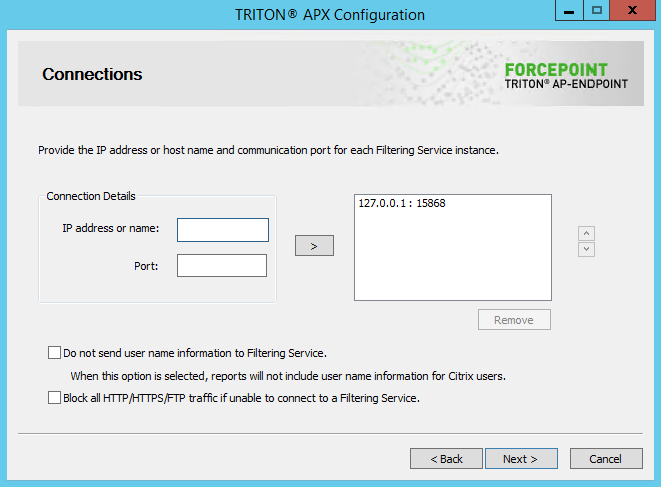
              <div class="S-Step_inner"><a name="598173">In the </a><span class="B-Bold">Connections</span> screen, configure Filtering Service connection behavior for Citrix Integration Service as described below. When you are finished, click <span class="B-Bold">Next</span>.</div>
            </td>
          </tr>
        </table>
      </div>
      <div class="F-Frame"><a name="606138"><img class="Default" src="images/citrix_config_cxns_scr.png" width="661" height="487" style="display: block; float: none; left: 0.0; top: 0.0" alt="" /></a></div>
      <div class="SA-StepAlpha_outer" style="margin-left: 18pt">
        <table border="0" cellspacing="0" cellpadding="0" summary="" role="presentation">
          <tr style="vertical-align: baseline">
            <td>
              <div class="SA-StepAlpha_inner" style="width: 18pt; white-space: nowrap">a.	</div>
            </td>
            <td width="100%">
              <div class="SA-StepAlpha_inner"><a name="598177">If </a><span class="B-Bold">127.0.0.1:15868</span> appears (as shown above), select it and then click <span class="B-Bold">Remove</span>.</div>
            </td>
          </tr>
        </table>
      </div>
      <div class="I2-IndentedText2"><a name="598178">Filtering Service should never be installed on the Citrix server machine itself.</a></div>
      <div class="SA-StepAlpha_outer" style="margin-left: 18pt">
        <table border="0" cellspacing="0" cellpadding="0" summary="" role="presentation">
          <tr style="vertical-align: baseline">
            <td>
              <div class="SA-StepAlpha_inner" style="width: 18pt; white-space: nowrap">b.	</div>
            </td>
            <td width="100%">
              <div class="SA-StepAlpha_inner"><a name="598180">Under </a><span class="B-Bold">Connection Details</span>, enter the IP address or hostname of a Filtering Service machine, then enter the filtering port (15868 by default).</div>
            </td>
          </tr>
        </table>
      </div>
      <div class="F-Frame"><a name="599241">&nbsp;</a></div>
      <table class="NoteTable" style="text-align: left" border="0" cellpadding="1" cellspacing="0" summary="">
        <caption></caption>
        <tr>
          <td style="padding-bottom: 3.5pt; padding-left: 4pt; padding-right: 4pt; padding-top: 4.5pt; vertical-align: top; width: 36pt">
            <div class="NI-NoteIcon">
              <img src="note.gif" alt="*" border="0" width="33" height="33" /><a name="605208">&nbsp;</a></div>
          </td>
          <td style="padding-bottom: 3.5pt; padding-left: 4pt; padding-right: 4pt; padding-top: 4.5pt; vertical-align: top; width: 266.4pt">
            <div class="N-Note">Note<a name="598186">&nbsp;</a></div>
            <div class="NT-NoteText"><a name="598187">The Filtering Service port must be in the range 1024-65535. To determine what port is used by Filtering Service, check the </a><span class="B-Bold">eimserver.ini</span> file&mdash;located in C:\Program Files <span class="EM-Emphasis">or</span> Program Files (x86)\Websense\Web Security\bin (Windows) or /opt/Websense/bin/ (Linux)&mdash;on the Filtering Service machine. In this file, look for the <span class="B-Bold">WebsenseServerPort</span> value.</div>
            <div class="NT-NoteText"><a name="598188">Important: Do not modify the </a><span class="B-Bold">eimserver.ini</span> file.</div>
          </td>
        </tr>
      </table>
      <div class="SA-StepAlpha_outer" style="margin-left: 18pt">
        <table border="0" cellspacing="0" cellpadding="0" summary="" role="presentation">
          <tr style="vertical-align: baseline">
            <td>
              <div class="SA-StepAlpha_inner" style="width: 18pt; white-space: nowrap">c.	</div>
            </td>
            <td width="100%">
              <div class="SA-StepAlpha_inner"><a name="598189">Click the right arrow (&gt;) to add the IP address/hostname and port entry to the list to the right.</a></div>
            </td>
          </tr>
        </table>
      </div>
      <div class="SA-StepAlpha_outer" style="margin-left: 18pt">
        <table border="0" cellspacing="0" cellpadding="0" summary="" role="presentation">
          <tr style="vertical-align: baseline">
            <td>
              <div class="SA-StepAlpha_inner" style="width: 18pt; white-space: nowrap">d.	</div>
            </td>
            <td width="100%">
              <div class="SA-StepAlpha_inner"><a name="598190">Repeat the previous 2 steps for each Filtering Service instance you want used by the Citrix server.</a></div>
            </td>
          </tr>
        </table>
      </div>
      <div class="I2-IndentedText2"><a name="599263">When multiple Filtering Service instances are specified, if the first instance is unavailable, Citrix Integration Service attempts communication with the next instance in the list.</a></div>
      <div class="I2-IndentedText2"><a name="606293">If no Filtering Service instances are available, Citrix Integration Service continues to attempt communication in the background every 1 minute. Until communication is established, Citrix Integration Service fails open (permits all requests) or fails closed (blocks all requests) depending on your select in </a><span class="B-Bold">step f</span> (below).</div>
      <div class="F-Frame"><a name="598197">&nbsp;</a></div>
      <table class="NoteTable" style="text-align: left" border="0" cellpadding="1" cellspacing="0" summary="">
        <caption></caption>
        <tr>
          <td style="padding-bottom: 3.5pt; padding-left: 4pt; padding-right: 4pt; padding-top: 4.5pt; width: 36pt">
            <div class="IC_IconCell" style="color: #000000; font-style: normal; font-variant: normal; font-weight: normal; text-transform: none; vertical-align: baseline"><a name="598193">&nbsp;</a></div>
          </td>
          <td style="padding-bottom: 3.5pt; padding-left: 4pt; padding-right: 4pt; padding-top: 4.5pt; vertical-align: top; width: 266.4pt">
            <div class="N-Note">Note<a name="598195">&nbsp;</a></div>
            <div class="NT-NoteText"><a name="598196">Each Filtering Service instance tracks continue, quota, and password override information independently. If the Citrix Integration Service fails over from one Filtering Service instance to another, usage quotas may be different and override passwords may need to be entered again.</a></div>
          </td>
        </tr>
      </table>
      <div class="SA-StepAlpha_outer" style="margin-left: 18pt">
        <table border="0" cellspacing="0" cellpadding="0" summary="" role="presentation">
          <tr style="vertical-align: baseline">
            <td>
              <div class="SA-StepAlpha_inner" style="width: 18pt; white-space: nowrap">e.	</div>
            </td>
            <td width="100%">
              <div class="SA-StepAlpha_inner"><a name="598198">Enable or disable the </a><span class="B-Bold">Do not send user name information to Filtering Service </span>option. If this option is selected (enabled), user name information for Citrix users is not included in reports.</div>
            </td>
          </tr>
        </table>
      </div>
      <div class="I2-IndentedText2"><a name="606583">The setting applies to all Filtering Service instances listed.</a></div>
      <div class="SA-StepAlpha_outer" style="margin-left: 18pt">
        <table border="0" cellspacing="0" cellpadding="0" summary="" role="presentation">
          <tr style="vertical-align: baseline">
            <td>
              <div class="SA-StepAlpha_inner" style="width: 18pt; white-space: nowrap">f.	</div>
            </td>
            <td width="100%">
              <div class="SA-StepAlpha_inner"><a name="598199">Enable or disable the </a><span class="B-Bold">Block all HTTP/HTTPS/FTP traffic if unable to connect to a Filtering Server</span> option to determine whether Citrix Integration Service blocks or permits all requests when it cannot communicate with Filtering Service.</div>
            </td>
          </tr>
        </table>
      </div>
      <div class="S-Step_outer" style="margin-left: 0pt">
        <table border="0" cellspacing="0" cellpadding="0" summary="" role="presentation">
          <tr style="vertical-align: baseline">
            <td>
              <div class="S-Step_inner" style="width: 18pt; white-space: nowrap">5.	</div>
            </td>
            <td width="100%">
              <div class="S-Step_inner"><a name="598204">In the </a><span class="B-Bold">Client Settings</span> screen, select options as described below. When you are finished, click <span class="B-Bold">Next</span>.</div>
            </td>
          </tr>
        </table>
      </div>
      <div class="B2-Bullet2_outer" style="margin-left: 18pt">
        <table border="0" cellspacing="0" cellpadding="0" summary="" role="presentation">
          <tr style="vertical-align: baseline">
            <td>
              <div class="B2-Bullet2_inner" style="width: 18pt; white-space: nowrap">
                <img src="b2.png" alt="*" border="0" width="8" height="7" />
              </div>
            </td>
            <td width="100%">
              <div class="B2-Bullet2_inner"><span class="B-Bold"><a name="598205">Notify users when HTTPS or FTP traffic is blocked</a></span>: Determine whether users see a browser pop-up message when HTTPS or FTP traffic is blocked. If so, also specify the how long the pop-up message remains visible.</div>
            </td>
          </tr>
        </table>
      </div>
      <div class="B2-Bullet2_outer" style="margin-left: 18pt">
        <table border="0" cellspacing="0" cellpadding="0" summary="" role="presentation">
          <tr style="vertical-align: baseline">
            <td>
              <div class="B2-Bullet2_inner" style="width: 18pt; white-space: nowrap">
                <img src="b2.png" alt="*" border="0" width="8" height="7" />
              </div>
            </td>
            <td width="100%">
              <div class="B2-Bullet2_inner"><span class="B-Bold"><a name="598206">Protect installation directory from modification or deletion</a></span>: This option prevents tampering with the Citrix Integration Service on the Citrix server. Attempts to delete it, replace files, or modify registry entries are stopped.</div>
            </td>
          </tr>
        </table>
      </div>
      <div class="S-Step_outer" style="margin-left: 0pt">
        <table border="0" cellspacing="0" cellpadding="0" summary="" role="presentation">
          <tr style="vertical-align: baseline">
            <td>
              <div class="S-Step_inner" style="width: 18pt; white-space: nowrap">6.	</div>
            </td>
            <td width="100%">
              <div class="S-Step_inner"><a name="598208">On the </a><span class="B-Bold">Trusted Sites</span> screen, specify any URLs or domains that should be ignored (not forwarded for policy enforcement). When you are finished, click <span class="B-Bold">Next</span>.</div>
            </td>
          </tr>
        </table>
      </div>
      <div class="B2-Bullet2_outer" style="margin-left: 18pt">
        <table border="0" cellspacing="0" cellpadding="0" summary="" role="presentation">
          <tr style="vertical-align: baseline">
            <td>
              <div class="B2-Bullet2_inner" style="width: 18pt; white-space: nowrap">
                <img src="b2.png" alt="*" border="0" width="8" height="7" />
              </div>
            </td>
            <td width="100%">
              <div class="B2-Bullet2_inner"><a name="598212">To add a URL or regular expression, click </a><span class="B-Bold">Add</span>, then enter either a URL or a regular expression specifying a set of URLs. Any regular expression adhering to ISO/IEC TR 19768 (within the character-number limit) is valid. When you are finished, click <span class="B-Bold">OK</span>.</div>
            </td>
          </tr>
        </table>
      </div>
      <div class="B2-Bullet2_outer" style="margin-left: 18pt">
        <table border="0" cellspacing="0" cellpadding="0" summary="" role="presentation">
          <tr style="vertical-align: baseline">
            <td>
              <div class="B2-Bullet2_inner" style="width: 18pt; white-space: nowrap">
                <img src="b2.png" alt="*" border="0" width="8" height="7" />
              </div>
            </td>
            <td width="100%">
              <div class="B2-Bullet2_inner"><a name="598216">To edit a URL or regular expression, select it and then click </a><span class="B-Bold">Edit</span>.</div>
            </td>
          </tr>
        </table>
      </div>
      <div class="B2-Bullet2_outer" style="margin-left: 18pt">
        <table border="0" cellspacing="0" cellpadding="0" summary="" role="presentation">
          <tr style="vertical-align: baseline">
            <td>
              <div class="B2-Bullet2_inner" style="width: 18pt; white-space: nowrap">
                <img src="b2.png" alt="*" border="0" width="8" height="7" />
              </div>
            </td>
            <td width="100%">
              <div class="B2-Bullet2_inner"><a name="598217">To remove a URL or regular expression, select it and then click </a><span class="B-Bold">Remove</span>.</div>
            </td>
          </tr>
        </table>
      </div>
      <div class="I-IndentedText"><a name="598218">The URLs you specify here are trusted by any Citrix server on which this Citrix Integration Service is install. It has no bearing on how Filtering Service instances filter requests from non-Citrix users and other Citrix servers that use a different Citrix Integration Service configuration.</a></div>
      <div class="S-Step_outer" style="margin-left: 0pt">
        <table border="0" cellspacing="0" cellpadding="0" summary="" role="presentation">
          <tr style="vertical-align: baseline">
            <td>
              <div class="S-Step_inner" style="width: 18pt; white-space: nowrap">7.	</div>
            </td>
            <td width="100%">
              <div class="S-Step_inner"><a name="598220">On the </a><span class="B-Bold">Save</span> screen, specify how you want the customized installation package saved. When you are finished, click <span class="B-Bold">Finish</span>.</div>
            </td>
          </tr>
        </table>
      </div>
      <div class="B2-Bullet2_outer" style="margin-left: 18pt">
        <table border="0" cellspacing="0" cellpadding="0" summary="" role="presentation">
          <tr style="vertical-align: baseline">
            <td>
              <div class="B2-Bullet2_inner" style="width: 18pt; white-space: nowrap">
                <img src="b2.png" alt="*" border="0" width="8" height="7" />
              </div>
            </td>
            <td width="100%">
              <div class="B2-Bullet2_inner"><a name="598224">Select </a><span class="B-Bold">Overwrite the existing installation</span> to overwrite the Citrix installation package you used as a template. This is the package residing in the folder you selected in <span class="L-Link"><a href="#598161" title="Configure the Citrix Integration Service installation package">Step 3</a></span>.</div>
            </td>
          </tr>
        </table>
      </div>
      <div class="B2-Bullet2_outer" style="margin-left: 18pt">
        <table border="0" cellspacing="0" cellpadding="0" summary="" role="presentation">
          <tr style="vertical-align: baseline">
            <td>
              <div class="B2-Bullet2_inner" style="width: 18pt; white-space: nowrap">
                <img src="b2.png" alt="*" border="0" width="8" height="7" />
              </div>
            </td>
            <td width="100%">
              <div class="B2-Bullet2_inner"><a name="598228">Select </a><span class="B-Bold">Save the customized installation package to a new location</span> to save the customized installation package to a different location. Click <span class="B-Bold">Browse</span>, and specify a folder. It is a best practice to save to an empty folder. Then, you can be certain that all files in that folder are part of the installation package.</div>
            </td>
          </tr>
        </table>
      </div>
      <div class="B-Body"><a name="598230">The installation package is now ready for use.</a></div>
      <div class="B-Body"><a name="598231">If you have multiple Citrix servers for which you want different customized settings, repeat this procedure to create an installation package for each. Save each customized installation package to different folders.</a></div>
      <div class="B-Body"><a name="607539">To continue to the last step in the integration process, see </a><span class="LEM-LinkEmphasis"><a href="dic_install_cis.aspx" title="Use the installation package to install Citrix Integration Service on a Citrix server">Use the installation package to install Citrix Integration Service on a Citrix server</a></span>.</div>
    </div>
    <!--googleoff: all-->
    <div class="library_search">
      <form class="support_search" action="/content/kb-search.aspx" method="get">
        <label></label>
        <label></label>
        <input type="text" name="q" value=" Search eSupport" onfocus="if (this.value == ' Search eSupport') {this.value = '';}" onblur="if (this.value == '') {this.value = ' Search eSupport';}"></input>
        <input type="submit" value=" "></input>
      </form>
    </div>
    <br class="clear" />
    <!-- New Navigation DIV -->
    <div class="TL_nav" style="text-align: left;">
      <table cellspacing="0" class="toolBarTable" summary="">
        <!-- End New Navigation DIV -->
        <tr>
          <td>
            <!-- New Go To TOC -->
            <a href="toc.aspx"><img src="images/toc.png" alt="Go to the table of contents" border="0" /></a>
            <!-- End Go To TOC -->
          </td>
          <td>
            <!-- New Previous -->
            <a href="dic_cis_configpkg.aspx"><img src="images/prev.png" alt="Go to the previous page" border="0" /></a>
            <!-- End New Previous -->
          </td>
          <td>
            <!-- New Next (Active) -->
            <a href="dic_install_cis.aspx"><img src="images/next.png" alt="Go to the next page" border="0" /></a>
            <!-- End New Next (Active) -->
          </td>
          <!--Start JR breadcrumbs -->
          <td width="20px"></td>
          <td>
            <div class="WebWorks_Breadcrumbs" style="text-align: left;">
              <a class="WebWorks_Breadcrumb_Link" href="dic_citrix_int.aspx">Integrating Web Filter &amp; Security with Citrix</a> &gt; Configure the Citrix Integration Service installation package</div>
          </td>
          <!--End JR breadcrumbs -->
        </tr>
      </table>
    </div>
    <div class="extFooterContainer">
      <div class="extFooter">
        <div align="center">Copyright 2016 Forcepoint LLC. All rights reserved.</div>
      </div>
    </div>
    <SCRIPT>
   function getFileName() {
      //this gets the full url
      var url = document.location.href;
      //this removes the anchor at the end, if there is one
      url = url.substring(0, (url.indexOf("#") == -1) ? url.length : url.indexOf("#"));
      //this removes the query after the file name, if there is one
      url = url.substring(0, (url.indexOf("?") == -1) ? url.length : url.indexOf("?"));
      //this removes everything before the last slash in the path
      url = url.substring(url.lastIndexOf("/") + 1, url.length);
      //return
      return url;
   }

   var url = document.URL;
   var Docname = getFileName()
   s.pageName = "enu:support:technical library:dic83:" + Docname;
   s.prop1 = "enu:support";
   s.prop2 = "enu:support:technical library";
   s.channel = "support";
   // <!--
   s.server = "<%= System.Environment.MachineName %>";
   //--></SCRIPT>
    <script language="javascript1.1" type="text/javascript">
   /********Do Not alter below this line ***********/
   var s_code = s.t(); if (s_code) document.write(s_code)
   //--&gt;</script>
  </body>
  <!--"GENERALQUARTERSALLHANDSMANYOURSTATIONS"-->
</html>