<?xml version="1.0" encoding="utf-8"?>
<!DOCTYPE html PUBLIC "-//W3C//DTD XHTML 1.0 Transitional//EN" "http://www.w3.org/TR/xhtml1/DTD/xhtml1-transitional.dtd">
<html xml:lang="en" lang="en" xmlns="http://www.w3.org/1999/xhtml">
  <head runat="server">
    <!-- PageID 382 - published by RedDot 7.5 - 7.5.1.69 - 22111 -->
    <META name="PublicArticle" content="True" />
    <META http-equiv="Content-Type" content="text/html; charset=utf-8" />
    <META name="keywords" />
    <META name="summary" />
    <META name="product" content="apemailcloud,Hosted_Email_Security" />
    <META name="version" />
    <META name="book" content="2016 Release Notes for Cloud Email Protection Solutions" />
    <title>Using the Report Builder</title>
    <!--Loading the 2016 fonts.-->
    <script type="text/javascript" src="//fast.fonts.net/jsapi/c504d579-e135-4f75-8335-4906f6c6ce67.js"></script>
    <!--Library content styles.-->
    <link rel="StyleSheet" href="https://help.forcepoint.com/docs/ni/assets/css/epub2016.css" type="text/css" media="all" />
    <!--2016 font support -->
    <link type="text/css" rel="stylesheet" href="//fast.fonts.net/cssapi/c504d579-e135-4f75-8335-4906f6c6ce67.css" />
  </head>
  <body>
    <!--googleoff: all-->
    <a href="https://www.forcepoint.com">
      <img class="logo" alt="Forcepoint logo" src="https://help.forcepoint.com/docs/ni/assets/logo1.png" />
    </a>
    <div class="extLinksContainer">
      <a class="extLinks" href="https://support.forcepoint.com/s/">Documentation</a> | <a class="extLinks" href="//support.forcepoint.com">Support</a></div>
    <!--
		<wsApp:UserAccess ID="useraccess1" runat="server" IsSecure="False" />
		-->
    <div class="spacer1"></div>
    <br />
    <!-- Top navigation with breadcrumbs starts here -->
    <div class="TL_nav" style="text-align: left;">
      <table cellspacing="0" class="toolBarTable" summary="">
        <!-- End New Navigation DIV -->
        <tr>
          <td>
            <!-- New Go To TOC -->
            <a href="toc.aspx"><img src="images/toc.png" alt="Go to the table of contents" border="0" /></a>
            <!-- End Go To TOC -->
          </td>
          <td>
            <!-- New Previous -->
            <a href="folder_delete.aspx"><img src="images/prev.png" alt="Go to the previous page" border="0" /></a>
            <!-- End New Previous -->
          </td>
          <td>
            <!-- New Next (Active) -->
            <a href="report_attributes.aspx"><img src="images/next.png" alt="Go to the next page" border="0" /></a>
            <!-- End New Next (Active) -->
          </td>
          <td>
            <!-- New PDF -->
            <a href="ces_2016_rn.pdf"><img src="images/pdf.png" alt="View or print as PDF" border="0" /></a>
            <!-- End New PDF -->
          </td>
          <!--Start JR breadcrumbs -->
          <td width="20px"></td>
          <td>
            <div class="WebWorks_Breadcrumbs" style="text-align: left;">
              <a class="WebWorks_Breadcrumb_Link" href="first_7.aspx">Release Notes for TRITON AP-EMAIL Cloud Reporting</a> : Using the Report Builder</div>
          </td>
          <!--End JR breadcrumbs -->
        </tr>
      </table>
    </div>
    <!--googleon: all-->
    <div>
      <div class="TT-TopicTitle"><a name="720907">Using the Report Builder</a></div>
      <div class="B-Body"><a name="720908">This section contains instructions for navigating around the Report Builder, creating reports, viewing the results, and drilling down to further details.</a></div>
      <div class="B-Body"><a name="720909">To access the Report Builder, go to </a><span class="B-Bold">Reporting &gt; Report Builder</span>. If you have both cloud web and email protection solutions, select <span class="B-Bold">Email Security</span> from the popup that appears.</div>
      <div class="B1-Bullet1_outer" style="margin-left: 0pt">
        <table border="0" cellspacing="0" cellpadding="0" summary="" role="presentation">
          <tr style="vertical-align: baseline">
            <td>
              <div class="B1-Bullet1_inner" style="width: 18pt; white-space: nowrap">
                <img src="b1.png" alt="*" border="0" width="8" height="8" />
              </div>
            </td>
            <td width="100%">
              <div class="B1-Bullet1_inner"><span class="LEM-LinkEmphasis"><a href="#720929" title="Using the Report Builder" name="720913">Navigating the Report Builder</a></span></div>
            </td>
          </tr>
        </table>
      </div>
      <div class="B1-Bullet1_outer" style="margin-left: 0pt">
        <table border="0" cellspacing="0" cellpadding="0" summary="" role="presentation">
          <tr style="vertical-align: baseline">
            <td>
              <div class="B1-Bullet1_inner" style="width: 18pt; white-space: nowrap">
                <img src="b1.png" alt="*" border="0" width="8" height="8" />
              </div>
            </td>
            <td width="100%">
              <div class="B1-Bullet1_inner"><span class="LEM-LinkEmphasis"><a href="#720968" title="Using the Report Builder" name="720917">Creating a report</a></span></div>
            </td>
          </tr>
        </table>
      </div>
      <div class="B1-Bullet1_outer" style="margin-left: 0pt">
        <table border="0" cellspacing="0" cellpadding="0" summary="" role="presentation">
          <tr style="vertical-align: baseline">
            <td>
              <div class="B1-Bullet1_inner" style="width: 18pt; white-space: nowrap">
                <img src="b1.png" alt="*" border="0" width="8" height="8" />
              </div>
            </td>
            <td width="100%">
              <div class="B1-Bullet1_inner"><span class="LEM-LinkEmphasis"><a href="#721018" title="Using the Report Builder" name="720921">Viewing report results</a></span></div>
            </td>
          </tr>
        </table>
      </div>
      <div class="B1-Bullet1_outer" style="margin-left: 0pt">
        <table border="0" cellspacing="0" cellpadding="0" summary="" role="presentation">
          <tr style="vertical-align: baseline">
            <td>
              <div class="B1-Bullet1_inner" style="width: 18pt; white-space: nowrap">
                <img src="b1.png" alt="*" border="0" width="8" height="8" />
              </div>
            </td>
            <td width="100%">
              <div class="B1-Bullet1_inner"><span class="LEM-LinkEmphasis"><a href="#721064" title="Using the Report Builder" name="720925">Viewing detailed reports</a></span></div>
            </td>
          </tr>
        </table>
      </div>
      <div class="N1H-Heading1"><a name="720929">Navigating the Report Builder</a></div>
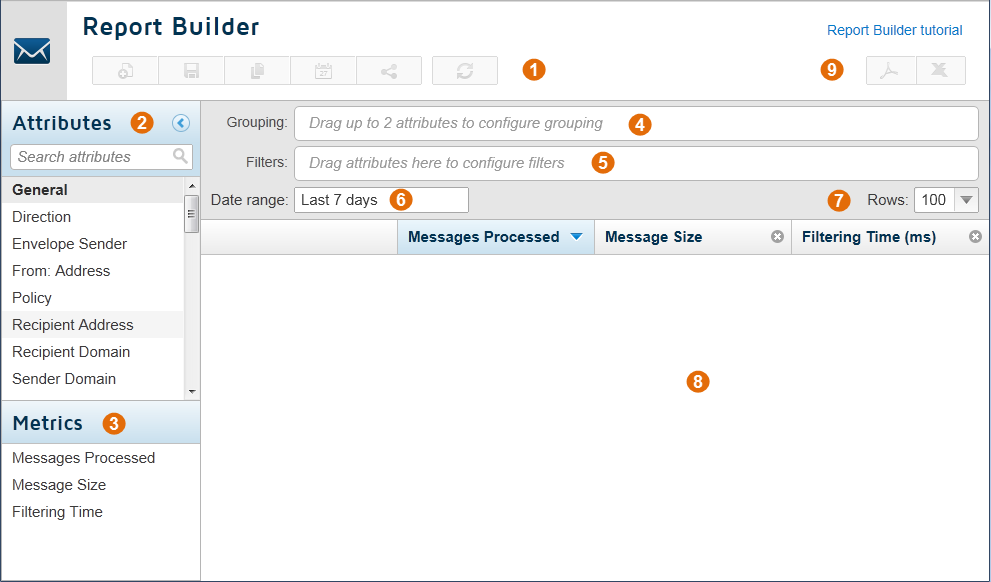
      <div class="B-Body"><a name="720930">The Report Builder has the following elements:</a></div>
      <div class="F-Frame"><a name="720934"><img class="Default" src="images/report_builder.png" width="502" height="294" style="display: block; left: 0.0; top: 0.0" alt="" /></a></div>
      <div class="S-Step_outer" style="margin-left: 0pt">
        <table border="0" cellspacing="0" cellpadding="0" summary="" role="presentation">
          <tr style="vertical-align: baseline">
            <td>
              <div class="S-Step_inner" style="width: 18pt; white-space: nowrap">
                <span class="N_007bWWDefaultRule_007d">1.	</span>
              </div>
            </td>
            <td width="100%">
              <div class="S-Step_inner"><a name="720935">The </a><span class="B-Bold">Toolbar </span>contains buttons for returning to the previous page, starting a new report, and updating the current report.</div>
            </td>
          </tr>
        </table>
      </div>
      <div class="S-Step_outer" style="margin-left: 0pt">
        <table border="0" cellspacing="0" cellpadding="0" summary="" role="presentation">
          <tr style="vertical-align: baseline">
            <td>
              <div class="S-Step_inner" style="width: 18pt; white-space: nowrap">
                <span class="N_007bWWDefaultRule_007d">2.	</span>
              </div>
            </td>
            <td width="100%">
              <div class="S-Step_inner"><a name="720936">The </a><span class="B-Bold">Attributes</span> list contains the data types that you can use to create reports. and are divided into the following sections:</div>
            </td>
          </tr>
        </table>
      </div>
      <div class="B2-Bullet2_outer" style="margin-left: 18pt">
        <table border="0" cellspacing="0" cellpadding="0" summary="" role="presentation">
          <tr style="vertical-align: baseline">
            <td>
              <div class="B2-Bullet2_inner" style="width: 18pt; white-space: nowrap">
                <img src="b2.png" alt="*" border="0" width="8" height="7" />
              </div>
            </td>
            <td width="100%">
              <div class="B2-Bullet2_inner"><a name="720937">General</a></div>
            </td>
          </tr>
        </table>
      </div>
      <div class="B2-Bullet2_outer" style="margin-left: 18pt">
        <table border="0" cellspacing="0" cellpadding="0" summary="" role="presentation">
          <tr style="vertical-align: baseline">
            <td>
              <div class="B2-Bullet2_inner" style="width: 18pt; white-space: nowrap">
                <img src="b2.png" alt="*" border="0" width="8" height="7" />
              </div>
            </td>
            <td width="100%">
              <div class="B2-Bullet2_inner"><a name="720938">Filtering</a></div>
            </td>
          </tr>
        </table>
      </div>
      <div class="B2-Bullet2_outer" style="margin-left: 18pt">
        <table border="0" cellspacing="0" cellpadding="0" summary="" role="presentation">
          <tr style="vertical-align: baseline">
            <td>
              <div class="B2-Bullet2_inner" style="width: 18pt; white-space: nowrap">
                <img src="b2.png" alt="*" border="0" width="8" height="7" />
              </div>
            </td>
            <td width="100%">
              <div class="B2-Bullet2_inner"><a name="720939">IP Address</a></div>
            </td>
          </tr>
        </table>
      </div>
      <div class="B2-Bullet2_outer" style="margin-left: 18pt">
        <table border="0" cellspacing="0" cellpadding="0" summary="" role="presentation">
          <tr style="vertical-align: baseline">
            <td>
              <div class="B2-Bullet2_inner" style="width: 18pt; white-space: nowrap">
                <img src="b2.png" alt="*" border="0" width="8" height="7" />
              </div>
            </td>
            <td width="100%">
              <div class="B2-Bullet2_inner"><a name="720940">Message Content </a></div>
            </td>
          </tr>
        </table>
      </div>
      <div class="B2-Bullet2_outer" style="margin-left: 18pt">
        <table border="0" cellspacing="0" cellpadding="0" summary="" role="presentation">
          <tr style="vertical-align: baseline">
            <td>
              <div class="B2-Bullet2_inner" style="width: 18pt; white-space: nowrap">
                <img src="b2.png" alt="*" border="0" width="8" height="7" />
              </div>
            </td>
            <td width="100%">
              <div class="B2-Bullet2_inner"><a name="720941">Security</a></div>
            </td>
          </tr>
        </table>
      </div>
      <div class="B2-Bullet2_outer" style="margin-left: 18pt">
        <table border="0" cellspacing="0" cellpadding="0" summary="" role="presentation">
          <tr style="vertical-align: baseline">
            <td>
              <div class="B2-Bullet2_inner" style="width: 18pt; white-space: nowrap">
                <img src="b2.png" alt="*" border="0" width="8" height="7" />
              </div>
            </td>
            <td width="100%">
              <div class="B2-Bullet2_inner"><a name="720942">Time</a></div>
            </td>
          </tr>
        </table>
      </div>
      <div class="I-IndentedText"><a name="720943">Use the Search box at the top of the list to filter the Attribute list further. For more information, see </a><span class="LEM-LinkEmphasis"><a href="report_attributes.aspx" title="Report attributes">Report attributes</a></span>.</div>
      <div class="S-Step_outer" style="margin-left: 0pt">
        <table border="0" cellspacing="0" cellpadding="0" summary="" role="presentation">
          <tr style="vertical-align: baseline">
            <td>
              <div class="S-Step_inner" style="width: 18pt; white-space: nowrap">
                <span class="N_007bWWDefaultRule_007d">3.	</span>
              </div>
            </td>
            <td width="100%">
              <div class="S-Step_inner"><a name="720947">The </a><span class="B-Bold">Metrics</span> list contains options that you can add as columns to the report. Drag metrics into and out of the report results area to add them to or remove them from the report. Further advanced metrics are available in the Message Details view.</div>
            </td>
          </tr>
        </table>
      </div>
      <div class="S-Step_outer" style="margin-left: 0pt">
        <table border="0" cellspacing="0" cellpadding="0" summary="" role="presentation">
          <tr style="vertical-align: baseline">
            <td>
              <div class="S-Step_inner" style="width: 18pt; white-space: nowrap">
                <span class="N_007bWWDefaultRule_007d">4.	</span>
              </div>
            </td>
            <td width="100%">
              <div class="S-Step_inner"><a name="720948">The </a><span class="B-Bold">Grouping</span> field can contain up to 2 attributes to define the data grouping that appears in the report. For example, if you drag the Policy attribute followed by the Recipient Address attribute into this field, this creates a summary report on messages by policy, and also displays the data broken down by recipient addresses within those policies. For more information on defining grouping data, see <span class="LEM-LinkEmphasis"><a href="#720968" title="Using the Report Builder">Creating a report</a></span>.</div>
            </td>
          </tr>
        </table>
      </div>
      <div class="S-Step_outer" style="margin-left: 0pt">
        <table border="0" cellspacing="0" cellpadding="0" summary="" role="presentation">
          <tr style="vertical-align: baseline">
            <td>
              <div class="S-Step_inner" style="width: 18pt; white-space: nowrap">
                <span class="N_007bWWDefaultRule_007d">5.	</span>
              </div>
            </td>
            <td width="100%">
              <div class="S-Step_inner"><a name="720952">The </a><span class="B-Bold">Filters</span> field can contain attributes to filter the report results further. For example, you may wish to filter by specific senders, actions, or content types. For more information on defining filters, see <span class="LEM-LinkEmphasis"><a href="#720968" title="Using the Report Builder">Creating a report</a></span>.</div>
            </td>
          </tr>
        </table>
      </div>
      <div class="S-Step_outer" style="margin-left: 0pt">
        <table border="0" cellspacing="0" cellpadding="0" summary="" role="presentation">
          <tr style="vertical-align: baseline">
            <td>
              <div class="S-Step_inner" style="width: 18pt; white-space: nowrap">
                <span class="N_007bWWDefaultRule_007d">6.	</span>
              </div>
            </td>
            <td width="100%">
              <div class="S-Step_inner"><a name="720956">The </a><span class="B-Bold">Date range</span> defines the time period covered by the report. This can be a standard period (between 1 hour and 8 months) or a specific date and time range.</div>
            </td>
          </tr>
        </table>
      </div>
      <div class="S-Step_outer" style="margin-left: 0pt">
        <table border="0" cellspacing="0" cellpadding="0" summary="" role="presentation">
          <tr style="vertical-align: baseline">
            <td>
              <div class="S-Step_inner" style="width: 18pt; white-space: nowrap">
                <span class="N_007bWWDefaultRule_007d">7.	</span>
              </div>
            </td>
            <td width="100%">
              <div class="S-Step_inner"><a name="720957">The </a><span class="B-Bold">display options</span> enable you to select how many rows appear in your report. Once a report has been generated, this section also includes options to page through longer reports, and to display the report results in different table and graph formats. For more information, see <span class="LEM-LinkEmphasis"><a href="#721018" title="Using the Report Builder">Viewing report results</a></span>.</div>
            </td>
          </tr>
        </table>
      </div>
      <div class="S-Step_outer" style="margin-left: 0pt">
        <table border="0" cellspacing="0" cellpadding="0" summary="" role="presentation">
          <tr style="vertical-align: baseline">
            <td>
              <div class="S-Step_inner" style="width: 18pt; white-space: nowrap">
                <span class="N_007bWWDefaultRule_007d">8.	</span>
              </div>
            </td>
            <td width="100%">
              <div class="S-Step_inner"><a name="720961">The </a><span class="B-Bold">report results</span> appear when you click <span class="B-Bold">Update Report</span>, and by default are in a table format. You can choose to display the results in different formats as described above, and to select report elements to drill down further. For more information, see <span class="LEM-LinkEmphasis"><a href="#721064" title="Using the Report Builder">Viewing detailed reports</a></span>.</div>
            </td>
          </tr>
        </table>
      </div>
      <div class="S-Step_outer" style="margin-left: 0pt">
        <table border="0" cellspacing="0" cellpadding="0" summary="" role="presentation">
          <tr style="vertical-align: baseline">
            <td>
              <div class="S-Step_inner" style="width: 18pt; white-space: nowrap">
                <span class="N_007bWWDefaultRule_007d">9.	</span>
              </div>
            </td>
            <td width="100%">
              <div class="S-Step_inner"><a name="720965">You can choose to export report results in PDF or CSV format. </a></div>
            </td>
          </tr>
        </table>
      </div>
      <div class="N1H-Heading1"><a name="720968">Creating a report</a></div>
      <div class="B-Body"><a name="720969">To create a report:</a></div>
      <div class="S-Step_outer" style="margin-left: 0pt">
        <table border="0" cellspacing="0" cellpadding="0" summary="" role="presentation">
          <tr style="vertical-align: baseline">
            <td>
              <div class="S-Step_inner" style="width: 18pt; white-space: nowrap">
                <span class="N_007bWWDefaultRule_007d">1.	</span>
              </div>
            </td>
            <td width="100%">
              <div class="S-Step_inner"><a name="720970">Drag up to 2 attributes from the Attributes list to the Grouping field.</a></div>
            </td>
          </tr>
        </table>
      </div>
      <div class="B2-Bullet2_outer" style="margin-left: 18pt">
        <table border="0" cellspacing="0" cellpadding="0" summary="" role="presentation">
          <tr style="vertical-align: baseline">
            <td>
              <div class="B2-Bullet2_inner" style="width: 18pt; white-space: nowrap">
                <img src="b2.png" alt="*" border="0" width="8" height="7" />
              </div>
            </td>
            <td width="100%">
              <div class="B2-Bullet2_inner"><a name="720971">The Report Builder does not allow you to add more than 2 attributes, nor can you add the same attribute more than once.</a></div>
            </td>
          </tr>
        </table>
      </div>
      <div class="B2-Bullet2_outer" style="margin-left: 18pt">
        <table border="0" cellspacing="0" cellpadding="0" summary="" role="presentation">
          <tr style="vertical-align: baseline">
            <td>
              <div class="B2-Bullet2_inner" style="width: 18pt; white-space: nowrap">
                <img src="b2.png" alt="*" border="0" width="8" height="7" />
              </div>
            </td>
            <td width="100%">
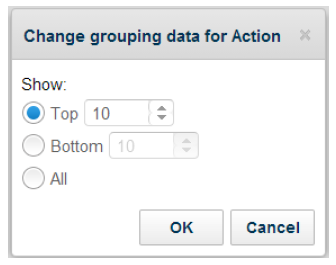
              <div class="B2-Bullet2_inner"><a name="720972">By default, the report shows the top 10 matches by number of hits. Click an attribute box in the Grouping field to change the grouping data to show a specified number of top results, a specified number of bottom results, or all results. </a></div>
            </td>
          </tr>
        </table>
      </div>
      <div class="F-Frame"><a name="720976"><img class="Default" src="images/change_grouping.png" width="282" height="222" style="display: block; left: 0.0; top: 0.0" alt="" /></a></div>
      <div class="F-Frame"><a name="720983">&nbsp;</a></div>
      <table class="NoteTable" style="text-align: left" cellspacing="0" summary="">
        <caption></caption>
        <tr>
          <td style="border-bottom-color: #000000; border-bottom-style: solid; border-bottom-width: 0.25pt; border-top-color: #000000; border-top-style: solid; border-top-width: 0.25pt; padding-bottom: 3.5pt; padding-left: 4pt; padding-right: 4pt; padding-top: 4.5pt; vertical-align: top">
            <div class="NI-NoteIcon">
              <img src="note.gif" alt="*" border="0" width="33" height="33" /><a name="720979">&nbsp;</a></div>
          </td>
          <td style="border-bottom-color: #000000; border-bottom-style: solid; border-bottom-width: 0.25pt; border-top-color: #000000; border-top-style: solid; border-top-width: 0.25pt; padding-bottom: 3.5pt; padding-left: 4pt; padding-right: 4pt; padding-top: 4.5pt; vertical-align: top">
            <div class="N-Note">Note<a name="720981">&nbsp;</a></div>
            <div class="NT-NoteText"><a name="720982">Choosing to view all results may mean the report takes a long time to generate.</a></div>
          </td>
        </tr>
      </table>
      <div class="B2-Bullet2_outer" style="margin-left: 18pt">
        <table border="0" cellspacing="0" cellpadding="0" summary="" role="presentation">
          <tr style="vertical-align: baseline">
            <td>
              <div class="B2-Bullet2_inner" style="width: 18pt; white-space: nowrap">
                <img src="b2.png" alt="*" border="0" width="8" height="7" />
              </div>
            </td>
            <td width="100%">
              <div class="B2-Bullet2_inner"><a name="720984">To remove an attribute from the Grouping field, click the cross icon on the attribute box.</a></div>
            </td>
          </tr>
        </table>
      </div>
      <div class="S-Step_outer" style="margin-left: 0pt">
        <table border="0" cellspacing="0" cellpadding="0" summary="" role="presentation">
          <tr style="vertical-align: baseline">
            <td>
              <div class="S-Step_inner" style="width: 18pt; white-space: nowrap">
                <span class="N_007bWWDefaultRule_007d">2.	</span>
              </div>
            </td>
            <td width="100%">
              <div class="S-Step_inner"><a name="720985">To add filters to the report, drag an attribute to the Filters field.</a></div>
            </td>
          </tr>
        </table>
      </div>
      <div class="SA-StepAlpha_outer" style="margin-left: 18pt">
        <table border="0" cellspacing="0" cellpadding="0" summary="" role="presentation">
          <tr style="vertical-align: baseline">
            <td>
              <div class="SA-StepAlpha_inner" style="width: 18pt; white-space: nowrap">
                <span class="N_007bWWDefaultRule_007d">a.	</span>
              </div>
            </td>
            <td width="100%">
              <div class="SA-StepAlpha_inner"><a name="720986">On the popup that appears, use the drop-down list to define how the filter handles the values that you specify. The options available depend on the attribute that you have selected. For example, you may be able to include or exclude values, or state that search terms equal or do not equal your text.</a></div>
            </td>
          </tr>
        </table>
      </div>
      <div class="SA-StepAlpha_outer" style="margin-left: 18pt">
        <table border="0" cellspacing="0" cellpadding="0" summary="" role="presentation">
          <tr style="vertical-align: baseline">
            <td>
              <div class="SA-StepAlpha_inner" style="width: 18pt; white-space: nowrap">
                <span class="N_007bWWDefaultRule_007d">b.	</span>
              </div>
            </td>
            <td width="100%">
              <div class="SA-StepAlpha_inner"><a name="720987">Enter or select the search term or value(s) that you wish to filter on. Depending on the filter, you can:</a></div>
            </td>
          </tr>
        </table>
      </div>
      <div class="B3-Bullet3_outer" style="margin-left: 36pt">
        <table border="0" cellspacing="0" cellpadding="0" summary="" role="presentation">
          <tr style="vertical-align: baseline">
            <td>
              <div class="B3-Bullet3_inner" style="width: 18pt; white-space: nowrap">
                <img src="b3.png" alt="*" border="0" width="7" height="7" />
              </div>
            </td>
            <td width="100%">
              <div class="B3-Bullet3_inner"><a name="720988">Select one or more check boxes</a></div>
            </td>
          </tr>
        </table>
      </div>
      <div class="B3-Bullet3_outer" style="margin-left: 36pt">
        <table border="0" cellspacing="0" cellpadding="0" summary="" role="presentation">
          <tr style="vertical-align: baseline">
            <td>
              <div class="B3-Bullet3_inner" style="width: 18pt; white-space: nowrap">
                <img src="b3.png" alt="*" border="0" width="7" height="7" />
              </div>
            </td>
            <td width="100%">
              <div class="B3-Bullet3_inner"><a name="720989">Start typing text that will autocomplete based on data in the system</a></div>
            </td>
          </tr>
        </table>
      </div>
      <div class="B3-Bullet3_outer" style="margin-left: 36pt">
        <table border="0" cellspacing="0" cellpadding="0" summary="" role="presentation">
          <tr style="vertical-align: baseline">
            <td>
              <div class="B3-Bullet3_inner" style="width: 18pt; white-space: nowrap">
                <img src="b3.png" alt="*" border="0" width="7" height="7" />
              </div>
            </td>
            <td width="100%">
              <div class="B3-Bullet3_inner"><a name="720990">Enter the exact text that you want to use</a></div>
            </td>
          </tr>
        </table>
      </div>
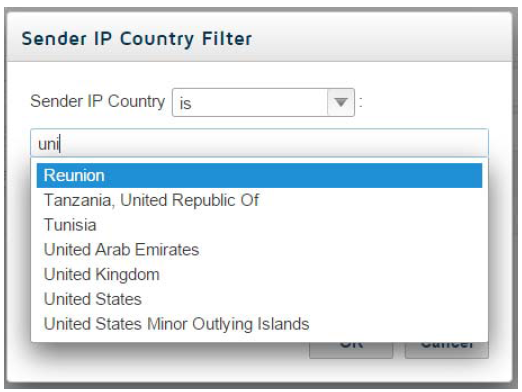
      <div class="I2-IndentedText2"><a name="720991">For filters where you are including or excluding values already stored in the system, start typing to see a list of potential matches:</a></div>
      <div class="F-Frame"><a name="720995"><img class="Default" src="images/country_filter.png" width="452" height="339" style="display: block; left: 0.0; top: 0.0" alt="" /></a></div>
      <div class="I2-IndentedText2"><a name="720996">Select the option you want from the list. You can add multiple values to the filter.</a></div>
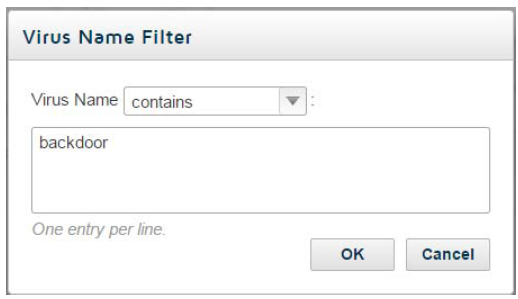
      <div class="I2-IndentedText2"><a name="720997">For filters where you enter free text, enter the terms you want on separate lines:</a></div>
      <div class="F-Frame"><a name="721001"><img class="Default" src="images/virus_name_filter.png" width="448" height="259" style="display: block; left: 0.0; top: 0.0" alt="" /></a></div>
      <div class="SA2-StepAlpha2_outer" style="margin-left: 36pt">
        <table border="0" cellspacing="0" cellpadding="0" summary="" role="presentation">
          <tr style="vertical-align: baseline">
            <td>
              <div class="SA2-StepAlpha2_inner" style="width: 18pt; white-space: nowrap">
                <span class="N_007bWWDefaultRule_007d">c.	</span>
              </div>
            </td>
            <td width="100%">
              <div class="SA2-StepAlpha2_inner"><a name="721002">Click </a><span class="B-Bold">OK</span> when done.</div>
            </td>
          </tr>
        </table>
      </div>
      <div class="I-IndentedText"><a name="721003">To edit a filter, click its attribute box. To remove an attribute from the Filters field, click the cross icon on the attribute box.</a></div>
      <div class="S-Step_outer" style="margin-left: 0pt">
        <table border="0" cellspacing="0" cellpadding="0" summary="" role="presentation">
          <tr style="vertical-align: baseline">
            <td>
              <div class="S-Step_inner" style="width: 18pt; white-space: nowrap">
                <span class="N_007bWWDefaultRule_007d">3.	</span>
              </div>
            </td>
            <td width="100%">
              <div class="S-Step_inner"><a name="721004">Click in the Date range field to define the report period.</a></div>
            </td>
          </tr>
        </table>
      </div>
      <div class="B2-Bullet2_outer" style="margin-left: 18pt">
        <table border="0" cellspacing="0" cellpadding="0" summary="" role="presentation">
          <tr style="vertical-align: baseline">
            <td>
              <div class="B2-Bullet2_inner" style="width: 18pt; white-space: nowrap">
                <img src="b2.png" alt="*" border="0" width="8" height="7" />
              </div>
            </td>
            <td width="100%">
              <div class="B2-Bullet2_inner"><a name="721005">To specify a set period in hours, days, or months, select an option from the </a><span class="B-Bold">Last </span>drop-down list.</div>
            </td>
          </tr>
        </table>
      </div>
      <div class="B2-Bullet2_outer" style="margin-left: 18pt">
        <table border="0" cellspacing="0" cellpadding="0" summary="" role="presentation">
          <tr style="vertical-align: baseline">
            <td>
              <div class="B2-Bullet2_inner" style="width: 18pt; white-space: nowrap">
                <img src="b2.png" alt="*" border="0" width="8" height="7" />
              </div>
            </td>
            <td width="100%">
              <div class="B2-Bullet2_inner"><a name="721006">To specify a particular date range, select the </a><span class="B-Bold">From</span> radio button and use the calendars to choose the required dates. Date ranges include the whole 24-hour period, unless you mark <span class="B-Bold">Specify start and end time</span> to enable and edit the times for the report as well as the dates.</div>
            </td>
          </tr>
        </table>
      </div>
      <div class="I-IndentedText"><a name="721007">Click </a><span class="B-Bold">Done</span> when you are finished.</div>
      <div class="S-Step_outer" style="margin-left: 0pt">
        <table border="0" cellspacing="0" cellpadding="0" summary="" role="presentation">
          <tr style="vertical-align: baseline">
            <td>
              <div class="S-Step_inner" style="width: 18pt; white-space: nowrap">
                <span class="N_007bWWDefaultRule_007d">4.	</span>
              </div>
            </td>
            <td width="100%">
              <div class="S-Step_inner"><a name="721008">Click the Update Report button to generate the report. </a></div>
            </td>
          </tr>
        </table>
      </div>
      <div class="F-Frame"><a name="721015">&nbsp;</a></div>
      <table class="NoteTable" style="text-align: left" cellspacing="0" summary="">
        <caption></caption>
        <tr>
          <td style="border-bottom-color: #000000; border-bottom-style: solid; border-bottom-width: 0.25pt; border-top-color: #000000; border-top-style: solid; border-top-width: 0.25pt; padding-bottom: 3.5pt; padding-left: 4pt; padding-right: 4pt; padding-top: 4.5pt; vertical-align: top">
            <div class="NI-NoteIcon">
              <img src="note.gif" alt="*" border="0" width="33" height="33" /><a name="721011">&nbsp;</a></div>
          </td>
          <td style="border-bottom-color: #000000; border-bottom-style: solid; border-bottom-width: 0.25pt; border-top-color: #000000; border-top-style: solid; border-top-width: 0.25pt; padding-bottom: 3.5pt; padding-left: 4pt; padding-right: 4pt; padding-top: 4.5pt; vertical-align: top">
            <div class="N-Note">Note<a name="721013">&nbsp;</a></div>
            <div class="NT-NoteText"><a name="721014">The Update Report button turns yellow when you enter or change valid report content, signifying that you can generate a report with the selected criteria.</a></div>
          </td>
        </tr>
      </table>
      <div class="N1H-Heading1"><a name="721018">Viewing report results</a></div>
      <div class="B-Body"><a name="721019">Your report results are initially shown as a table, with a column for the grouping and filters you selected, and a column for each of the selected metrics. Use the arrows next to each first-level attribute to expand or collapse the second-level attribute content below it.</a></div>
      <div class="B-Body"><a name="721020">Use the options in the toolbar to define how you display and navigate through report results:</a></div>
      <table class="InvisibleTable" style="text-align: left" cellspacing="0" summary="">
        <caption></caption>
        <tr>
          <td style="padding-bottom: 2pt; padding-left: 0pt; padding-right: 6pt; padding-top: 3pt; vertical-align: top">
            <div class="CB-CellBody"><a name="721026"><img class="Default" src="images/rows.png" width="142" height="48" style="display: inline; left: 0.0; top: 0.0" alt="" /></a></div>
          </td>
          <td style="padding-bottom: 2pt; padding-left: 0pt; padding-right: 6pt; padding-top: 3pt; vertical-align: top">
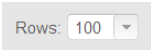
            <div class="CB-CellBody"><a name="721028">Select the number of rows to see on each page. The default is 100 rows; you can also select 50, 150, or 200 rows.</a></div>
          </td>
        </tr>
        <tr>
          <td style="padding-bottom: 2pt; padding-left: 0pt; padding-right: 6pt; padding-top: 3pt; vertical-align: top">
            <div class="CB-CellBody"><a name="721033"><img class="Default" src="images/ces_2016_rn.1.21.6.jpg" width="219" height="54" style="display: inline; left: 0.0; top: 0.0" alt="" /></a></div>
          </td>
          <td style="padding-bottom: 2pt; padding-left: 0pt; padding-right: 6pt; padding-top: 3pt; vertical-align: top">
            <div class="CB-CellBody"><a name="721035">Use the arrow keys to page through longer reports, and quickly navigate to the first or last page.</a></div>
          </td>
        </tr>
        <tr>
          <td style="padding-bottom: 2pt; padding-left: 0pt; padding-right: 6pt; padding-top: 3pt; vertical-align: top">
            <div class="CB-CellBody"><a name="721040"><img class="Default" src="images/chart.png" width="220" height="51" style="display: inline; left: 0.0; top: 0.0" alt="" /></a></div>
          </td>
          <td style="padding-bottom: 2pt; padding-left: 0pt; padding-right: 6pt; padding-top: 3pt; vertical-align: top">
            <div class="CB-CellBody"><a name="721042">View the report results as one of the following:</a></div>
            <div class="CL-CellBullet_outer" style="margin-left: 0pt">
              <table border="0" cellspacing="0" cellpadding="0" summary="" role="presentation">
                <tr style="vertical-align: baseline">
                  <td>
                    <div class="CL-CellBullet_inner" style="width: 11.70576pt; white-space: nowrap">
                      <img src="b1.png" alt="*" border="0" width="8" height="8" />
                    </div>
                  </td>
                  <td width="100%">
                    <div class="CL-CellBullet_inner"><a name="721043">column chart</a></div>
                  </td>
                </tr>
              </table>
            </div>
            <div class="CL-CellBullet_outer" style="margin-left: 0pt">
              <table border="0" cellspacing="0" cellpadding="0" summary="" role="presentation">
                <tr style="vertical-align: baseline">
                  <td>
                    <div class="CL-CellBullet_inner" style="width: 11.70576pt; white-space: nowrap">
                      <img src="b1.png" alt="*" border="0" width="8" height="8" />
                    </div>
                  </td>
                  <td width="100%">
                    <div class="CL-CellBullet_inner"><a name="721044">bar chart</a></div>
                  </td>
                </tr>
              </table>
            </div>
            <div class="CL-CellBullet_outer" style="margin-left: 0pt">
              <table border="0" cellspacing="0" cellpadding="0" summary="" role="presentation">
                <tr style="vertical-align: baseline">
                  <td>
                    <div class="CL-CellBullet_inner" style="width: 11.70576pt; white-space: nowrap">
                      <img src="b1.png" alt="*" border="0" width="8" height="8" />
                    </div>
                  </td>
                  <td width="100%">
                    <div class="CL-CellBullet_inner"><a name="721045">pie chart</a></div>
                  </td>
                </tr>
              </table>
            </div>
            <div class="CL-CellBullet_outer" style="margin-left: 0pt">
              <table border="0" cellspacing="0" cellpadding="0" summary="" role="presentation">
                <tr style="vertical-align: baseline">
                  <td>
                    <div class="CL-CellBullet_inner" style="width: 11.70576pt; white-space: nowrap">
                      <img src="b1.png" alt="*" border="0" width="8" height="8" />
                    </div>
                  </td>
                  <td width="100%">
                    <div class="CL-CellBullet_inner"><a name="721046">line chart</a></div>
                  </td>
                </tr>
              </table>
            </div>
            <div class="CL-CellBullet_outer" style="margin-left: 0pt">
              <table border="0" cellspacing="0" cellpadding="0" summary="" role="presentation">
                <tr style="vertical-align: baseline">
                  <td>
                    <div class="CL-CellBullet_inner" style="width: 11.70576pt; white-space: nowrap">
                      <img src="b1.png" alt="*" border="0" width="8" height="8" />
                    </div>
                  </td>
                  <td width="100%">
                    <div class="CL-CellBullet_inner"><a name="721047">area chart</a></div>
                  </td>
                </tr>
              </table>
            </div>
            <div class="CB-CellBody"><a name="721048">Hover the mouse over an item in a chart to see more information, for example a percentage or a number of hits.</a></div>
            <div class="CB-CellBody"><a name="721049">All of these charts are available for a single-level grouping report. For grouping reports with 2 attributes, only column and bar charts are available.</a></div>
          </td>
        </tr>
      </table>
      <div class="B-Body"><a name="721050">Each item in the report has a check box. Select one or more check boxes to open a popup window that enables you to:</a></div>
      <div class="B1-Bullet1_outer" style="margin-left: 0pt">
        <table border="0" cellspacing="0" cellpadding="0" summary="" role="presentation">
          <tr style="vertical-align: baseline">
            <td>
              <div class="B1-Bullet1_inner" style="width: 18pt; white-space: nowrap">
                <img src="b1.png" alt="*" border="0" width="8" height="8" />
              </div>
            </td>
            <td width="100%">
              <div class="B1-Bullet1_inner"><a name="721054">Drill down into more detailed information. See </a><span class="LEM-LinkEmphasis"><a href="#721068" title="Using the Report Builder">Drilling into report items</a></span>.</div>
            </td>
          </tr>
        </table>
      </div>
      <div class="B1-Bullet1_outer" style="margin-left: 0pt">
        <table border="0" cellspacing="0" cellpadding="0" summary="" role="presentation">
          <tr style="vertical-align: baseline">
            <td>
              <div class="B1-Bullet1_inner" style="width: 18pt; white-space: nowrap">
                <img src="b1.png" alt="*" border="0" width="8" height="8" />
              </div>
            </td>
            <td width="100%">
              <div class="B1-Bullet1_inner"><a name="721055">Show only the report items you have selected</a></div>
            </td>
          </tr>
        </table>
      </div>
      <div class="B1-Bullet1_outer" style="margin-left: 0pt">
        <table border="0" cellspacing="0" cellpadding="0" summary="" role="presentation">
          <tr style="vertical-align: baseline">
            <td>
              <div class="B1-Bullet1_inner" style="width: 18pt; white-space: nowrap">
                <img src="b1.png" alt="*" border="0" width="8" height="8" />
              </div>
            </td>
            <td width="100%">
              <div class="B1-Bullet1_inner"><a name="721056">Filter out the report items you have selected</a></div>
            </td>
          </tr>
        </table>
      </div>
      <div class="B1-Bullet1_outer" style="margin-left: 0pt">
        <table border="0" cellspacing="0" cellpadding="0" summary="" role="presentation">
          <tr style="vertical-align: baseline">
            <td>
              <div class="B1-Bullet1_inner" style="width: 18pt; white-space: nowrap">
                <img src="b1.png" alt="*" border="0" width="8" height="8" />
              </div>
            </td>
            <td width="100%">
              <div class="B1-Bullet1_inner"><a name="721060">View message details for the items you have selected. See </a><span class="LEM-LinkEmphasis"><a href="#721078" title="Using the Report Builder">Message Details</a></span>.</div>
            </td>
          </tr>
        </table>
      </div>
      <div class="B1-Bullet1_outer" style="margin-left: 0pt">
        <table border="0" cellspacing="0" cellpadding="0" summary="" role="presentation">
          <tr style="vertical-align: baseline">
            <td>
              <div class="B1-Bullet1_inner" style="width: 18pt; white-space: nowrap">
                <img src="b1.png" alt="*" border="0" width="8" height="8" />
              </div>
            </td>
            <td width="100%">
              <div class="B1-Bullet1_inner"><a name="721061">Cancel any selections you have made.</a></div>
            </td>
          </tr>
        </table>
      </div>
      <div class="N1H-Heading1"><a name="721064">Viewing detailed reports</a></div>
      <div class="B-Body"><a name="721065">You can use grouping reports as a starting point for accessing more detailed information about web activity, either by drilling down into a particular aspect of a report, or using the Message Center to see further information about a report item.</a></div>
      <div class="N2H-Heading2">
        <span class="Heading_Number"></span><a name="721068">Drilling into report items</a></div>
      <div class="B-Body"><a name="721069">To drill down into a report item:</a></div>
      <div class="S-Step_outer" style="margin-left: 0pt">
        <table border="0" cellspacing="0" cellpadding="0" summary="" role="presentation">
          <tr style="vertical-align: baseline">
            <td>
              <div class="S-Step_inner" style="width: 18pt; white-space: nowrap">
                <span class="N_007bWWDefaultRule_007d">1.	</span>
              </div>
            </td>
            <td width="100%">
              <div class="S-Step_inner"><a name="721070">Mark the check box next to each item you wish to drill down into. </a></div>
            </td>
          </tr>
        </table>
      </div>
      <div class="I-IndentedText"><a name="721071">You can select multiple items and change your selections, even after the popup window appears.</a></div>
      <div class="S-Step_outer" style="margin-left: 0pt">
        <table border="0" cellspacing="0" cellpadding="0" summary="" role="presentation">
          <tr style="vertical-align: baseline">
            <td>
              <div class="S-Step_inner" style="width: 18pt; white-space: nowrap">
                <span class="N_007bWWDefaultRule_007d">2.	</span>
              </div>
            </td>
            <td width="100%">
              <div class="S-Step_inner"><a name="721072">In the popup window, select an available attribute from the Drill Into By the drop-down list. For example, if you have selected one or more categories from the grouping report, you may wish to see the users who have been accessing sites in those categories.</a></div>
            </td>
          </tr>
        </table>
      </div>
      <div class="S-Step_outer" style="margin-left: 0pt">
        <table border="0" cellspacing="0" cellpadding="0" summary="" role="presentation">
          <tr style="vertical-align: baseline">
            <td>
              <div class="S-Step_inner" style="width: 18pt; white-space: nowrap">
                <span class="N_007bWWDefaultRule_007d">3.	</span>
              </div>
            </td>
            <td width="100%">
              <div class="S-Step_inner"><a name="721073">The new report loads. Note that as you have moved down a level in the report, the item(s) you selected in step 1 are now in the Filters field, while the Grouping field contains the other report attributes, including the one you selected in step 2. </a></div>
            </td>
          </tr>
        </table>
      </div>
      <div class="I-IndentedText"><a name="721074">You can edit the content of the Grouping and Filters fields, and view the report in different formats, in exactly the same way as for the previous report.</a></div>
      <div class="S-Step_outer" style="margin-left: 0pt">
        <table border="0" cellspacing="0" cellpadding="0" summary="" role="presentation">
          <tr style="vertical-align: baseline">
            <td>
              <div class="S-Step_inner" style="width: 18pt; white-space: nowrap">
                <span class="N_007bWWDefaultRule_007d">4.	</span>
              </div>
            </td>
            <td width="100%">
              <div class="S-Step_inner"><a name="721075">To drill down a further level, repeat steps 1-3 above. </a></div>
            </td>
          </tr>
        </table>
      </div>
      <div class="N2H-Heading2">
        <span class="Heading_Number"></span><a name="721078">Message Details</a></div>
      <div class="B-Body"><a name="721079">The Message Details view is available for report items at all levels. To see the details for one or more report items:</a></div>
      <div class="S-Step_outer" style="margin-left: 0pt">
        <table border="0" cellspacing="0" cellpadding="0" summary="" role="presentation">
          <tr style="vertical-align: baseline">
            <td>
              <div class="S-Step_inner" style="width: 18pt; white-space: nowrap">
                <span class="N_007bWWDefaultRule_007d">1.	</span>
              </div>
            </td>
            <td width="100%">
              <div class="S-Step_inner"><a name="721080">Mark the check box next to each item you wish to view. </a></div>
            </td>
          </tr>
        </table>
      </div>
      <div class="I-IndentedText"><a name="721081">You can select multiple items and change your selections, even after the popup window appears.</a></div>
      <div class="S-Step_outer" style="margin-left: 0pt">
        <table border="0" cellspacing="0" cellpadding="0" summary="" role="presentation">
          <tr style="vertical-align: baseline">
            <td>
              <div class="S-Step_inner" style="width: 18pt; white-space: nowrap">
                <span class="N_007bWWDefaultRule_007d">2.	</span>
              </div>
            </td>
            <td width="100%">
              <div class="S-Step_inner"><a name="721082">In the popup window, select </a><span class="B-Bold">View Transactions</span>.</div>
            </td>
          </tr>
        </table>
      </div>
      <div class="B-Body"><a name="721083">The Message Center loads, listing details for each message within the report item(s) you selected.</a></div>
      <div class="B-Body"><a name="721084">In the Message Center, you can:</a></div>
      <div class="B1-Bullet1_outer" style="margin-left: 0pt">
        <table border="0" cellspacing="0" cellpadding="0" summary="" role="presentation">
          <tr style="vertical-align: baseline">
            <td>
              <div class="B1-Bullet1_inner" style="width: 18pt; white-space: nowrap">
                <img src="b1.png" alt="*" border="0" width="8" height="8" />
              </div>
            </td>
            <td width="100%">
              <div class="B1-Bullet1_inner"><a name="721085">Edit the filters and date range for the messages you wish to see.</a></div>
            </td>
          </tr>
        </table>
      </div>
      <div class="B1-Bullet1_outer" style="margin-left: 0pt">
        <table border="0" cellspacing="0" cellpadding="0" summary="" role="presentation">
          <tr style="vertical-align: baseline">
            <td>
              <div class="B1-Bullet1_inner" style="width: 18pt; white-space: nowrap">
                <img src="b1.png" alt="*" border="0" width="8" height="8" />
              </div>
            </td>
            <td width="100%">
              <div class="B1-Bullet1_inner"><a name="721086">Select the columns to display from the </a><span class="B-Bold">Columns</span> drop-down. Click <span class="B-Bold">Done</span> when you have made your selections. </div>
            </td>
          </tr>
        </table>
      </div>
      <div class="B1-Bullet1_outer" style="margin-left: 0pt">
        <table border="0" cellspacing="0" cellpadding="0" summary="" role="presentation">
          <tr style="vertical-align: baseline">
            <td>
              <div class="B1-Bullet1_inner" style="width: 18pt; white-space: nowrap">
                <img src="b1.png" alt="*" border="0" width="8" height="8" />
              </div>
            </td>
            <td width="100%">
              <div class="B1-Bullet1_inner"><a name="721087">Click a column heading to make it the active column for sorting transactions. Click again to switch between ascending and descending order.</a></div>
            </td>
          </tr>
        </table>
      </div>
      <div class="B1-Bullet1_outer" style="margin-left: 0pt">
        <table border="0" cellspacing="0" cellpadding="0" summary="" role="presentation">
          <tr style="vertical-align: baseline">
            <td>
              <div class="B1-Bullet1_inner" style="width: 18pt; white-space: nowrap">
                <img src="b1.png" alt="*" border="0" width="8" height="8" />
              </div>
            </td>
            <td width="100%">
              <div class="B1-Bullet1_inner"><a name="721088">Delete columns by clicking the X icon in a column heading. Note that you cannot delete the current active column.</a></div>
            </td>
          </tr>
        </table>
      </div>
      <div class="B1-Bullet1_outer" style="margin-left: 0pt">
        <table border="0" cellspacing="0" cellpadding="0" summary="" role="presentation">
          <tr style="vertical-align: baseline">
            <td>
              <div class="B1-Bullet1_inner" style="width: 18pt; white-space: nowrap">
                <img src="b1.png" alt="*" border="0" width="8" height="8" />
              </div>
            </td>
            <td width="100%">
              <div class="B1-Bullet1_inner"><a name="721089">Drag metrics from the left-hand pane into the Filters field.</a></div>
            </td>
          </tr>
        </table>
      </div>
      <div class="B1-Bullet1_outer" style="margin-left: 0pt">
        <table border="0" cellspacing="0" cellpadding="0" summary="" role="presentation">
          <tr style="vertical-align: baseline">
            <td>
              <div class="B1-Bullet1_inner" style="width: 18pt; white-space: nowrap">
                <img src="b1.png" alt="*" border="0" width="8" height="8" />
              </div>
            </td>
            <td width="100%">
              <div class="B1-Bullet1_inner"><a name="721090">Enable Detail View to see more detail for the selected message. The Message Details pane opens at the bottom of the page, and displays the timestamp, sender address, recipient address, direction, action, and filtering reason of the message.</a></div>
            </td>
          </tr>
        </table>
      </div>
      <div class="B1-Bullet1_outer" style="margin-left: 0pt">
        <table border="0" cellspacing="0" cellpadding="0" summary="" role="presentation">
          <tr style="vertical-align: baseline">
            <td>
              <div class="B1-Bullet1_inner" style="width: 18pt; white-space: nowrap">
                <img src="b1.png" alt="*" border="0" width="8" height="8" />
              </div>
            </td>
            <td width="100%">
              <div class="B1-Bullet1_inner"><a name="721091">Export message details to PDF or CSV format. Either select one or more messages and then click </a><span class="B-Bold">Export to PDF</span> or <span class="B-Bold">Export to CSV</span> in the popup window that is displayed, or click the PDF or CSV icon in the top right to export all messages on the page.</div>
            </td>
          </tr>
        </table>
      </div>
    </div>
    <!--googleoff: all-->
    <div class="library_search">
      <form class="support_search" action="/content/kb-search.aspx" method="get">
        <label></label>
        <label></label>
        <input type="text" name="q" value=" Search Support" onfocus="if (this.value == ' Search eSupport') {this.value = '';}" onblur="if (this.value == '') {this.value = ' Search eSupport';}"></input>
        <input type="submit" value=" "></input>
      </form>
    </div>
    <br class="clear" />
    <!-- Navigation bar at the bottom of the page -->
    <div class="TL_nav" style="text-align: left;">
      <table cellspacing="0" class="toolBarTable" summary="">
        <!-- End New Navigation DIV -->
        <tr>
          <td>
            <!-- New Go To TOC -->
            <a href="toc.aspx"><img src="images/toc.png" alt="Go to the table of contents" border="0" /></a>
            <!-- End Go To TOC -->
          </td>
          <td>
            <!-- New Previous -->
            <a href="folder_delete.aspx"><img src="images/prev.png" alt="Go to the previous page" border="0" /></a>
            <!-- End New Previous -->
          </td>
          <td>
            <!-- New Next (Active) -->
            <a href="report_attributes.aspx"><img src="images/next.png" alt="Go to the next page" border="0" /></a>
            <!-- End New Next (Active) -->
          </td>
          <td>
            <!-- New PDF -->
            <a href="ces_2016_rn.pdf"><img src="images/pdf.png" alt="View or print as PDF" border="0" /></a>
            <!-- End New PDF -->
          </td>
          <!--Start JR breadcrumbs -->
          <td width="20px"></td>
          <td>
            <div class="WebWorks_Breadcrumbs" style="text-align: left;">
              <a class="WebWorks_Breadcrumb_Link" href="first_7.aspx">Release Notes for TRITON AP-EMAIL Cloud Reporting</a> : Using the Report Builder</div>
          </td>
          <!--End JR breadcrumbs -->
        </tr>
      </table>
    </div>
    <div class="extFooterContainer">
      <div class="extFooter">
        <div align="center">Copyright 2018 Forcepoint. All rights reserved.</div>
      </div>
    </div>
    <SCRIPT>
   function getFileName() {
      //this gets the full url
      var url = document.location.href;
      //this removes the anchor at the end, if there is one
      url = url.substring(0, (url.indexOf("#") == -1) ? url.length : url.indexOf("#"));
      //this removes the query after the file name, if there is one
      url = url.substring(0, (url.indexOf("?") == -1) ? url.length : url.indexOf("?"));
      //this removes everything before the last slash in the path
      url = url.substring(url.lastIndexOf("/") + 1, url.length);
      //return
      return url;
   }

   var url = document.URL;
   var Docname = getFileName()
   s.pageName = "enu:support:technical library:unique_identifier:ces_2016_rn" + Docname;
   s.prop1 = "enu:support";
   s.prop2 = "enu:support:technical library";
   s.channel = "support";
   // <!--
   s.server = "<%= System.Environment.MachineName %>";
   //--></SCRIPT>
    <script language="javascript1.1" type="text/javascript">
   /********Do Not alter below this line ***********/
   var s_code = s.t(); if (s_code) document.write(s_code)
   //--&gt;</script>
  </body>
  <!--"GENERALQUARTERSALLHANDSMANYOURSTATIONS"-->
</html>