Scenario 1
- Allow with Justification: Selected
- New Document
- ML Suggestion Disabled
- ML Accuracy Threshold - Ignore
|
The user should be able to classify using any classification level. The Justification field is not displayed, even when the user has applied a tag and later selects a lower tag for a new
document.
|
Scenario 2
- Allow with Justification: Selected
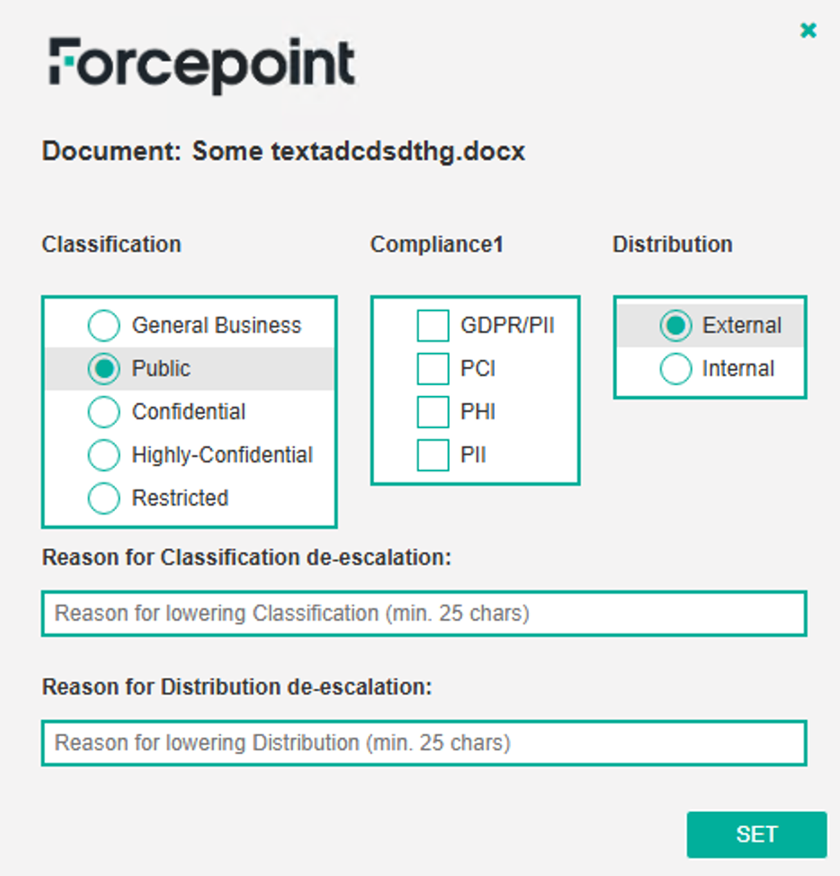
- Classified Document:
- Classification set as Highly Confidential
- Distribution set as Internal
- ML Suggestion Disabled
- ML Accuracy Threshold - Ignore
|
-
The user should be able to classify higher than Highly Confidential/Internal without any justification.
-
However, if the user wants to lower the classification, they should provide a reason in the text box provided.
|
Scenario 3
- Allow with Justification: Selected
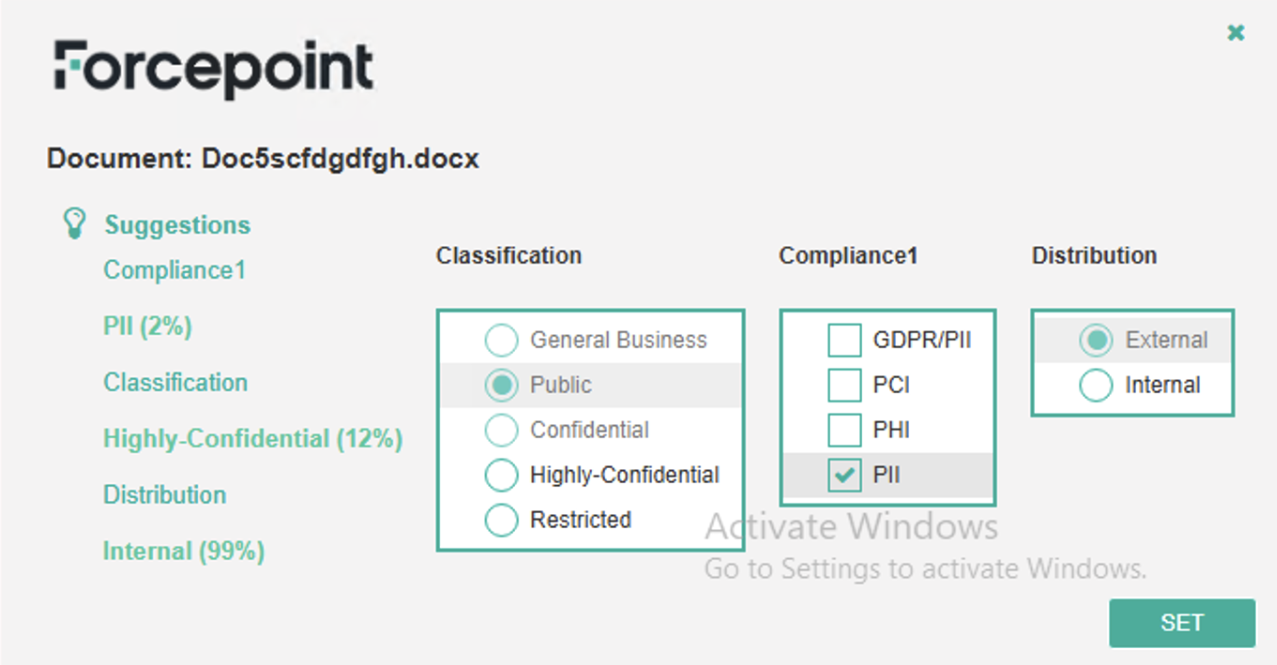
- New Document: Classify as Public
- ML Suggestion Enabled
- ML Accuracy Threshold
- Force is set for user from selecting a lower Classification
- User gets higher Highly-Confidential suggestion tag
|
-
The user will see all tags lower than the suggested one as disabled.
-
The user will be able to select a tag that is the same as or higher than the suggested one and Justification field will not be displayed.
|
|
Scenario 4
- Allow with Justification: Selected
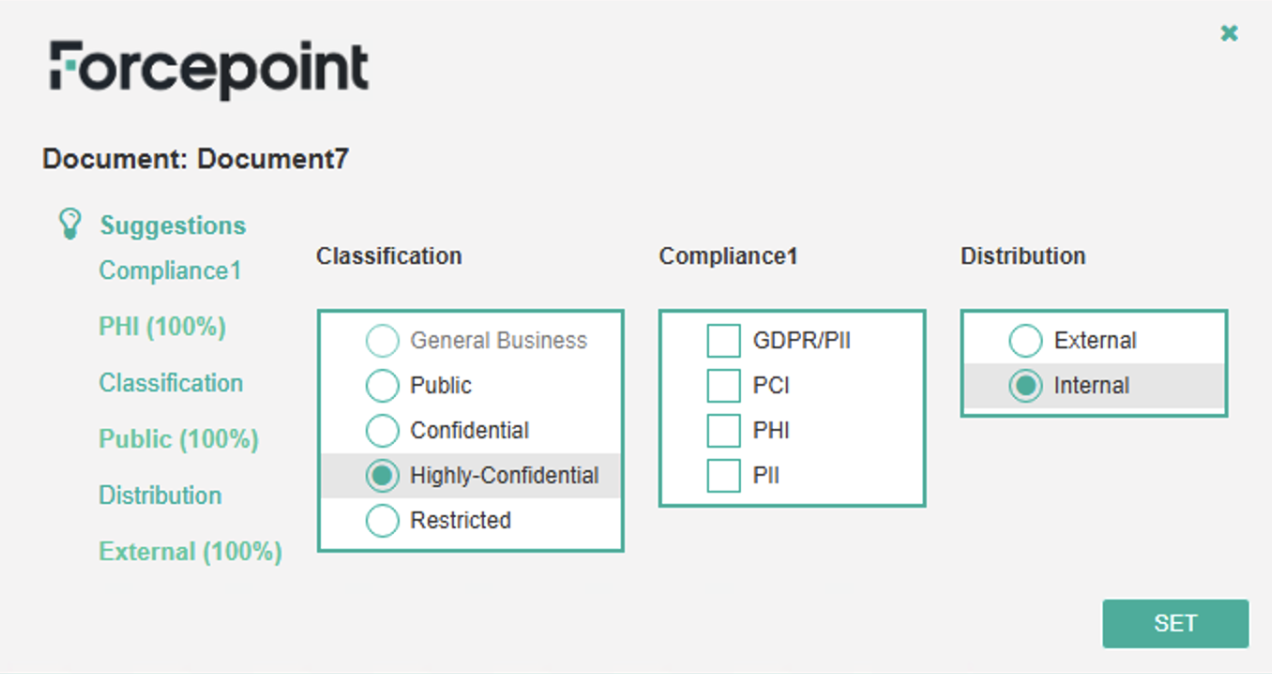
- New Document: Classify as Highly-Confidential
- ML Suggestion Enabled
- ML Accuracy Threshold
- Force is set for user from selecting a lower Classification
- User gets lower Public suggestion tag
|
-
The user will see all tags higher than the suggested one (Public) as active.
-
The user will be able to select a tag that is lower than the initially classified one, and the Justification field will not be displayed.
|
Scenario 5
- Allow with Justification: Selected
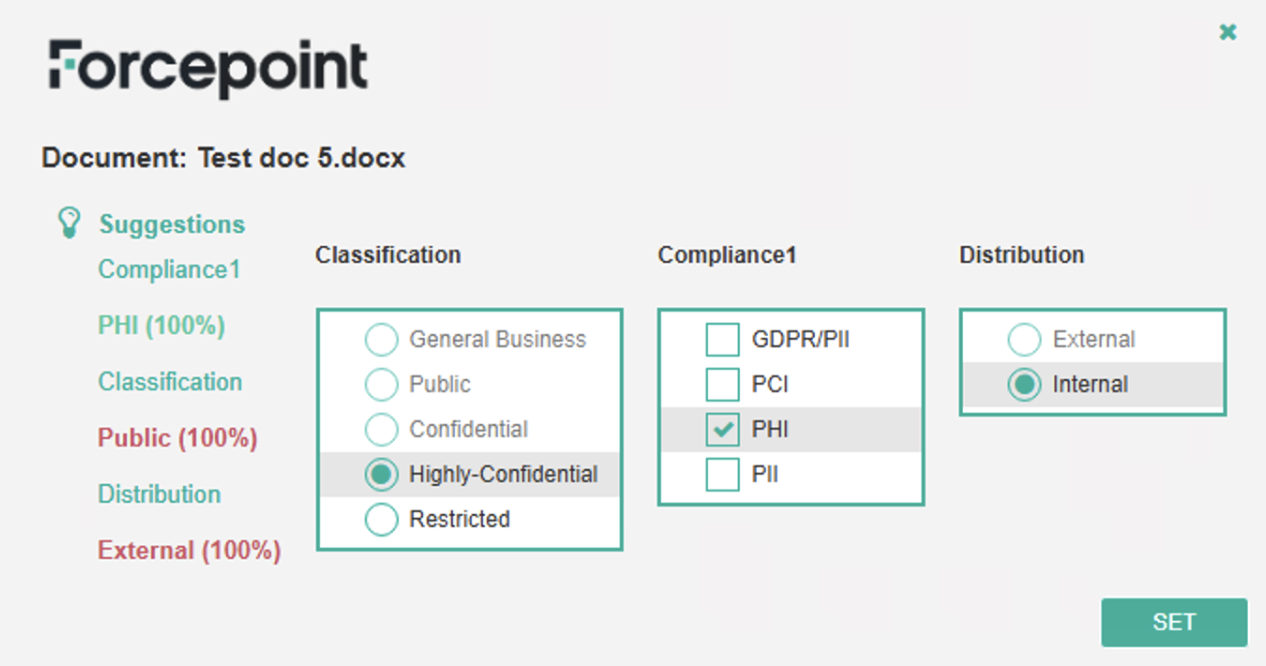
- Classified Document: Classified as Highly-Confidential
- ML Suggestion Enabled
- ML Accuracy Threshold
- Force is set for user from selecting a lower Classification
- User gets lower Public suggestion tag
|
|
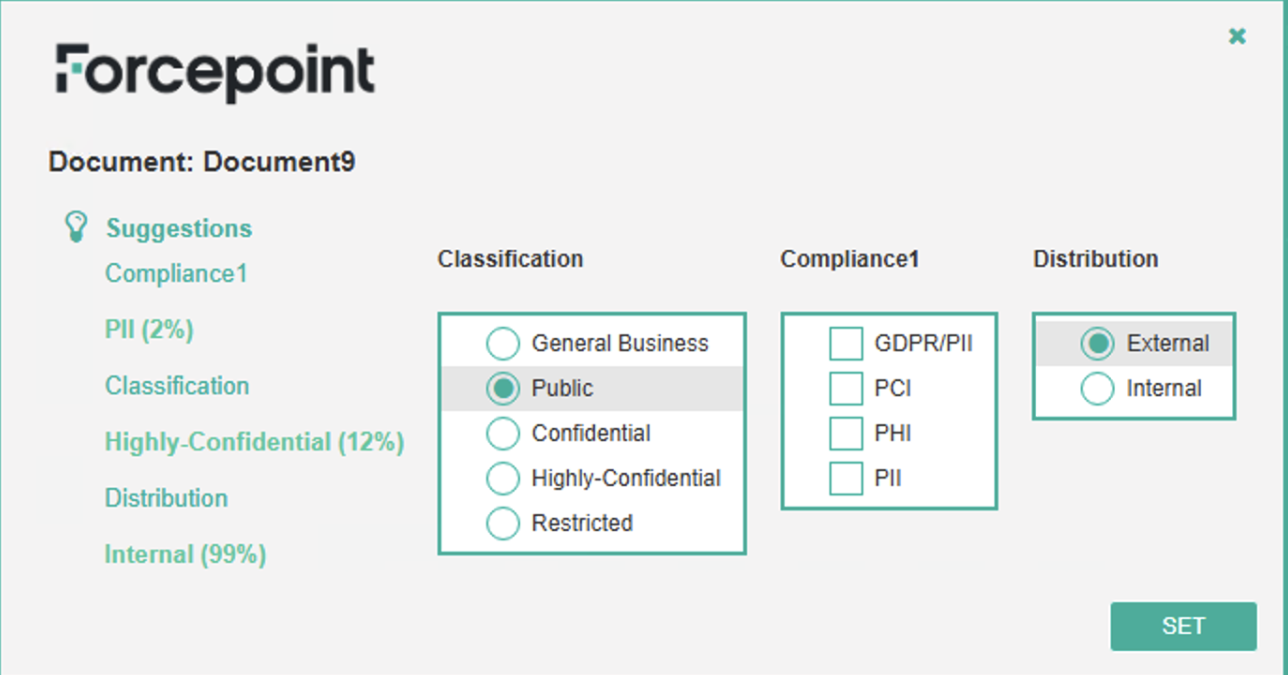
Scenario 6
- Allow with Justification: Selected
- New Document: Classified as Public
- ML Suggestion Enabled
- ML Accuracy Threshold
- Warn is set for user from selecting a lower Classification
- User gets higher Highly-Confidential suggestion tag
|
|
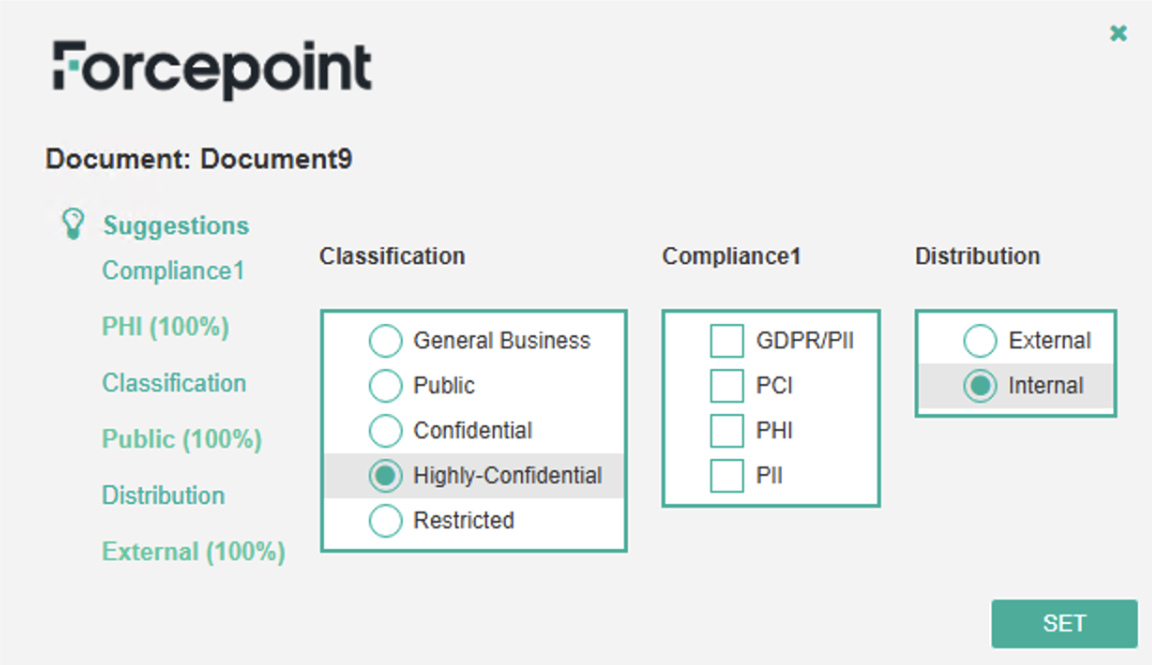
Scenario 7
- Allow with Justification: Selected
- New Document: Classified as Highly-Confidential
- ML Suggestion Enabled
- ML Accuracy Threshold
- Warn is set for user from selecting a lower Classification
- User gets higher Public suggestion tag
|
|
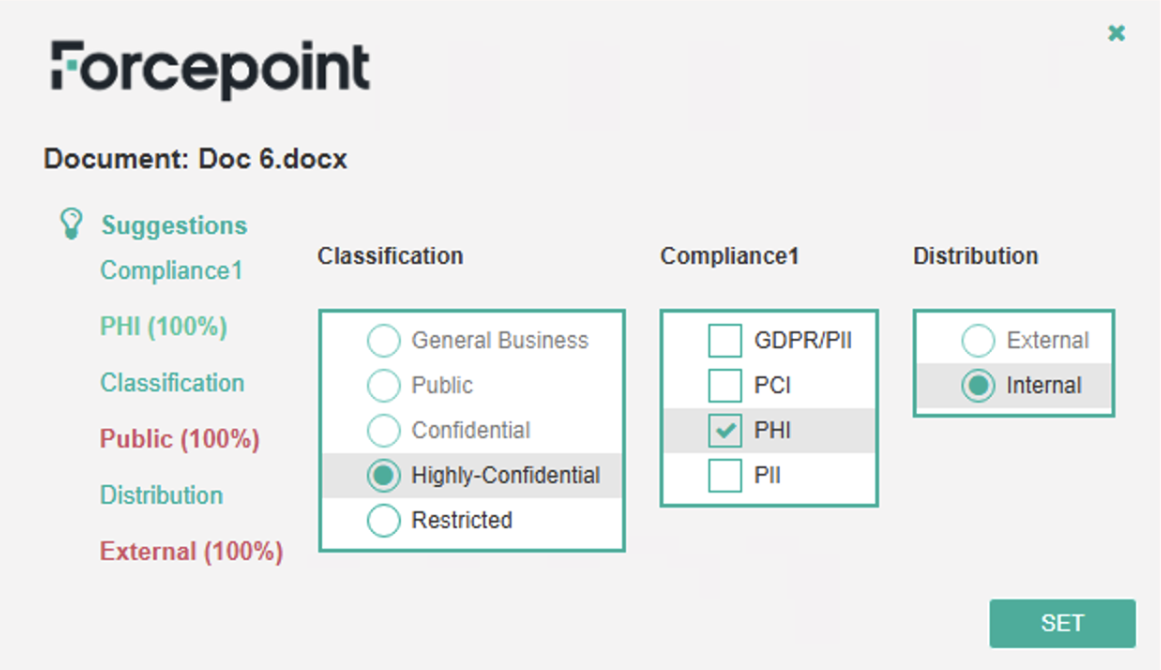
Scenario 8
- Allow with Justification: Selected
- Classified Document: Classified as Highly-Confidential
- ML Suggestion Enabled
- ML Accuracy Threshold
- Warn is set for user from selecting a lower Classification
- User gets lower Public suggestion tag
|
It is a known issue.
|
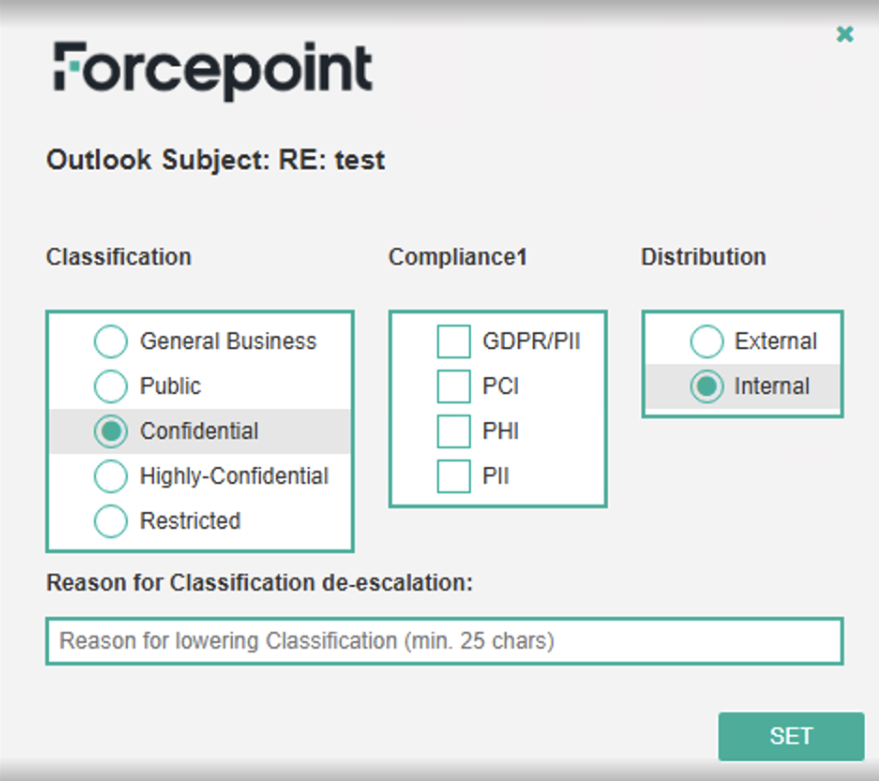
Scenario 9
- Allow with Justification: Selected
- ML Suggestion Disabled
- ML Accuracy Threshold - Ignore
- Outlook Classic:
- Classified email as Highly-Confidential
- Open email via Replay/Replay All/Forward
|
-
The user should be able to classify higher than Highly Confidential/Internal without any justification.
-
However, if the user wants to lower the classification, they should provide a reason in the text box provided.
|
Scenario 10
- Allow with Justification: Selected
- ML Suggestion Disabled
- ML Accuracy Threshold - Ignore
- New Outlook/Web:
- New email classified as Highly-Confidential
|
-
The user should be able to classify higher than Highly Confidential/Internal without any justification.
-
However, if the user wants to lower the classification, they should provide a reason in the text box provided. Justification feature will work for new emails.
|
Scenario 11
-
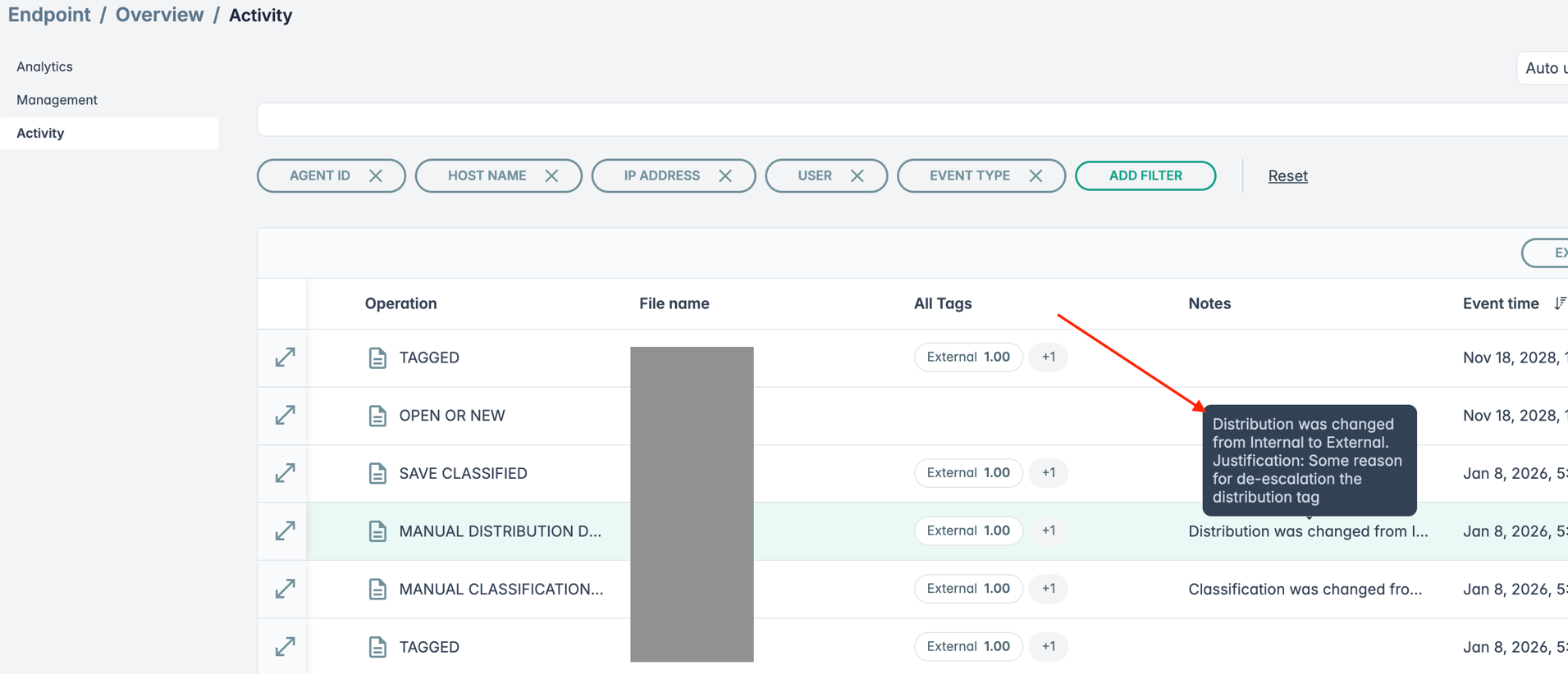
Make Classification/Distribution de-escalation for any plugin
-
Open Endpoint/Overview/Activity page
-
Find Operation: MANUAL CLASSIFICATION DEESCALATION/MANUAL DISTRIBUTION DEESCALATION
|
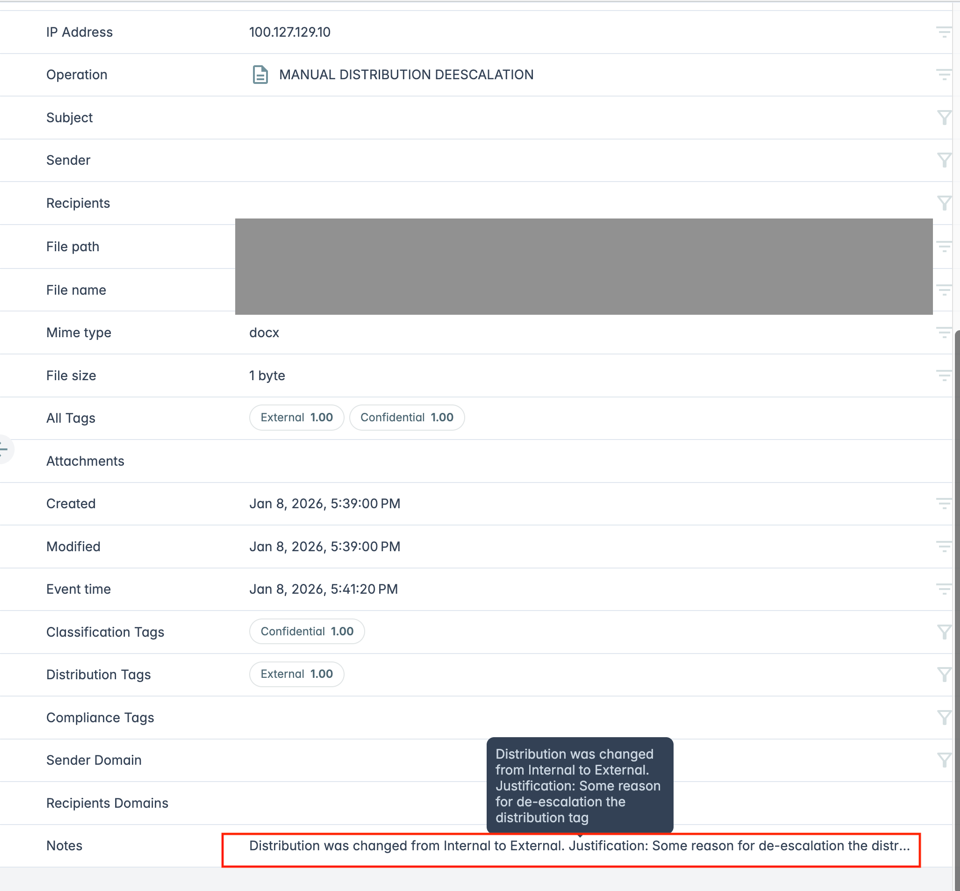
- Once the user made any Classification/Distribution de-escalation, the information will be displayed in Notes.
- The same information will be displayed on Event details.
|