
Adding Multiple IP Conditions to a Policy
Add more than one IP range or block so that a policy covers several network locations.
A single policy can carry several IP conditions. This is useful when you want to restrict access to agents or users operating within a specific country or network region that spans more than one range.
Steps
-
Open the Add Policy panel.
-
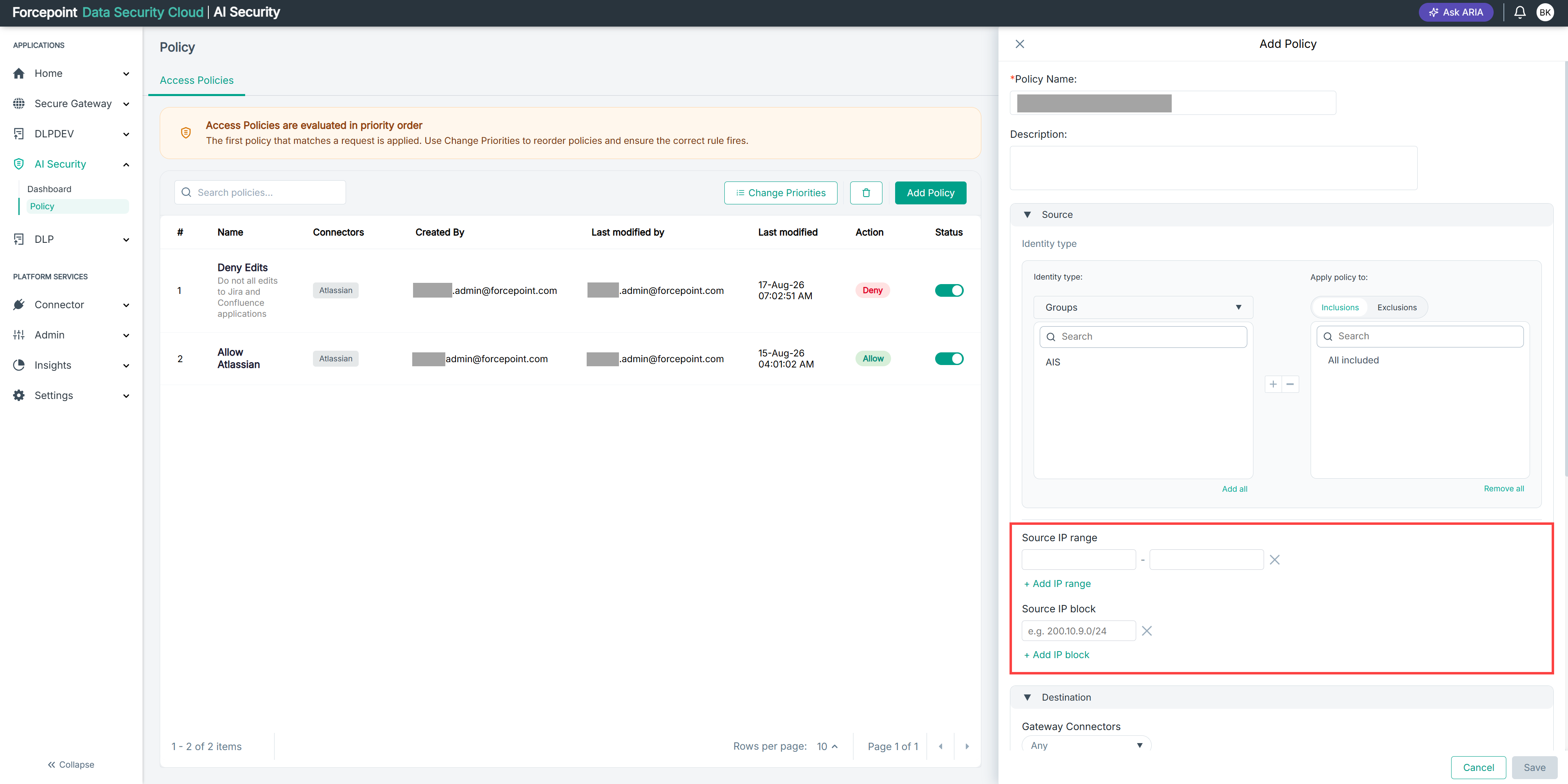
Expand Source.
-
Add your first IP range or IP block.
-
Select + Add IP range or + Add IP block again.
A further set of fields appears below the existing condition.
-
Enter the additional range or block.
-
Repeat for each network location you want the policy to cover.
Result
The policy applies to requests originating from any of the ranges or blocks you added.