
Connecting Microsoft Copilot Using Admin Consent
Connect Microsoft 365 Copilot to AI Security by granting admin consent to the Forcepoint application, without registering an application of your own.
Before you begin
The administrator who grants consent must be a Global Administrator in Microsoft Entra ID.
Consent takes place in a separate Microsoft browser window. Allow pop-ups for Forcepoint Data Security Cloud before you start.
For an explanation of each permission on the consent screens, see Understanding the Permissions Microsoft Copilot Requires.
Forcepoint publishes a verified application in Microsoft Entra that already carries every permission the Copilot connector needs. You grant it consent on behalf of your organization, and the connector is ready to use. You do not need to create an app registration, add permissions, generate a client secret, or copy any IDs.
Microsoft shows two consent screens during this procedure. The first covers the sign-in itself, and the second lists the permissions the connector will use.
To compare this method with a client secret, see Choosing Between Client Secret and Admin Consent.
Steps
-
Go to Connector › App Connector.
-
Under NOT CONNECTED, on the Microsoft Copilot card, select Connect Microsoft Copilot.
The Connect App panel opens on the right.
-
In Name, keep the default name Microsoft Copilot, or enter a name of your own.
-
Optional: In Description, enter a description of the connector.
-
Under AUTHENTICATION, select OAuth.
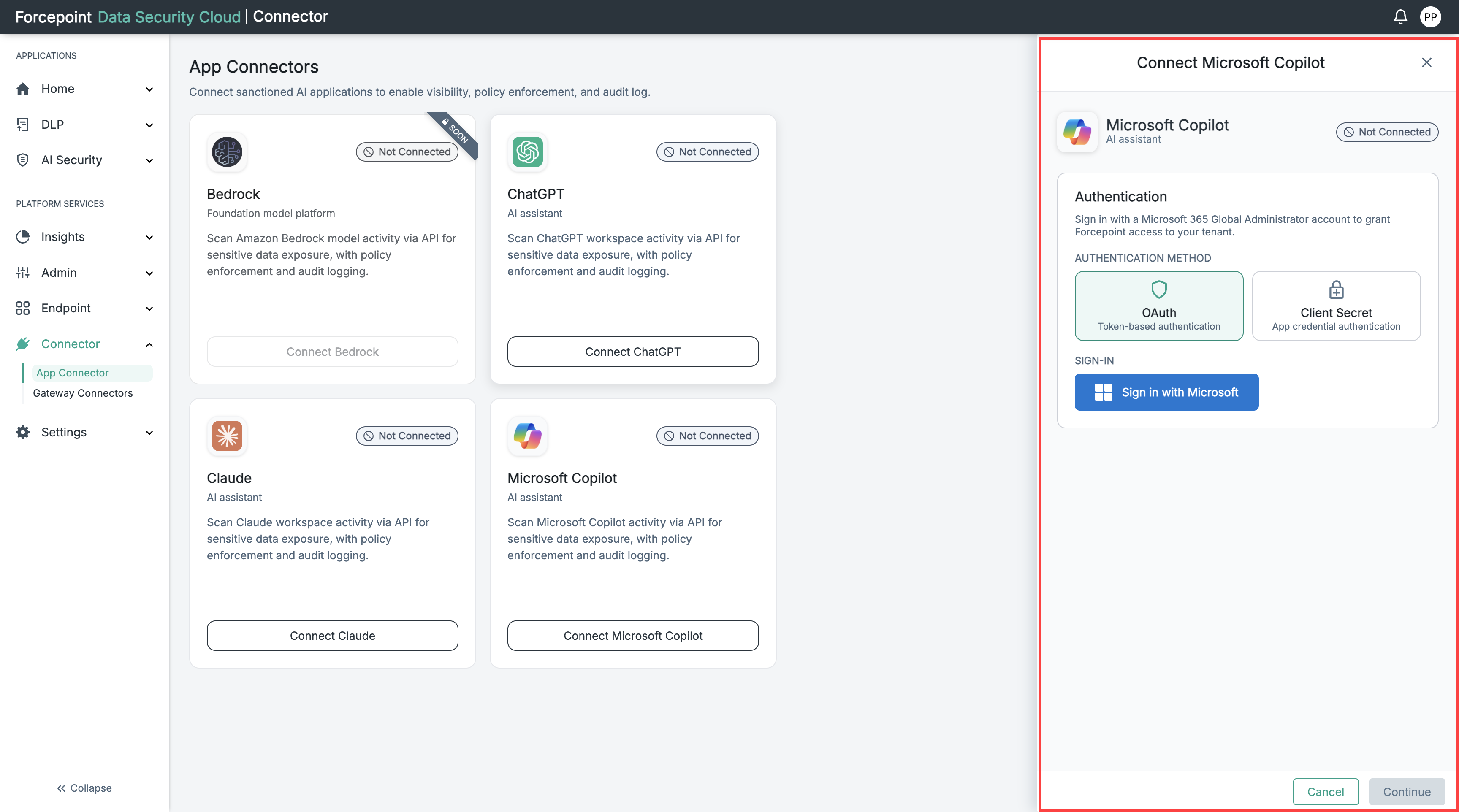
No credentials are required. The Client ID, Client secret, and Microsoft Tenant ID fields appear only when you select Client secret.
-
Select Sign in with Microsoft.
A Microsoft sign-in window opens.
-
Sign in with your Global Administrator credentials.
-
Complete multi-factor authentication if your organization requires it.
-
On the first Permissions requested screen, select Consent on behalf of your organization.
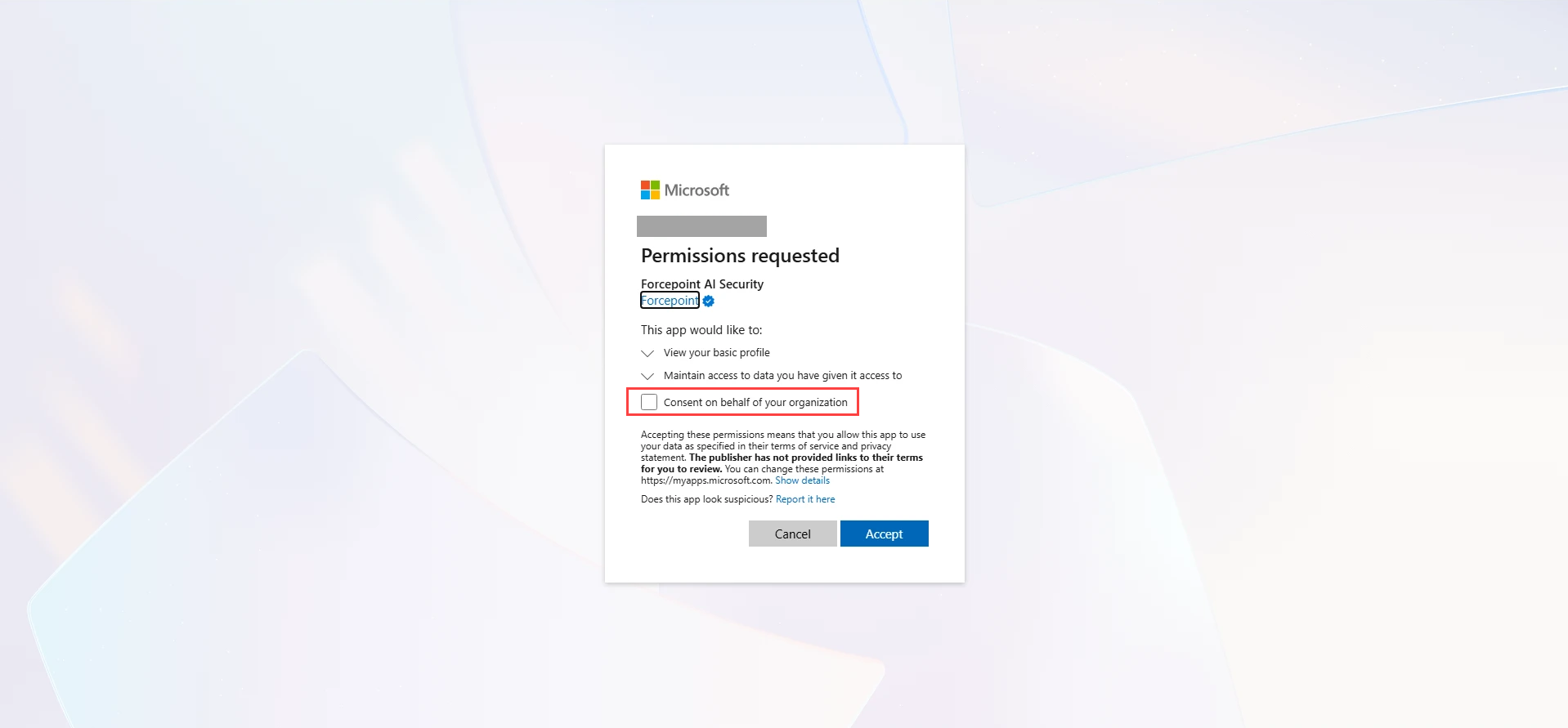
The permission text changes from View your basic profile to View users' basic profile, which confirms that consent will apply across your organization.
-
Select Accept.
-
Select your administrator account.
-
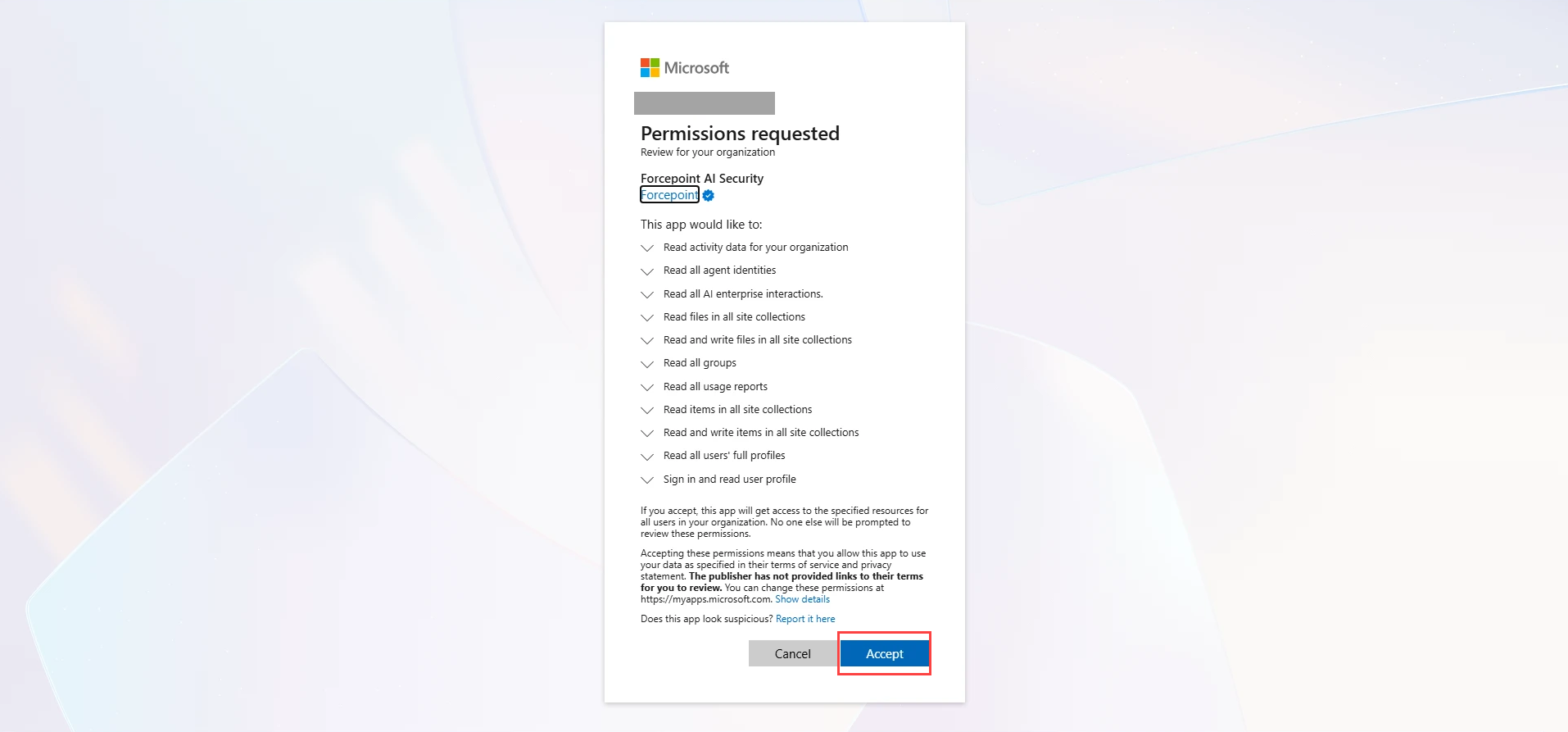
On the second Permissions requested screen, review the permissions listed.
This screen lists the full set of permissions the connector uses.
-
Select Accept.
-
On the Sign-in complete page, select Close this window.
You return to the Connect Microsoft Copilot panel in Forcepoint Data Security Cloud.
-
Select Continue.
Continue stays unavailable until you have signed in with Microsoft.
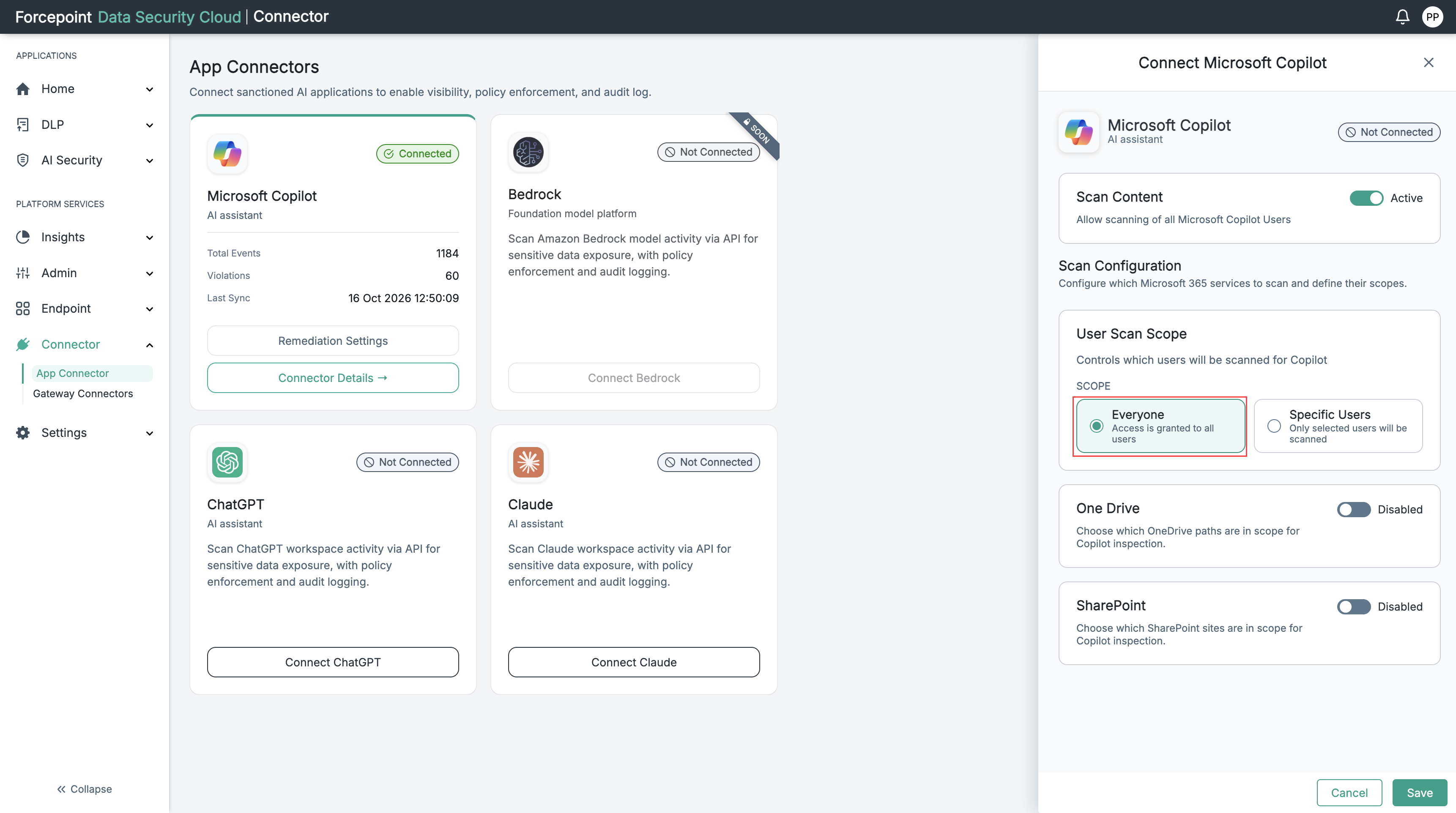
The scan settings open, with Scan Content at the top and Scan Configuration below it.
-
Check that the Scan Content toggle is set to Active.
When Scan Content is active, AI Security scans the prompts and responses of the users in scope. Under Scan Configuration, the default scope is Everyone, and One Drive and SharePoint are Disabled. To keep these defaults, go to step 16.
The default scan settings are shown in the below image.
-
Optional: To scan only some users, set the user scan scope.
-
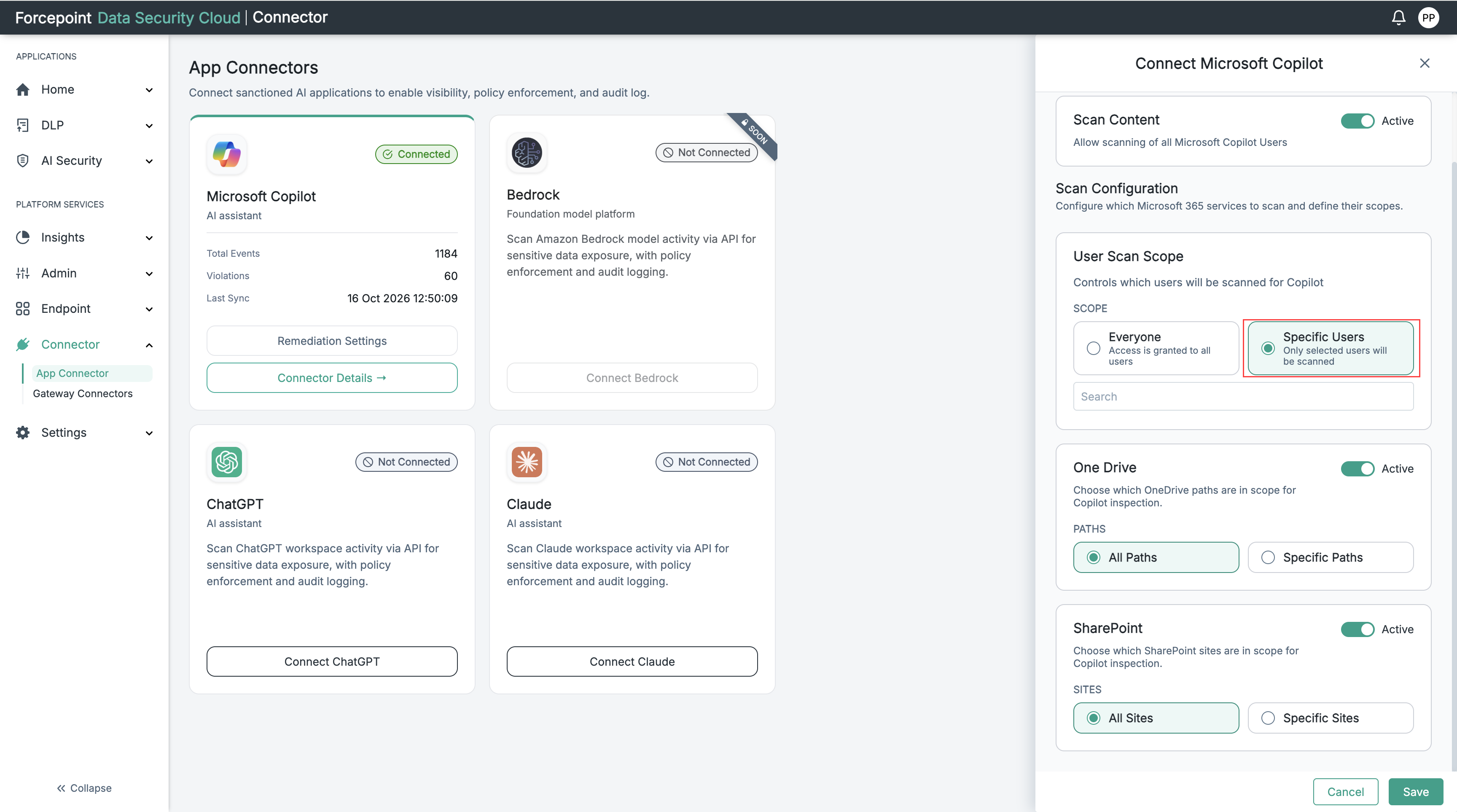
Under Scan Configuration › User Scan Scope, select Specific Users.
A search box appears below the scope options.
Specific Users selected is shown in the below image.
-
In the search box, type the name of a user.
A list of matching users appears.
-
Select the user from the list.
The user appears as a tag above the search box.
-
Repeat substeps b and c for each further user you want to scan.
-
-
Optional: To scan Copilot activity in OneDrive or SharePoint, set which paths and sites are in scope.
-
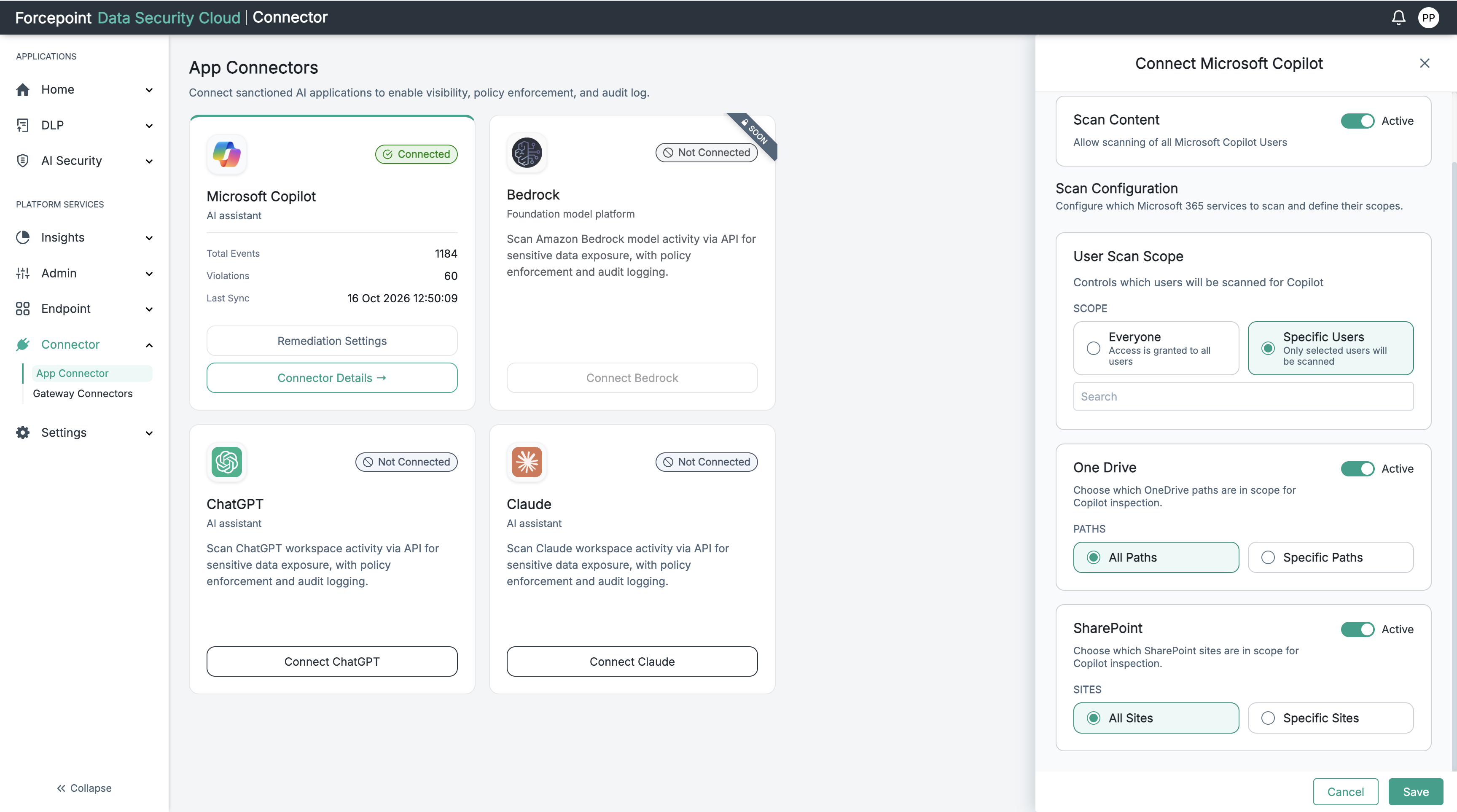
Set the One Drive toggle to Active.
The PATHS options appear, with All Paths selected.
-
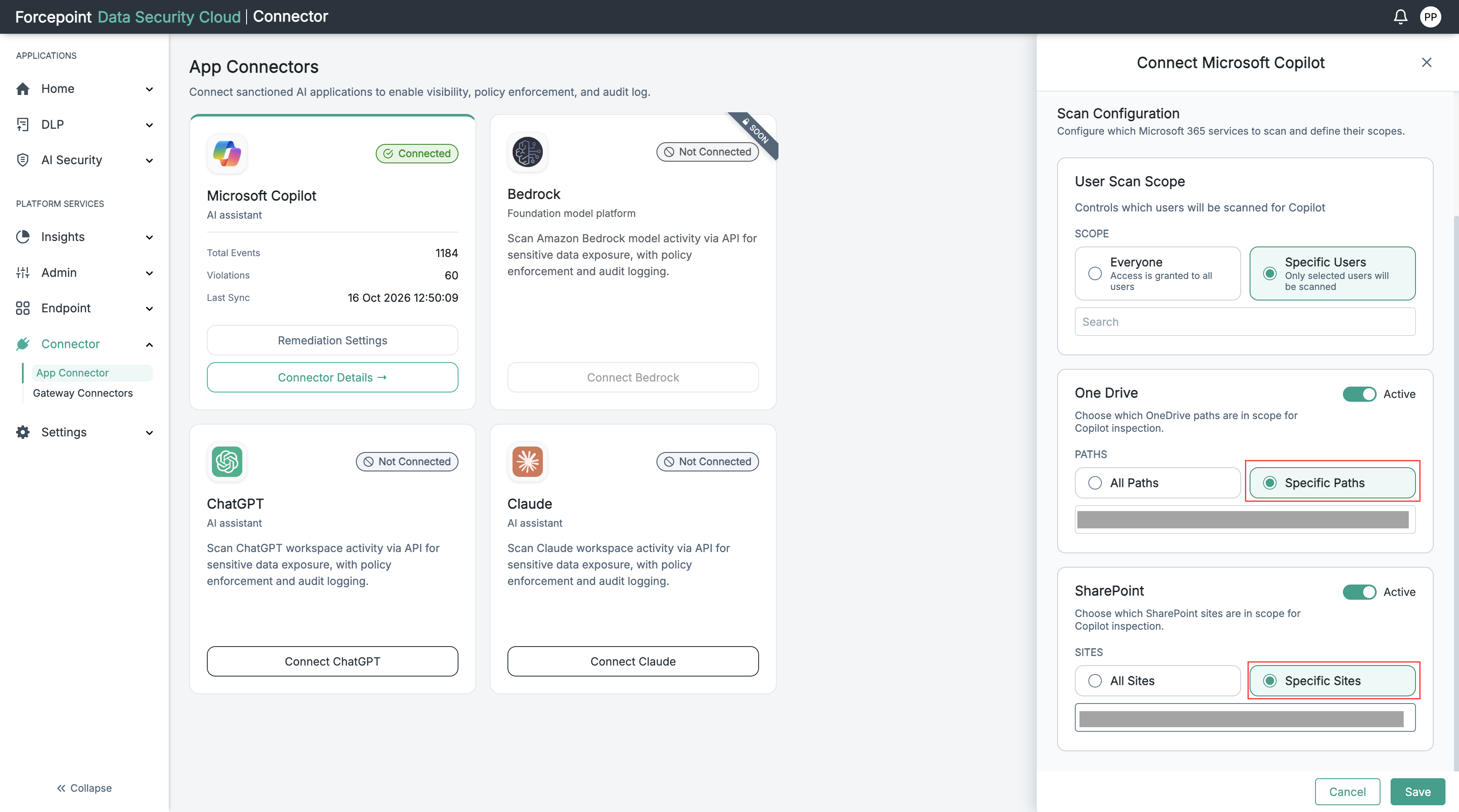
Optional: To limit the scope to certain folders, select Specific Paths, and then enter the OneDrive path, for example
/Files/path. -
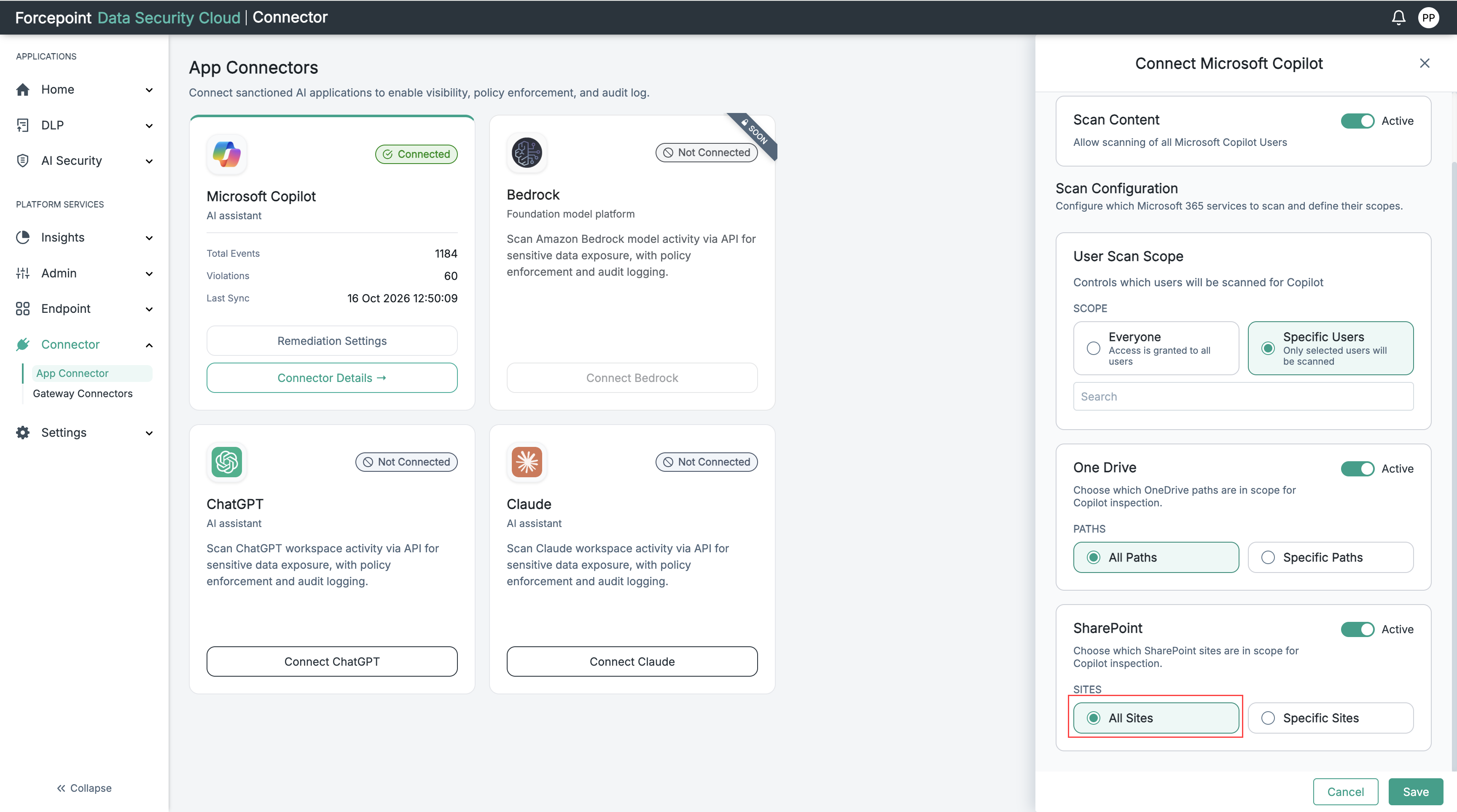
Set the SharePoint toggle to Active.
The SITES options appear, with All Sites selected.
-
Optional: To limit the scope to certain sites, select Specific Sites, and then enter the SharePoint site, for example
mysite.com/path.Specific paths and sites selected are shown in the below image.
-
-
Select Save.
Result
The Microsoft Copilot card moves to the CONNECTED group and shows a Connected badge.
On the Microsoft Copilot Connector Details panel, Authorization shows OAuth / Microsoft Entra, which confirms that the connector is using admin consent rather than a client secret.
Next steps
To change the connector's settings later, select Manage connector on the Microsoft Copilot card.