
Opening and Filtering the Exposure Tab
Open the tab that reports the data security violations recorded across your connected AI applications, and set the period you want it to report on.
Every figure on the tab is scoped to the period you select here, so set the period before you read anything else.
Before you begin, make sure that:
- At least one data security policy is active.
- Your users have been using a connected AI application.
Steps
-
Go to AI Security › Dashboard.
The AI Security Dashboard opens on the AI Landscape tab.
-
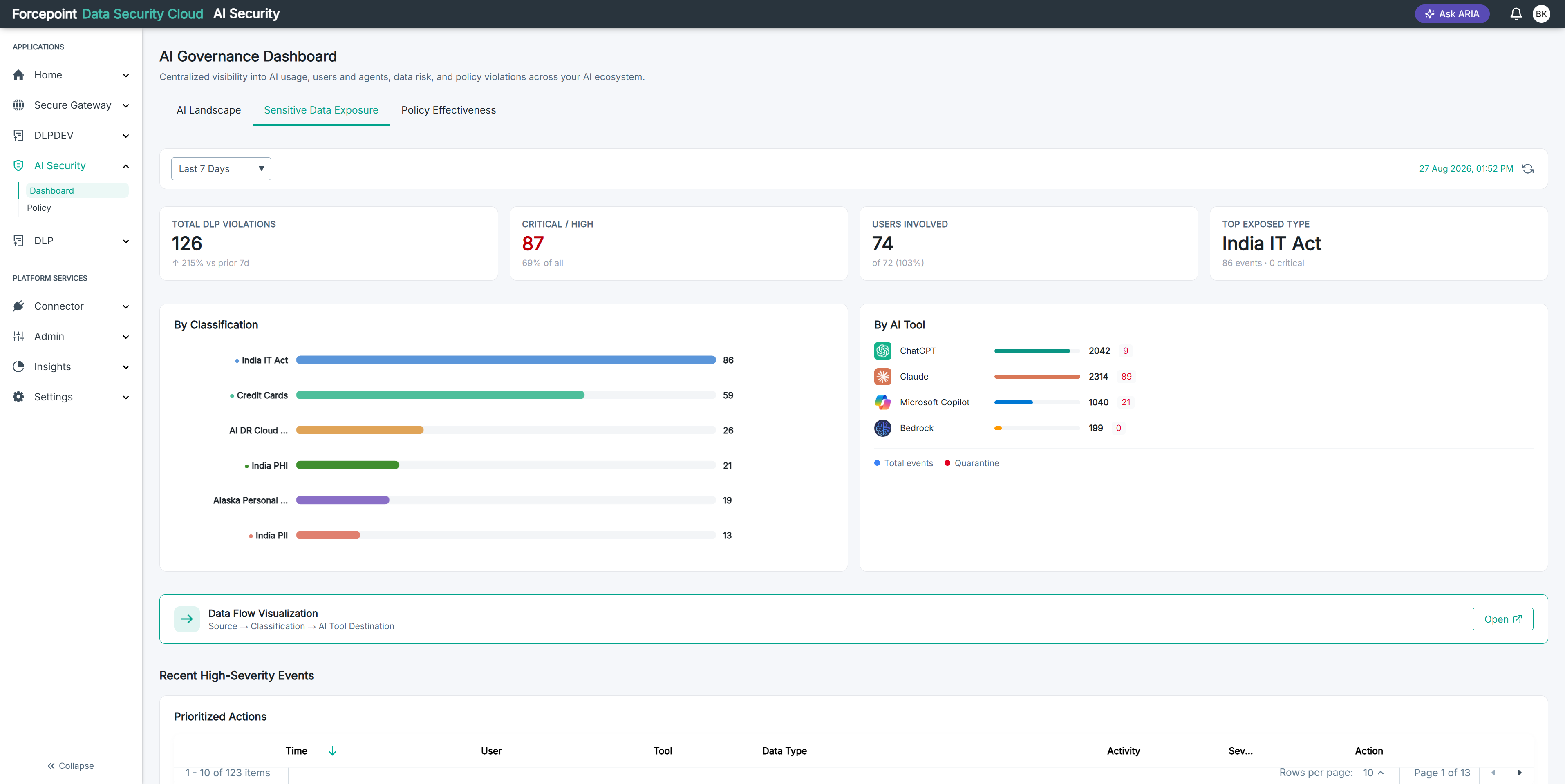
Select the Sensitive Data Exposure tab.
The tab opens, showing summary cards across the top and a list of recent events below. It reports on the last 7 days until you change the period.
-
Select a period from the time period list.
The list sits at the top left of the tab.
Every card, chart, and list on the tab reloads for the period you chose.
-
Check the date and time shown at the top right of the tab.
This tells you when the data was last refreshed. It is not the period you selected.
-
Click the refresh icon beside the date and time.
Do this if the tab has been open for a while and you want current figures.
Result
The tab reports on the period you selected. The period stays set while you move between the summary cards, the two charts, and the events list.