
Understanding the Edit Group Panel
Clicking a group on the Agent Groups tab opens it for editing, showing its current name, description, and membership.
This is where you change a group that policies may already be relying on, so it is worth knowing what a change here affects before you make one.
To open it, go to Admin › Agent Management, click Agent Groups, then click the group you want to change.
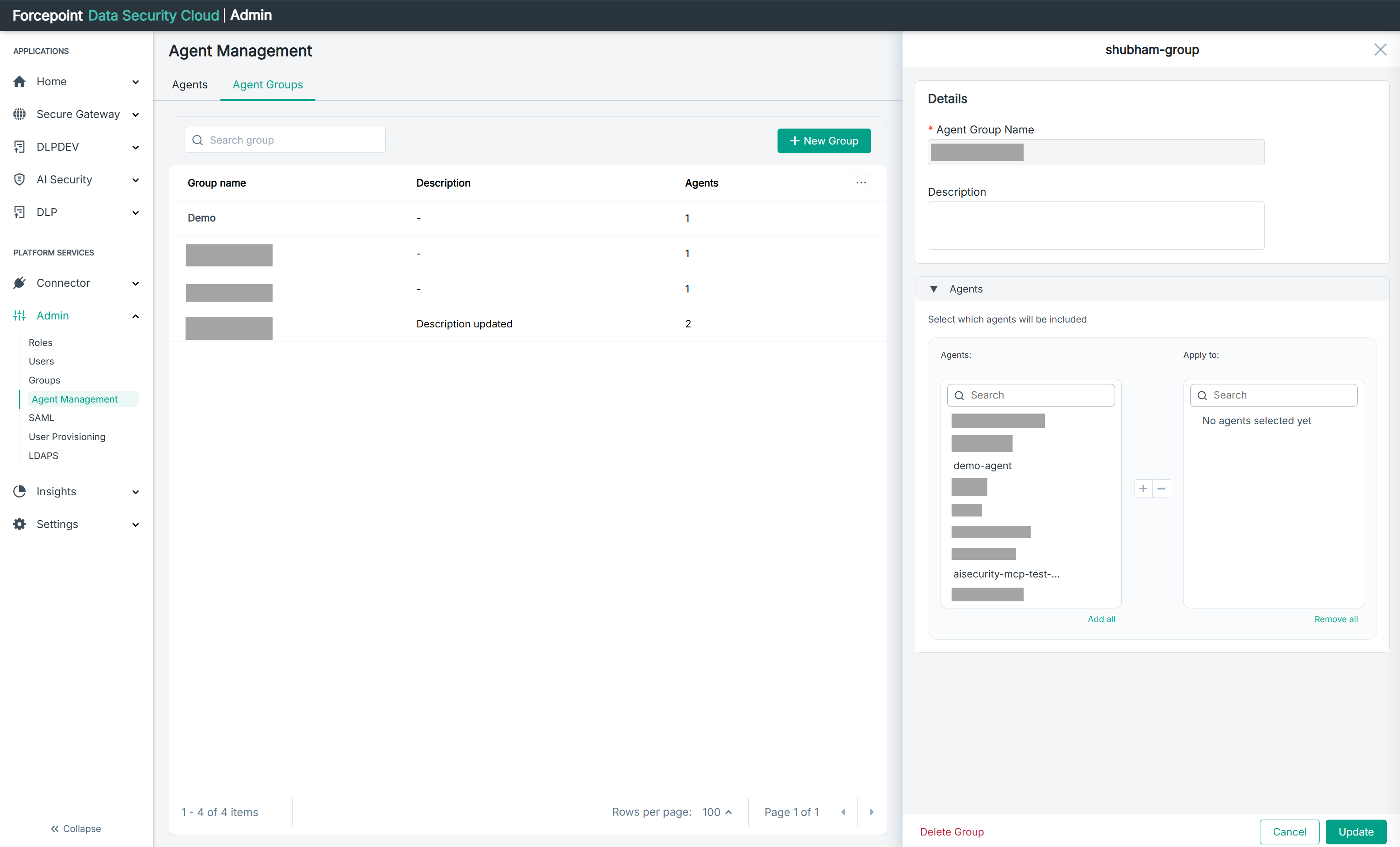
What the panel contains
| Area | What it holds |
|---|---|
| Panel title | The name of the group you opened, so you can confirm you have the right one |
| Details | The current group name and description |
| Agents | Which agents currently belong to the group |
| Delete Group | Removes the group permanently |
| Cancel | Closes the panel without saving |
| Update | Saves your changes |
The panel opens with the current configuration already filled in, so you can see what the group is before changing anything.
Details
Agent Group Name and Description hold the values set when the group was created. Renaming a group does not break the policies that refer to it; they follow the group rather than its name.
If the description is empty, this is the place to fill it in. It is the only record of why the group exists.
Changing which agents belong
The Agents section works the same way as when creating a group. The left list holds the agents available to add, and the right list, headed Apply to, holds the current members.
Move agents between the lists with the plus and minus buttons, or use Add all and Remove all.
When the panel and the list disagree
The Agents column on the group list can show a higher count than this panel does.
This happens when an agent that belonged to the group has since been deregistered. The count on the list still includes it, but the agent no longer exists, so the panel correctly shows fewer members or none at all.
The panel is the reliable source. If a group matters to a policy, open it rather than trusting the count.
What changes when you click Update
Changing the membership of a group changes what every policy naming that group applies to. Adding an agent brings it under those policies; removing one takes it out from under them.
This is the point of groups, and also the risk. The effect is not visible from this panel, so it is worth knowing which policies refer to the group before you change who is in it.
What you can do from here
- See what a group currently contains before changing it
- Rename the group, or add a description
- Add agents to the group, or remove them
- Delete the group