
Understanding the Edit Policy Panel
The Edit Policy panel is where you change an access policy that is already in force.
The panel holds everything that defines the policy: its name and description, the Source settings that decide whose calls it applies to, the Destination settings that decide which connectors and tools it covers, and the Action it takes when it matches.
Unlike the Add Policy panel, this one opens with the current configuration already filled in, so you can see what the policy does before you change anything. It is also where a policy is deleted.
To open it, go to AI Security › Policy and click the policy you want to change.
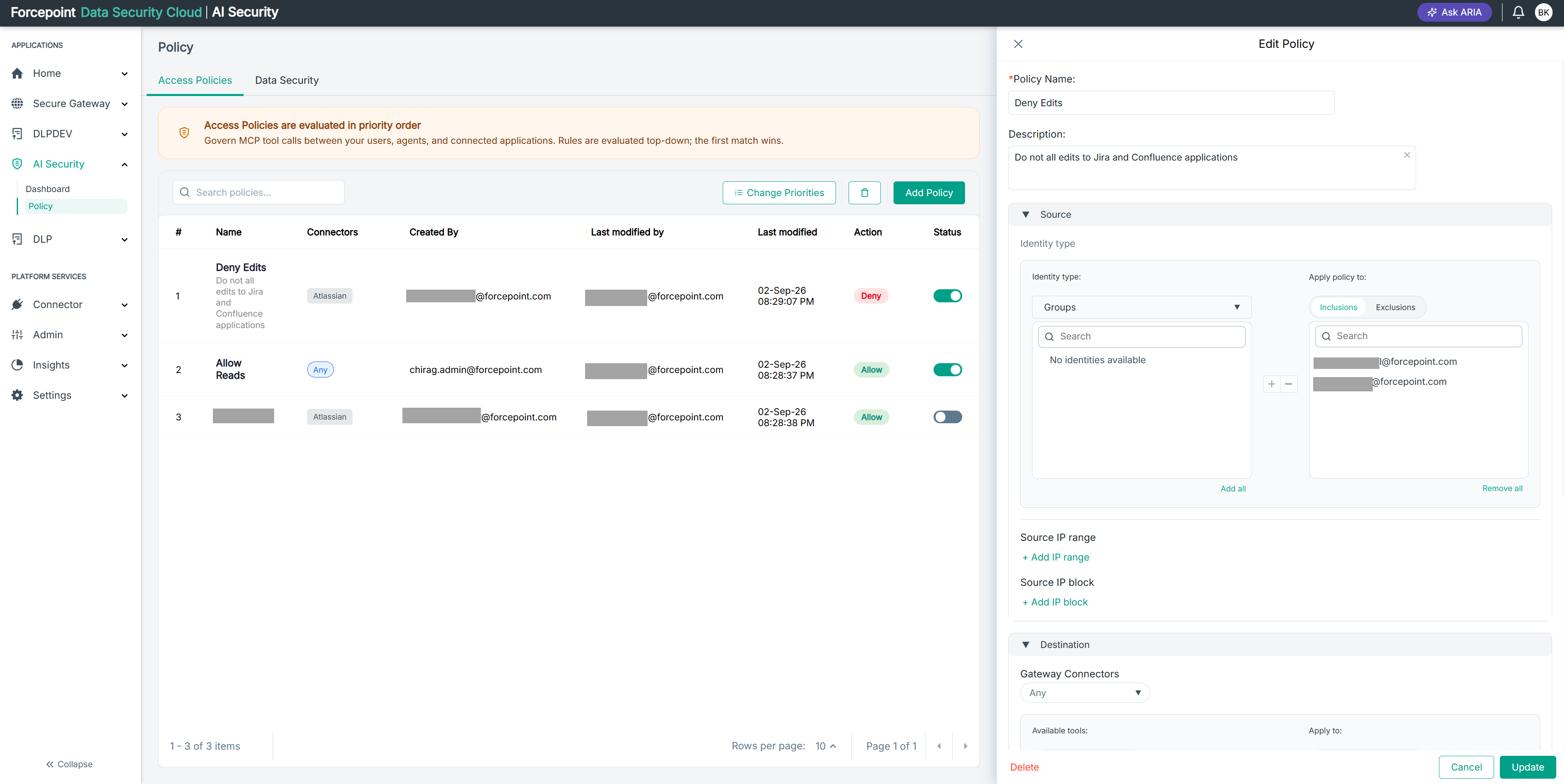
What the panel contains
| Area | What it holds |
|---|---|
| Policy Name | The name of the policy. This field is required |
| Description | What the policy is for. This appears under the policy name in the list. Click the clear icon to empty the field |
| Source | Who the policy applies to: the identity type, the identities in scope, and any source IP restrictions |
| Destination | What the policy applies to: the gateway connector, and the tools within it |
| Action | Whether the policy allows or denies the calls it matches, and whether a notification is raised |
| Delete | Removes the policy permanently. It sits at the bottom left, away from the other buttons |
| Cancel | Closes the panel without saving. Your changes are discarded |
| Update | Saves your changes and puts them into effect |
Reading the Source settings
Identity type sets what kind of identity the policy matches, for example groups or individual users.
Beneath it are two lists. The list on the left holds the identities available to add. The list on the right, headed Apply policy to, holds the identities currently in scope. Use the plus and minus buttons between them to move identities from one to the other, or Add all and Remove all to move everything at once.
If the left list shows No identities available, every identity of the selected type is already in scope. This is expected, not an error.
The Inclusions and Exclusions tabs above the right-hand list determine whether the identities you have chosen are the ones the policy applies to, or the ones it skips.
Source IP range and Source IP block narrow the policy further, so that it matches only calls arriving from the addresses you specify. Leaving both empty means the policy applies regardless of where the call comes from.
Reading the Destination settings
Gateway Connectors sets which connected business application the policy covers. Any means the policy applies across all of them.
Beneath it, Available tools lists the tools you can bring into scope and Apply to lists the tools already in scope, with the same plus and minus controls as the identity lists.
The Any, Write, and Read filters above the left list narrow it by the kind of access each tool performs. Selecting Write is a quick way to see every tool that can change something in the connected application, which is usually what a restrictive policy needs to cover.
Tools are shown by their technical name, prefixed with the connector they belong to, for example a tool that edits a Jira issue. To see the display name and what kind of access each one has, open the Manage connector panel for that connector.
Reading the Action settings
Action decides what happens to a call the policy matches. Two options are offered, and one is always selected:
| Option | What it does |
|---|---|
| Allow | Permits the matched calls |
| Deny | Blocks the matched calls |
The selected option is highlighted, so you can see at a glance which way a policy runs without reading its name.
Notify sends a notification whenever the rule matches. It works independently of the action, so you can be notified about calls you are permitting as well as calls you are blocking. Selecting Notify on an Allow policy is a useful way to watch a sensitive operation without interrupting the people using it.
What changes when you click Update
Changes take effect as soon as you click Update. Access policies have no separate deploy or publish step, so a policy that governs live agent traffic starts behaving differently straight away.
Editing a policy does not change its position in the evaluation order. If the policy is not matching calls you expect it to match, the problem is more often its position than its conditions, and the fix is Change Priorities rather than anything in this panel.
Editing also does not change whether the policy is enabled. A policy that was switched off stays switched off after you update it, and your changes will not apply until you switch it back on.
What you can do from here
- Review what a policy currently does before changing it
- Rename a policy, or change its description
- Change the identities the policy applies to
- Add or remove a source IP restriction
- Change the connector and tools the policy covers
- Switch the policy between allowing and denying
- Turn notification on or off
- Delete the policy