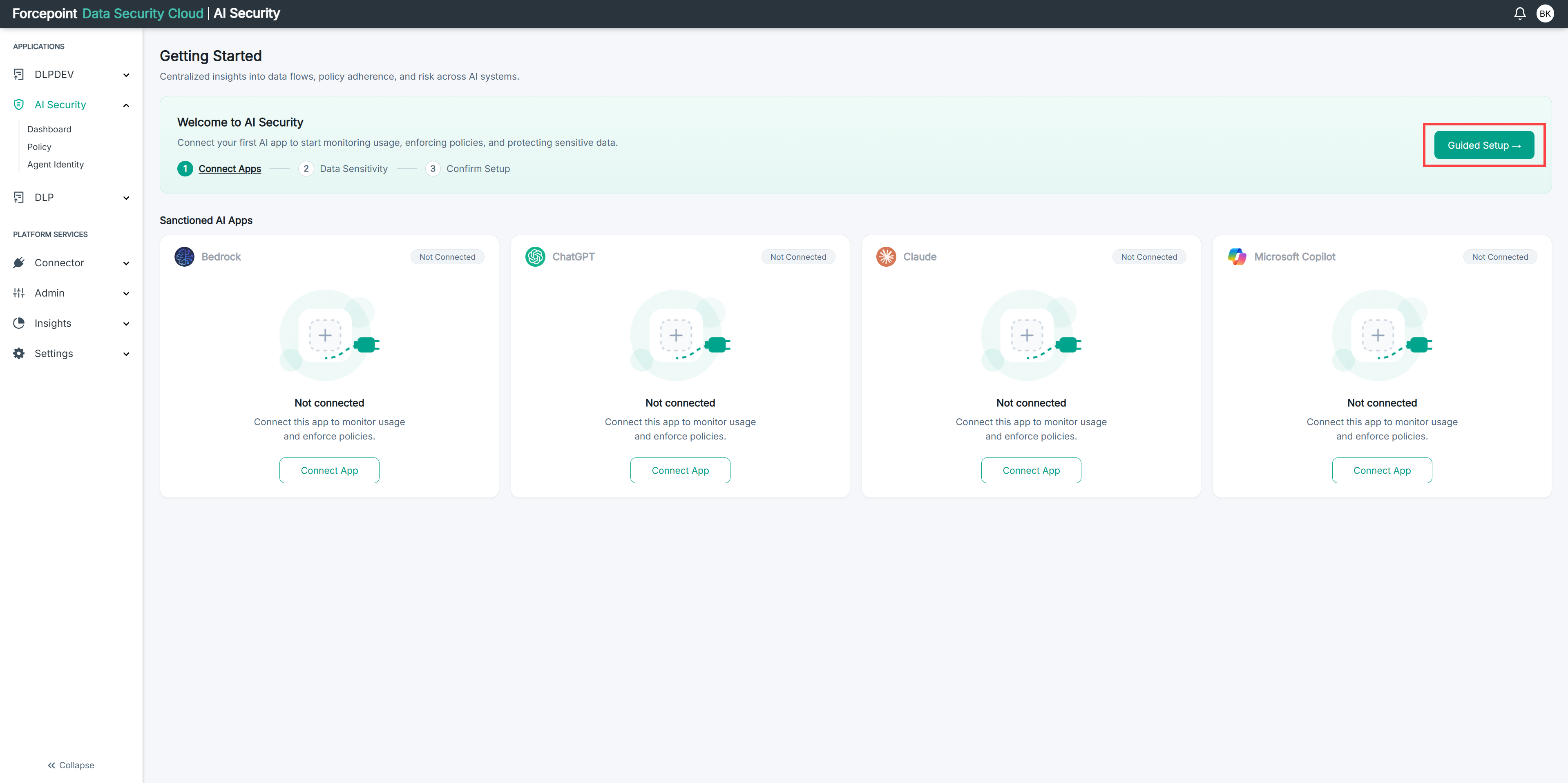
Configuring AI Security Manually
Set up AI Security yourself, one part at a time, instead of using the guided setup wizard.
Configuring manually covers the same ground as the guided setup. Nothing is skipped and nothing is lost by choosing it. The difference is that you work from the individual pages, in your own order and at your own pace, rather than being taken through a fixed sequence.
This suits you if you already know what you want to connect, if you are setting up one part at a time across several sessions, or if different people in your team own different parts.
The order below is the one that causes least backtracking, but the parts are not all dependent on each other. Connecting your AI applications and setting up the MCP Gateway are independent activities, and you can do either first, or only one of them. What each part does depend on is the step immediately before it within its own path.
Steps
-
Connect at least one AI application.
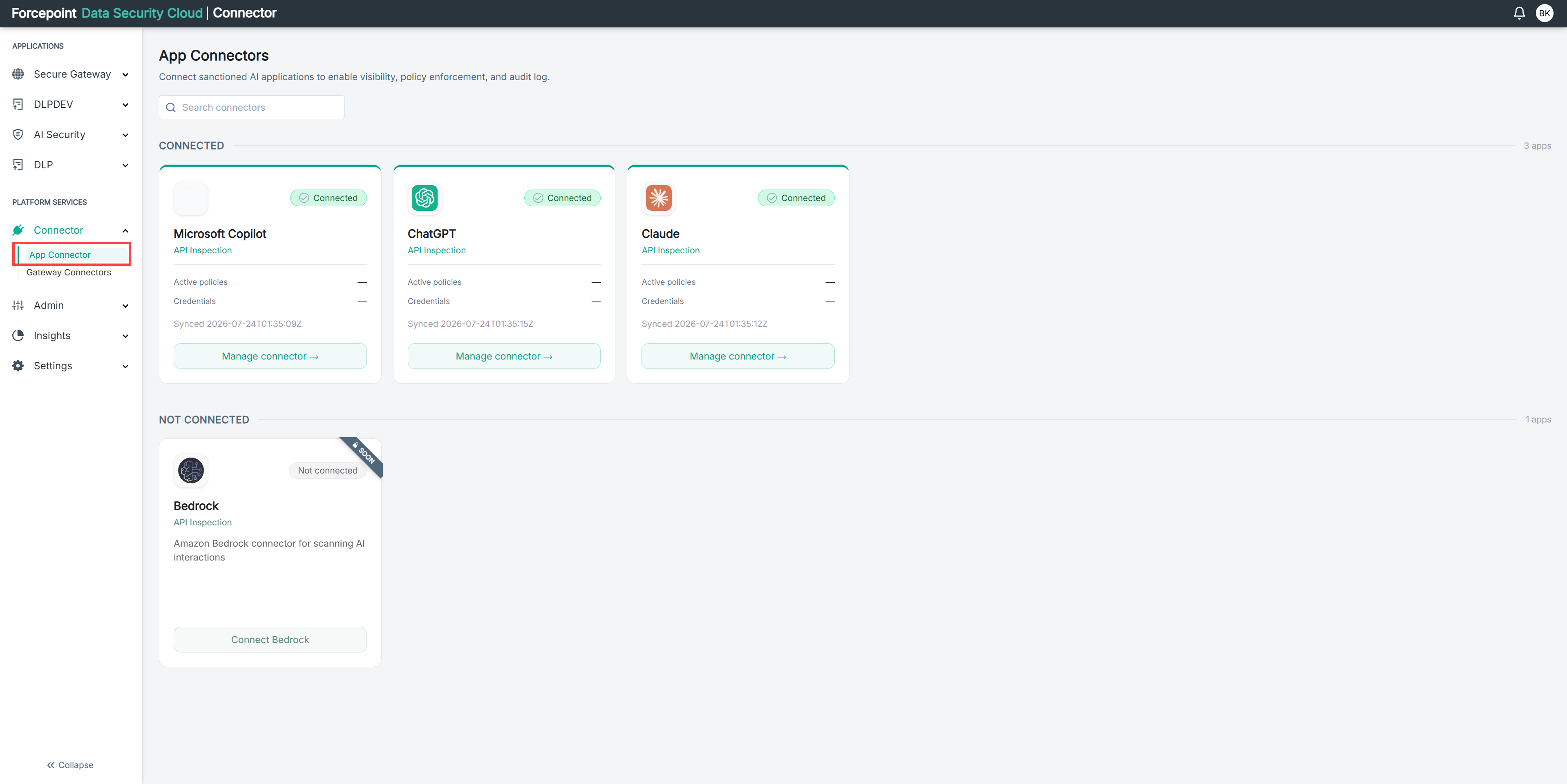
Go to Connector › App Connector and connect the applications your organisation has approved.
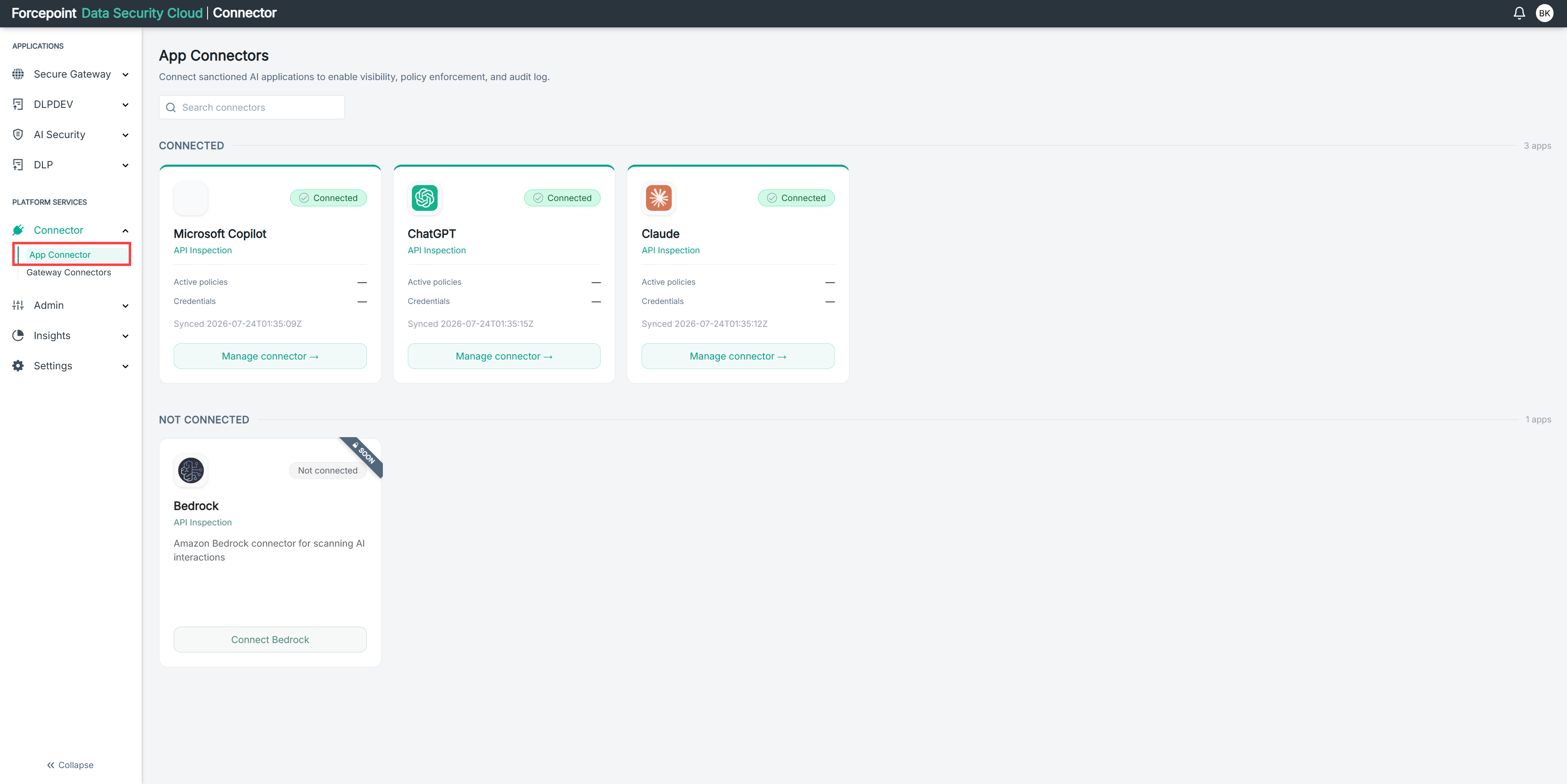
Do this first if your priority is visibility into the AI applications your people use. Until an application is connected, AI Governance cannot see who is using it, cannot inspect what is sent to it, and cannot enforce anything on it.
The application moves to CONNECTED on the App Connectors page, and activity begins appearing on the AI Governance Dashboard.
-
Connect the business applications your AI agents need to reach.
Go to Connector › Gateway Connectors and connect the applications your agents will call through the MCP Gateway.
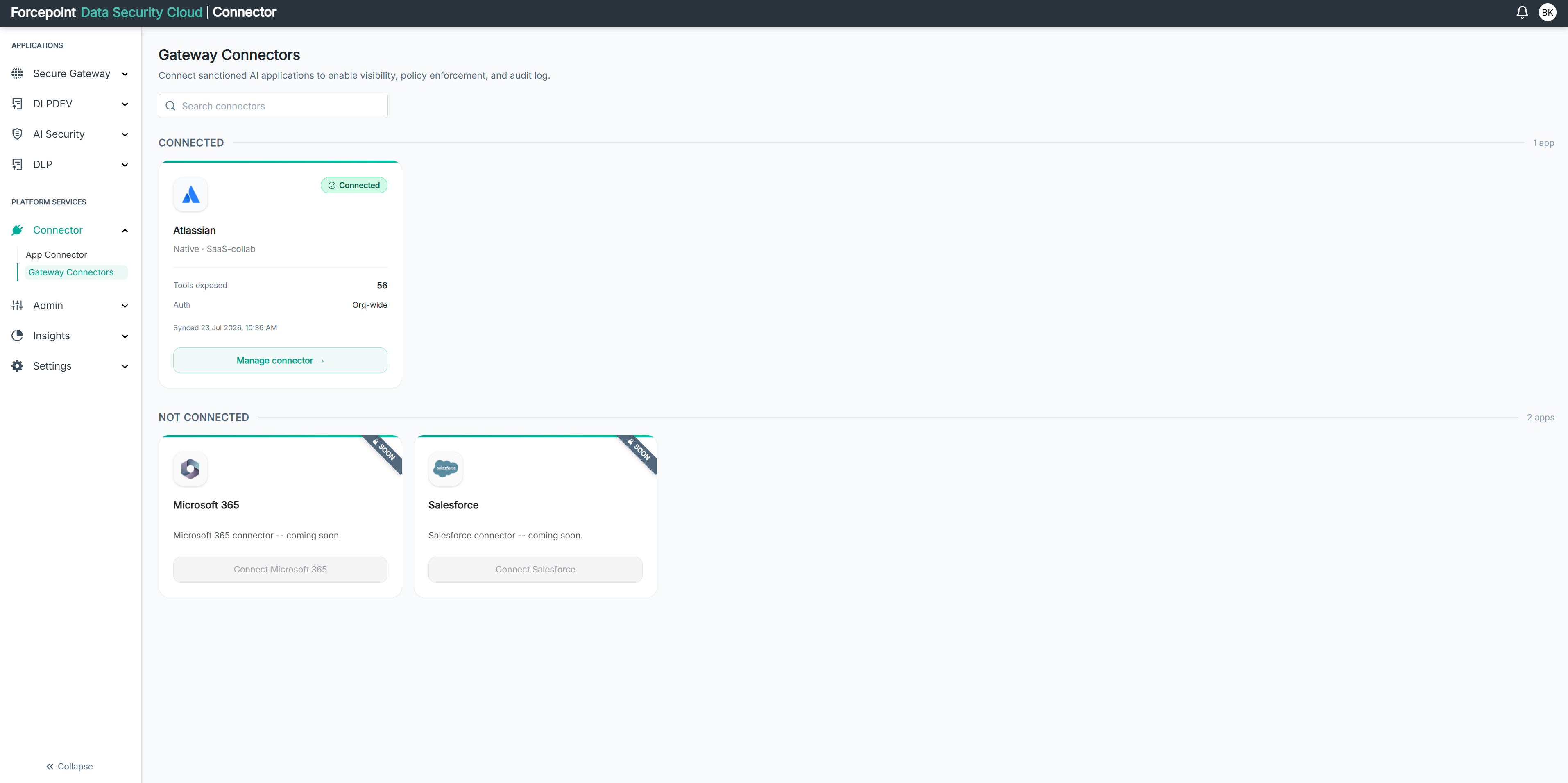
Skip this step and the next if you have no AI agents. They govern agent traffic, not the AI applications your people use directly.
-
Register your agents.
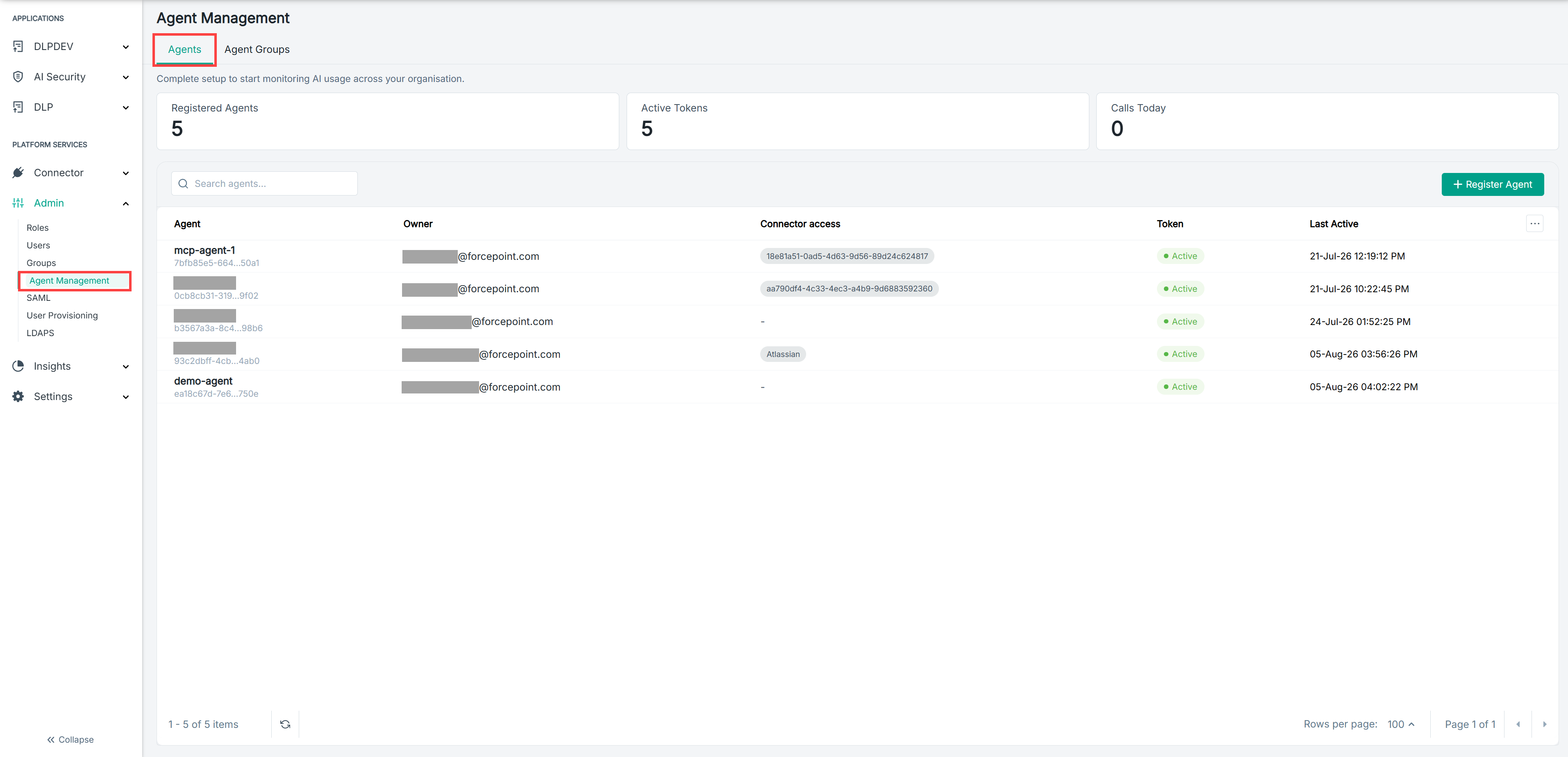
Go to Admin › Agent Management and register each agent, giving it an owner and the connector access it needs.
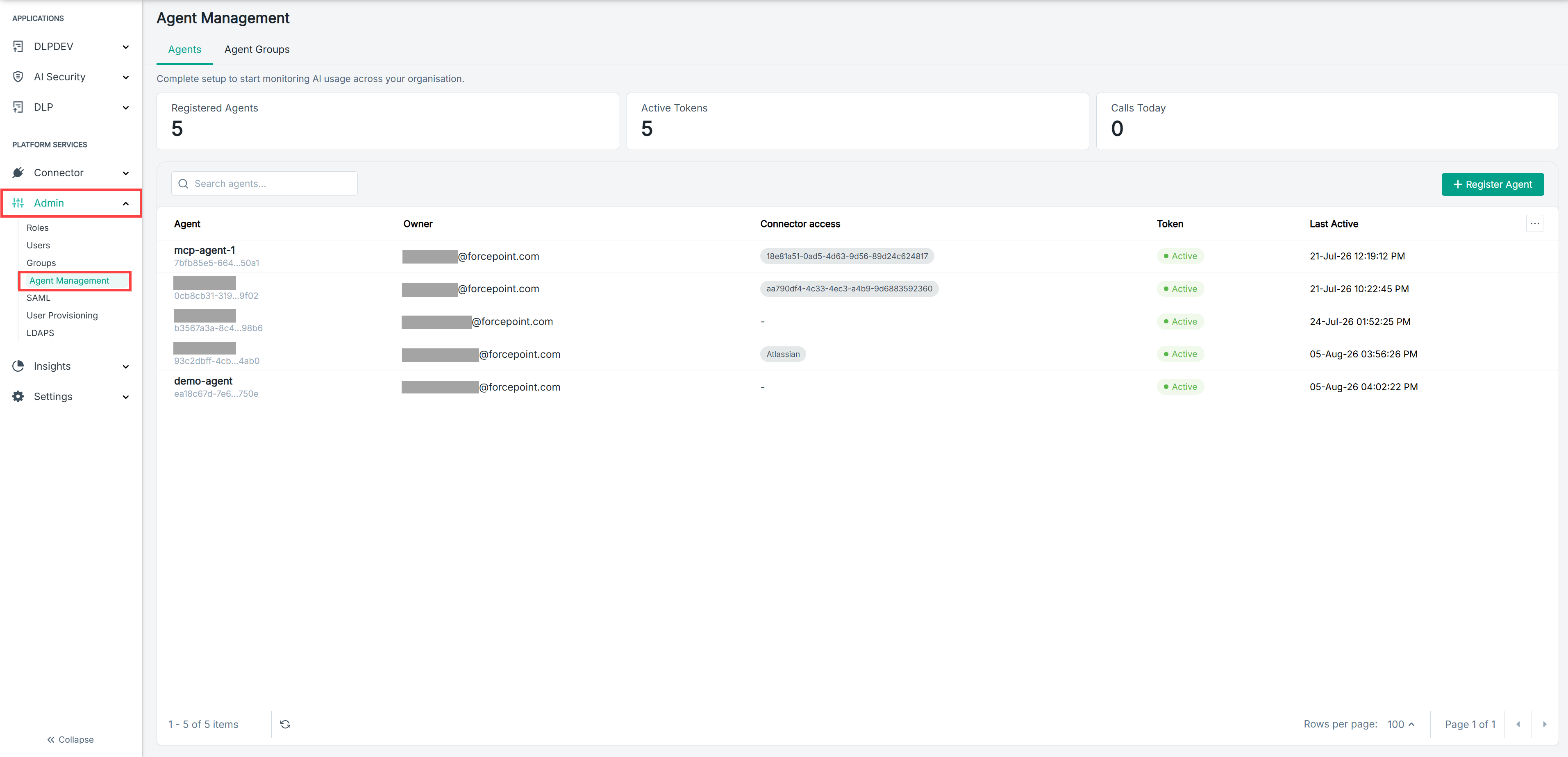
Copy the gateway URL from the Gateway Connectors page into each agent configuration.
Registered agents appear on the Agents tab with an active token.
-
Create your access policies.
Go to AI Security › Policy and add policies on the Access Policies tab.
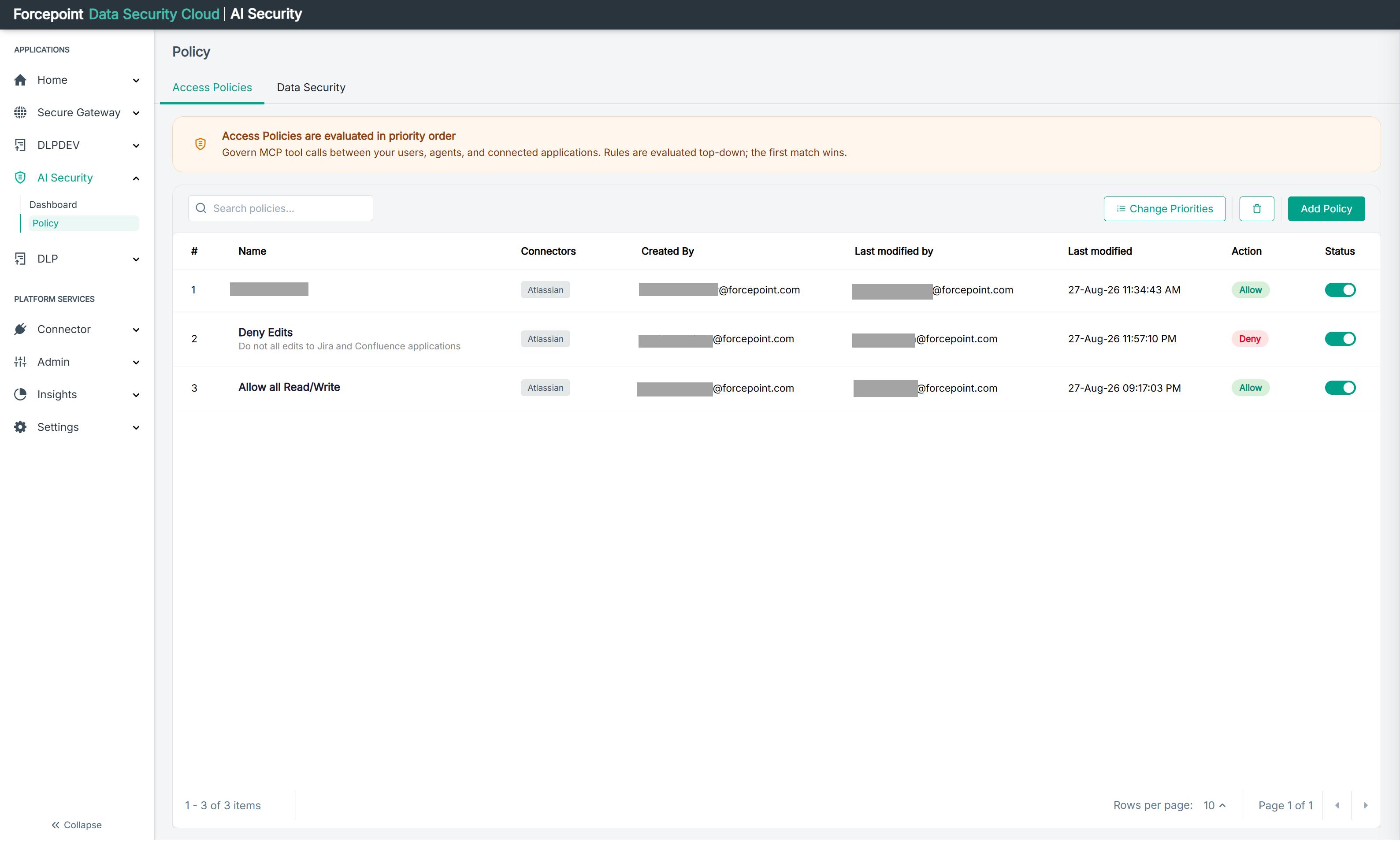
These decide which tool calls your agents are permitted to make. Because policies are evaluated top-down and the first match wins, check the order once you have more than one.
-
Review the data security policies that apply to your AI traffic.
Go to AI Security › Policy and select Data Security tab.
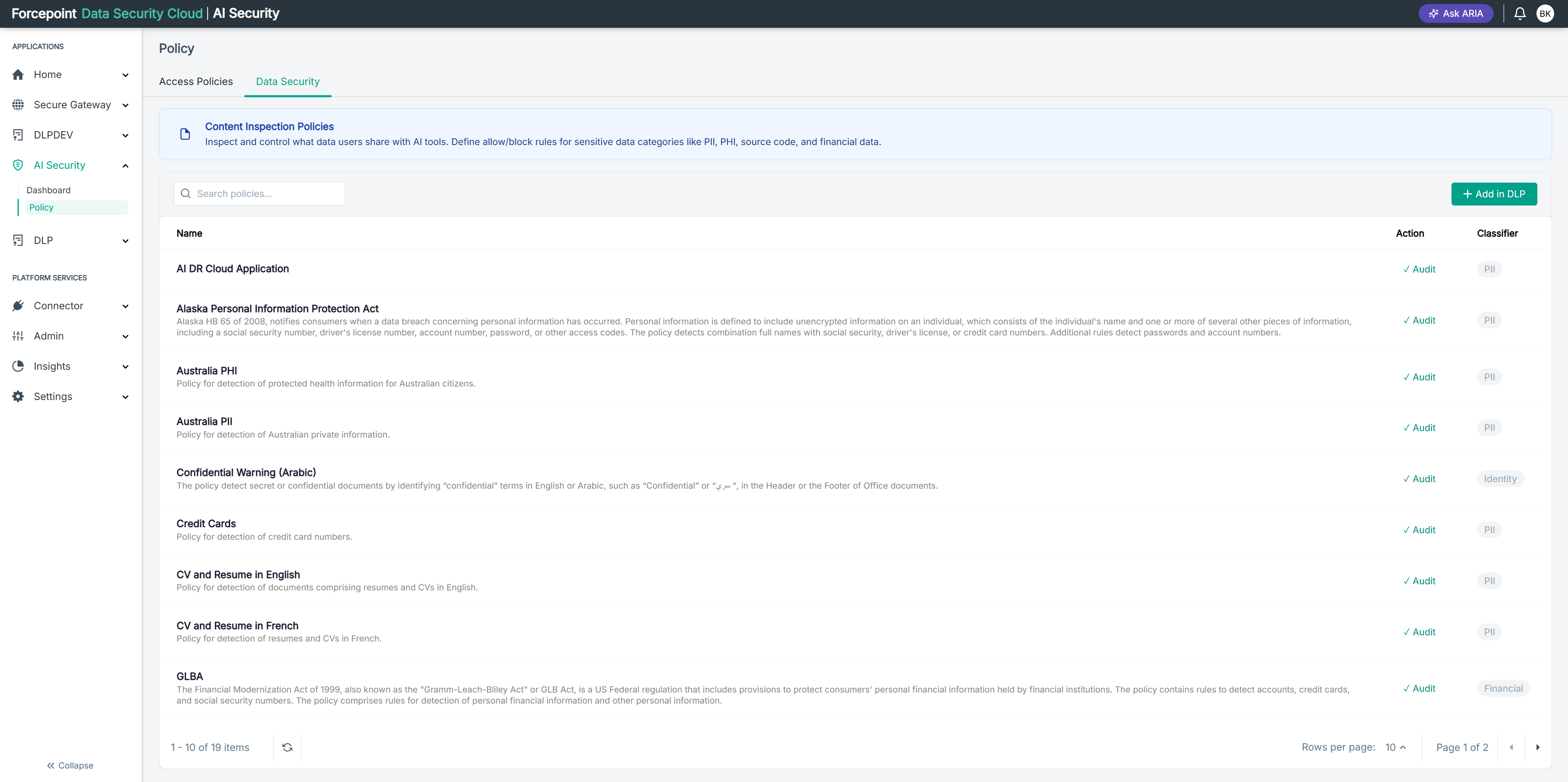
These policies inspect content rather than governing access, and they are created in the Data Security portal rather than here. Review what is already in force before deciding whether you need more.
-
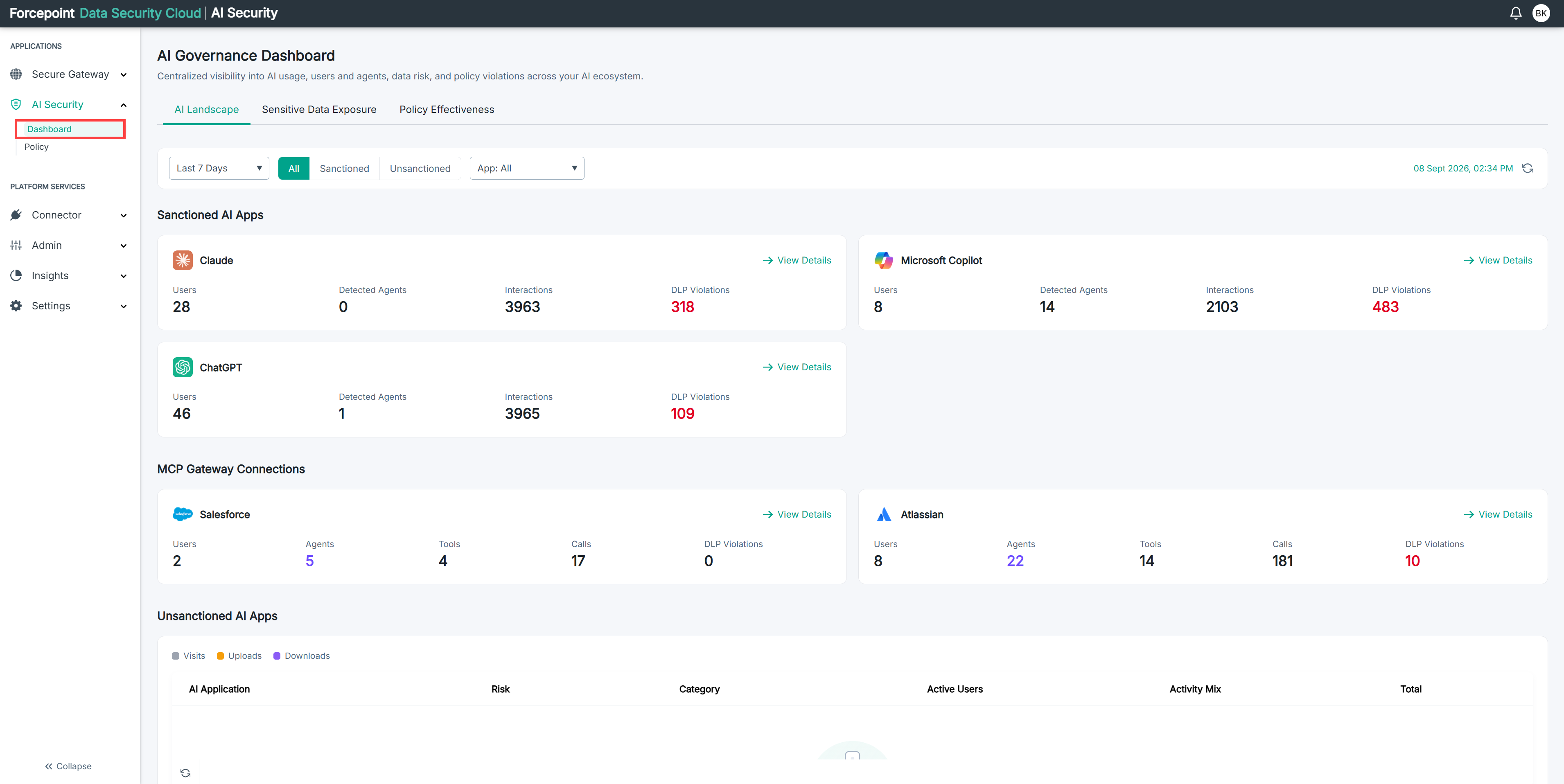
Check the AI Securty Dashboard.
Go to AI Security › Dashboard to confirm that activity is being reported for the applications you connected.
Result
AI Security is configured. It reports on the applications you connected, governs the tool calls your agents make, and inspects content against your data security policies.
Next steps
Once the basics are in place, these are the things worth doing next:
-
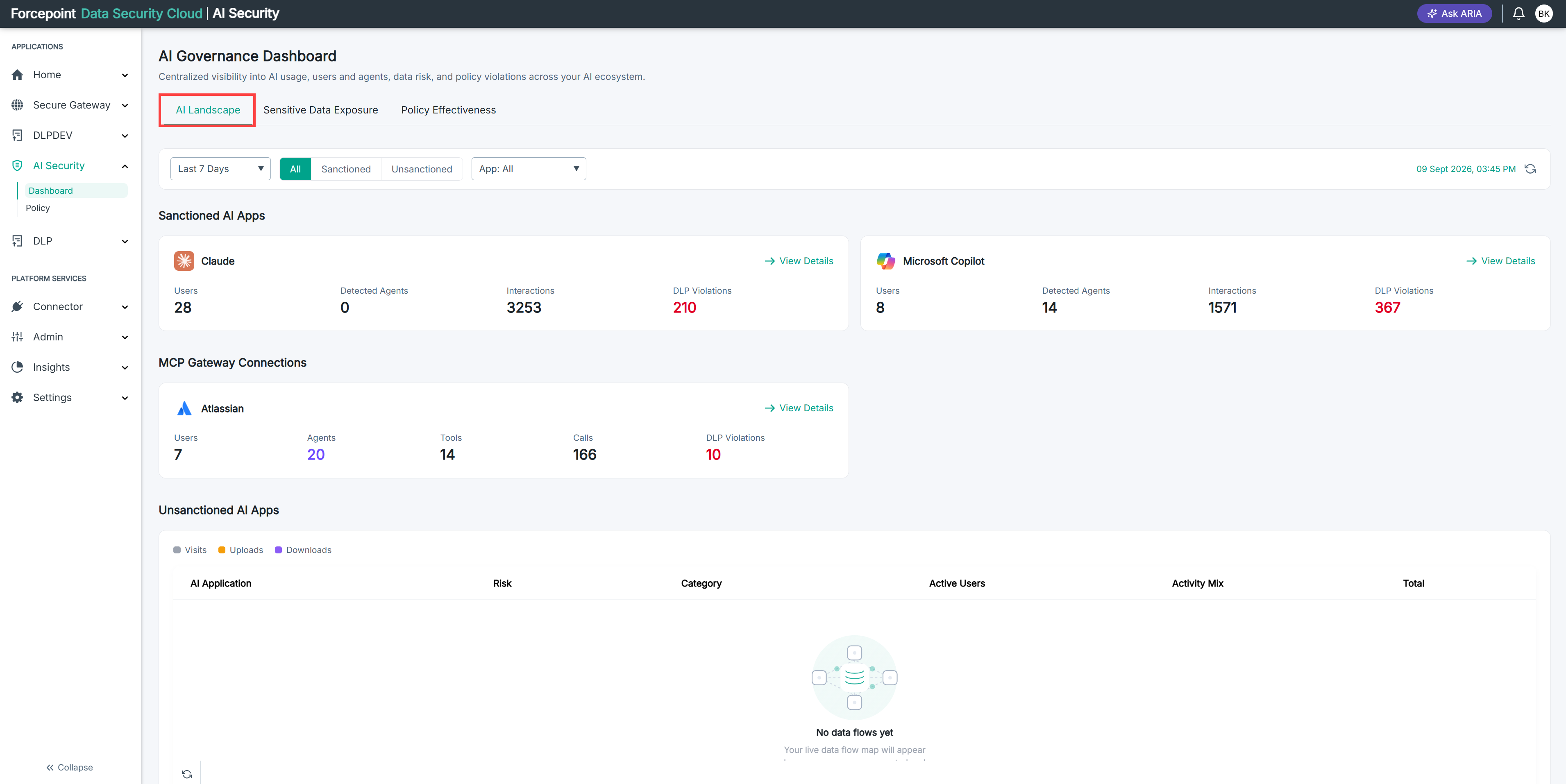
Review shadow AI activity on the AI Landscape tab, to find AI applications in use without approval
-
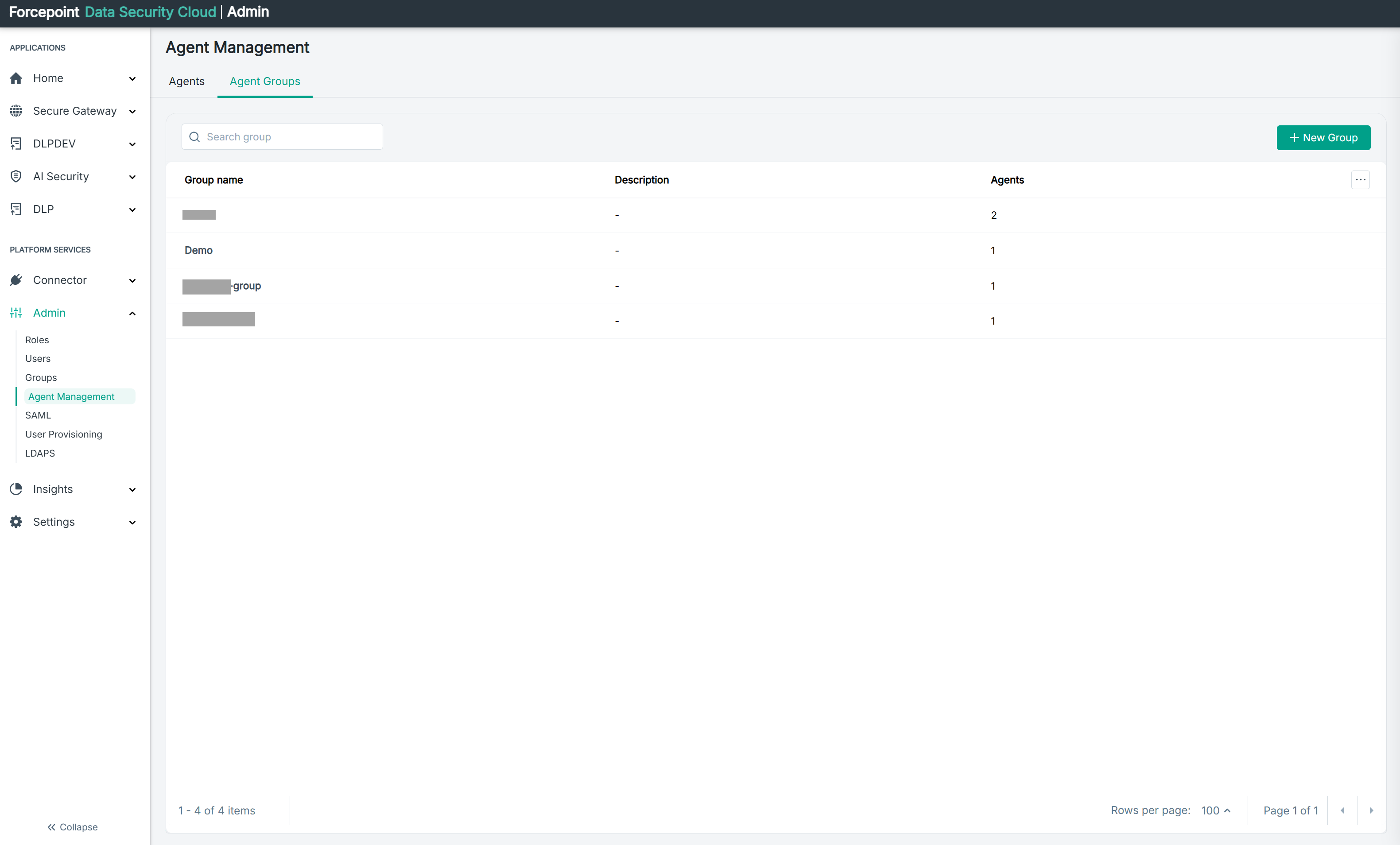
Group your agents, so that policies can refer to a group rather than naming each agent
-
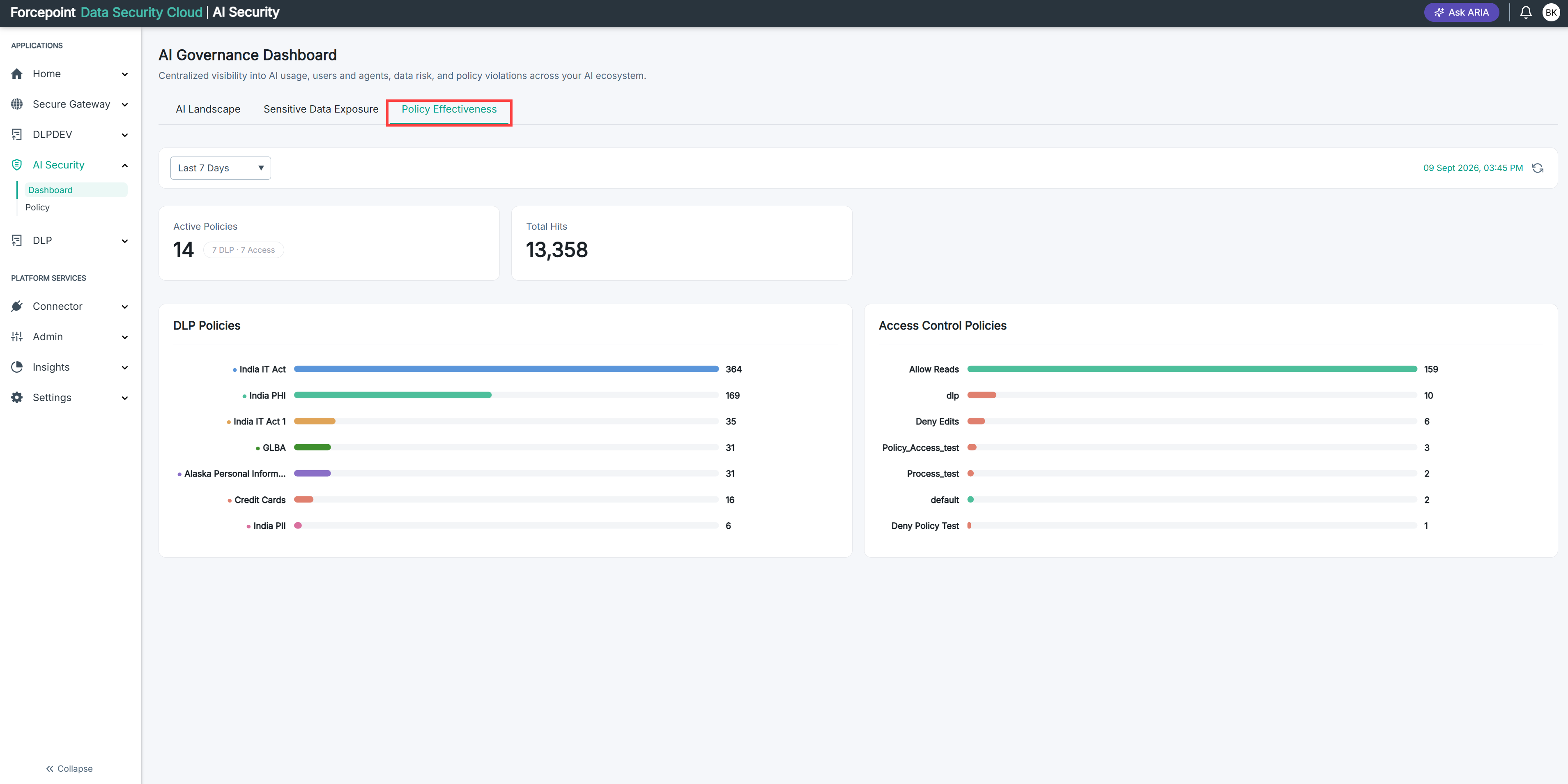
Check the Policy Effectiveness tab to see whether your policies are being triggered