
Connecting Claude
Connect Claude to AI Security so that Forcepoint can inspect the interactions between your users and Claude.
Before you begin
Before you begin, make sure that you have:
- A Compliance Access Key generated in your Claude account.
- Permission to manage connectors in Forcepoint Data Security Cloud.
Steps
-
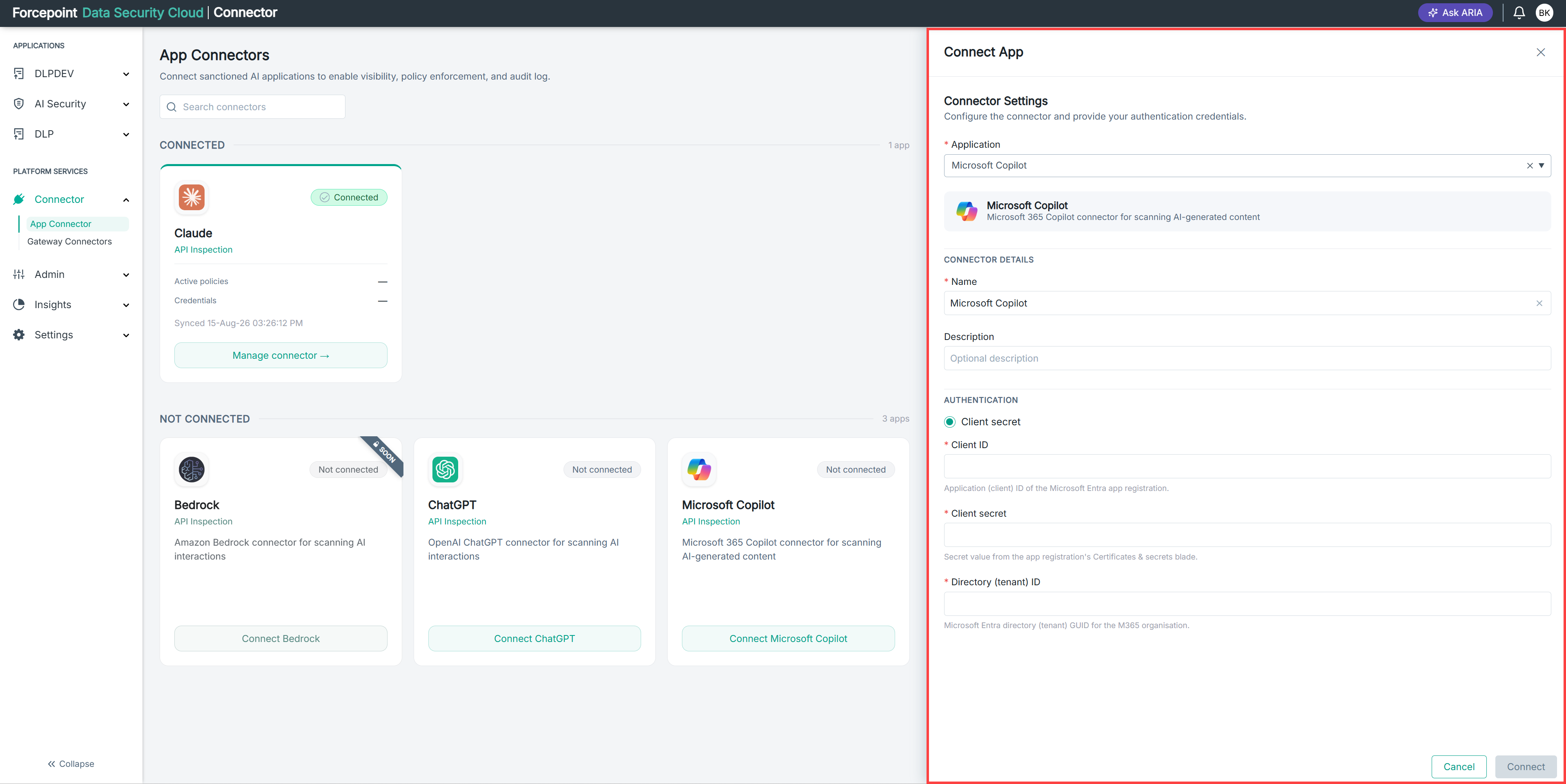
Open the Connect App panel.
-
From the Application list, select Claude.
-
In Name, accept the default name or enter a name for the connector.
-
Optional: In Description, enter a description for the connector.
-
In Compliance Access Key, enter the key you generated in Claude.
-
Select Continue.
The scan settings open, with Scan Content and User Scan Scope.
-
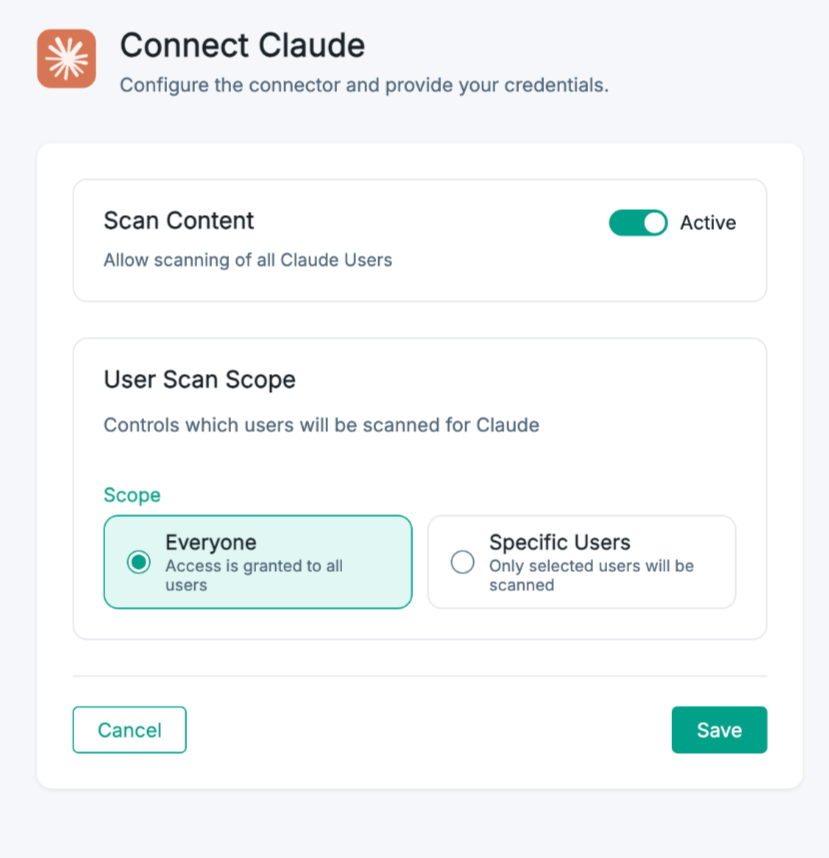
Check that the Scan Content toggle is set to Active.
When Scan Content is active, AI Security scans the prompts and responses of the Claude users in scope. By default, the scope is Everyone. To keep this default, select Save.
The default scan settings are shown in the below image.
-
Optional: To scan only some users, set the user scan scope.
-
Under User Scan Scope, select Specific Users.
A search box appears below the scope options.
-
In the search box, type the name of a user.
A list of matching users appears.
-
Select the user from the list.
The user appears as a tag above the search box.
-
Repeat substeps b and c for each further user you want to scan.
-
-
Select Save.
Result
Claude appears under CONNECTED on the App Connectors page with a Connected status, and its activity appears on the AI Governance Dashboard.
Next steps
If the key is rejected, verify that you copied it correctly and that it is still valid in your Claude account.