
Understanding the Dashboard Header
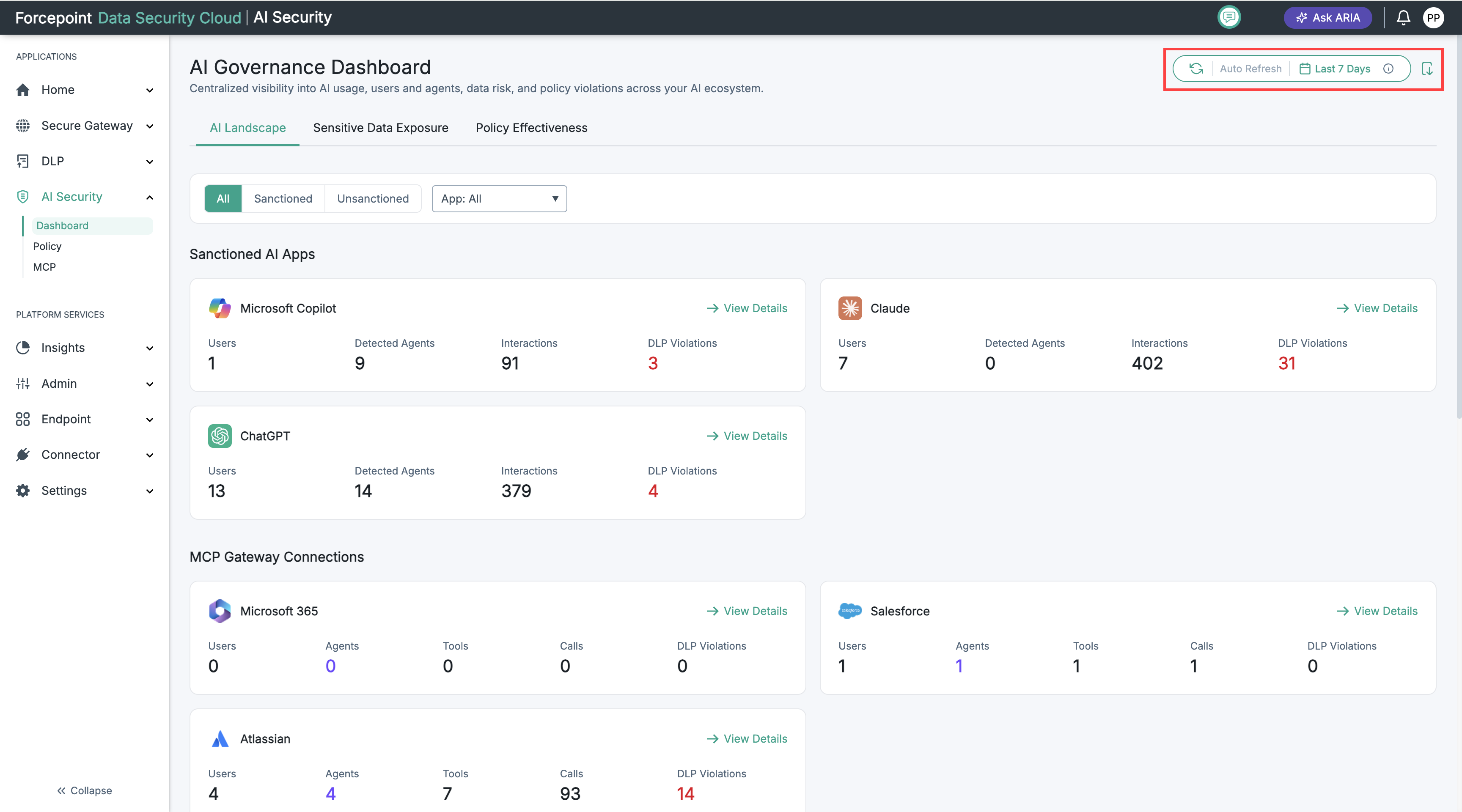
Every tab of the AI Governance Dashboard has a header to now set the time period, refresh the data, and export dashboards to PDF.
The header appears at the top right of the AI Landscape, Sensitive Data Exposure, and Policy Effectiveness tabs. It contains these controls:
- Refresh icon: Reloads the dashboard data.
- Auto Refresh status: Shows whether the data refreshes automatically.
- Time period (for example, Last 7 Days): Shows the current time period. Click it to open the settings panel.
- Information icon
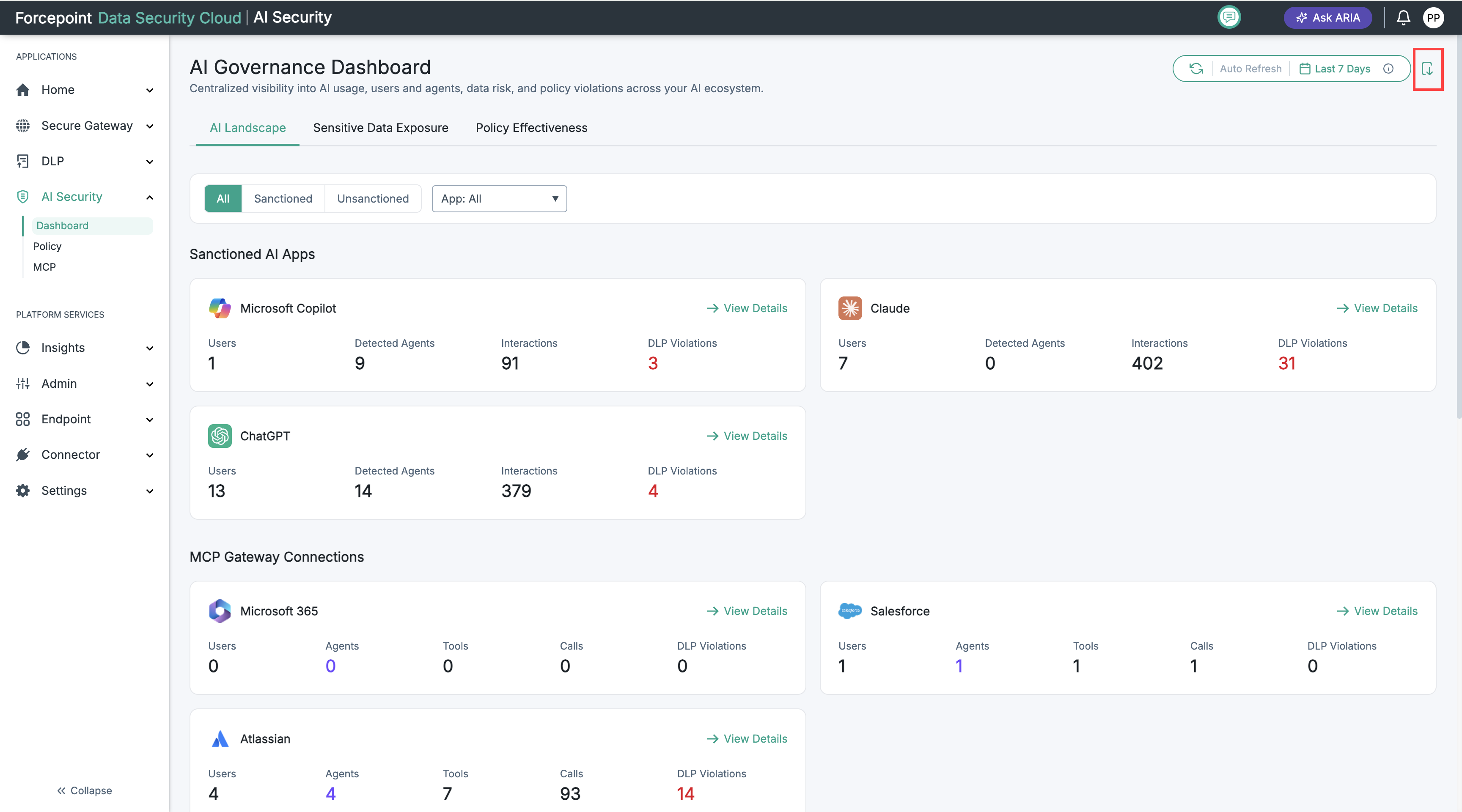
- Export to PDF icon: Opens the Export to PDF dialog.
The Dashboard header is shown below:
Set the Time Period
Choose the time period to control which data the dashboard shows.
-
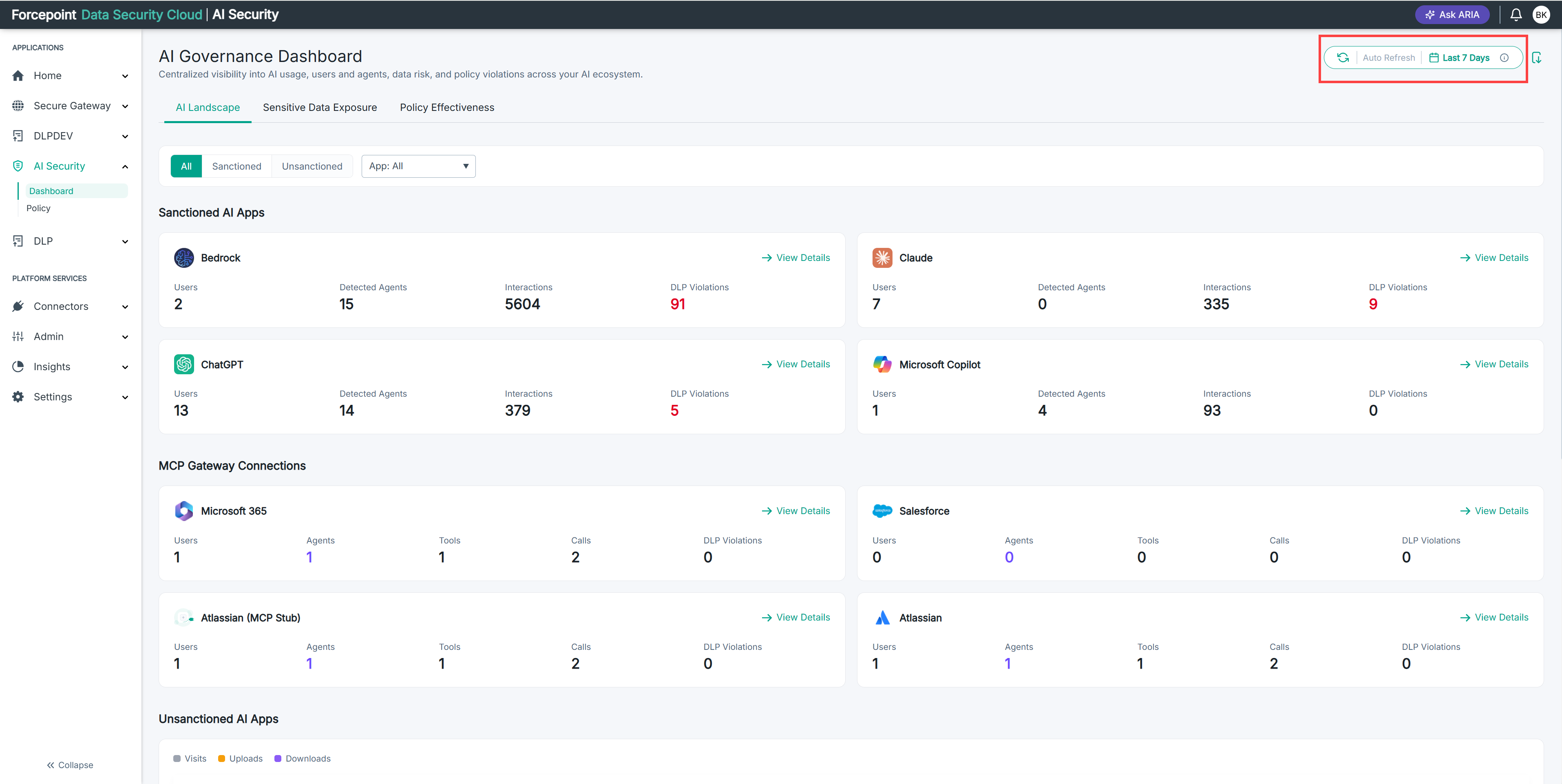
In the left navigation pane, go to AI Security › Dashboard.
The AI Governance Dashboard opens.
-
In the header, click the time period (for example, Last 7 Days).
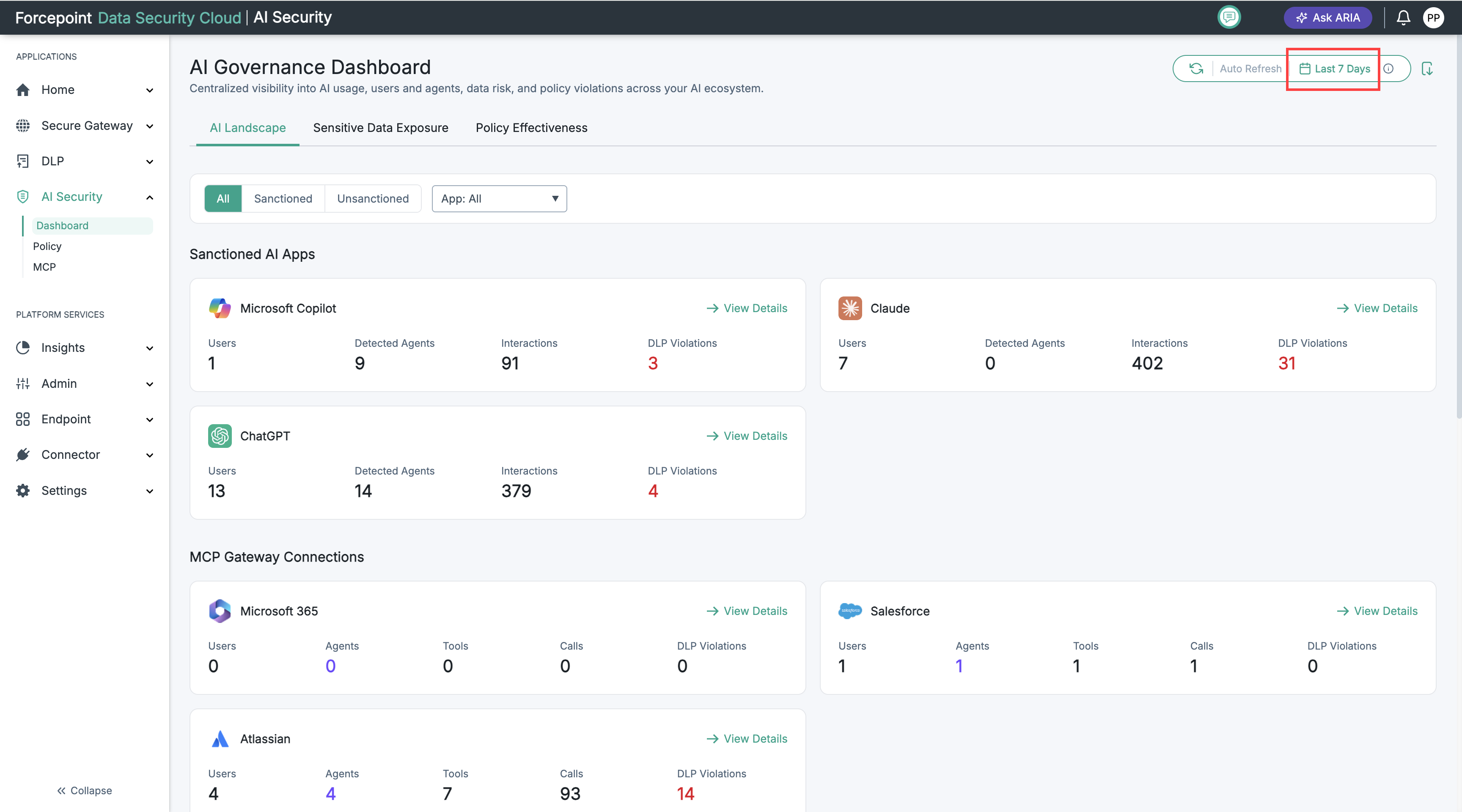
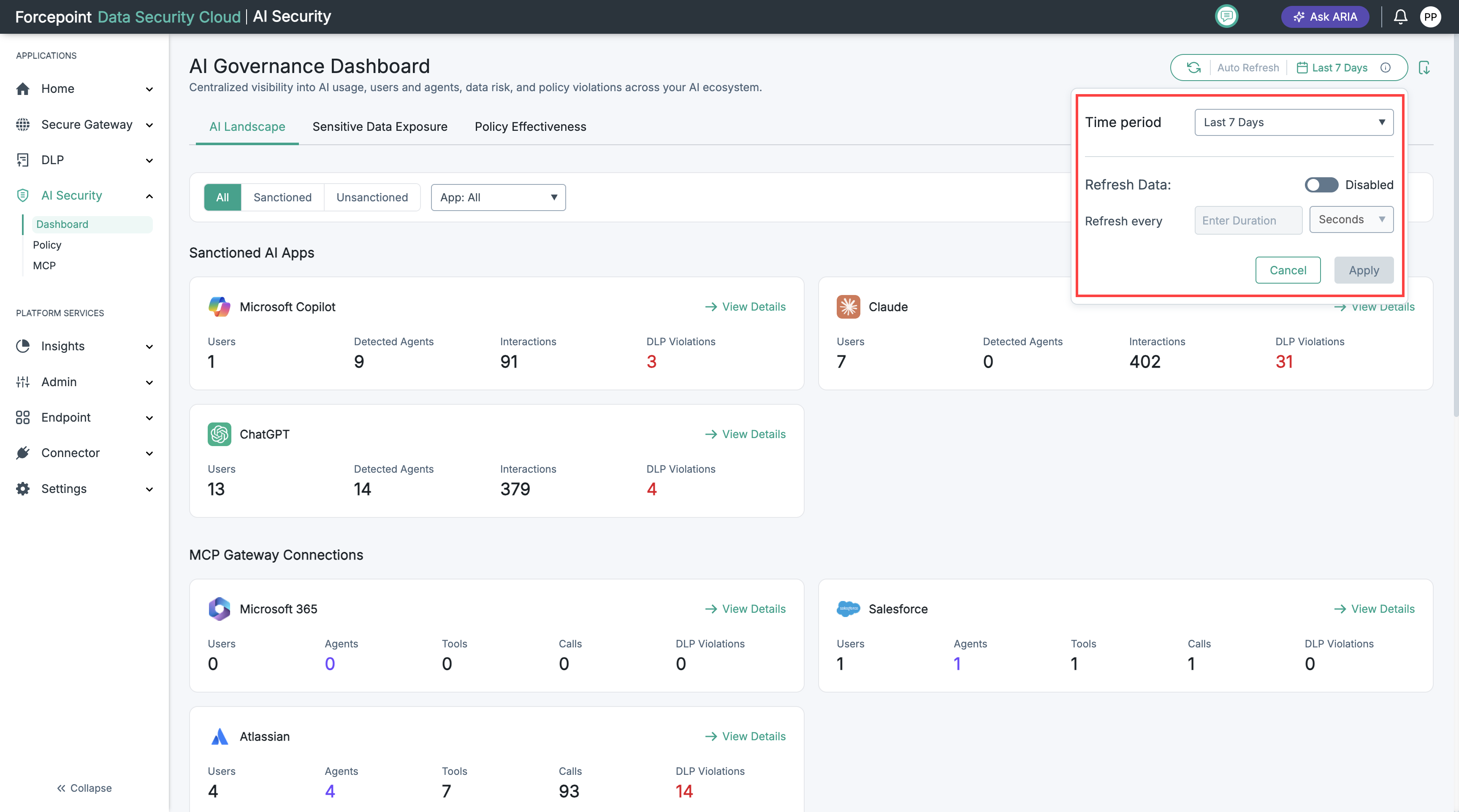
The settings panel opens.
-
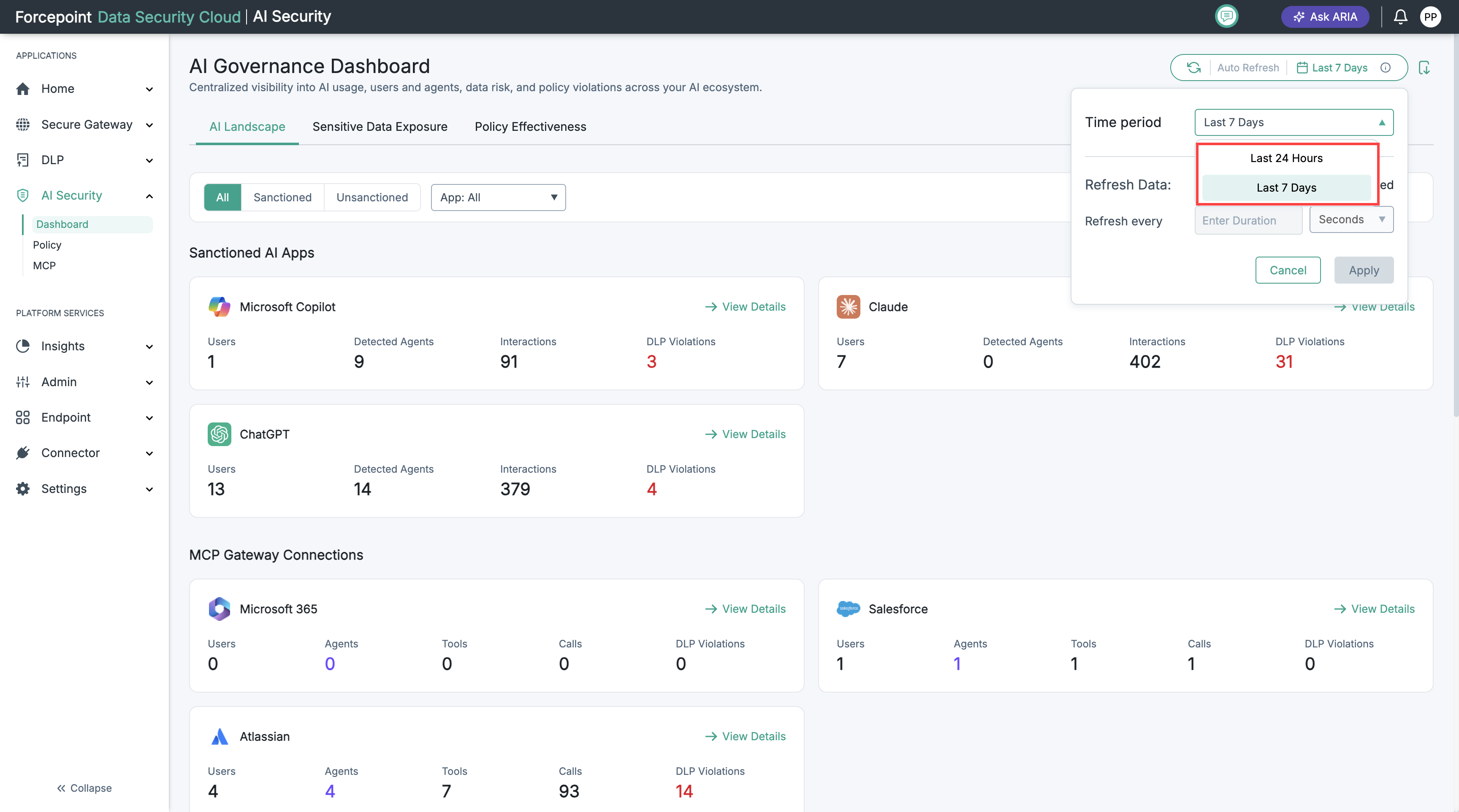
Click the Time period drop-down list.
-
Select a time period:
- Last 24 Hours
- Last 7 Days
-
Click Apply.
The dashboard shows data for the selected time period.
Set Up Auto Refresh
Turn on auto refresh to keep the dashboard data up to date without reloading the page.
-
In the left navigation pane, go to AI Security › Dashboard.
-
In the header, click the time period (for example, Last 7 Days).
The settings panel opens.
-
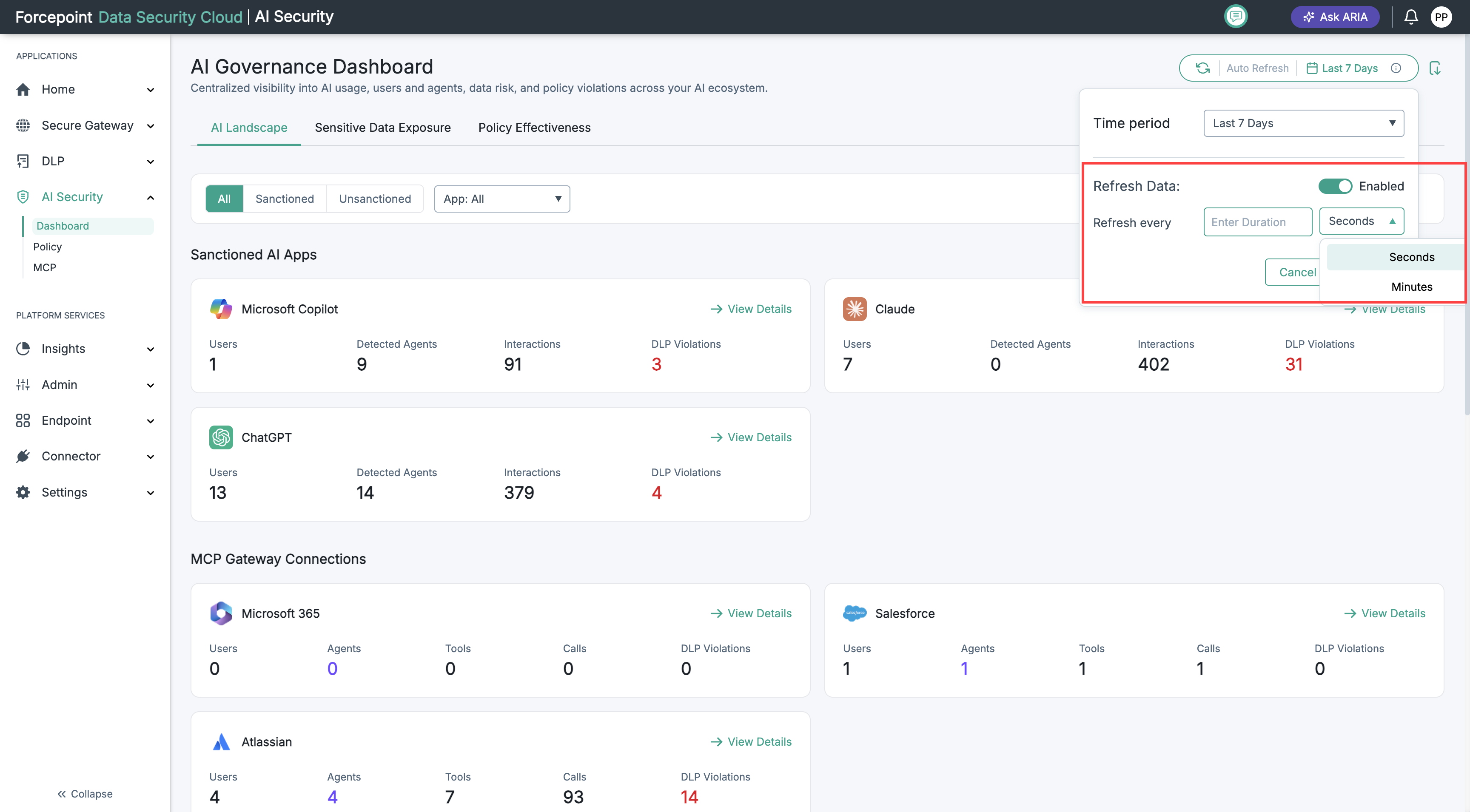
Turn on the Refresh Data toggle.
-
In the Refresh every field, enter the refresh interval.
-
In the drop-down list next to the interval, select the unit of time (for example, Seconds).
-
Click Apply.
The dashboard data now refreshes automatically at the interval you set.
Export Dashboards to PDF
Export one dashboard on its own, or combine all three dashboards into a single PDF report.
-
In the left navigation pane, go to AI Security › Dashboard.
-
Click the tab you want to export: AI Landscape, Sensitive Data Exposure, or Policy Effectiveness.
-
In the header, click the Export to PDF icon.
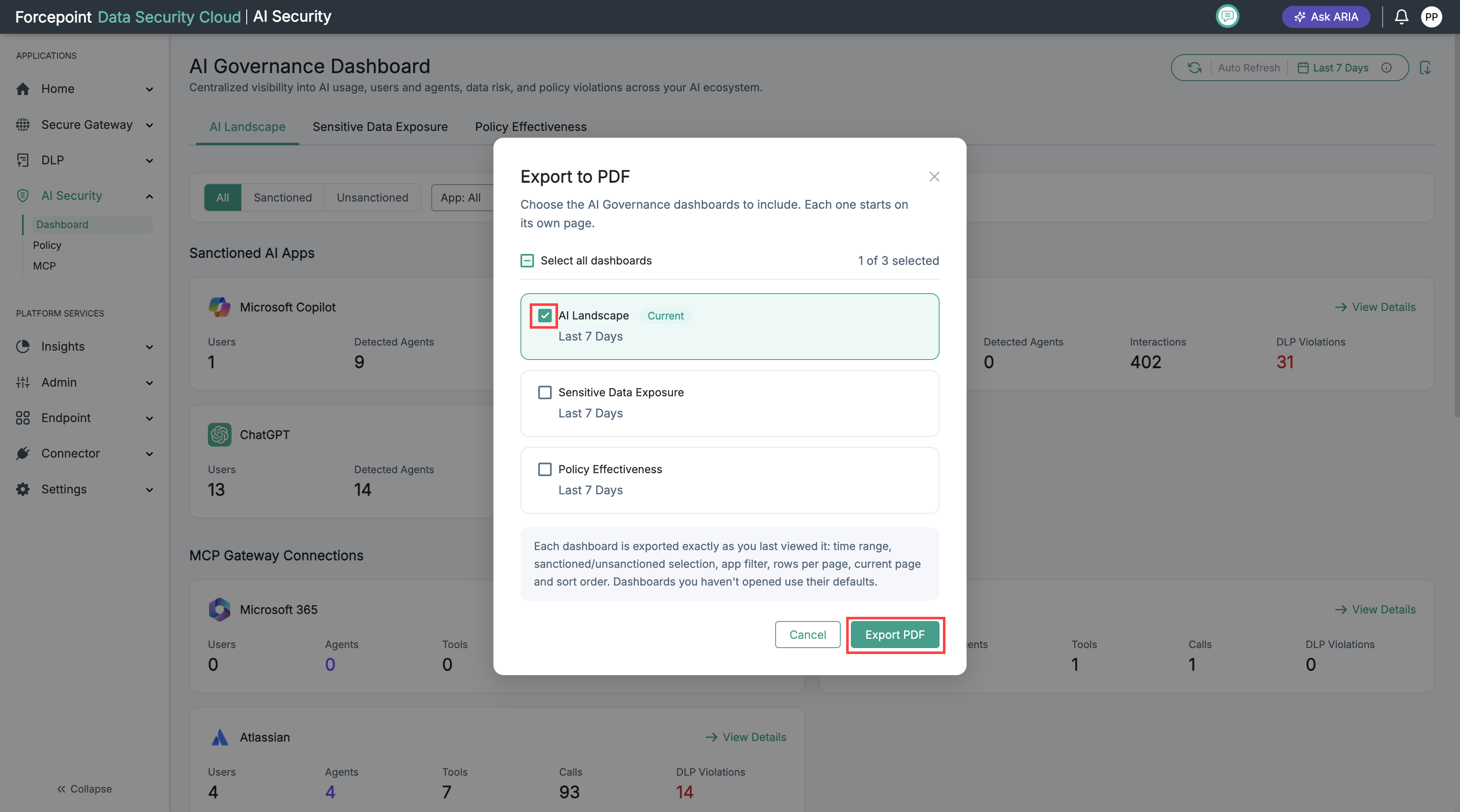
The Export to PDF dialog opens. The dashboard you have open is already selected and labelled Current.
-
Select the dashboards you want to include in the PDF:
- To export only the current dashboard, keep its selection.
- To add another dashboard, select its check box.
- To export all three dashboards in one PDF, select Select all dashboards.
-
Click Export PDF.
The PDF downloads to your computer.