
Understanding the Configure AI Security Popup
The Configure AI Security popup appears the first time you open AI Security. It explains what setup covers and asks you to choose how you want to do it.
The popup is not a step in the setup. It is the decision point before setup begins.
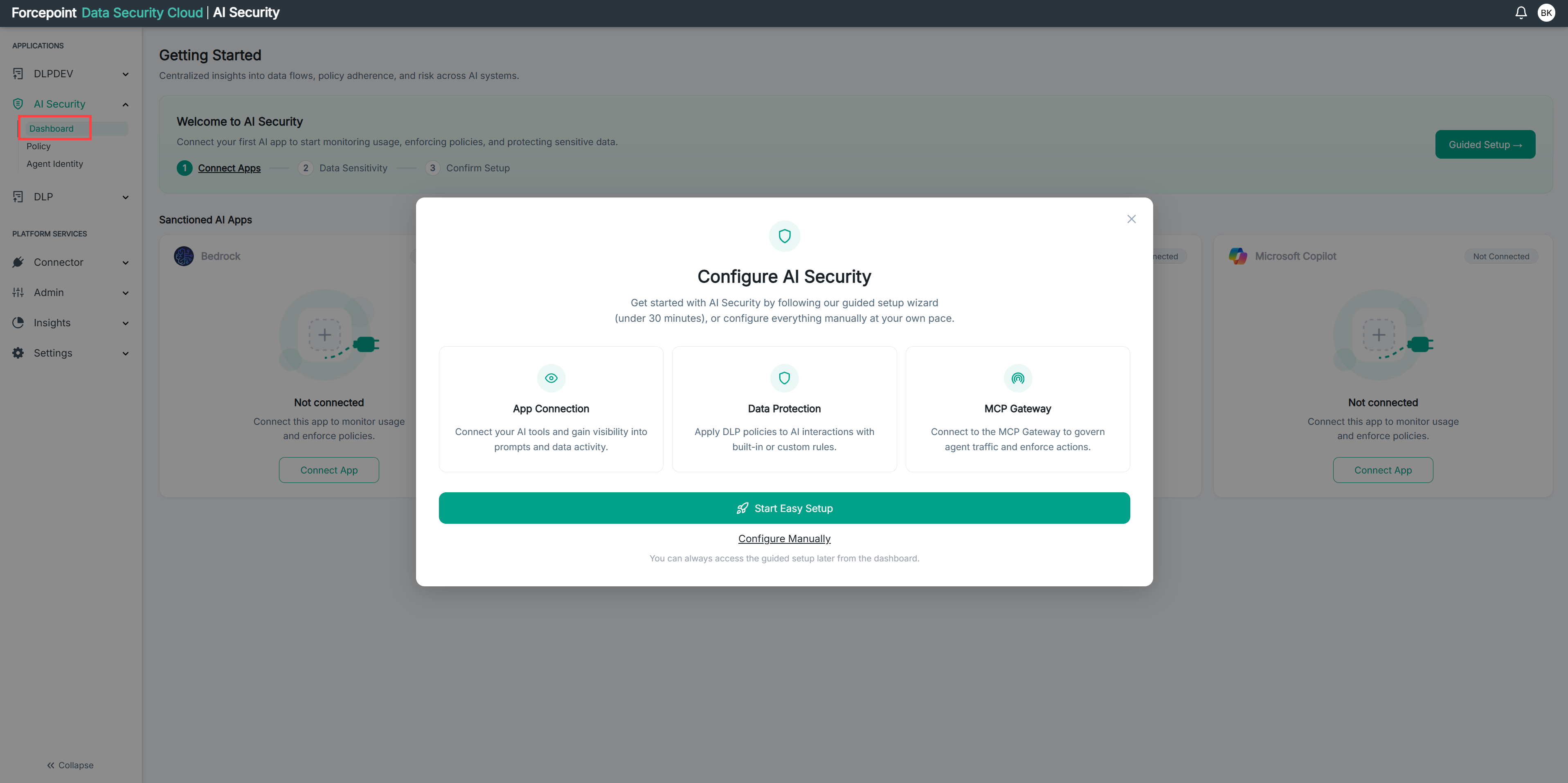
What the popup contains
| Area | What it shows |
|---|---|
| Introduction | That setup can be done with a wizard in under 30 minutes, or manually at your own pace |
| Three cards | What setup covers |
| Start Easy Setup | Begins the guided setup wizard |
| Configure Manually | Closes the popup so you can configure each part yourself |
| Close icon | Dismisses the popup without choosing |
What the three cards mean
The cards describe the three areas setup covers. They are not the steps of the wizard, and they are not in an order you have to follow.
| Card | What it covers |
|---|---|
| App Connection | Connecting your AI tools, which gives you visibility into prompts and data activity |
| Data Protection | Applying data security policies to AI interactions, using built-in or custom rules |
| MCP Gateway | Connecting to the MCP Gateway so that agent traffic can be governed and acted on |
Reading them is worthwhile even if you intend to configure manually, because between them they describe the whole of what AI Security needs before it can report or enforce anything.
The two ways forward
Start Easy Setup runs the guided setup wizard. It takes you through connecting an application, choosing what sensitive data matters, and confirming the result. The popup puts the time at under 30 minutes.
Configure Manually closes the popup and leaves you to set each part up yourself, in whatever order suits you. Nothing is skipped by choosing this; the same work is done from the individual pages instead.
Neither choice is permanent. The guided setup covers the common path quickly, and anything it configures can be changed afterwards.
What you can do from here
- See what AI Security setup involves before committing to it
- Start the guided setup wizard
- Close the popup and configure each part yourself