
Understanding the Manage Connector Panel for Atlassian
The Manage Atlassian Connector panel shows which Atlassian tools are available to your agents, and how those agents authenticate.
A gateway connector is what makes Atlassian reachable from the MCP Gateway. This panel is where you see what it exposes and decide how agents prove who they are acting for.
To open it, go to Connector › Gateway Connectors and click Manage connector on the Atlassian card.
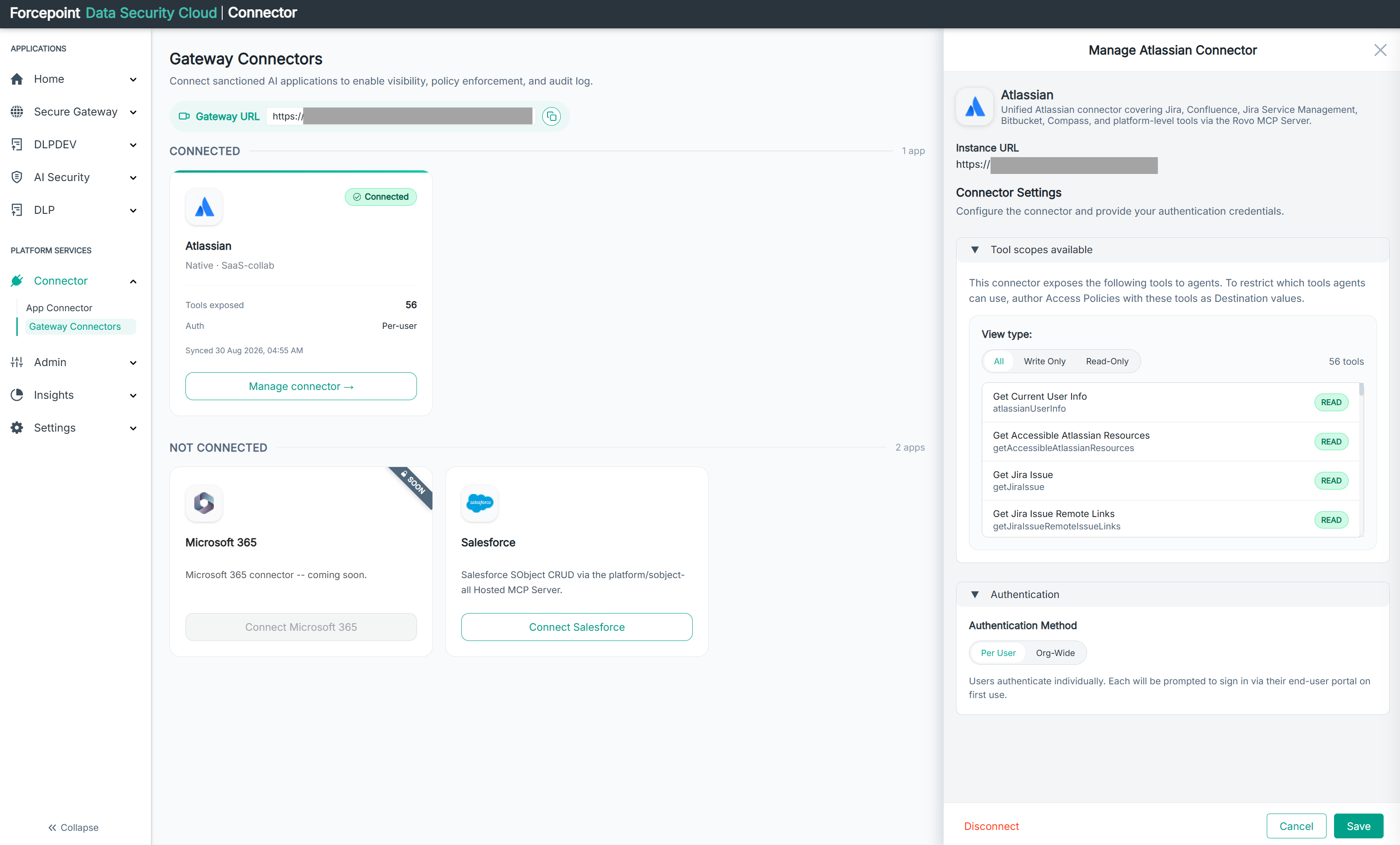
What the panel contains
| Area | What it shows |
|---|---|
| Description | Which Atlassian products this connector covers |
| Instance URL | The MCP server address the connector uses |
| Tool scopes available | Every tool this connector exposes to your agents |
| Authentication | How agents authenticate to Atlassian |
| Disconnect | Removes the connection |
| Cancel and Save | Abandon or keep your changes |
The description is worth reading once. The Atlassian connector is unified, meaning a single connection covers several products rather than one.
Reading the tool list
This section lists every tool the connector makes available. The count beside the filter tells you how many there are in total.
| Element | What it shows |
|---|---|
| Display name | What the tool does, in readable form |
| Technical name | The identifier used elsewhere in the product |
| Access badge | Whether the tool reads or writes |
This is the panel to come to when you have seen a technical name somewhere else and need to know what it does. Tool names appear in their technical form on the connector details page, in the policy panels, and in the audit tables, but only here are they paired with a readable name and an access kind.
View type filters the list. Write Only is the useful one when you are deciding what to restrict, because those are the tools that can change something in Atlassian.
The tool list is not where access is restricted
The text in this section is explicit: to restrict which tools agents can use, write access policies naming those tools as destination values.
Nothing here narrows what agents may do. The list is a reference for what exists, and the control sits in the Access Policies tab under AI Security > Policy.
Choosing an authentication method
Authentication Method decides whose permissions an agent operates under.
| Method | What it means |
|---|---|
| Per User | Each user authenticates individually, and is prompted to sign in through their end-user portal the first time. The agent then acts with that permissions of that user |
| Org-Wide | A single organisation-level authentication is used instead of individual sign-in |
Per User keeps your existing Atlassian permissions meaningful, because an agent cannot reach anything the person it is acting for could not reach. It also makes the audit trail specific: the Actor column on the connector details page names a person.
Changing this changes the security model for every agent using the connector, not only for new ones.
What you can do from here
- See which Atlassian products the connector covers
- See every tool available to your agents, and whether each reads or writes
- Find the readable name behind a technical tool name
- Filter the list to write operations
- Choose how agents authenticate
- Disconnect the connector