
Understanding the App Connectors Page
The App Connectors page is where you connect the AI applications your organisation has approved.
Connecting an application is what makes everything else possible. Until an application is connected, AI Security cannot see who is using it, cannot inspect what is being sent to it, and cannot enforce policy on it.
To open it, go to Connector › App Connector.
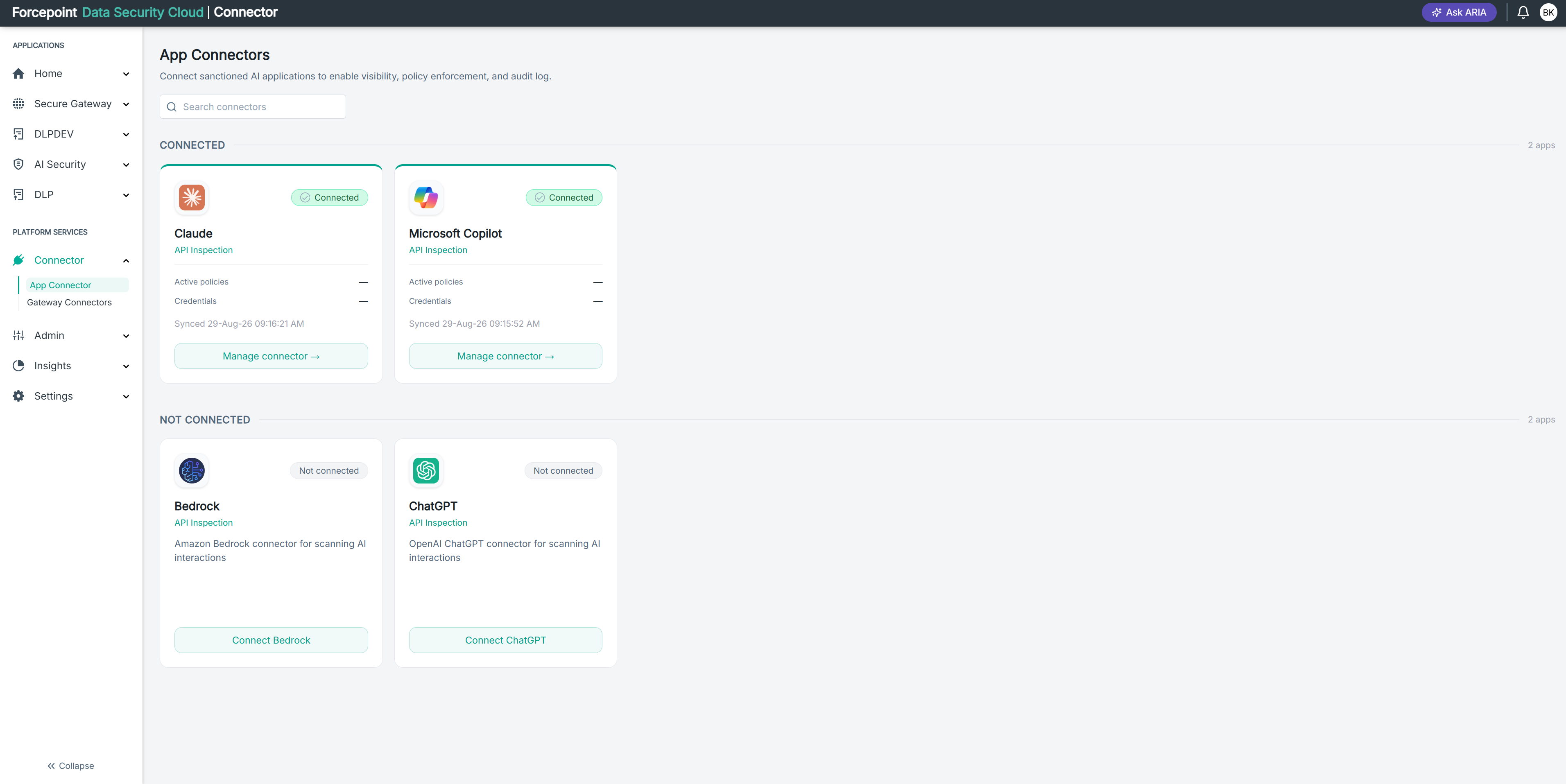
What the page contains
The page lists AI applications as cards, split into two groups.
| Area | What it shows |
|---|---|
| Search connectors | Filters the cards by application name |
| CONNECTED | Applications already connected, with a count of how many on the right of the heading |
| NOT CONNECTED | Applications available to connect, with a count on the right |
Reading a connected card
| Element | What it shows |
|---|---|
| Status badge | Connected, with a tick |
| Application name | The AI application |
| API Inspection | The method used to inspect this application's traffic |
| Active policies | How many policies currently apply to this application |
| Credentials | The credentials configured for the connection |
| Synced | The date and time the connector last exchanged data with the application |
| Manage connector | Opens the connector's settings, where you update credentials, adjust scope, or disconnect |
Reading a card that is not connected
These cards carry a Not connected badge, the inspection method, a short description of what the connector does, and a button that starts the connection, for example Connect ChatGPT.
The button always names the application, so you can tell at a glance what you are about to connect.
What you can do from here
- Find an application by name
- See at a glance which applications are connected and which are not
- Check when a connected application last synced
- Open Manage connector to change or remove a connection
- Connect a new AI application