
Understanding the Data Security Policy Details Panel
Clicking a policy on the Data Security tab opens a panel showing what that policy detects, rule by rule.
The list on the Data Security tab gives each policy one action and one classifier. That is a summary. The detection itself is done by rules inside the policy, and this panel is where you see them.
The panel is read-only. You can review everything the policy does, but changes are made in the Data Security portal, reached using Edit in DLP.
To open it, go to AI Security › Policy, click Data Security, then click a policy.
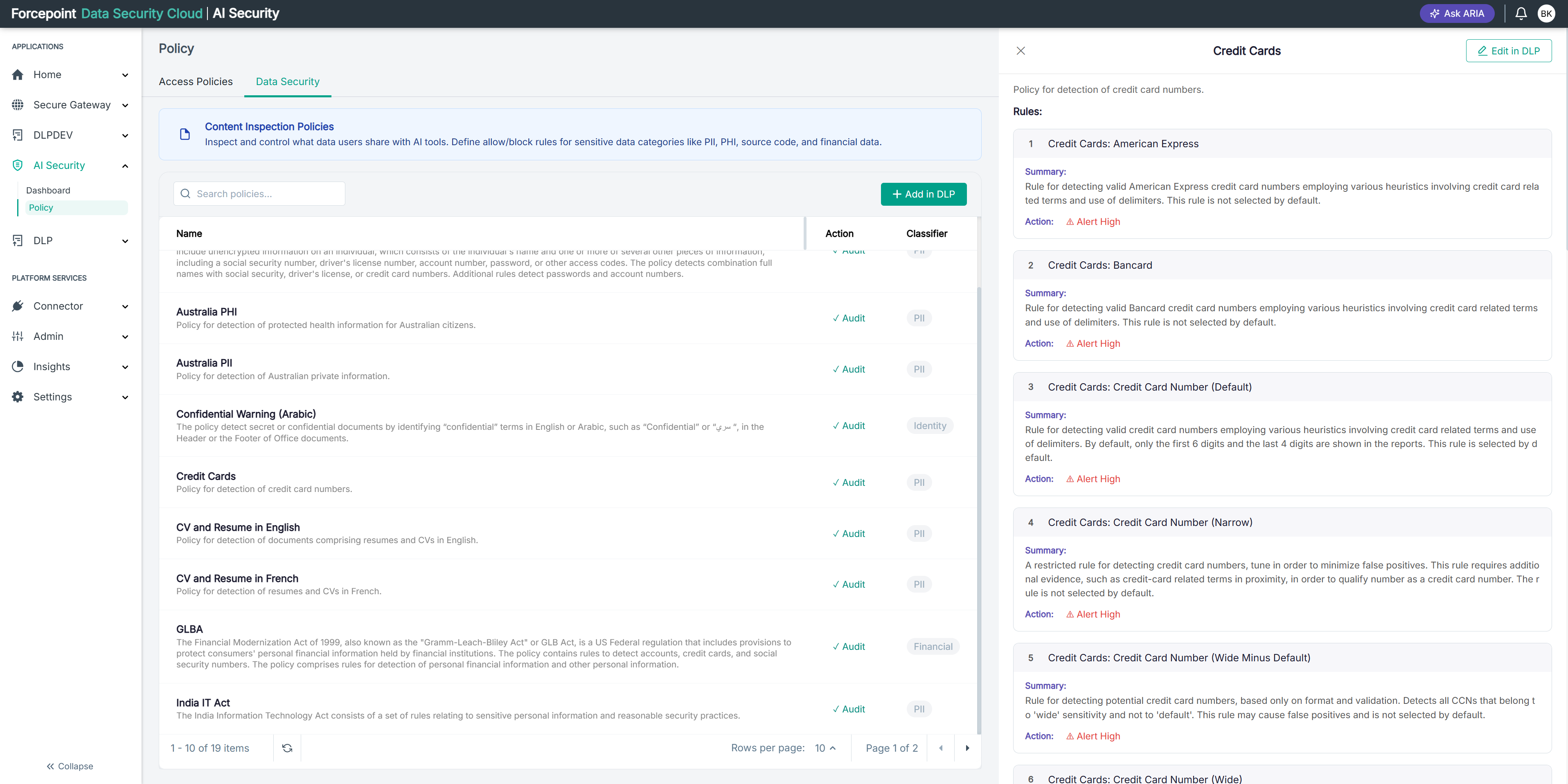
What the panel contains
| Area | What it shows |
|---|---|
| Panel title | The name of the policy you opened |
| Edit in DLP | Opens the policy in the Data Security portal, where it can be changed |
| Description | What the policy is for, as entered when it was created |
| Rules | A numbered list of the rules that make up the policy |
| Close icon | Closes the panel and returns you to the list |
Policies and rules
A policy is a container. It groups the rules that belong to one subject, such as a piece of legislation or a category of financial data.
A rule is what actually detects something. One policy usually holds several, and they do not all look for the same thing. A policy covering a national data protection act may carry rules for card numbers, for national identity numbers, and for health information, because all three fall under that act.
This matters when you are working out why a policy did or did not fire. The policy did not miss anything. A rule did, and finding which one is the first step to fixing it.
Reading a rule
| Element | What it tells you |
|---|---|
| Rule name | The policy name followed by what this rule targets |
| Summary | What the rule detects, how it decides, and whether it is selected by default |
| Action | What happens when this rule matches, for example an alert raised at high severity |
Read the summaries rather than skimming them. They state how the rule decides, which is often the difference between a rule that fires constantly and one that never does.
Rules that need a combination
Some rules do not look for a single value. They look for two things appearing together, such as a full name alongside a national identity number, or a full name alongside a medical condition.
A number on its own is often meaningless. A number attached to a name identifies someone, which is what makes it sensitive. Combination rules exist to catch the second case without alerting on the first.
If you expect a policy to have caught something and it did not, check whether the rule required a combination and only one half was present.
Narrow, default, and wide rules
Where a policy offers the same detection at several sensitivities, the rule names say so and the summaries explain the consequence:
- A narrow rule requires supporting evidence nearby before it treats something as a match. It produces fewer false positives, and misses data that appears without that context.
- A default rule is the balance the policy author settled on, and is normally the one active.
- A wide rule matches on format alone. It catches the most, and produces the most false positives.
If a policy is generating more alerts than your team can work through, rule sensitivity is usually the cause rather than the policy. If sensitive data is passing undetected, a narrow rule may be the reason.
What you can do from here
- See every rule that makes up a policy
- Read what each rule detects and how it decides
- See the action each individual rule takes
- Work out which rule is responsible for a policy behaving as it does
- Open the policy in the Data Security portal to change it