
Understanding the Agents Tab
The Agents tab lists every AI agent registered to reach your business applications through the MCP Gateway.
Registering an agent is what gives it an identity on the gateway. Until an agent is registered and holds a token, it cannot make tool calls, and nothing it does can be attributed to a person or governed by an access policy.
To open it, go to Admin › Agent Management. The Agents tab opens by default.
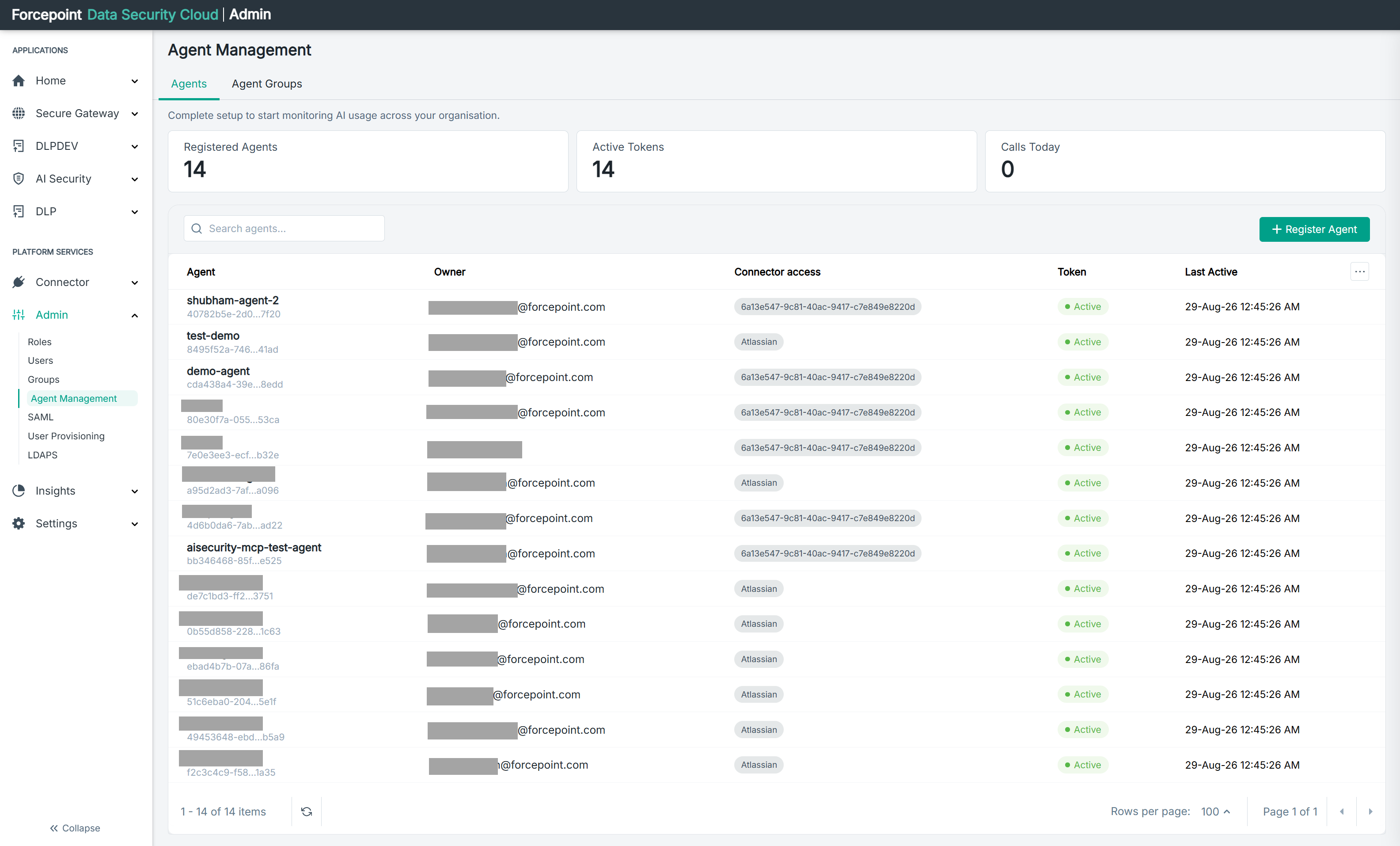
What the tab contains
| Area | What it shows |
|---|---|
| Summary cards | Three figures: Registered Agents, Active Tokens, and Calls Today |
| Search agents | Filters the list by agent name |
| Register Agent | Opens the panel for registering a new agent |
| Agent table | One row per registered agent |
| Refresh icon | Reloads the list, beside the item count at the foot of the table |
| Paging controls | The item count, Rows per page, and the page arrows |
Reading the summary cards
| Card | What it tells you |
|---|---|
| Registered Agents | How many agents exist in your environment |
| Active Tokens | How many of those agents hold a working token. A gap between this figure and the agent count means some agents cannot currently connect |
| Calls Today | How many tool calls your agents have made today |
What the table columns mean
| Column | What it shows |
|---|---|
| Agent | The agent name, with its identifier beneath. The identifier is abbreviated in the list |
| Owner | The person responsible for the agent, usually shown as an email address |
| Connector access | Which gateway connectors the agent may reach, shown as badges |
| Token | Whether the token of the agent is currently valid, for example Active |
| Last Active | When the agent last made a call |
What you can do from here
- Find an agent by name
- See who owns each agent
- Check which connectors an agent is allowed to reach
- Confirm that the token of an agent is active
- See when an agent last did anything
- Register a new agent