
Understanding the Atlassian Details Page
The Atlassian details page shows what your AI agents have actually been doing in Atlassian through the MCP Gateway.
The other details pages report on people using an AI application. This one reports on agents using a business application: which tools they called, how often, on whose behalf, and where those calls breached a data security policy.
To open it, go to AI Security › Dashboard, then click View Details on the Atlassian card under MCP Gateway Connections.
Finding your way back
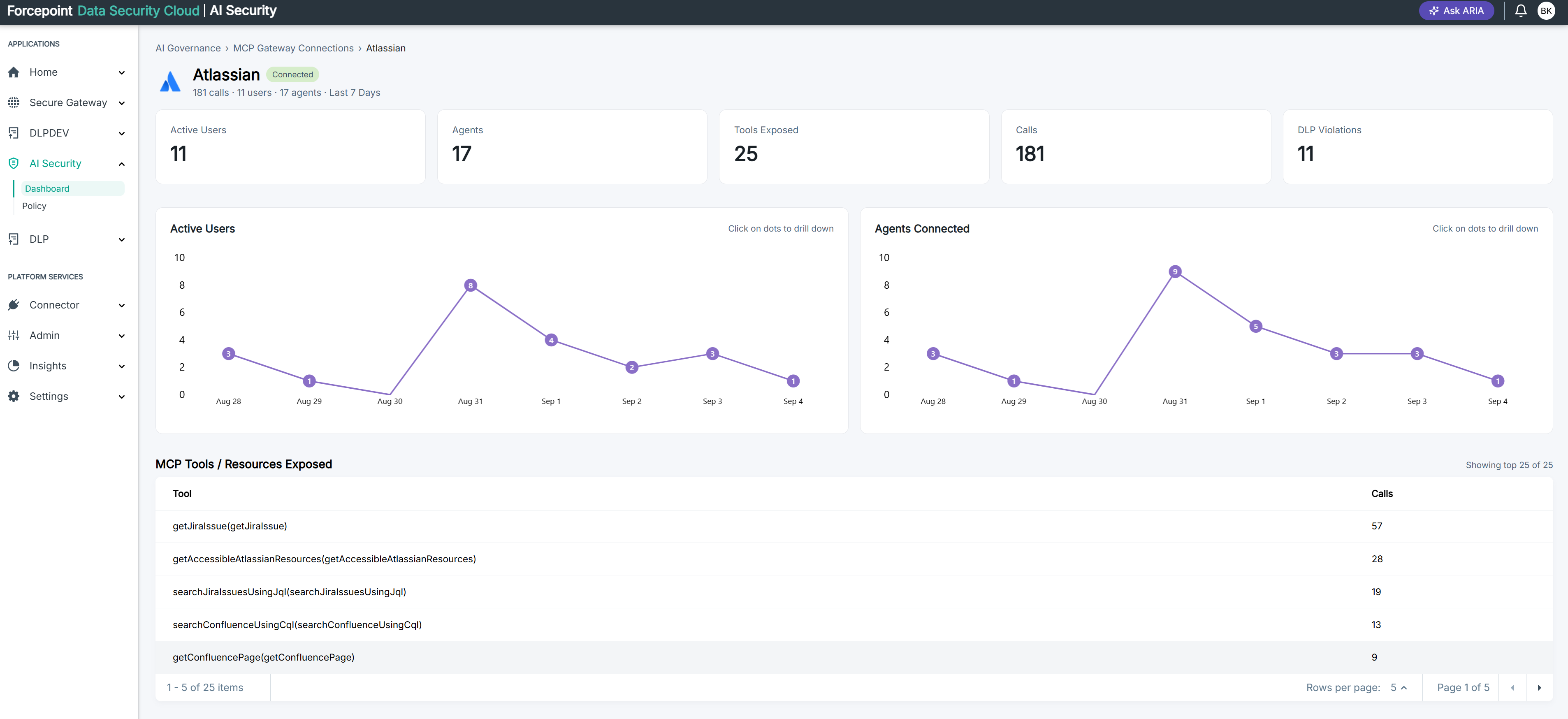
The breadcrumb shows the path you took: AI Governance, MCP Gateway Connections, Atlassian. Click any step to go back.
Below it, the connector name carries its status badge and a one-line summary of calls, users, agents, and the reporting period inherited from the dashboard.
What the page contains
| Area | What it shows |
|---|---|
| Summary cards | Five figures: Active Users, Agents, Tools Exposed, Calls, and DLP Violations |
| Active Users | A line chart of daily user activity across the period |
| Agents Connected | A line chart of daily agent activity across the period |
| MCP Tools / Resources Exposed | The tools available through this connector, ranked by call volume |
| Recent Calls | Individual tool calls, most recent first |
| DLP Violations | Calls that breached a data security policy |
Reading the two charts
Active Users and Agents Connected both plot one point per day, with the count shown on the point itself.
Both charts carry the note Click on dots to drill down. Clicking a point opens the detail behind that day.
Read them together. Agents rising while users stay flat means more automation on the same team. Both falling to zero on the same day usually means a connection problem rather than a quiet day.
Reading MCP Tools / Resources Exposed
This table lists the tools this connector makes available, ranked by how many times each was called.
| Column | What it shows |
|---|---|
| Tool | The technical name of the tool |
| Calls | How many times it was called in the period |
The count in the corner shows how many tools are being displayed. The table is paged.
Tool names appear in their technical form, for example getJiraIssue. To see what each one does and whether it reads or writes, use the Manage connector panel on the Gateway Connectors page.
Reading Recent Calls
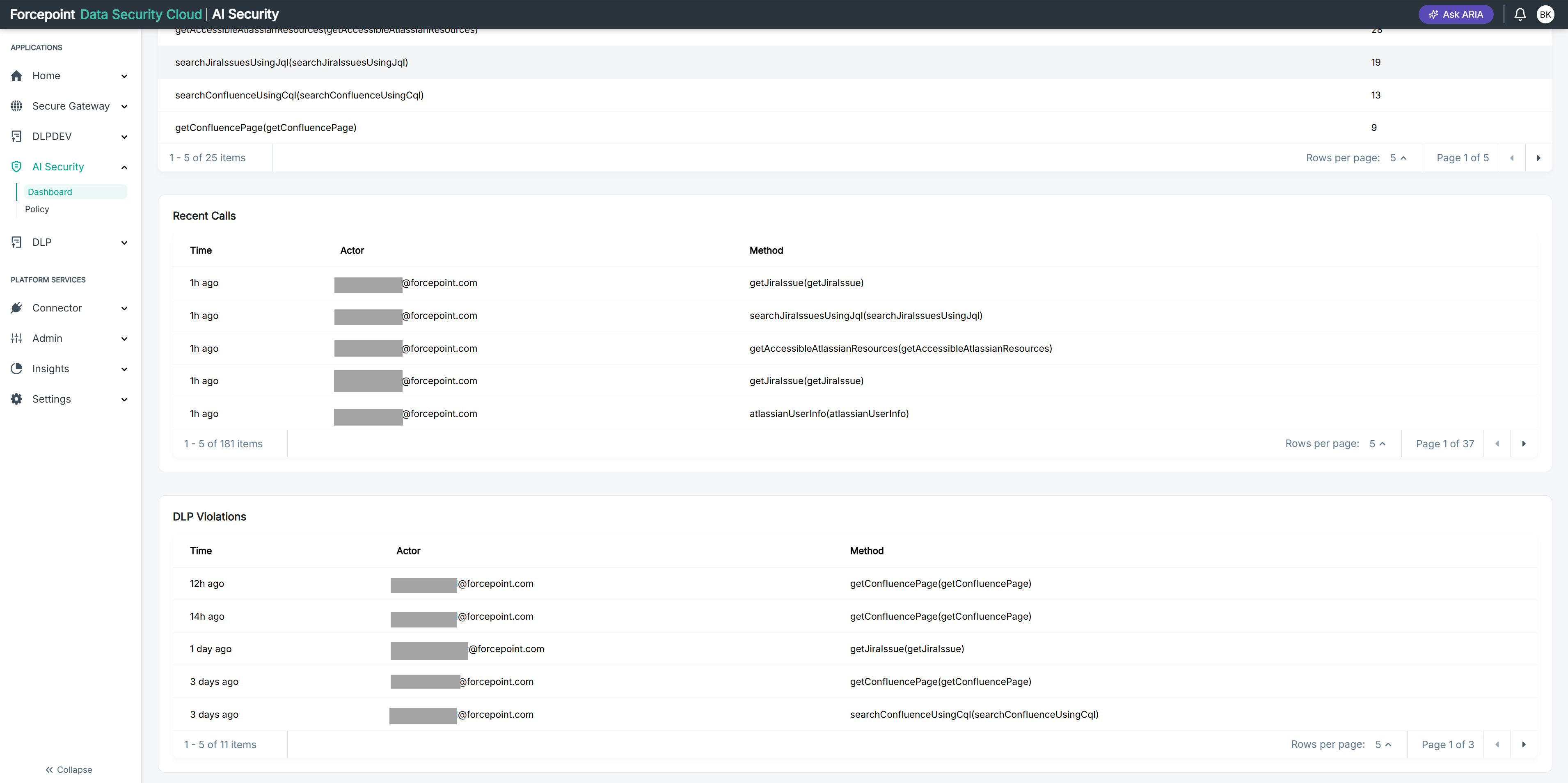
Every tool call, newest first.
| Column | What it shows |
|---|---|
| Time | How long ago the call was made |
| Actor | The user the call was made on behalf of |
| Method | The tool that was called |
This is the audit trail, and what the Actor column names depends on how the connector authenticates.
- With Per User authentication, each agent acts as the individual it is working for, so the column names that person and the permissions of that person applied to the call.
- With Org-Wide authentication, a single organisation-level identity is used instead, so the column does not identify an individual.
Check the authentication method on the Manage connector panel before relying on this column to attribute a call to a person.
Reading DLP Violations
The same shape as Recent Calls, narrowed to calls that breached a data security policy.
Use it to see which tools and which people are involved when sensitive data moves through the gateway. A single actor and method repeating across several rows is usually one workflow tripping a policy, not several separate incidents.
What you can do from here
- See how user and agent activity has moved across the period
- Click a point on either chart to drill into that day
- See which tools your agents rely on most
- Trace individual calls back to the person they were made for
- Review the calls that breached a data security policy
- Return to the dashboard using the breadcrumb