
Adding a Tool to the Policy Scope
Select the individual tools the policy governs, so that the policy action applies when an agent calls them.
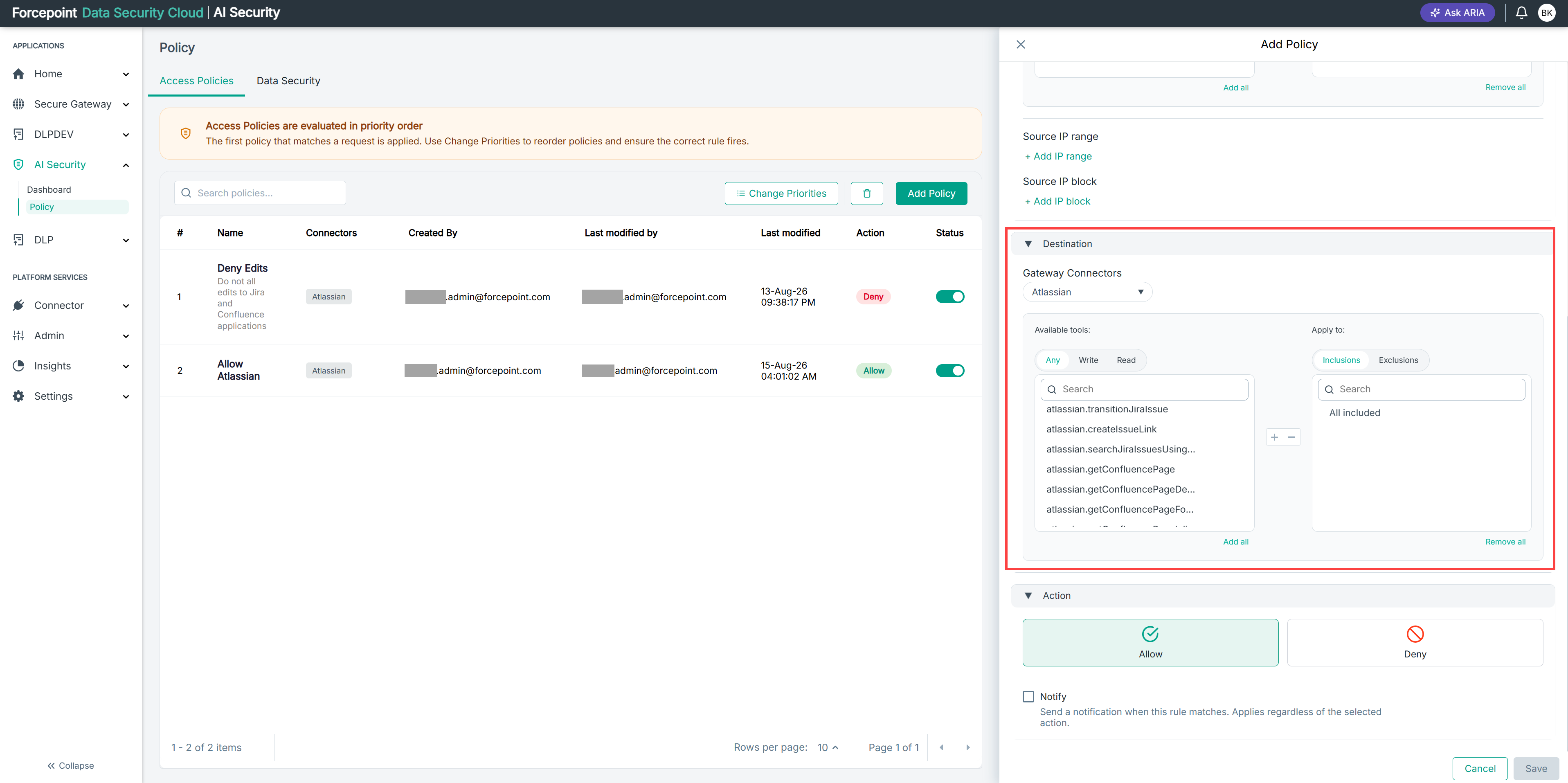
The Available tools list on the left shows the tools exposed by the connector you selected. The Apply to list on the right shows the tools already in the policy scope.
Steps
-
Open the Add Policy panel.
-
Expand Destination.
-
From the Gateway Connectors list, select the connector.
-
Optional: Filter the available tools by selecting Any, Write, or Read.
Filtering by Write is a quick way to find the tools that change data.
-
Optional: To find a specific tool, enter its name in the Search box above the tool list.
-
Under Apply to, select Inclusions or Exclusions.
-
Select the tool you want to add.
-
Select the add icon.
The tool moves to the Apply to list.
-
Repeat for each tool you want to include.
To add every tool shown at once, select Add all.
Result
The tools you selected are listed under Apply to and form the destination of the policy.
Next steps
This list shows the technical name of each tool only. To see the display name and the kind of access each tool has, open the Manage connector panel for that connector.