
Completing the Guided Setup
Use the guided setup wizard to connect your first AI application, choose what AI Security scans, and start monitoring AI usage across your organization.
Before you begin
Have the credentials ready for at least one AI application you want to connect. The credentials you need depend on the application. See What You Need Before You Begin.
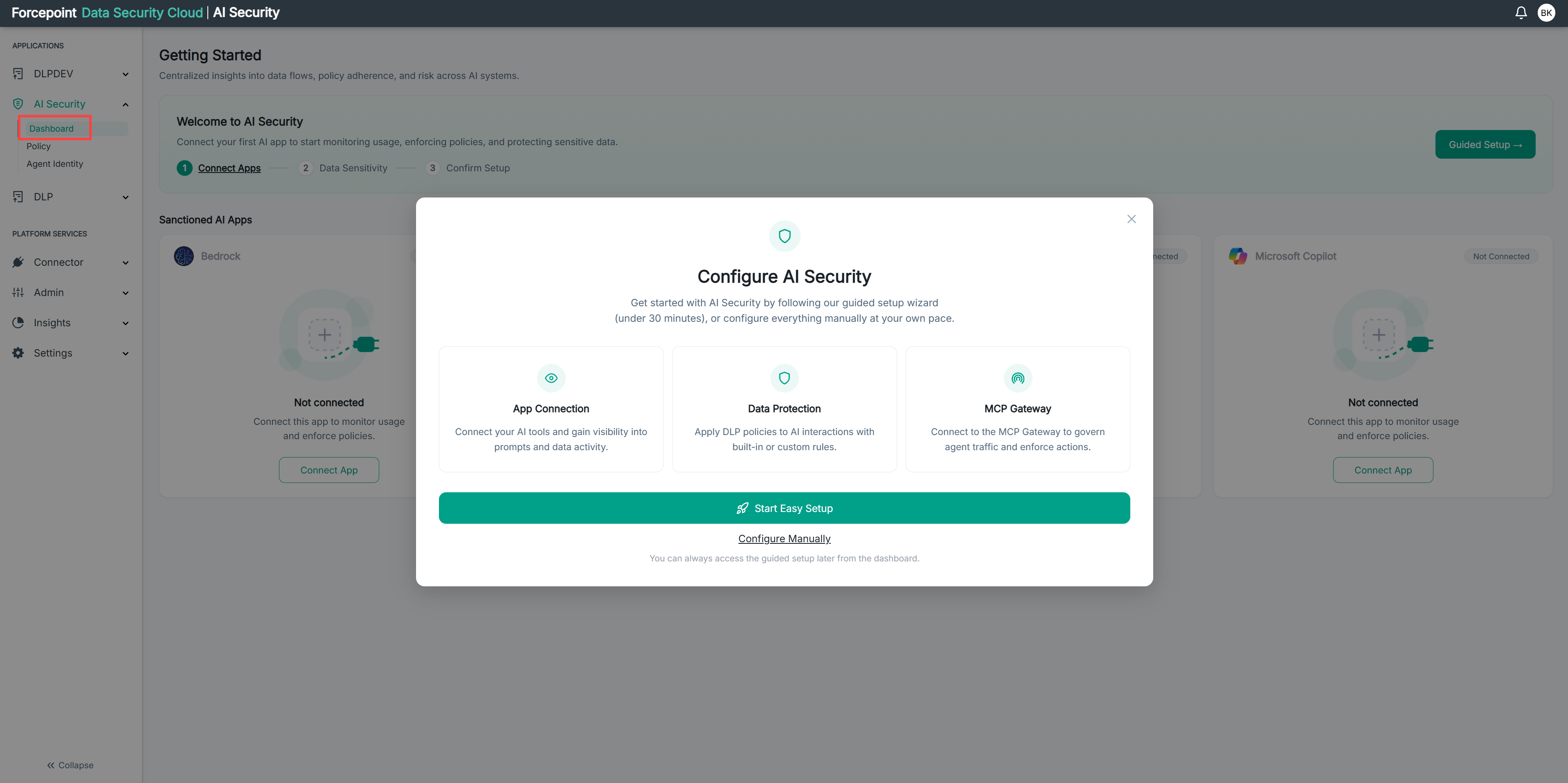
The Configure AI Security dialog appears the first time you open AI Security, before any connectors are set up. The wizard takes you through three steps: connecting your AI applications, selecting the data you want monitored, and confirming your setup.
The Configure AI Security dialog is shown in the below image.
Steps
-
In the Configure AI Security dialog, select Start Easy Setup.
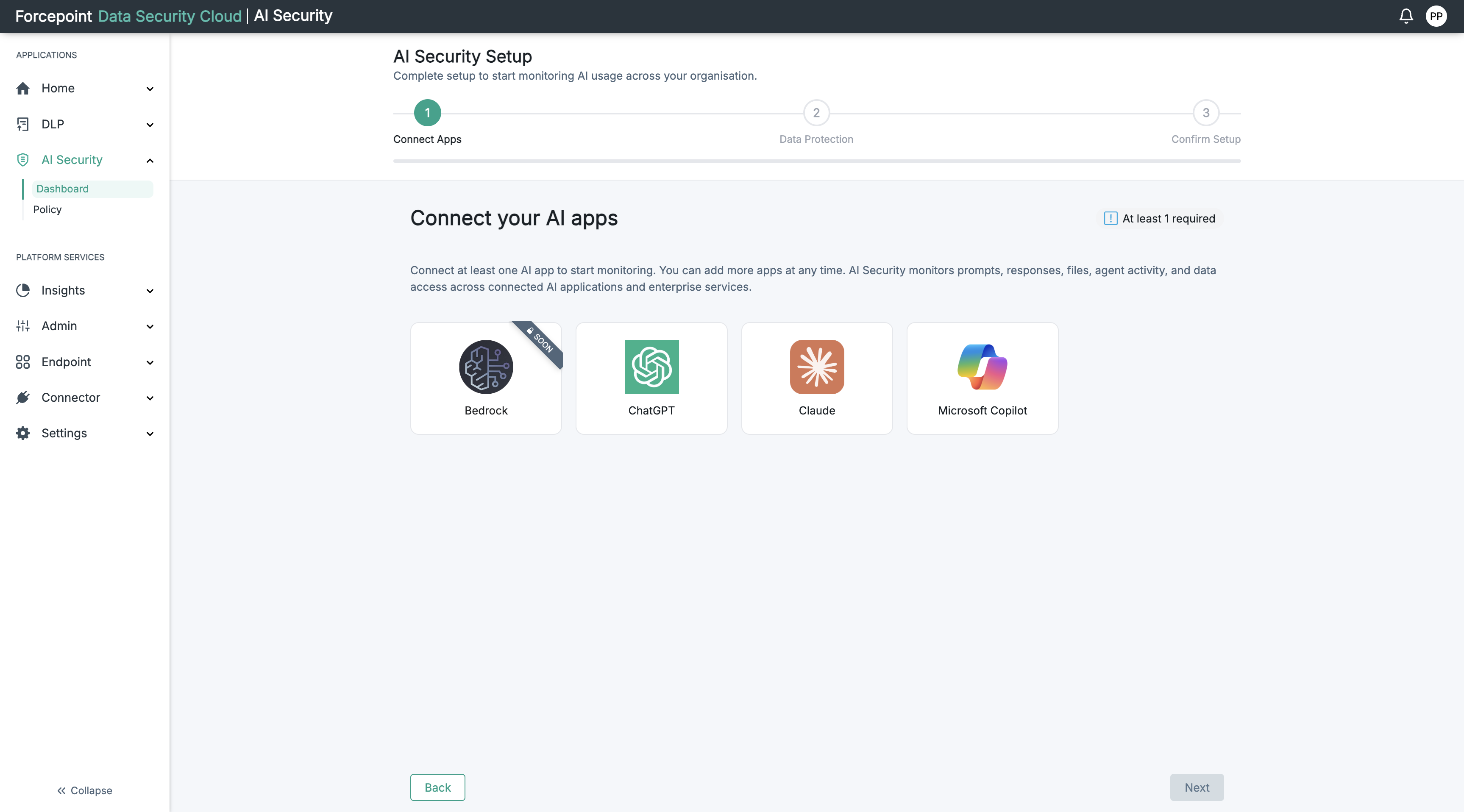
The AI Security Setup wizard opens at step 1, Connect Apps.
-
Select the AI application you want to connect.
The Connect screen opens.
-
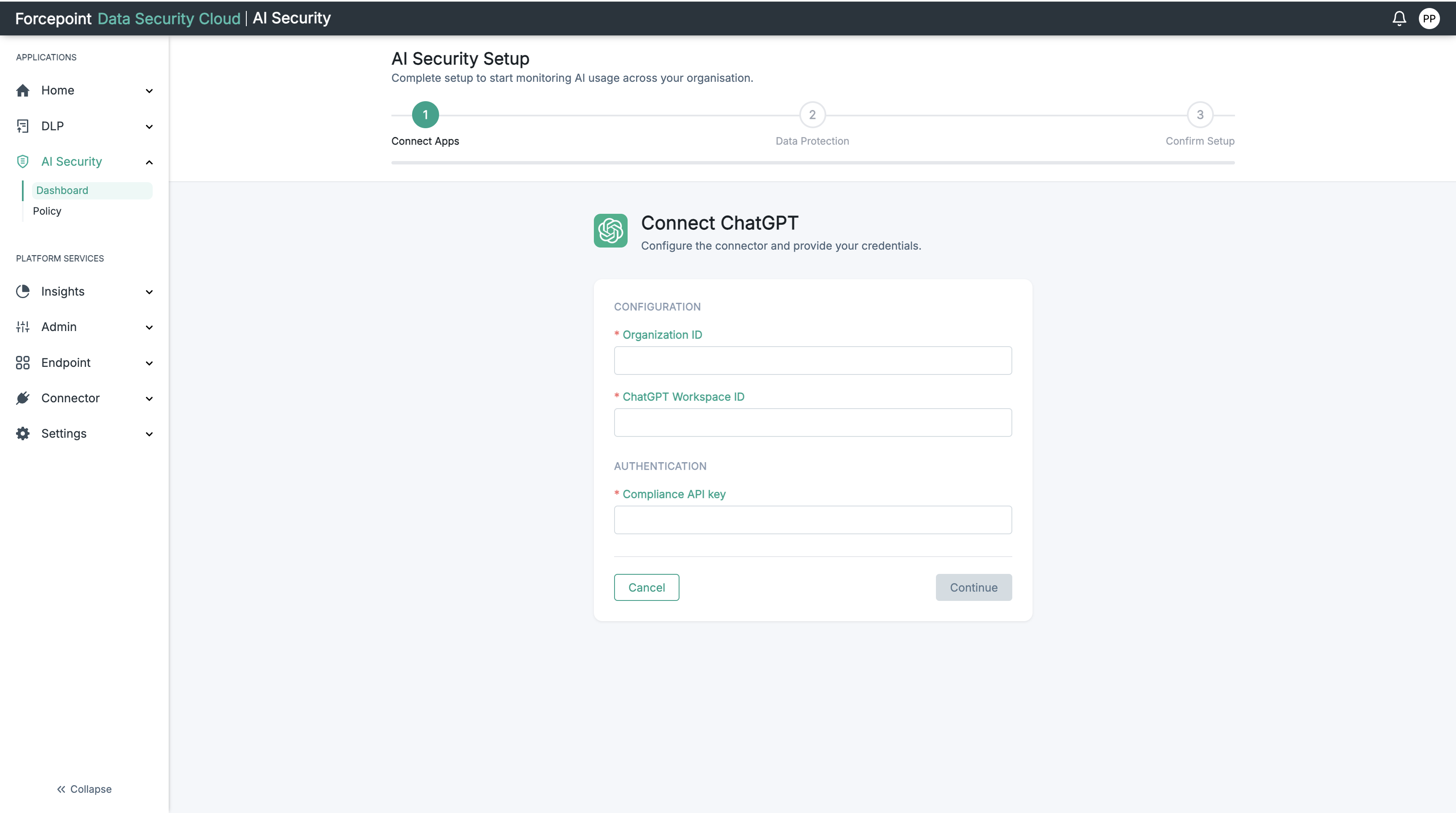
Enter the connection details for the application.
The details required differ for each application. See the topic for the application you are connecting.
The connection details for ChatGPT are shown in the below image. For more information, see Connecting ChatGPT.
The connection details for Claude are shown in the below image. For more information, see Connecting Microsoft Copilot.
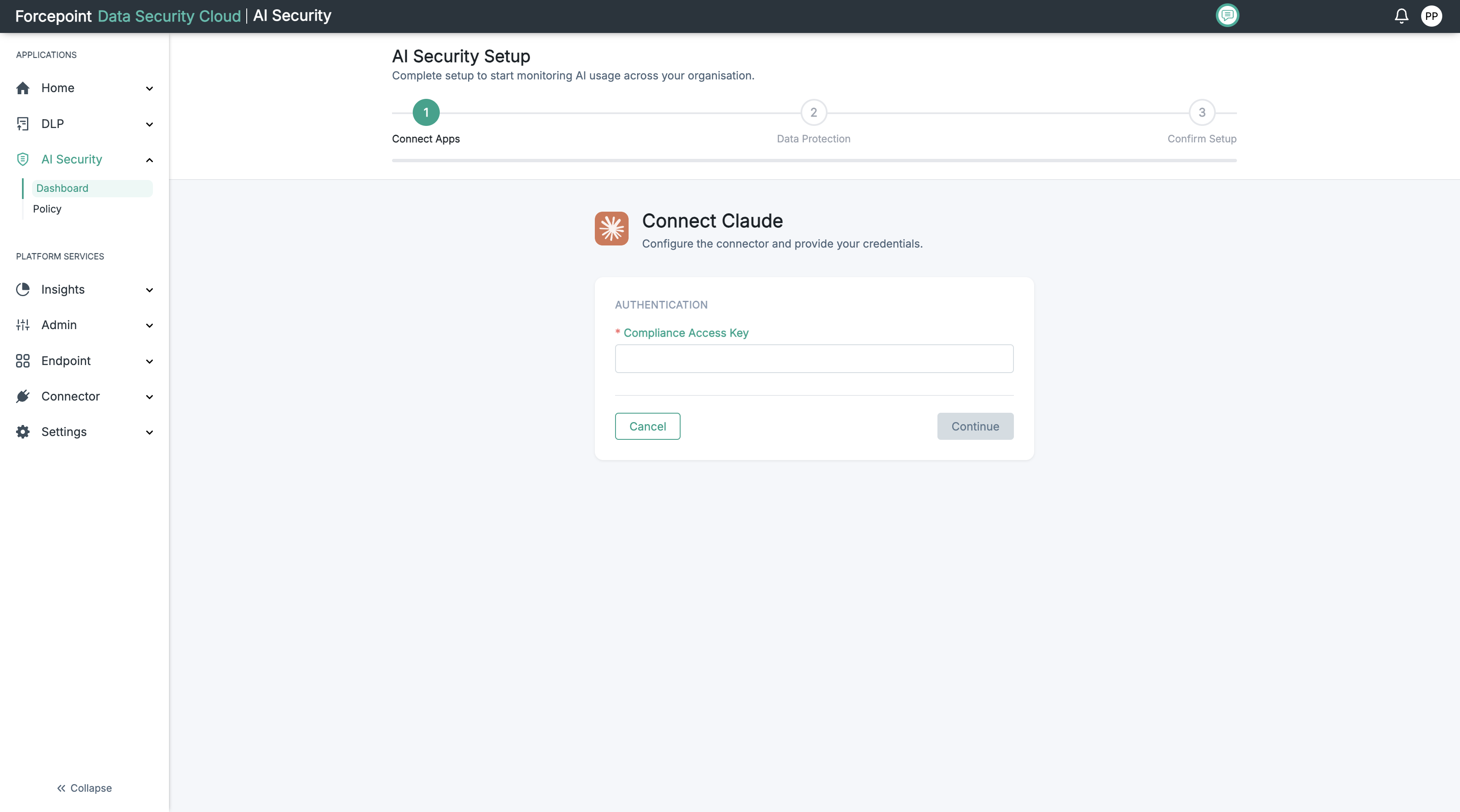
The connection details for Claude are shown in the below image.For more information, see Connecting Claude.
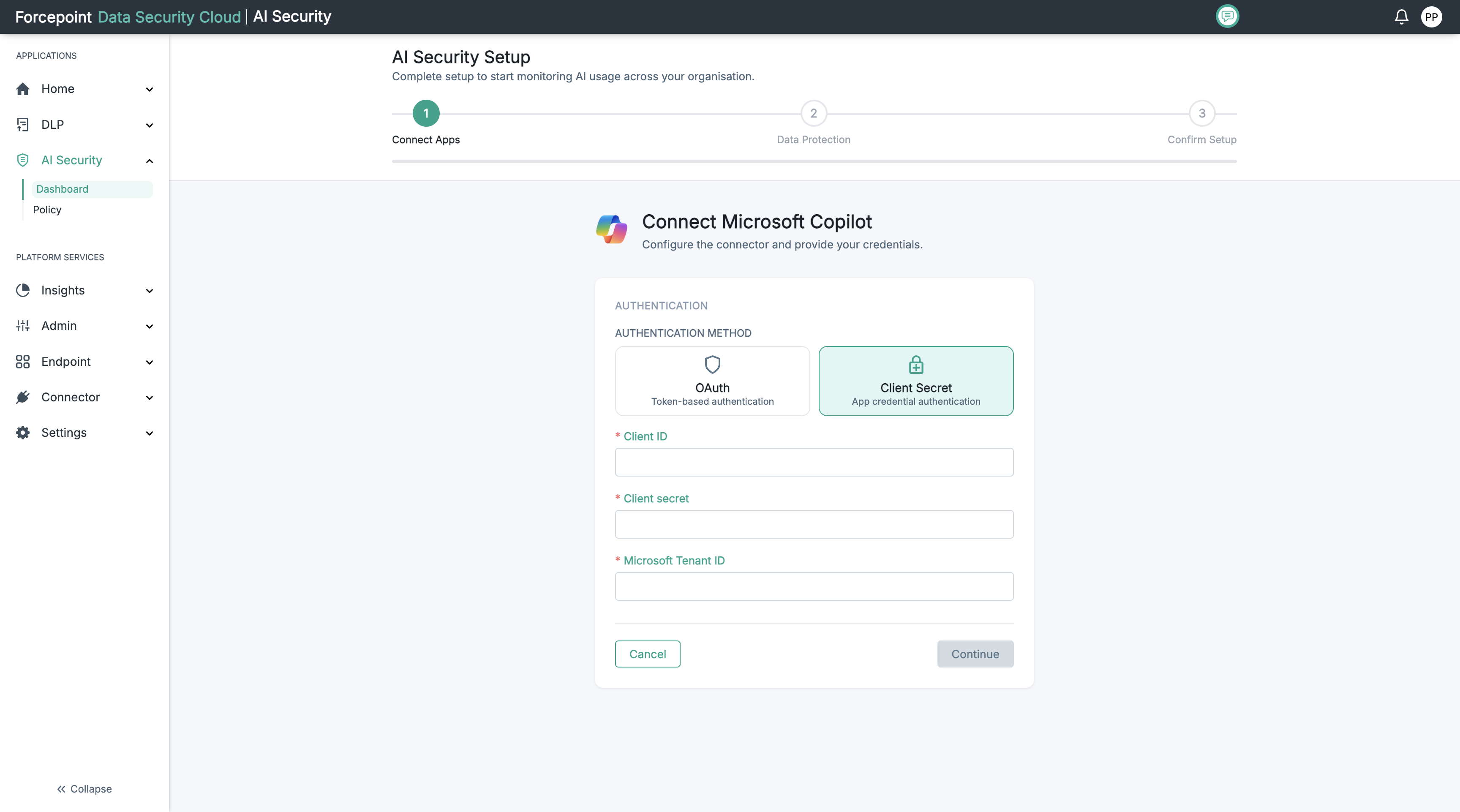
-
Select Continue.
Continue stays unavailable until every field marked with an asterisk contains a value.
The scan settings screen opens. Here you choose what AI Security scans for this application.
-
Check that the Scan Content toggle is set to Active.
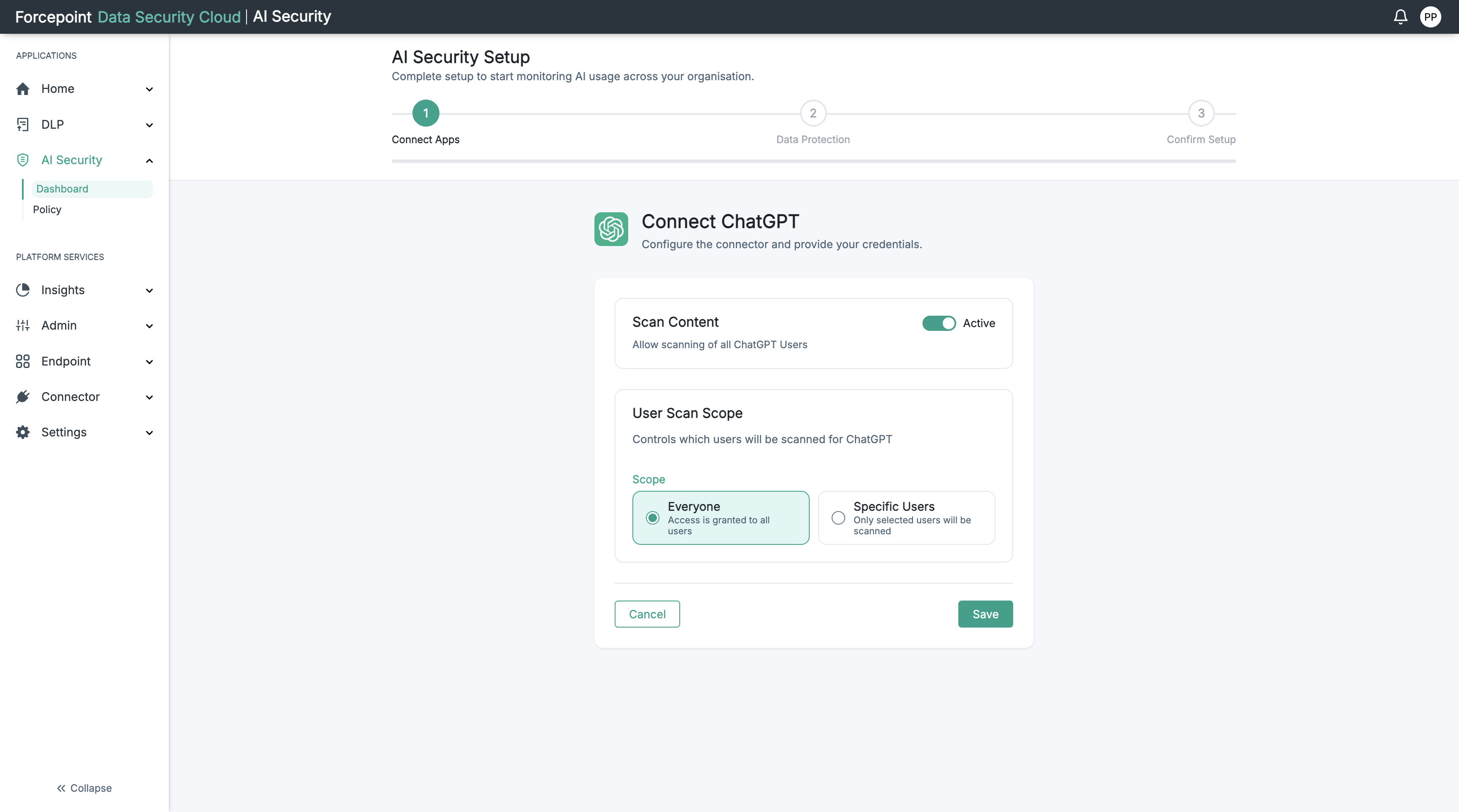
When Scan Content is active, AI Security scans the prompts and responses of the users in scope. By default, Scan Content is Active and the scope is Everyone. To keep these defaults, go to step 8.
The scan settings for ChatGPT are shown in the below image.
-
Optional: To scan only some users, set the user scan scope.
-
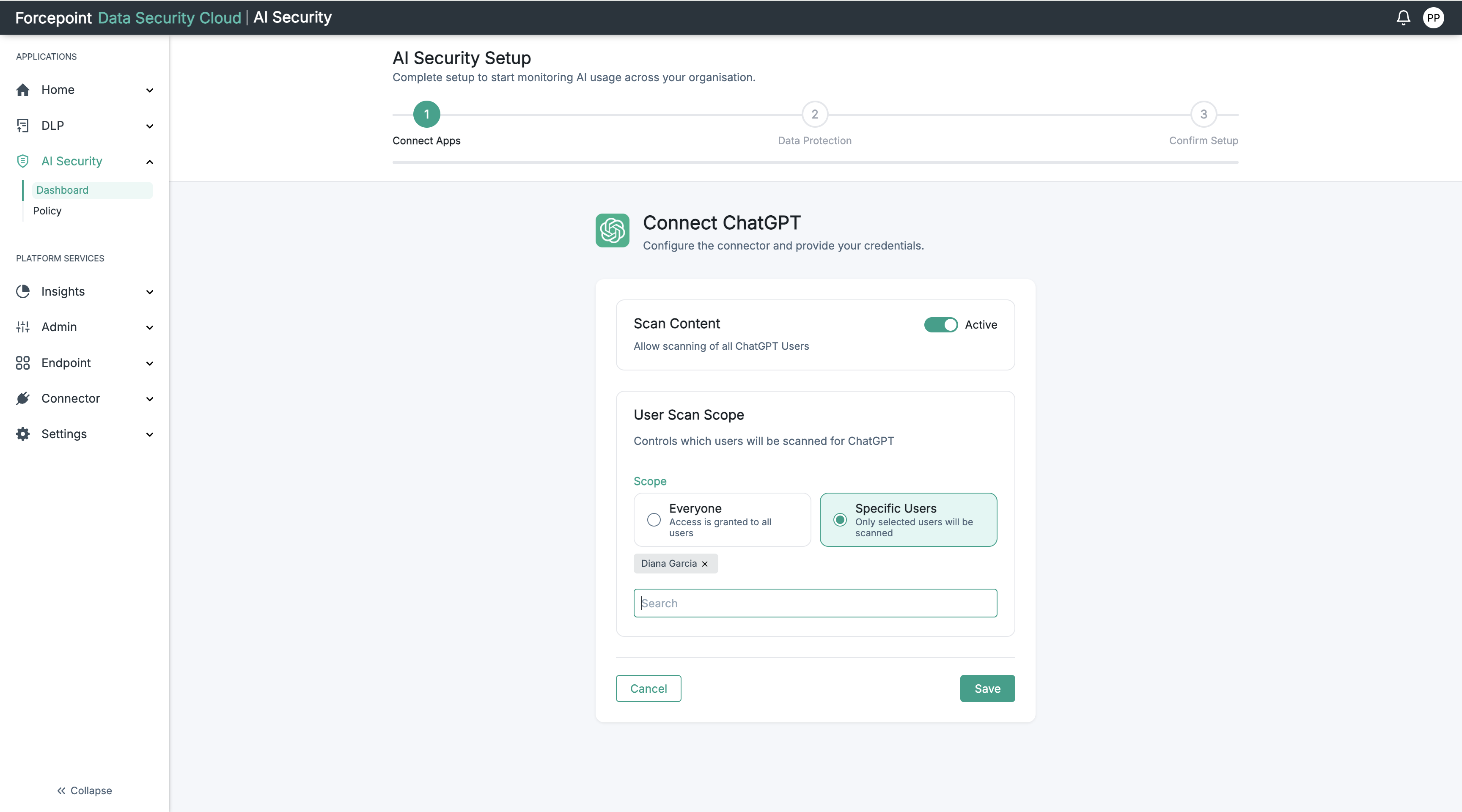
Under User Scan Scope, select Specific Users.
A search box appears below the scope options.
-
In the search box, type the name of a user.
A list of matching users appears.
-
Select the user from the list.
The user appears as a tag above the search box.
Users added to the scan scope are shown in the below image.
-
Repeat substeps b and c for each further user you want to scan.
-
-
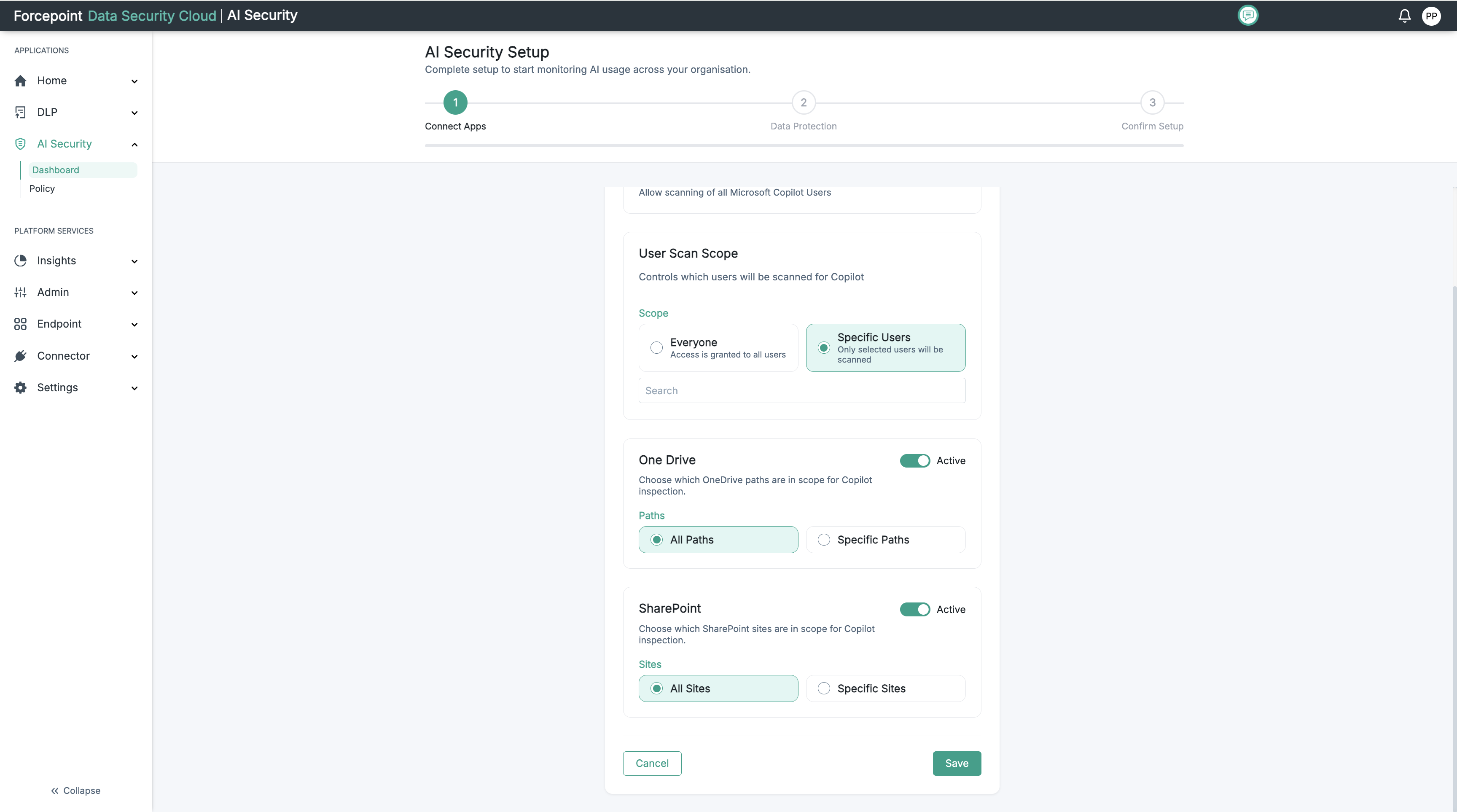
Optional: For Microsoft Copilot only, set which OneDrive paths and SharePoint sites are in scope.
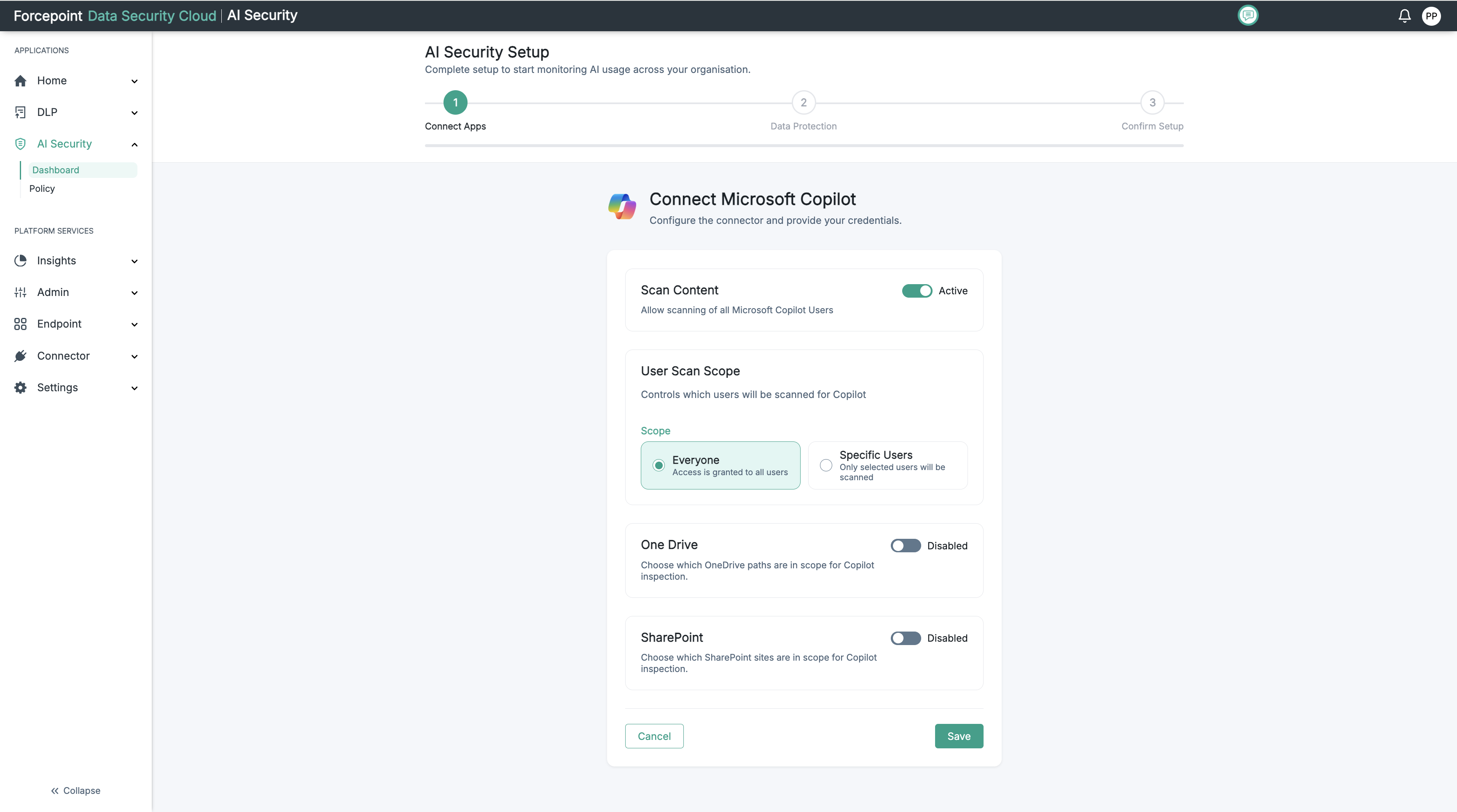
The OneDrive and SharePoint sections appear only when you connect Microsoft Copilot. Both are Disabled by default. You can set OneDrive, SharePoint, or both.
The scan settings for Microsoft Copilot are shown in the below image.
-
Set the OneDrive toggle to Active.
The Paths options appear, with All Paths selected.
-
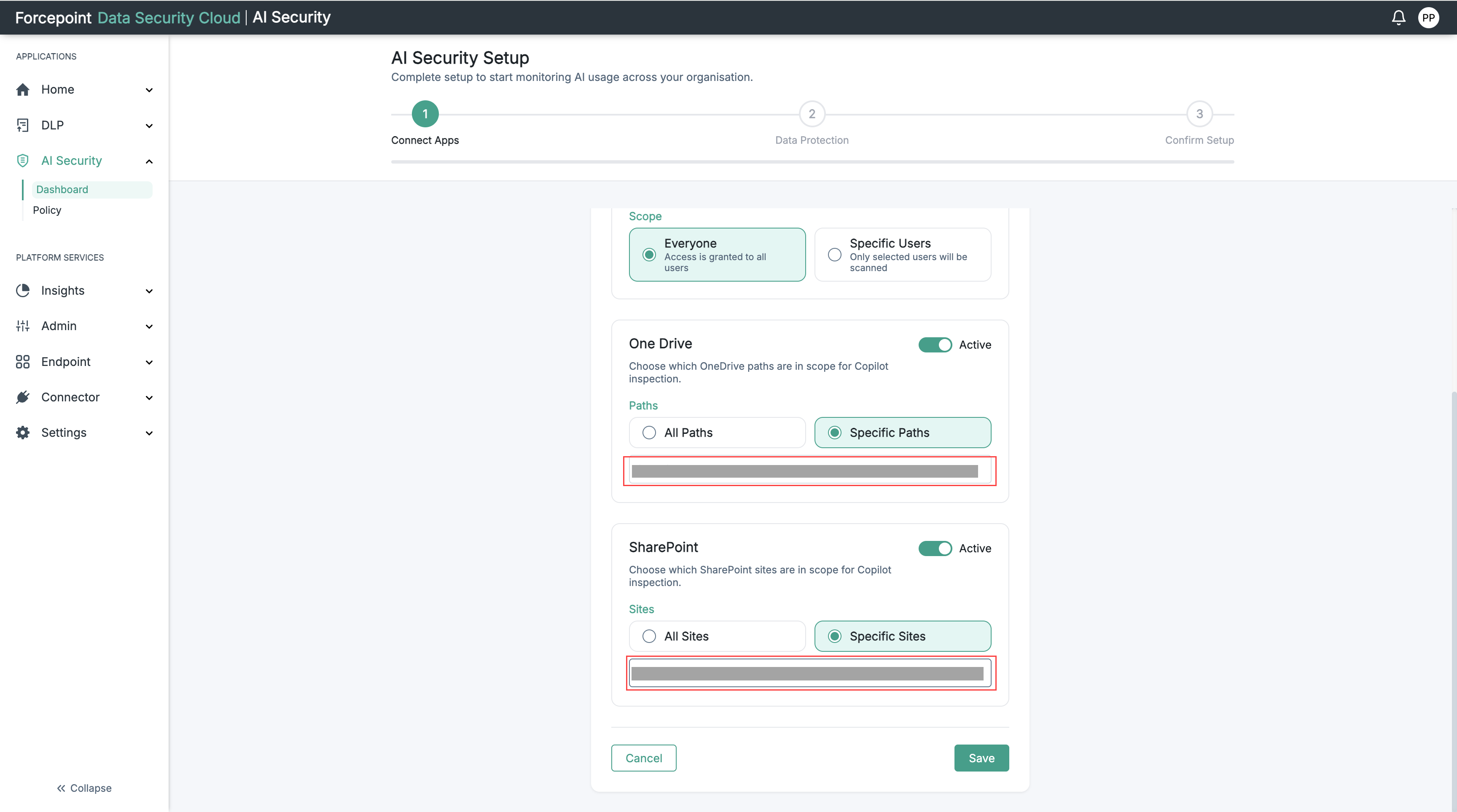
Optional: To limit the scope to certain folders, select Specific Paths, and then enter the OneDrive path, for example
/Files/path.Specific Paths selected for OneDrive is shown in the below image.
-
Set the SharePoint toggle to Active.
The Sites options appear, with All Sites selected.
-
Optional: To limit the scope to certain sites, select Specific Sites, and then enter the SharePoint site, for example
mysite.com/path.Specific Sites selected for SharePoint is shown in the below image.
-
-
Select Save.
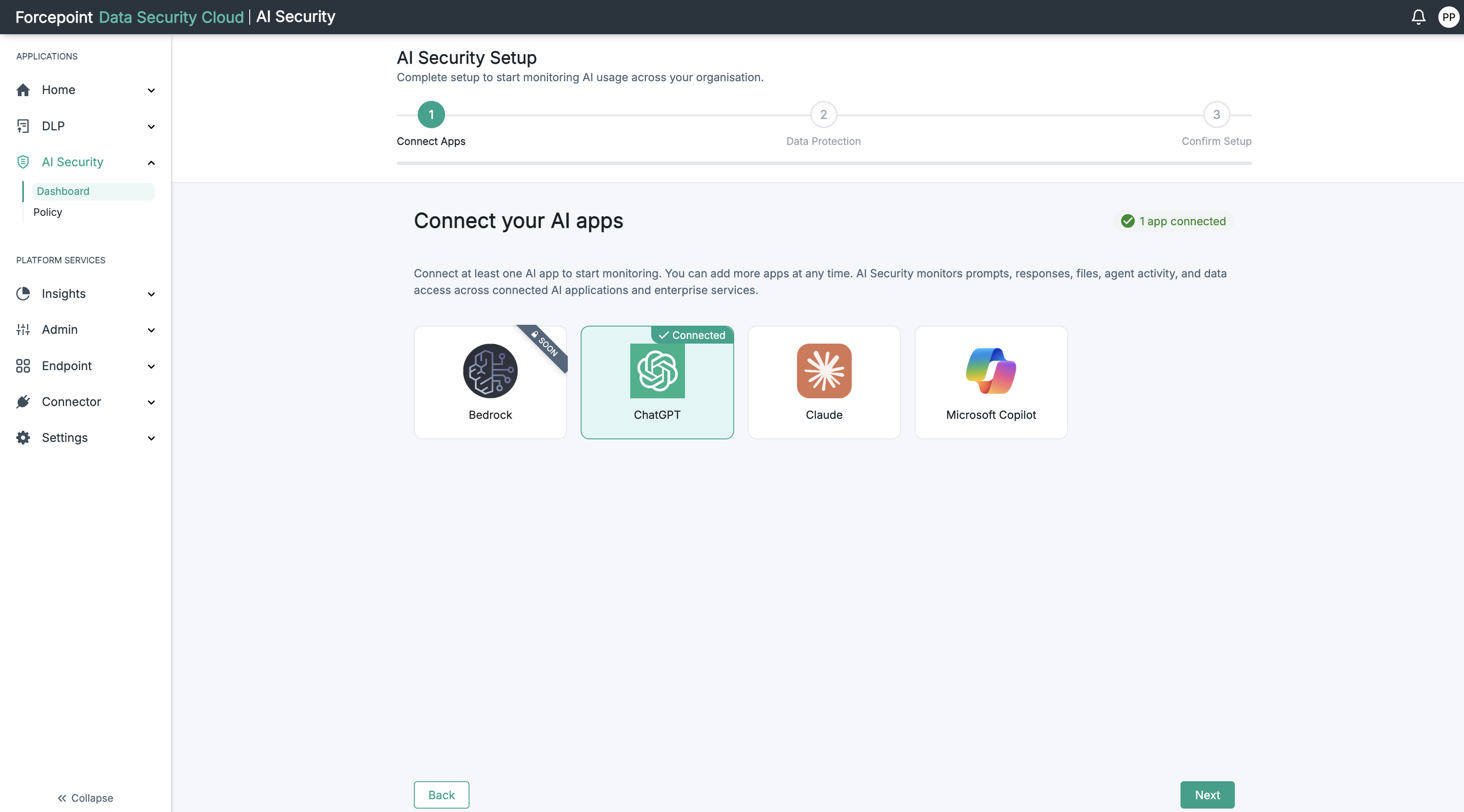
The Connect your AI apps screen shows the application with a Connected badge. The counter at the top right shows how many applications are connected.
ChatGPT connected in the setup wizard is shown in the below image.
-
Optional: Repeat steps 2 to 8 for each further application you want to monitor.
You can add more applications at any time after setup.
-
Select Next.
The wizard moves to step 2, Data Protection.
-
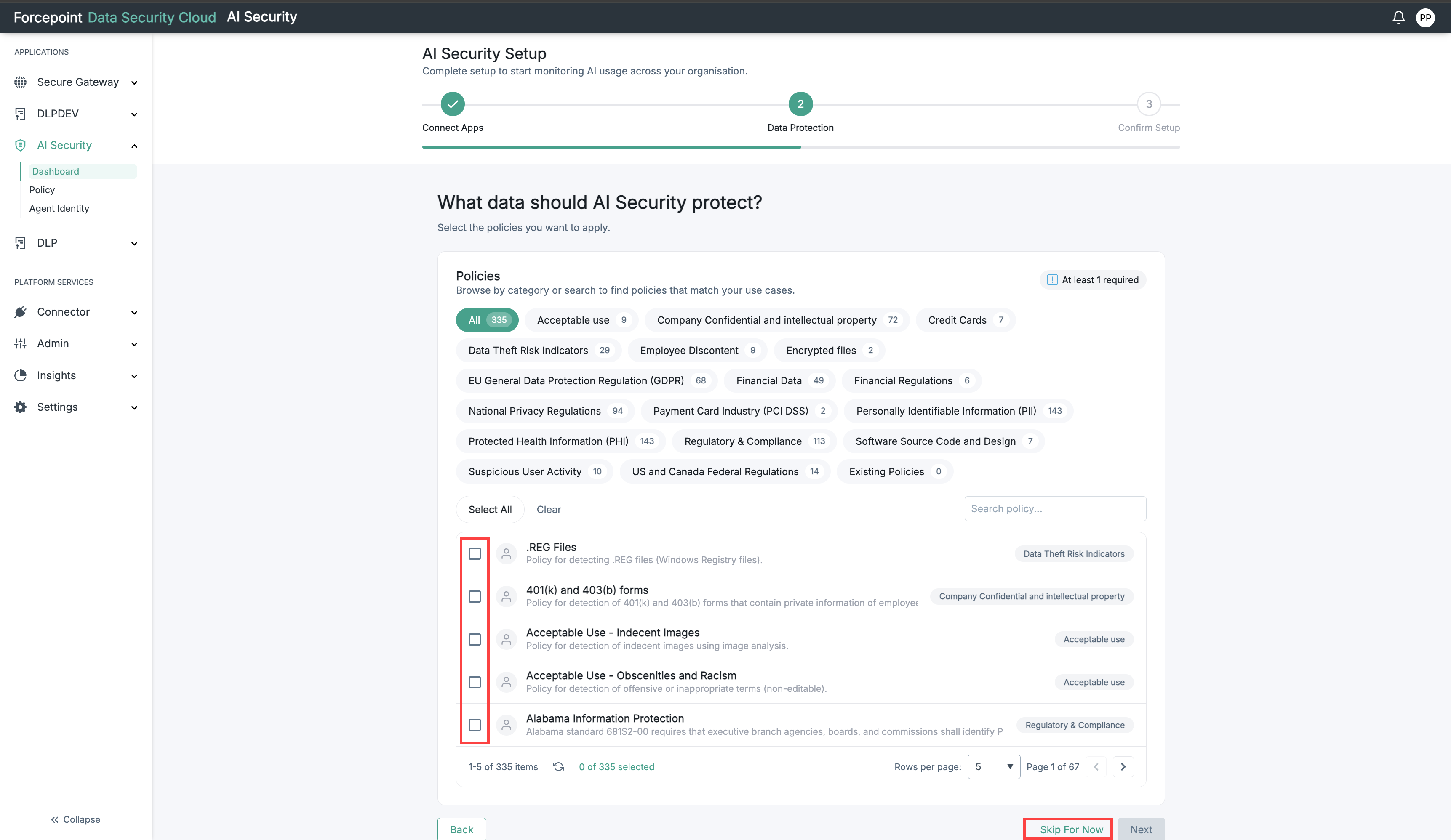
Select the policies you want to enforce, or select Skip For Now to choose your policies later.
The wizard moves to step 3, Confirm Setup.
The Data Protection step is shown in the below image.
-
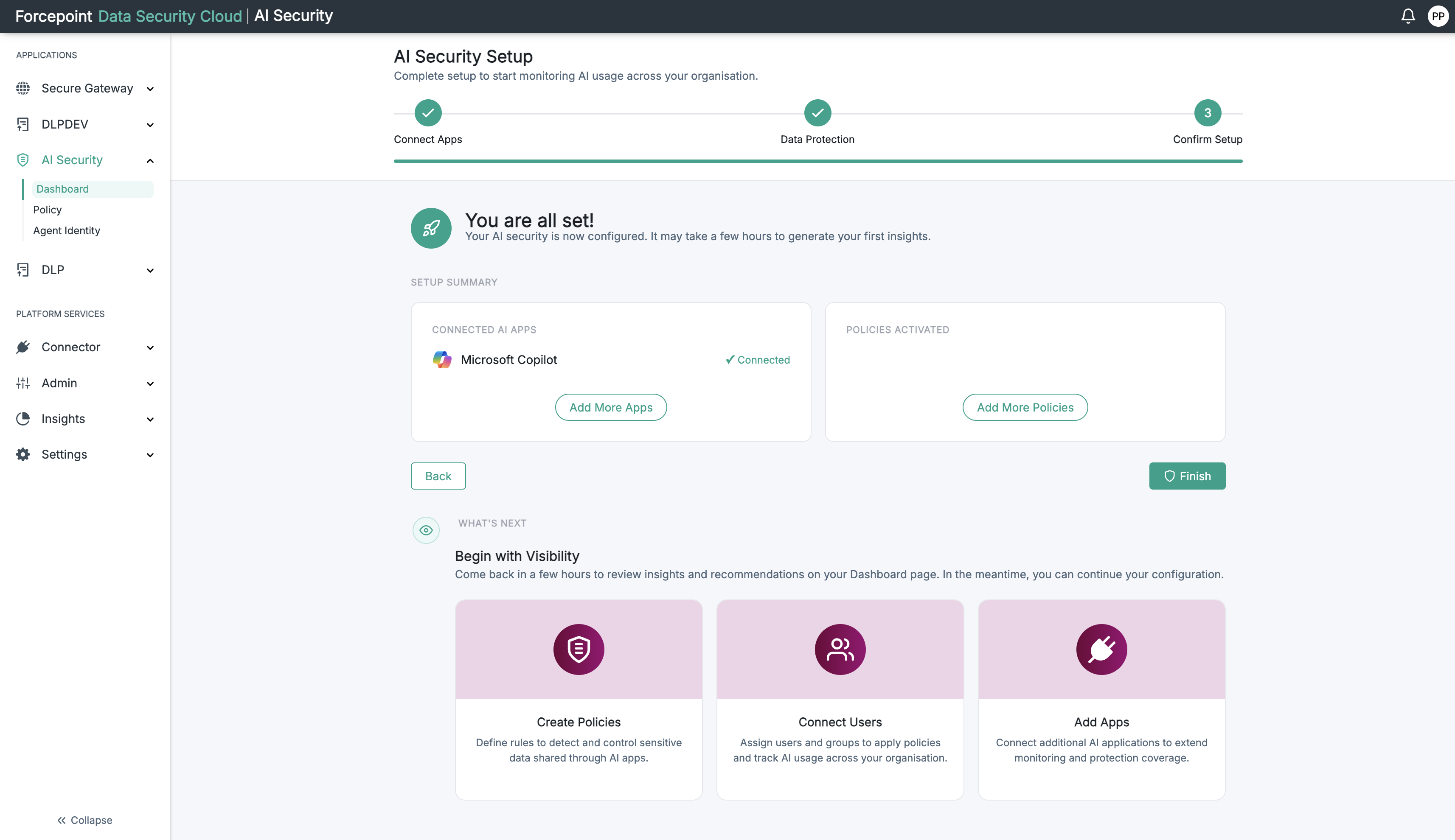
Review the setup summary.
The summary lists the applications you connected. To connect another application, select Add More Apps. To change an earlier step, select Back.
-
Select Finish.
Result
AI Security is configured and begins monitoring in monitor only mode, recording activity without enforcing actions. Your first insights can take a few hours to appear on the AI Governance Dashboard.
The Confirm Setup step is shown in the below image.
Next steps
You can change the scan settings of a connected application later. Go to Connector › App Connector, select Connector Details on the application's card, and then select Edit.
To continue configuring AI Security after setup, you can connect your business applications to the MCP Gateway, register your AI agents, assign users and groups to your policies, and set where remediated content is stored. See Configuring Remediation Settings.