
Connecting Atlassian as a Gateway Connector
Connect Atlassian to the MCP gateway so that your AI agents can work with Jira, Confluence, and other Atlassian products.
Before you begin
Before you begin, make sure that you have:
- Permission to manage connectors in Forcepoint Data Security Cloud.
- An Atlassian account that can access the site you want to connect. For Org-Wide authentication, use a System Administrator account.
- If you plan to use an API key, an Atlassian API key. See Creating an Atlassian API Key section below.
You choose how the connector signs in to Atlassian. Decide on a method before you start.
| Method | How it works |
|---|---|
| Per User | Each user signs in to Atlassian individually, the first time they use the connector. |
| Org-Wide with OAuth | A System Administrator signs in with Atlassian once and grants permissions for the whole organization. |
| Org-Wide with API Key | A System Administrator provides an API key once for the whole organization. |
Steps
-
In the left navigation pane, select Connector › Gateway Connectors.
The following figure shows the Gateway Connectors page.
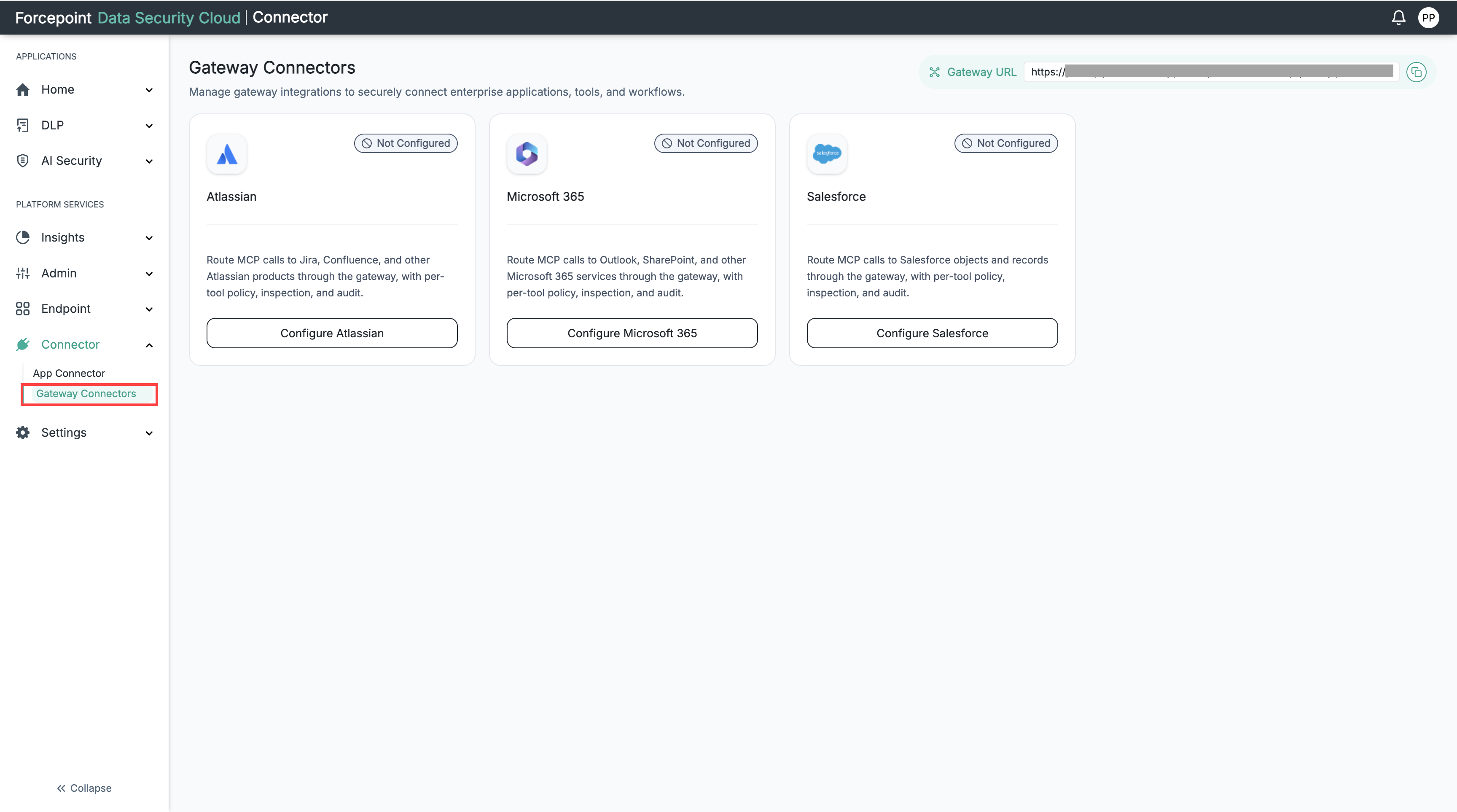
The Gateway Connectors page opens. Each connector card shows a Not Configured status.
-
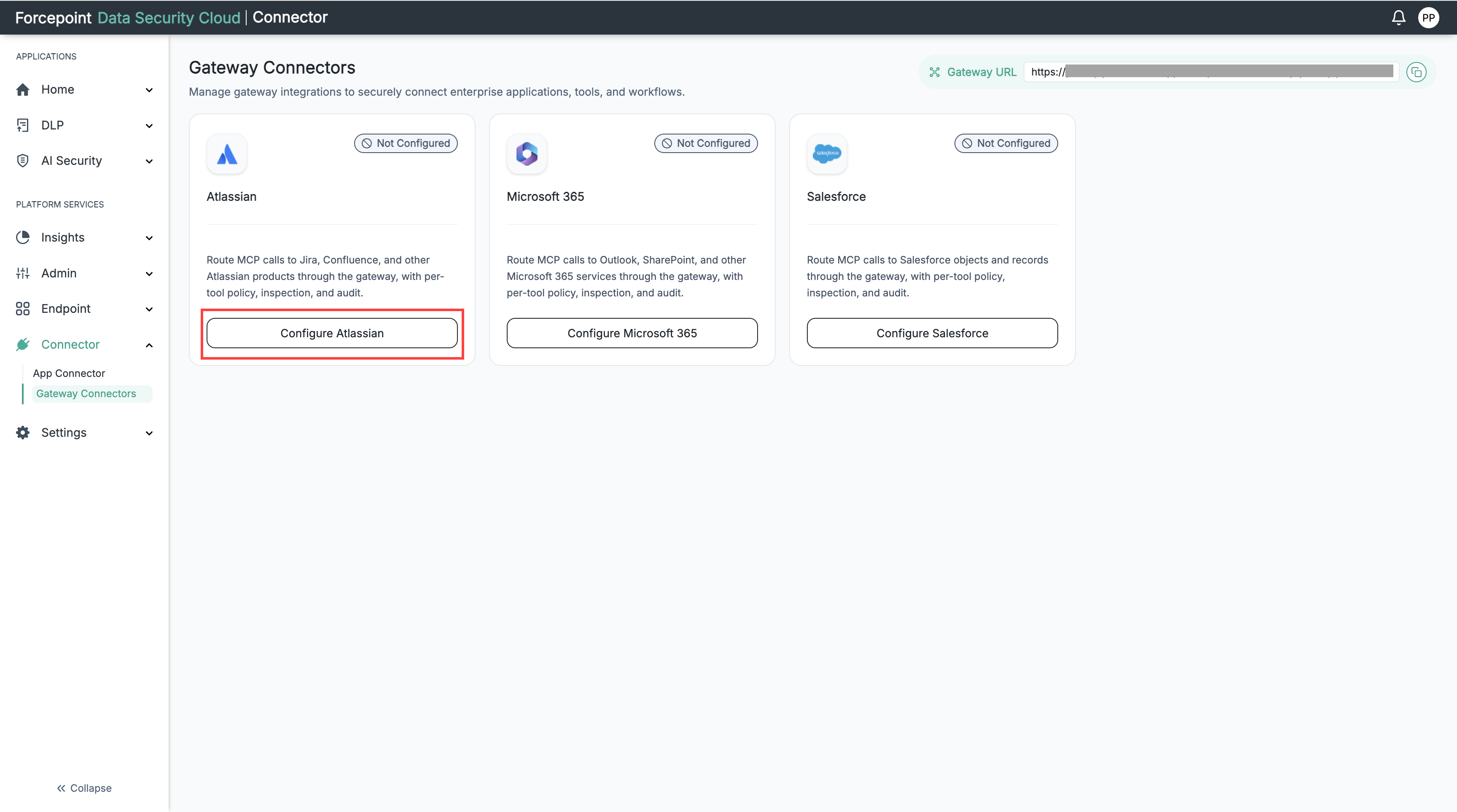
On the Atlassian card, select Configure Atlassian.
The following figure shows the Connect Atlassian Connector panel.
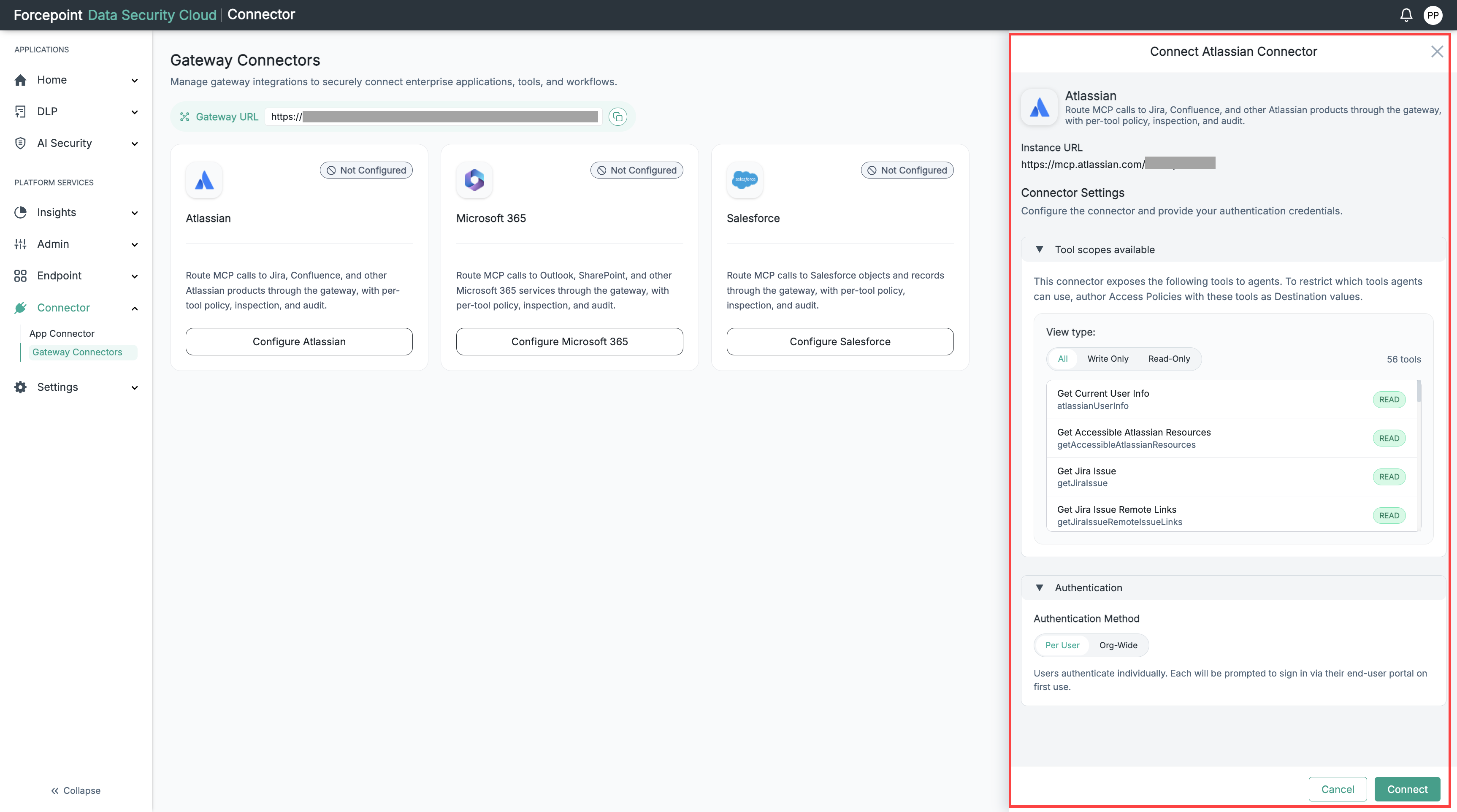
The Connect Atlassian Connector panel opens on the right.
-
Under Authentication Method, select the method for your organization.
- Per User – Each user is prompted to sign in through their end-user portal on first use. No further setup is needed. Go to step 7.
- Org-Wide – One System Administrator account is used for all users. Continue with the next step.
-
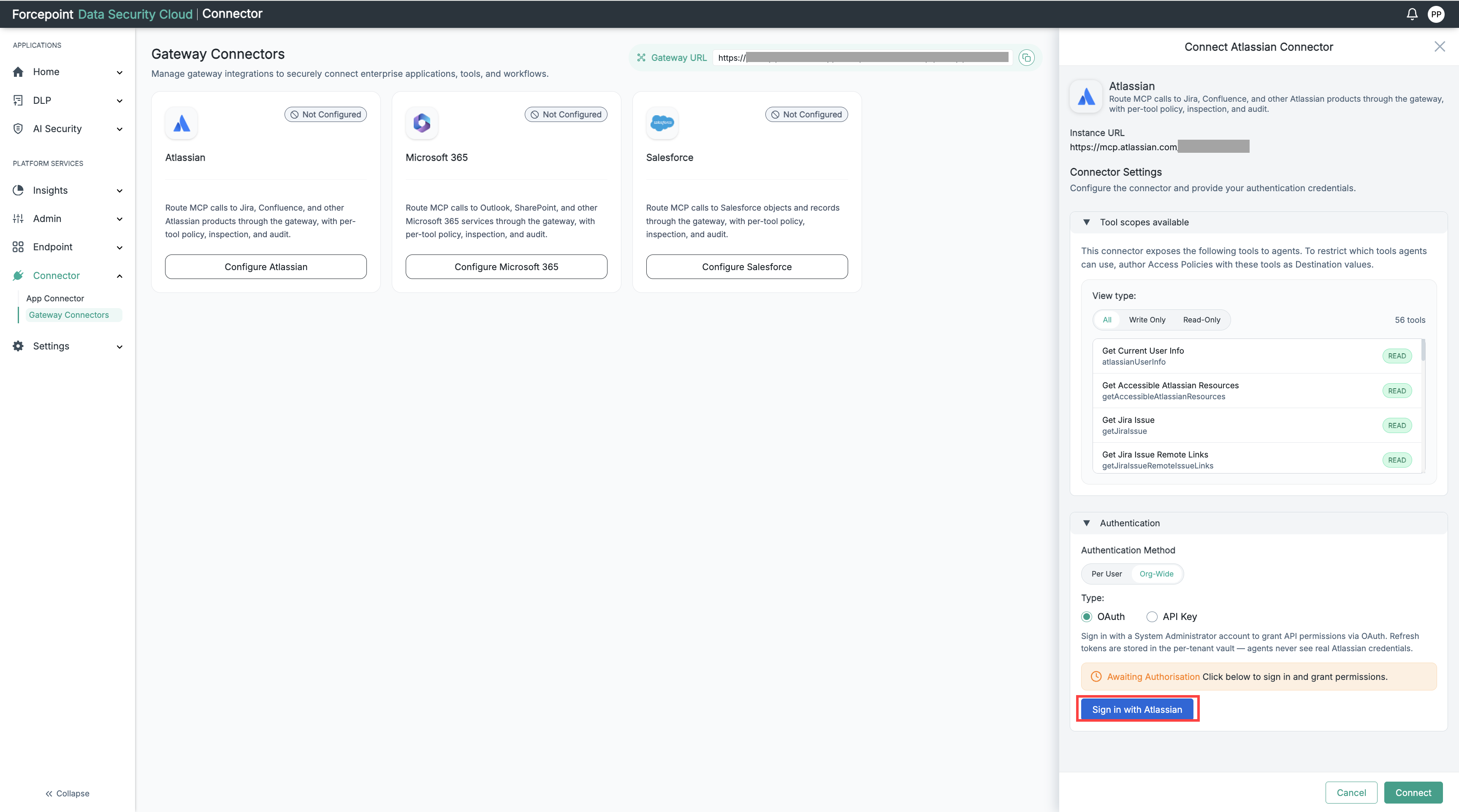
If you selected Org-Wide, under Type, select the credential type.
- OAuth – You sign in with Atlassian and grant permissions. The panel shows an Awaiting Authorisation message. Continue with the next step.
- API Key – You enter an API key from a System Administrator account. Go to Step 6.
- OAuth – You sign in with Atlassian and grant permissions. The panel shows an Awaiting Authorisation message. Continue with the next step.
-
If you selected OAuth, authorize the connector with your Atlassian account.
-
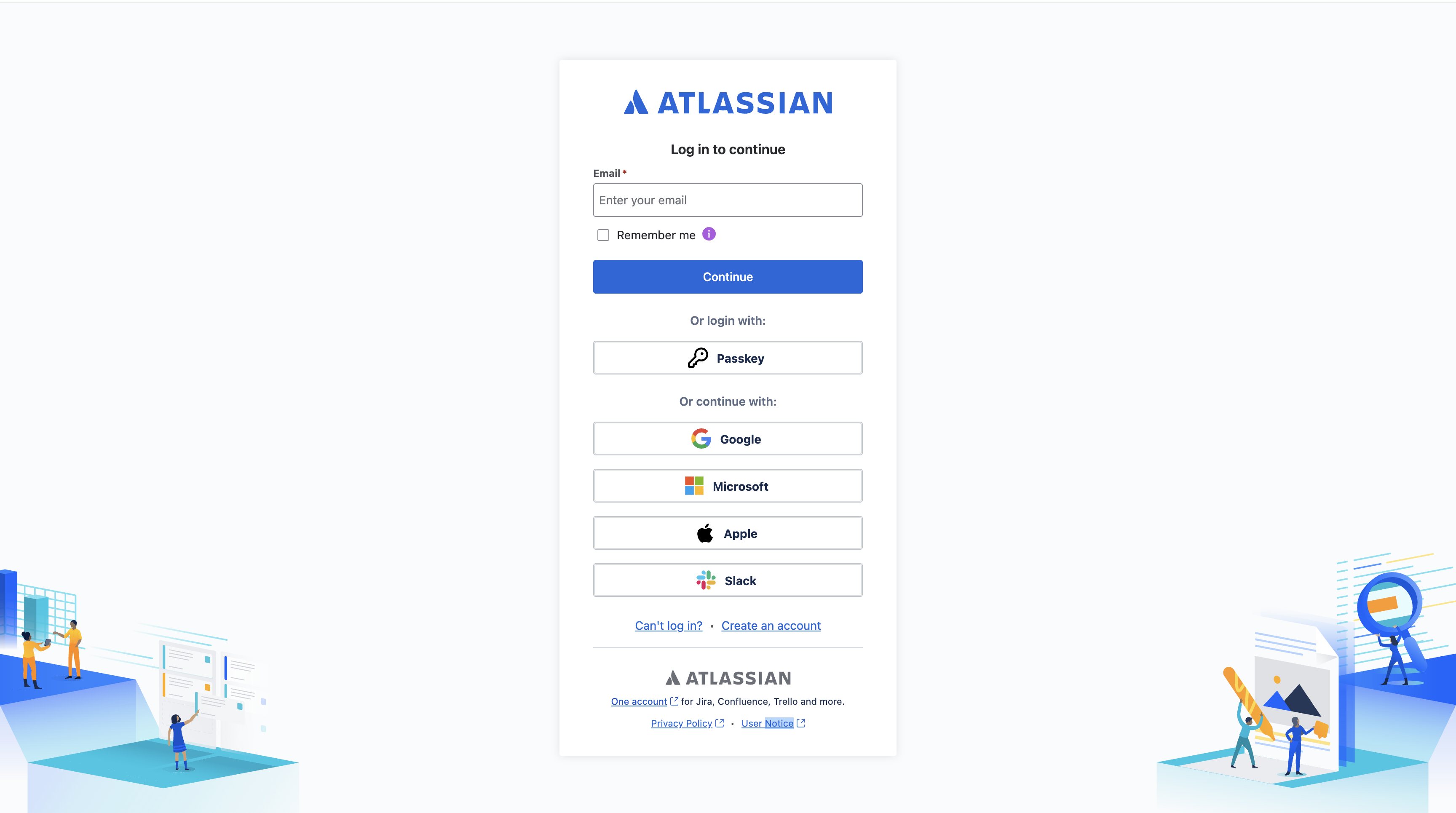
Select Sign in with Atlassian.
The Atlassian sign-in page opens in a new browser tab.
-
In the Email field, enter the email address of your Atlassian System Administrator account.
-
Select Continue, and then complete any sign-in prompts that Atlassian shows.
The page "Forcepoint AI Agent Gateway is requesting access to your Atlassian account" opens.
-
From the Site (For Jira, Confluence and other tools) list, select your Atlassian site.
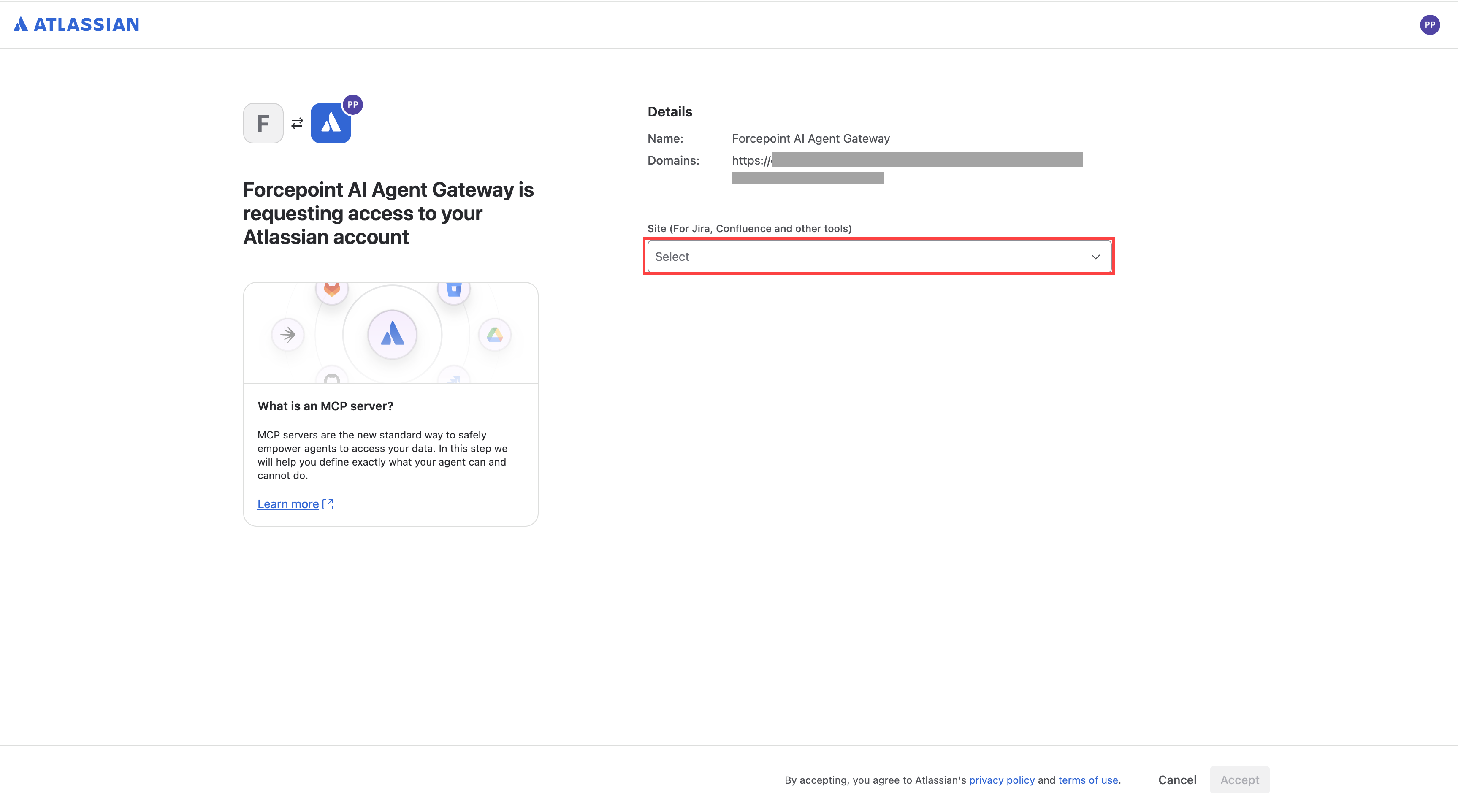
The Permissions section appears.
-
Review the permissions that are selected.
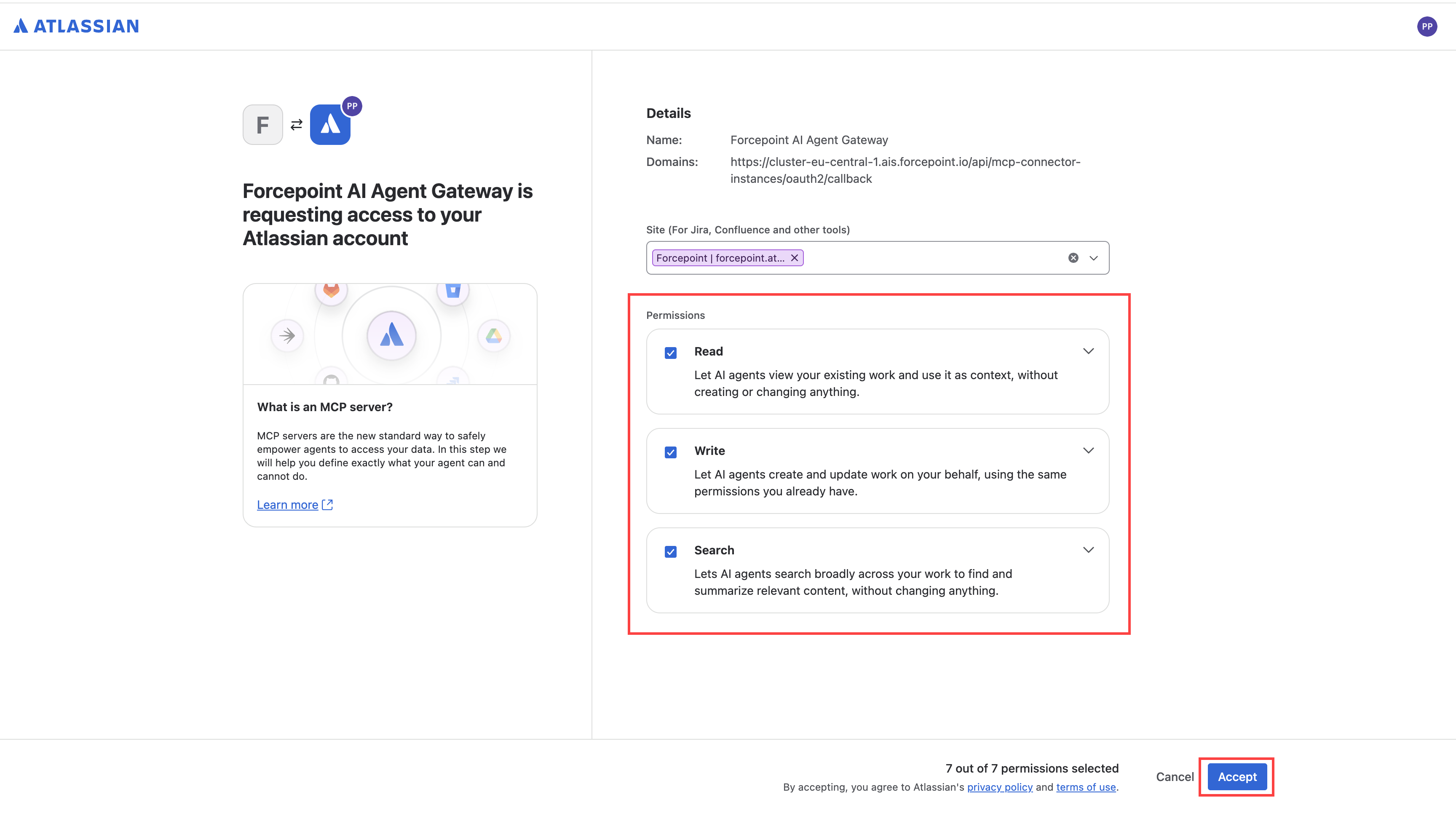
- Read – Lets AI agents view your existing work and use it as context, without creating or changing anything.
- Write – Lets AI agents create and update work on your behalf, using the same permissions you already have.
- Search – Lets AI agents search broadly across your work to find and summarize relevant content, without changing anything.
-
Select Accept.
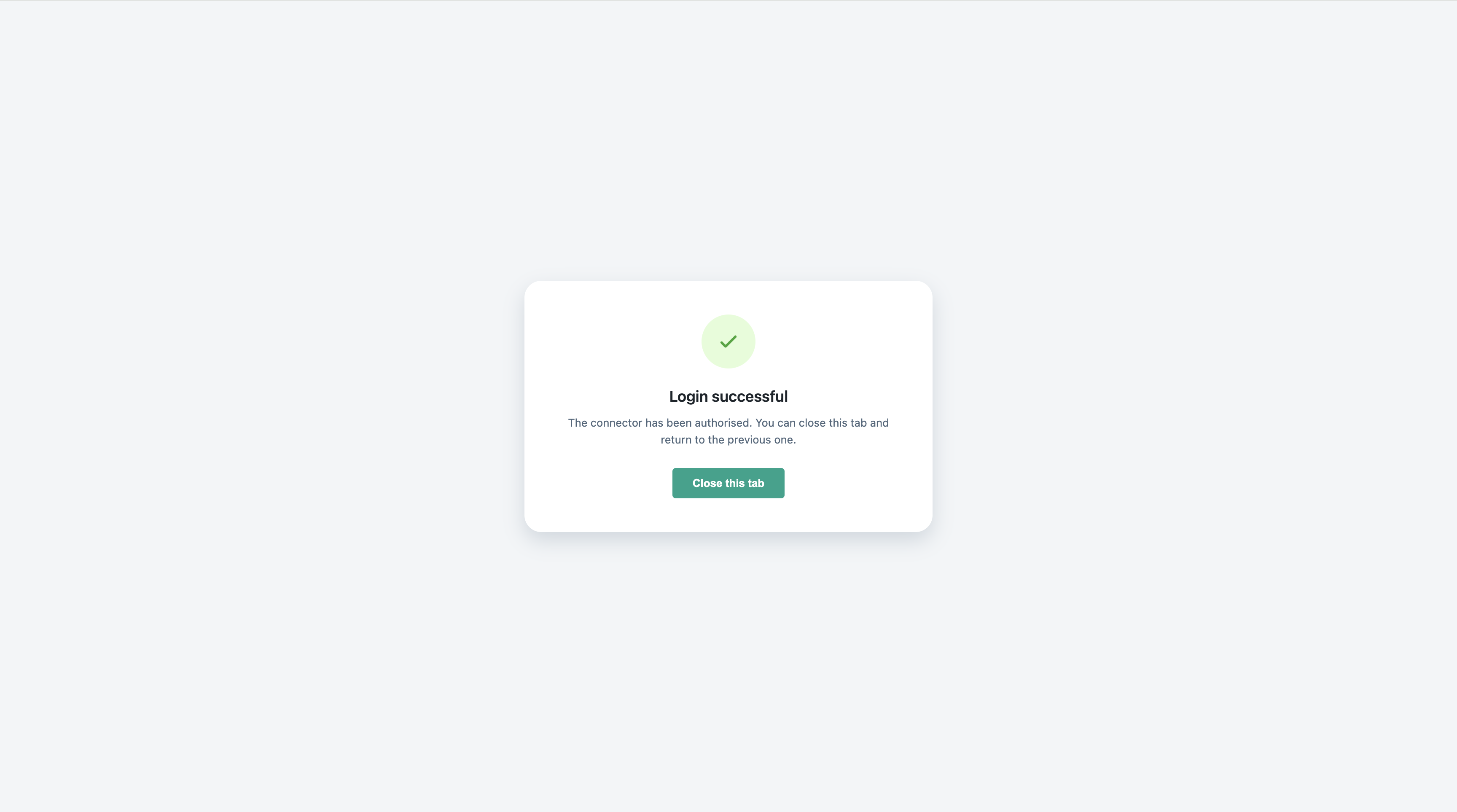
The Login successful page opens. It confirms that the connector has been authorized.
-
Select Close this tab.
-
Return to the Connect Atlassian Connector panel in Forcepoint Data Security Cloud. Go to step 7.
-
-
If you selected API Key, authorize the connector with your Atlassian API key.
-
In the API Key field, enter your Atlassian API key.
-
Select Test Connection.
-
-
Select Connect.
Result
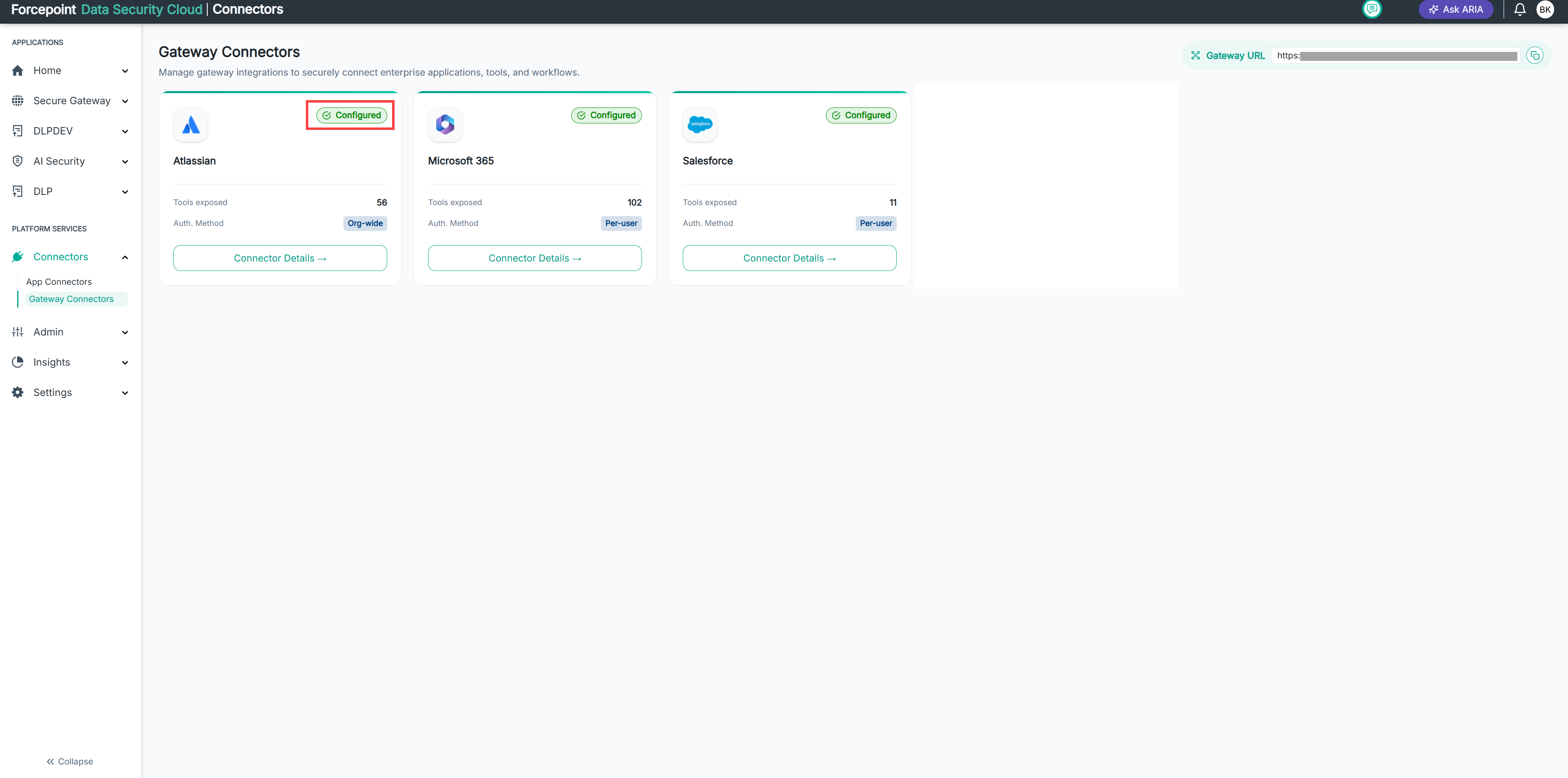
Atlassian appears with a Configured status. The card shows the number of tools the connector exposes and the authentication mode in use.
Next steps
Register your agents and grant them access to the connector. Then write access policies to control which tools they can use.
Creating an Atlassian API Key
Create an Atlassian API key that you can enter in the Atlassian gateway connector when you use Org-Wide authentication with an API key.
Before you begin
Before you begin, make sure that you have:
- An Atlassian organization admin account.
- The Atlassian apps that the connector must reach, such as Jira and Confluence, in your Atlassian organization.
You create the key for a service account. A service account is a non-human account that is managed by your organization admin, so the key does not depend on one person's login.
Steps
-
Sign in to Atlassian Administration at admin.atlassian.com with your organization admin account.
-
If you have more than one organization, select the organization that you want to connect.
-
Select Connectors, and then select Atlassian MCP server.
-
In the Authentication section, turn on API token.
-
Open the Service accounts page.
-
Select Add service account.
-
Enter a name that is easy to recognize, for example
Forcepoint AI Agent Gateway. -
Select the Atlassian apps that the service account must access, for example Jira and Confluence.
-
Create the service account.
-
On the service account page, select Create credentials, and then select API token.
-
Enter a name for the key, and set an expiration date.
-
Select the scopes that the connector needs.
-
Select Create.
-
Copy the API key.
Next steps
Enter the key in the API Key field of the Atlassian gateway connector to connect Atlassian.