
Understanding the AI Landscape Tab
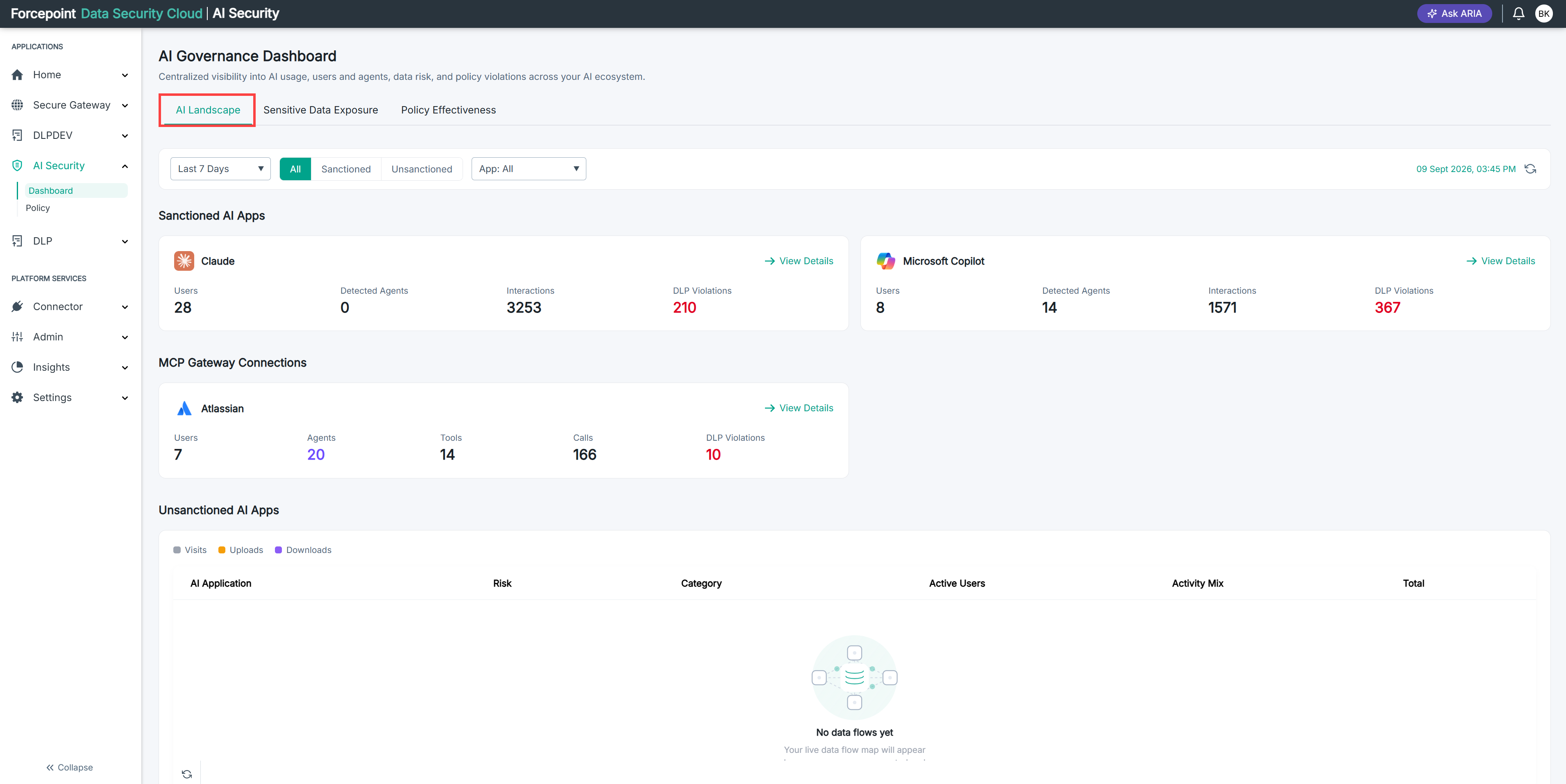
The AI Landscape tab answers a single question: what AI is being used in your organisation right now, by whom, and where is data at risk?
The AI Landscape tab is the first thing you see when you open the AI Governance Dashboard.
Use this tab to see which approved AI applications are active, which unapproved ones your people have found on their own, how your AI agents are connecting to business systems, and how many data security violations each of these has produced.
To open it, go to AI Security › Dashboard. The tab opens by default.
What the tab contains
The page is arranged as a filter bar followed by four sections, read top to bottom.
| Area | What it shows |
|---|---|
| Filter bar | Controls that change what the whole page reports on: a time period (Last 7 Days by default), an All, Sanctioned or Unsanctioned selector, and an App list. The date and time on the right show when the data was last refreshed, with a refresh icon beside it |
| Sanctioned AI Apps | One card for each AI application you have connected. Each card reports Users, Detected Agents, Interactions, and DLP Violations, with a View Details link |
| MCP Gateway Connections | One card for each business application connected to the MCP Gateway. Each card reports Users, Agents, Tools, Calls, and DLP Violations, with a View Details link |
| Unsanctioned AI Apps | A table of AI applications discovered in your traffic that you have not approved. Columns are AI Application, Risk, Category, Active Users, Activity Mix, and Total |
| Identity Landscape | Three cards summarising who and what is using AI: Human Users, Agent Identities, and Total Footprint |
Reading the Unsanctioned AI Apps table
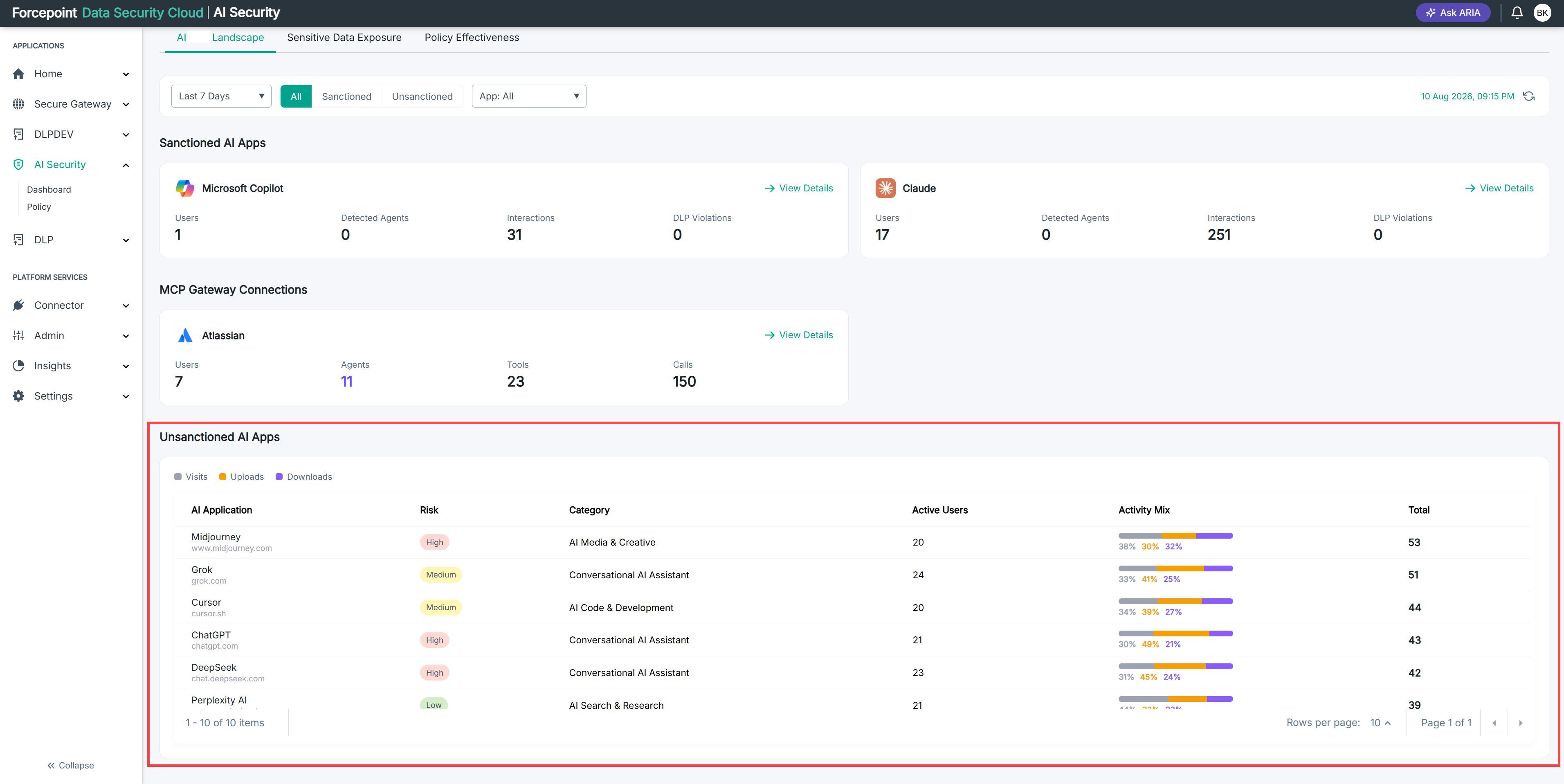
The Activity Mix bar splits the traffic of each application three ways, using the legend above the table: grey for Visits, orange for Uploads, purple for Downloads. The percentages sit under the bar, and the Total column gives the raw activity count.
Uploads matter most here. A high upload share means your people are sending data into an application you have not approved.
The table is paged. Use Rows per page to change how many rows appear, and the arrows to move between pages.
Reading the Identity Landscape
| Card | What it shows |
|---|---|
| Human Users | The number of people using your sanctioned AI tools, broken down per application |
| Agent Identities | The number of AI agents detected, broken down per application |
| Total Footprint | Human users and agents added together, shown as a donut so you can see the balance between the two |
What you can do from here
- Narrow the whole page to one time period, one application, or only sanctioned or only unsanctioned activity
- Open View Details on any card to drill into that application
- Spot which sanctioned application is producing the most data security violations
- Find unapproved AI applications your people are already using, and see how risky they are
- Compare how much of your AI activity comes from people versus agents