
Understanding the Sensitive Data Exposure Tab
The Sensitive Data Exposure tab tells you what sensitive data has left your organisation through AI.
This tab answers a different question from the AI Landscape tab. Where AI Landscape tells you who is using AI, this tab tells you what left with them.
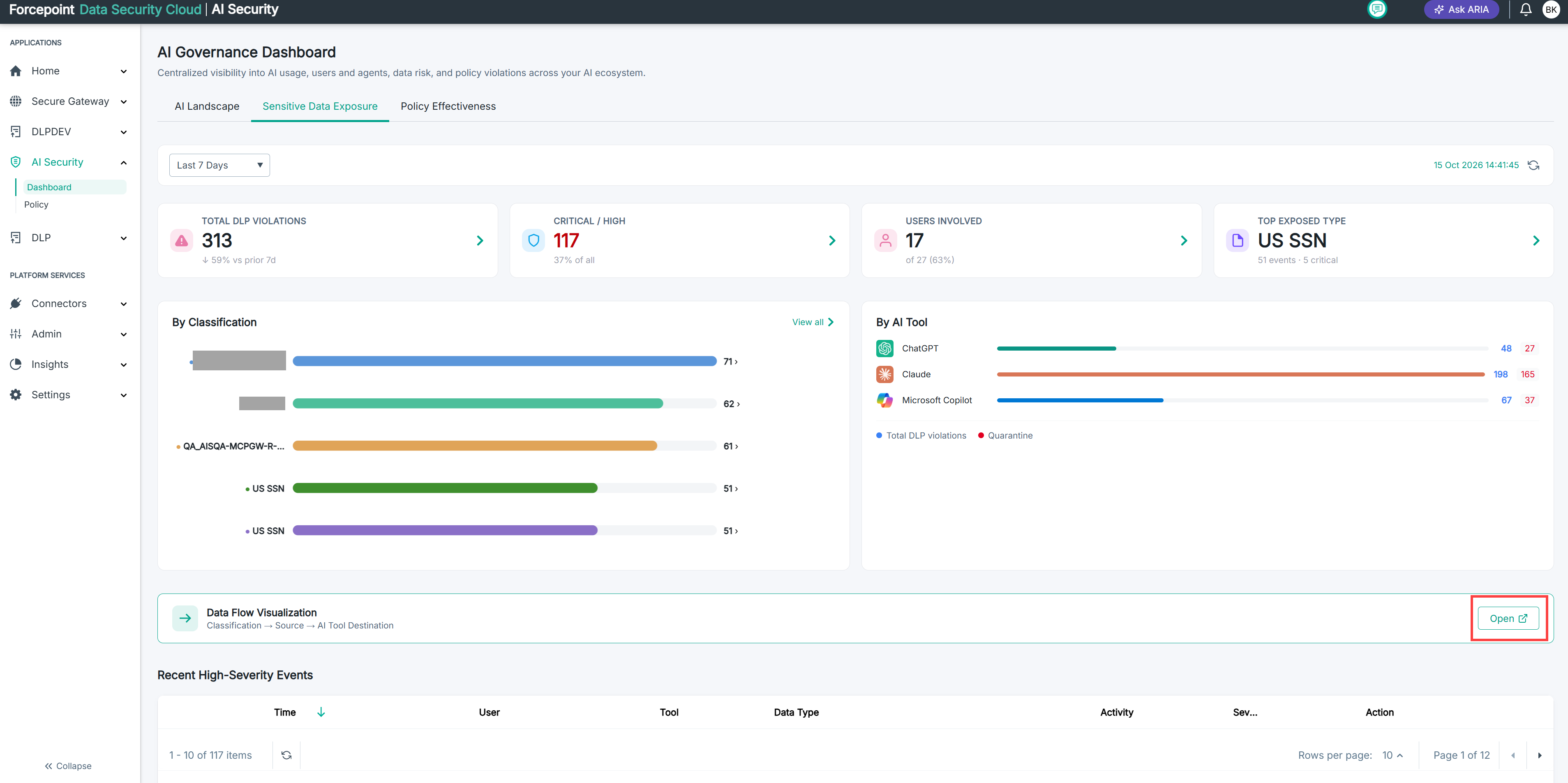
Use it to see how many data security violations occurred in a period, which categories of sensitive data were exposed, which AI tool they went through, and which individual events need attention first.
To open it, go to AI Security › Dashboard, then click Sensitive Data Exposure.
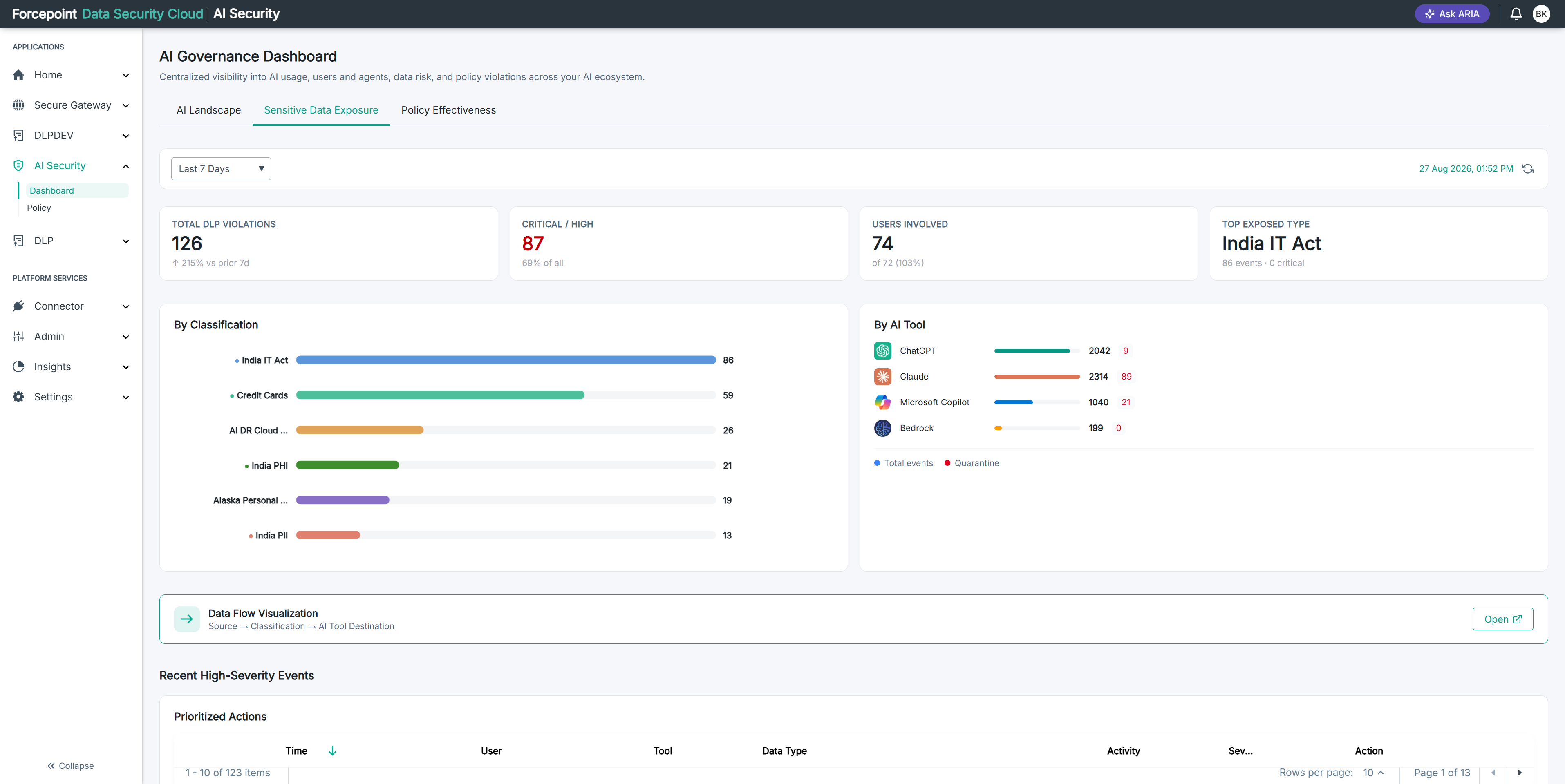
What the tab contains
| Area | What it shows |
|---|---|
| Filter bar | A time period list, set to Last 7 Days by default, with the last-updated stamp and a refresh icon on the right |
| Summary cards | Four headline figures: Total DLP Violations, Critical / High, Users Involved, and Top Exposed Type |
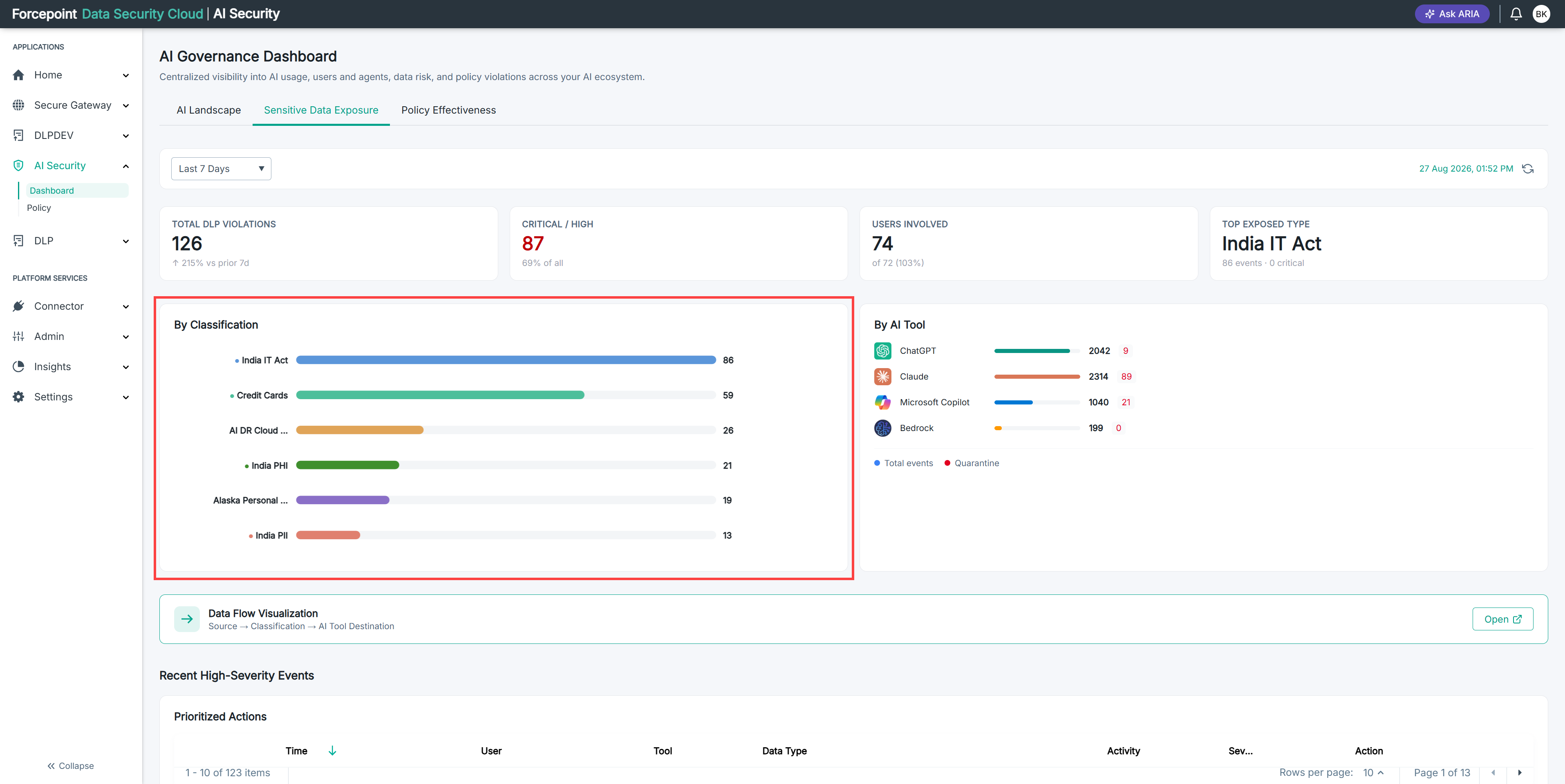
| By Classification | A bar chart ranking the categories of sensitive data that were exposed, highest first, with a violation count against each bar |
| By AI Tool | A bar chart showing, for each connected AI application, how many events it generated and how many were quarantined |
| Data Flow Visualization | A card that opens a separate page showing how each category of sensitive data travelled: from its classification, through the type of content it was found in, to the AI tool it reached |
| Recent High-Severity Events | A table headed Prioritized Actions, listing individual violations that need review |
Reading the summary cards
| Card | What it tells you |
|---|---|
| Total DLP Violations | How many violations occurred in the period. The sub-line compares this against the previous period of the same length |
| Critical / High | How many of those violations were serious, and what share of the total that represents |
| Users Involved | How many people were involved in at least one violation |
| Top Exposed Type | The classification that appeared most often, with its event count and how many of those were critical |
Reading the two charts
By Classification tells you what kind of data is leaving. Longer bars are the categories you are losing most. Because the chart is ranked, the top bar always matches the Top Exposed Type card.
By AI Tool tells you which route it took. Each application has two figures, matching the legend below the chart:
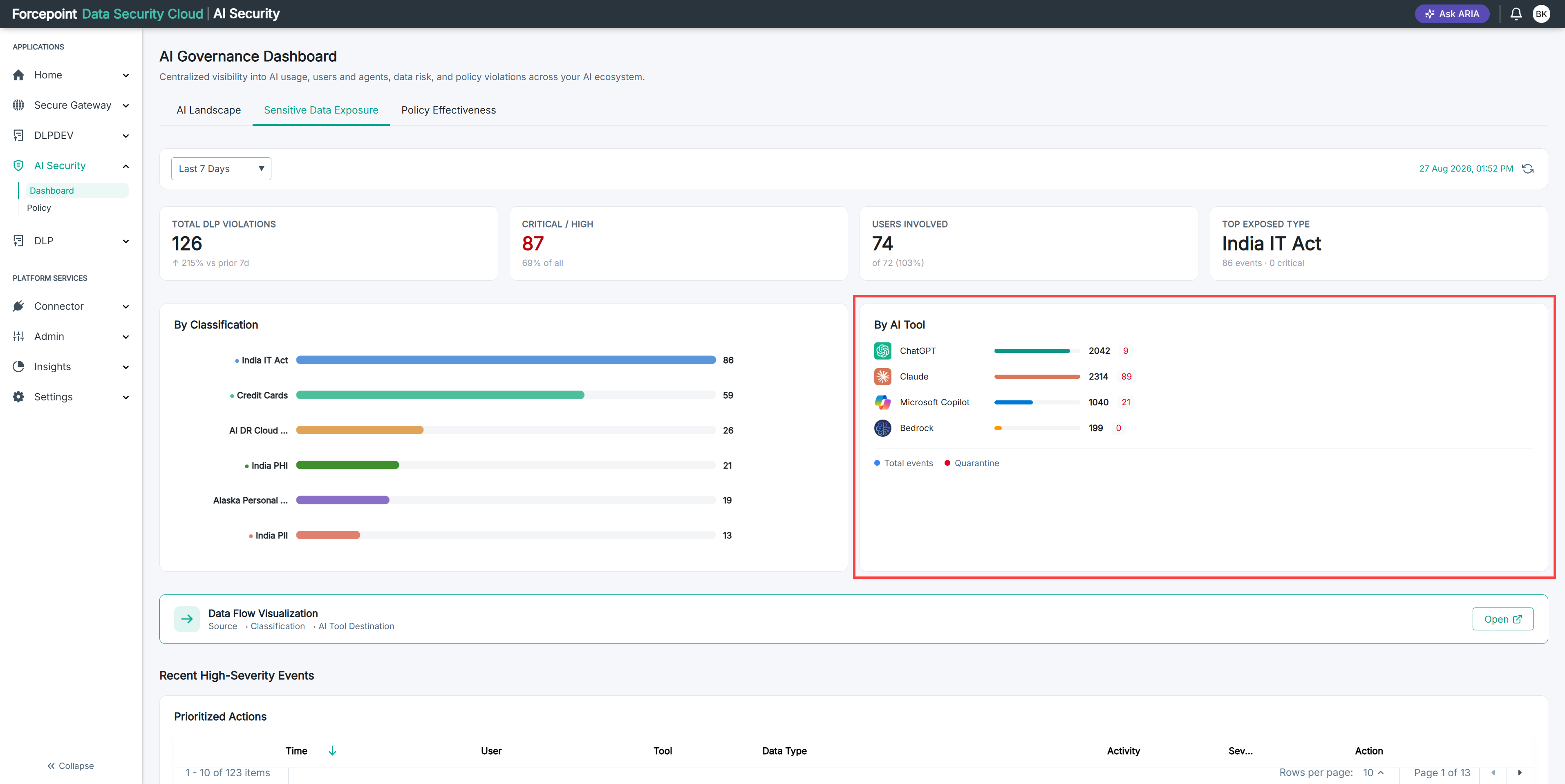
- Total events - every violation recorded for that application
- Quarantine - the subset that was held for review rather than allowed through
Comparing the two shows how much of the exposure through each application was actually caught.
Reading the events table
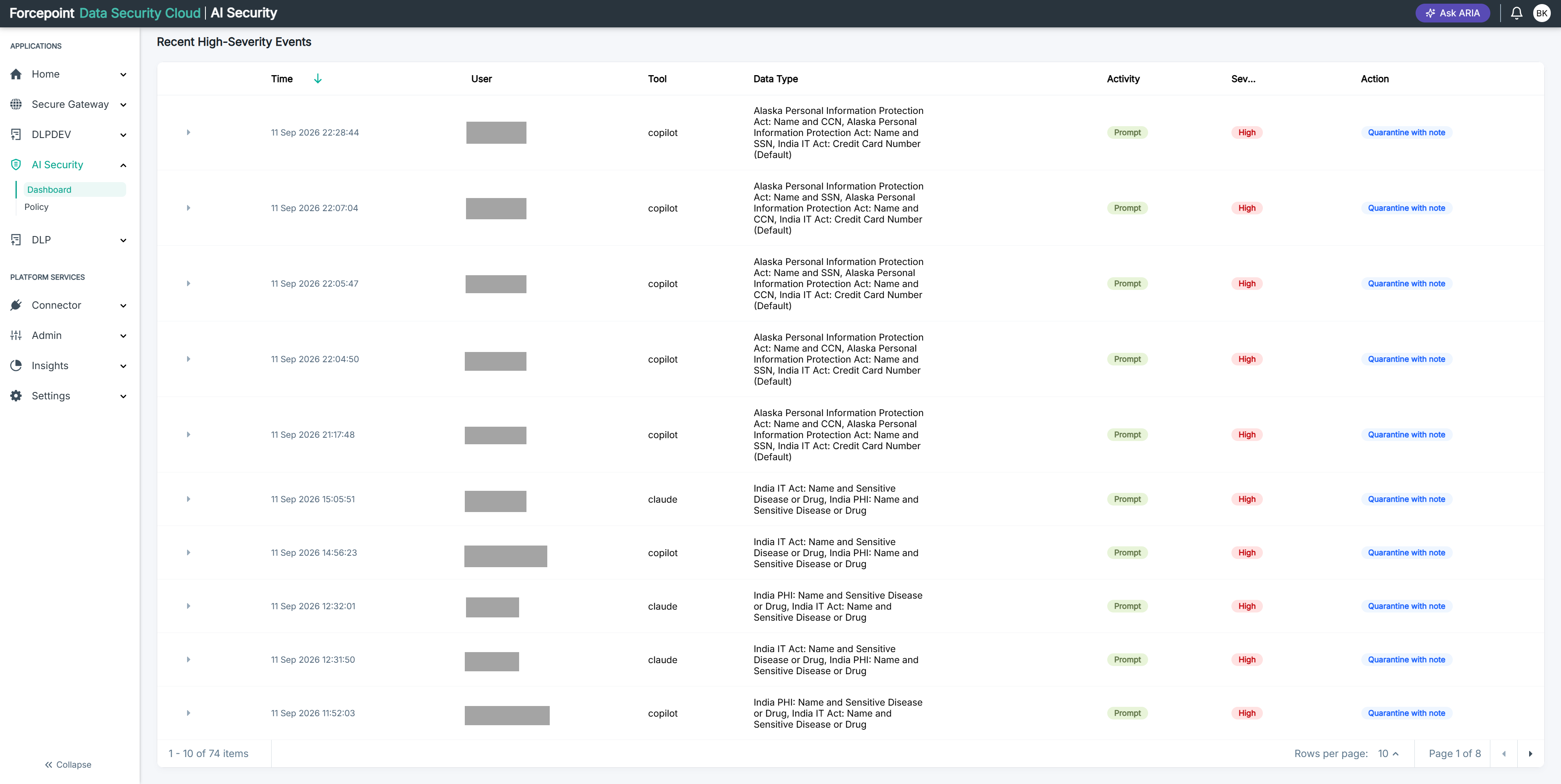
Recent High-Severity Events lists individual violations rather than totals, so this is where investigation starts. Its heading, Prioritized Actions, describes what the table is for: these are the events most likely to need something done about them.
Each row summarises one violation, with columns for the time, the person involved, the AI tool, the kind of data, the activity, the severity, and the action taken.
The rows expand. A row on its own tells you that a violation happened and what was done about it. Expanding it shows which policy and which rule inside that policy matched, which is what tells you why the event was recorded at all.
That distinction matters when an event looks wrong. A violation you did not expect is usually a rule matching more widely than intended, and the expanded row is where you find out which rule to look at.
The table is sorted by time, newest first. Click a column heading to sort by that column instead. Use Rows per page and the page arrows to move through it.
Reading the Data Flow Visualization
The two charts above tell you what kind of data was exposed and which AI tool it went through. The Data Flow Visualization joins the two together. It shows the full journey of your sensitive data on one page, so you can see which kind of data reached which AI tool, and in what form.
To open the Data Flow Visualization:
-
Go to AI Security › Dashboard.
-
Click Sensitive Data Exposure.
-
Scroll down to the Data Flow Visualization card, below the two charts.
-
Click Open.
The Data Flow Visualization page opens.
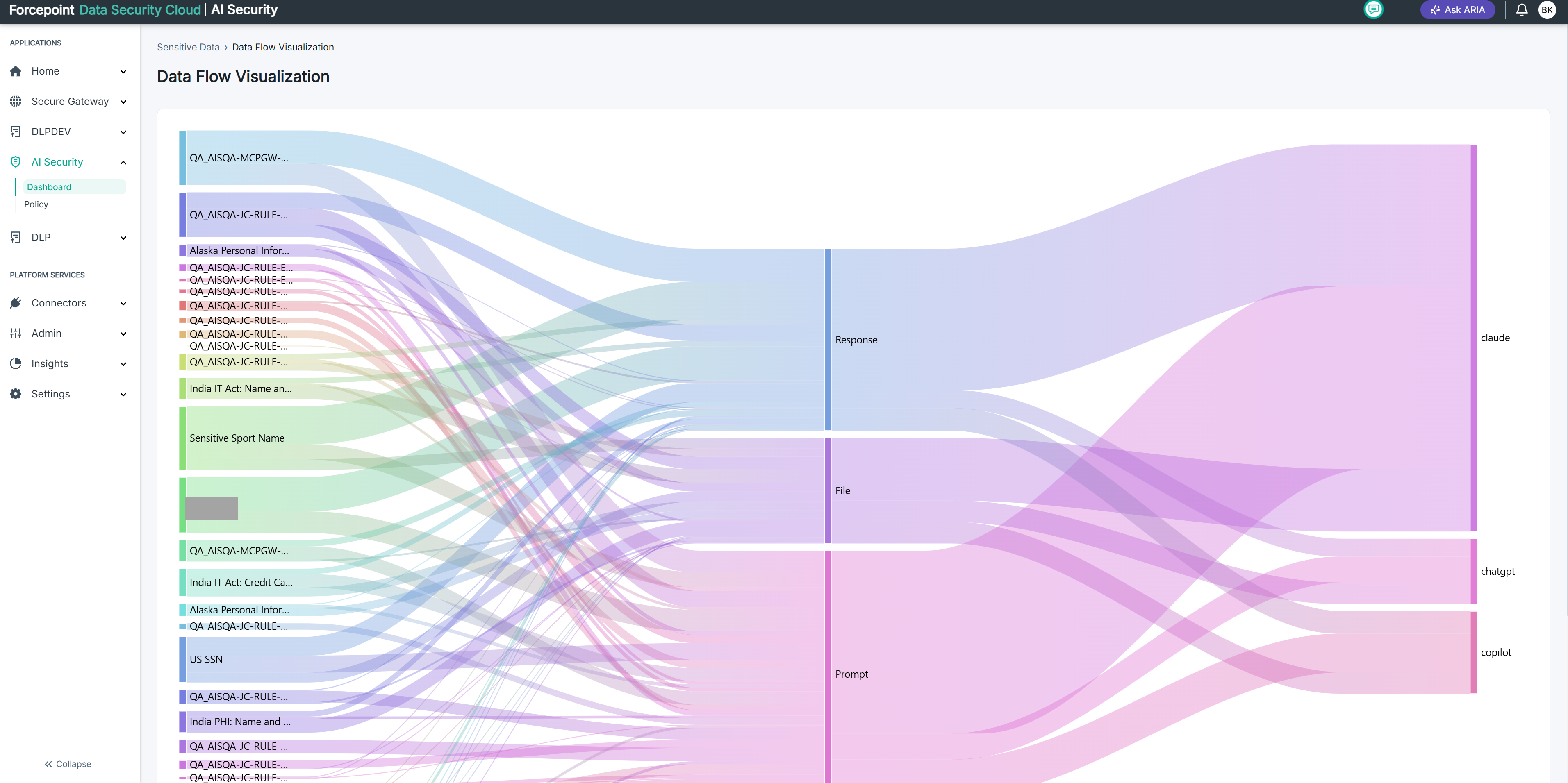
The page has three columns, read from left to right.
| Column | What it shows | Examples |
|---|---|---|
| Classification | The category of sensitive data that was detected | US SSN, Sensitive Sport Name, football |
| Source | The type of content the data was found in | Response, File |
| AI Tool Destination | The AI tool involved | claude, chatgpt, copilot |
Coloured bands connect the columns. Each band links a classification to a source, and a source to an AI tool.
To trace a category of sensitive data:
- Find the classification you want to follow in the left column.
- Follow its coloured band to the middle column.
- Note the source it passes through, for example Response or File.
- Continue along the band to the right column.
- Note the AI tool where the band ends.
Use this page to answer questions such as:
- Is this data leaving mostly in files or in responses?
- Which AI tool receives the most of a particular category of data?
- Does one category of data reach several AI tools?
What you can do from here
- Change the reporting period to compare exposure across weeks
- Identify which classification of sensitive data is most at risk
- Identify which AI application is the biggest route for that data
- Open the Data Flow Visualization to follow a category of sensitive data from its classification, through its source, to the AI tool it reached
- Work through recent high-severity events and see what action was taken on each
- Expand an event to find the policy and rule that matched