
Checking the Result of a Remediation Action
You can check which remediation action was applied to a policy match, and whether it succeeded, in two places: the Transaction Viewer in Insights, and the Investigation page in DLP.
The Transaction Viewer shows the status of each action, such as whether it ran or failed. DLP Investigation shows the alert that DLP creates each time a remediation action is triggered.
Steps
-
View the result in the Transaction Viewer.
-
Go to Insights › Transaction Viewer.
The Transaction Viewer opens.
-
From Data Collections, select AI Data Policy Matches.
The list shows only AI activity that matched a data security policy.
-
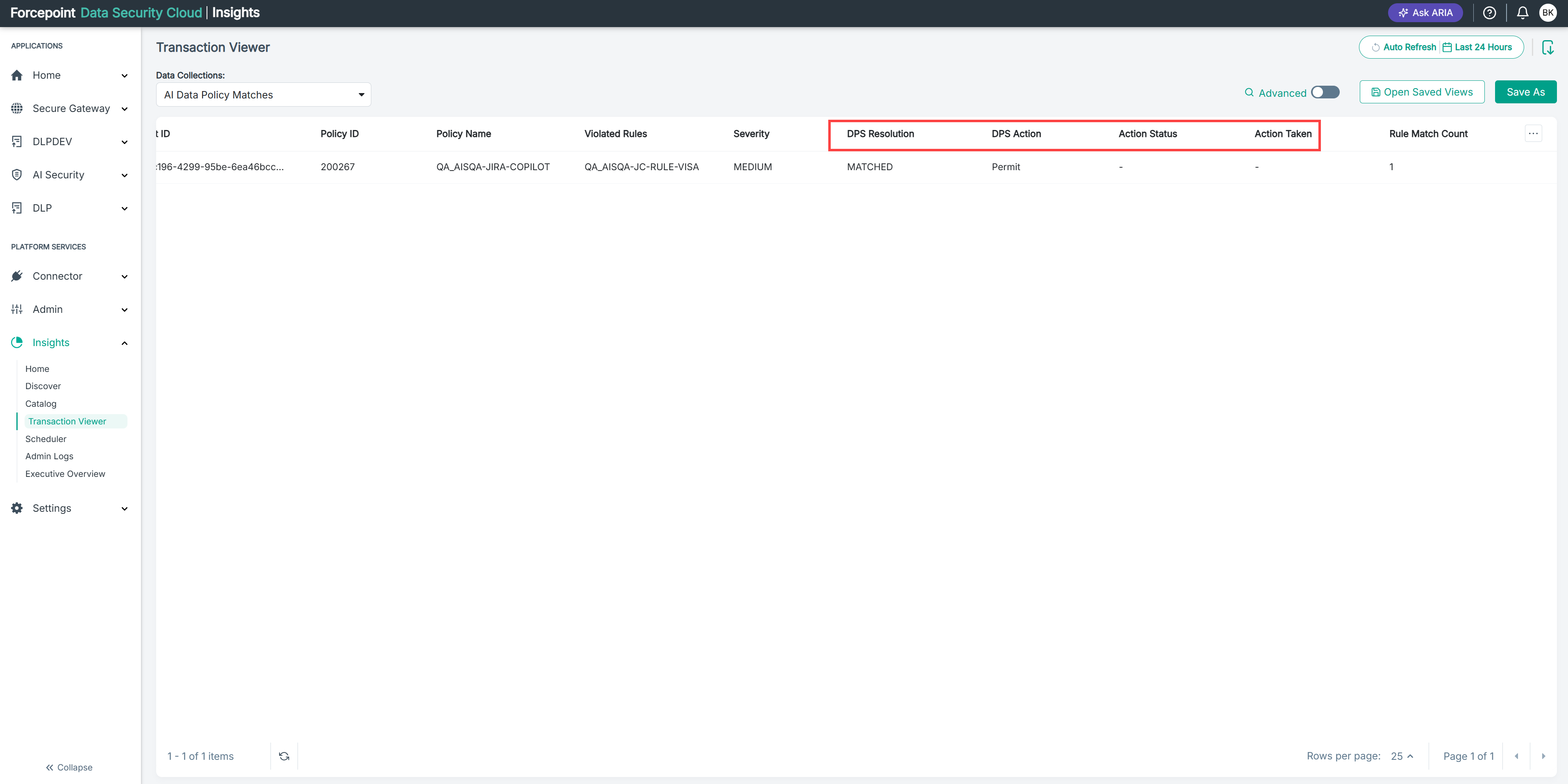
Scroll right to the DPS Action, Action Status, and Action Taken columns.
Column What it shows DPS Resolution Whether the content matched a policy, for example MATCHED. DPS Action The remediation action in the action plan, for example Safe copy or Unshare external. Action Status Whether the action ran: EXECUTED or FAILED. Action Taken The operation performed, for example REMEDIATION_ACTION_WRITE for a safe copy. The remediation columns in the Transaction Viewer are shown in the below image.
-
-
Optional: View the alert in DLP Investigation.
Each time a remediation action is triggered, DLP creates an alert for it.
-
Go to DLP › Investigation.
The Investigation page opens.
-
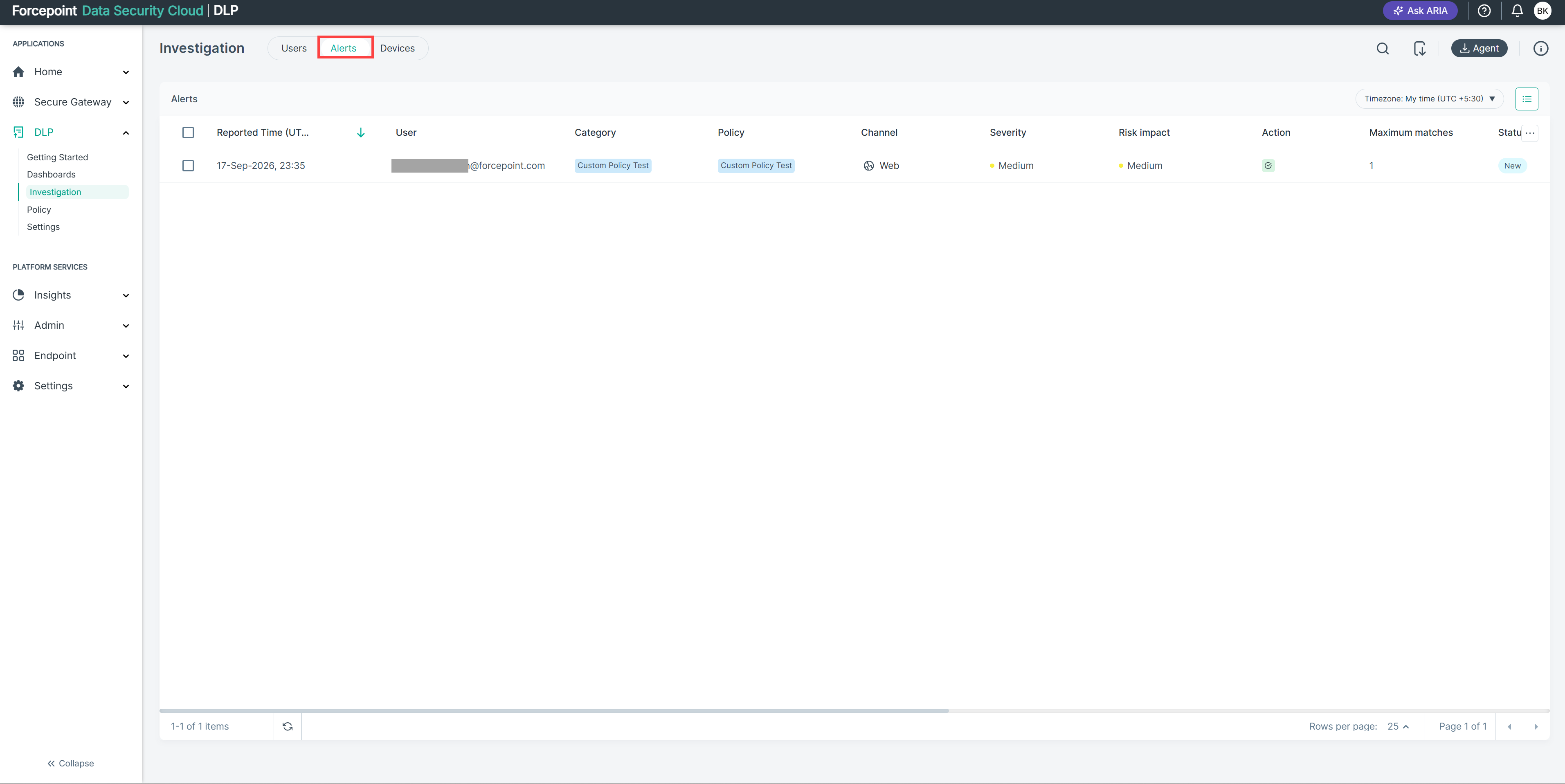
Select the Alerts tab.
The list of alerts opens. Alerts from AI Security show Apps API in the Channel column.
Alerts from AI Security in DLP Investigation are shown in the below image.
-
Select an alert that shows Apps API in the Channel column.
The alert details show the action the administrator configured, for example Quarantine with note, the operation that was checked, for example an AI prompt, and the AI app, for example ChatGPT.
-
Result
You can see, for each policy match, which remediation action applied and whether it succeeded.