
Understanding the Access Policies Tab
The Access Policies tab is where you control what your AI agents are allowed to do in your connected business applications.
Each access policy governs MCP tool calls between your users, your agents, and the applications connected through the MCP Gateway. A policy either allows a set of calls or denies them. You can also select Notify, which records each match without changing whether the call is allowed.
To open it, go to AI Security › Policy. The Access Policies tab opens by default.
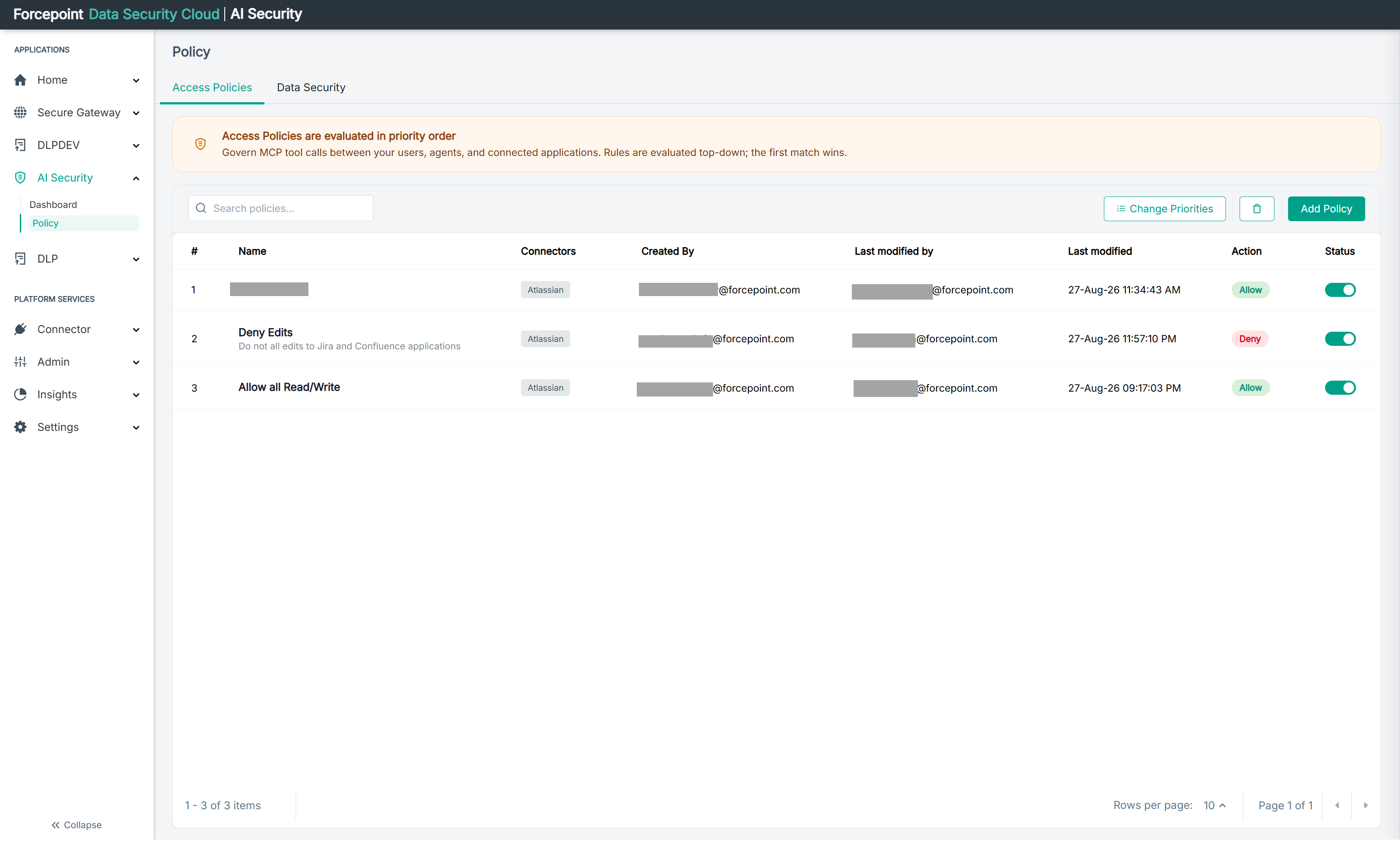
How policies are evaluated
The banner at the top of the page states the rule that governs everything else on this screen: policies are evaluated top-down, and the first match wins.
The number in the # column is the position of the policy in that order. When a tool call arrives, the platform checks policy 1, then 2, then 3, and stops at the first policy whose conditions match. No policy below the match is considered.
This makes the order as important as the policies themselves. A broad allow placed above a narrow deny will match first, and the deny will never take effect.
Use Change Priorities to reorder the list when a policy is not behaving as you expect.
What the tab contains
| Area | What it shows |
|---|---|
| Banner | A reminder that policies are evaluated in priority order, first match wins |
| Search policies | Filters the list by policy name |
| Change Priorities | Opens the reordering view, where you set the evaluation order |
| Delete icon | Removes policies from the list |
| Add Policy | Opens the panel for creating a new access policy |
| Policy table | One row per policy, in evaluation order |
| Paging controls | The item count, Rows per page, and the page arrows, at the foot of the table |
What the table columns mean
| Column | What it shows |
|---|---|
| # | The position of the policy in the evaluation order |
| Name | The policy name, with its description underneath if one was entered |
| Connectors | The gateway connector the policy applies to, shown as a badge |
| Created By | The administrator who created the policy |
| Last modified by | The administrator who last changed it. This can differ from the administrator who created it |
| Last modified | The date and time of that change |
| Action | Whether the policy allows or denies the calls it matches. Allow appears in green, Deny in red. Notify can be selected alongside either. |
| Status | A toggle showing whether the policy is currently in force |
Enabled and disabled policies
The Status toggle tells you whether a policy is being evaluated at all.
- A green toggle means the policy is in force and will be evaluated in its turn.
- A grey toggle means the policy is switched off. It is skipped during evaluation, but it keeps its position in the order and all of its settings.
Switching a policy off is the safe way to take it out of service while you investigate something, because you can switch it back on without rebuilding it. Deleting a policy removes it permanently.
A disabled policy is worth checking when calls are being permitted that you expected to be blocked. The policy may be present, correctly written, and simply switched off.
Opening a policy
Click a policy in the list to open the Edit Policy panel on the right.
The panel holds everything that defines the policy: its name and description, the Source settings that decide whose calls it applies to, and the Destination settings that decide which connectors and tools it covers.
The panel is also where you delete a policy. Delete sits at the bottom left, with Cancel and Update on the right.
What you can do from here
- Find a policy by name
- See which policy will be evaluated first, and which may never be reached
- Change the evaluation order
- Turn a policy off temporarily without losing its configuration
- Create a new access policy
- Open a policy to review, change, or delete it