
Understanding the Sanctioned View
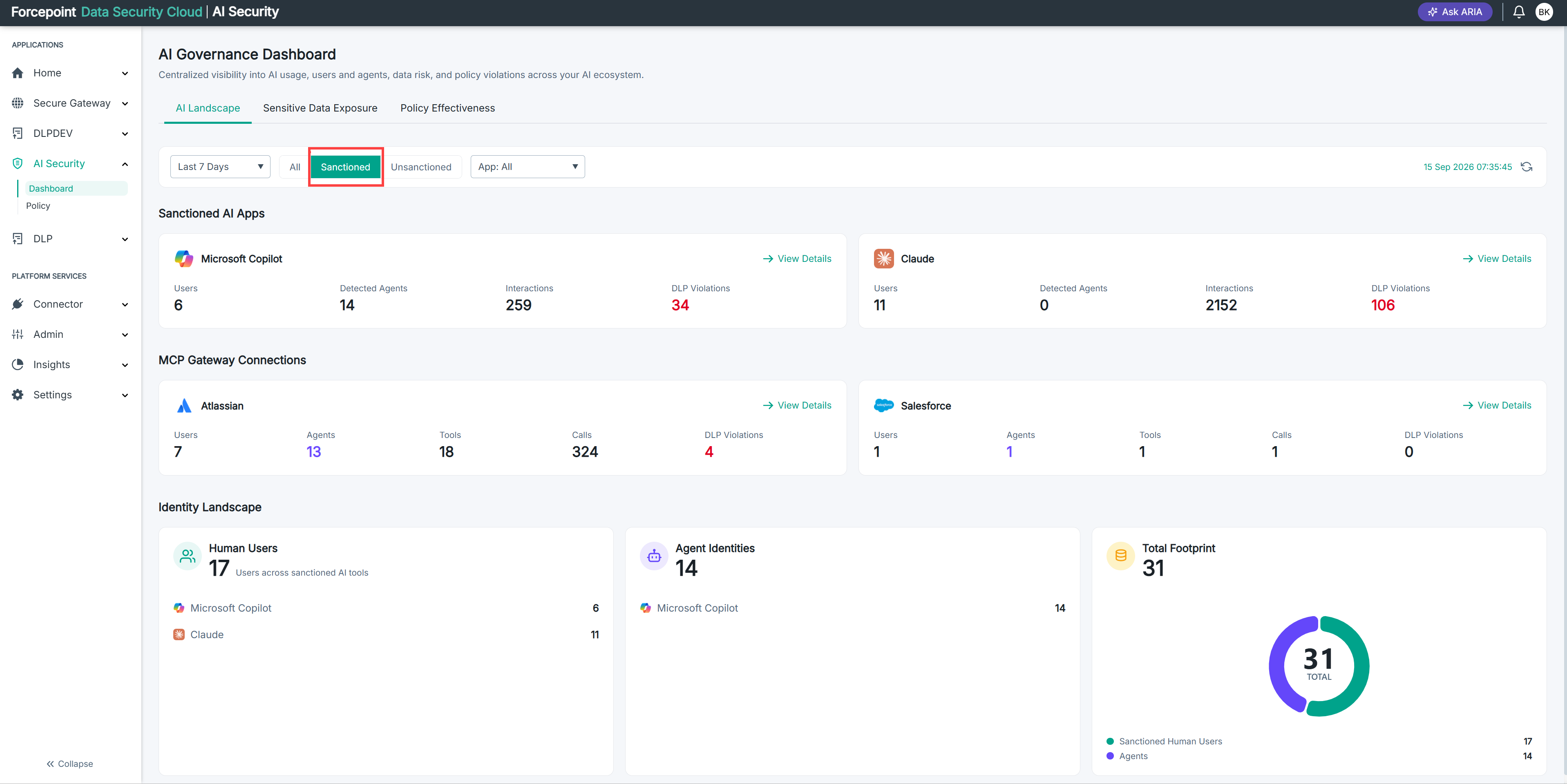
Selecting Sanctioned narrows the AI Landscape tab to the AI you have approved and connected.
The All, Sanctioned, and Unsanctioned buttons in the filter bar control which parts of the AI Landscape tab you see.
Selecting Sanctioned removes the Unsanctioned AI Apps section from the page entirely.
Use this view when you want to focus on governing approved AI, without discovery findings competing for attention.
To open it, go to AI Security › Dashboard, then click Sanctioned in the filter bar.
What the view contains
| Section | Shown in this view |
|---|---|
| Sanctioned AI Apps | Yes |
| MCP Gateway Connections | Yes |
| Unsanctioned AI Apps | No, removed |
| Identity Landscape | Yes |
The sections that remain are unchanged: the same cards, the same figures, and the same View Details links as in the All view.
What this view is for
The All view mixes two different jobs. Sanctioned applications are ones you have already approved, where the work is ongoing governance, watching violations, checking policy coverage, seeing who is using what. Unsanctioned applications are discovery findings, where the work is deciding what to do about something you did not know was happening.
Selecting Sanctioned removes the second job from the page so you can concentrate on the first.
What you can do from here
- Review activity and violations across your connected AI applications only
- Check MCP Gateway activity without discovery findings on the same page
- See your identity footprint across sanctioned tools
- Return to the full page by clicking All, or switch to discovery findings by clicking Unsanctioned