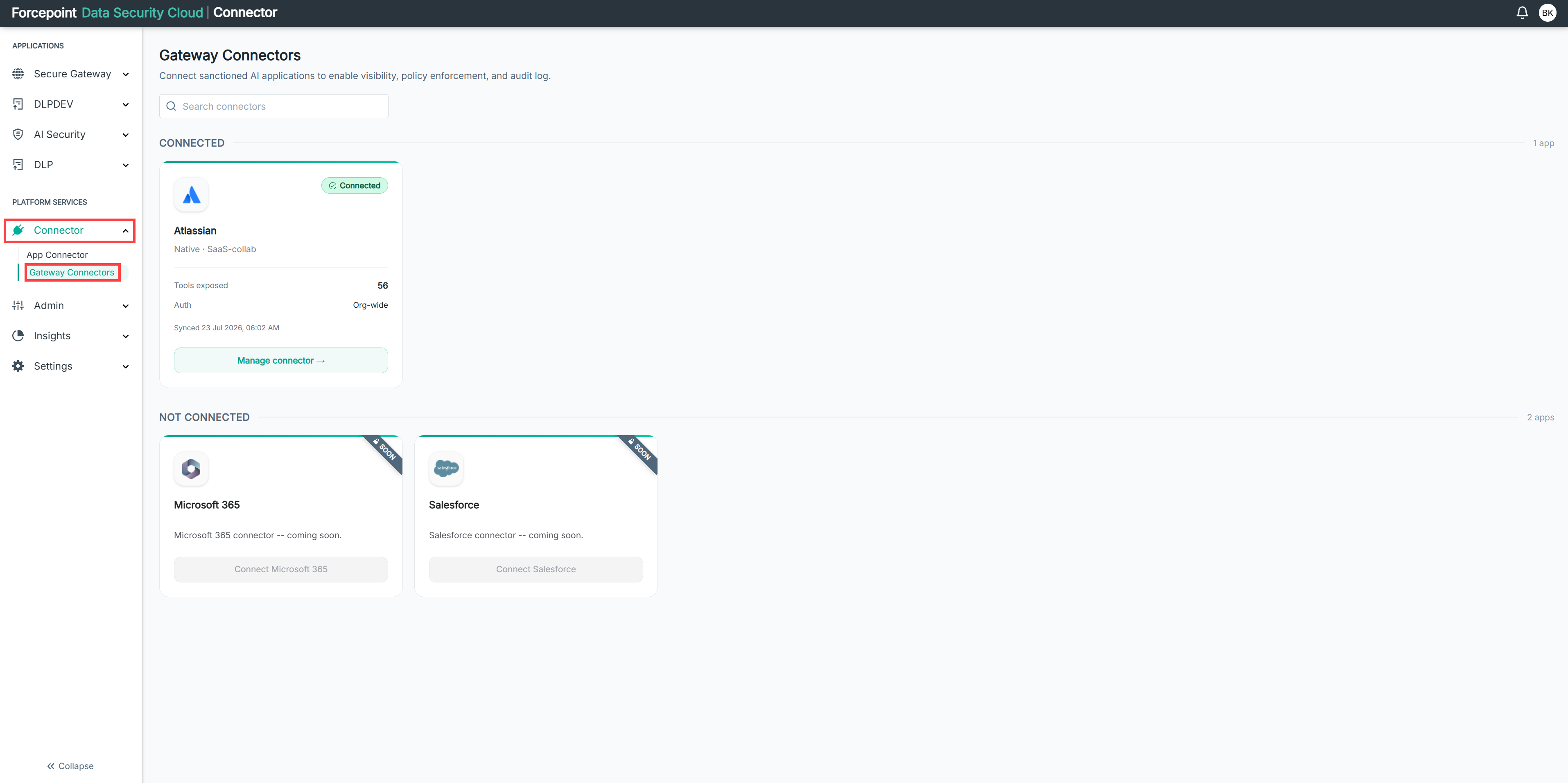
Where to Find AI Security in the Platform
Find your way around the AI Security pages in the Forcepoint Data Security Cloud Platform.
The Forcepoint Data Security Cloud Platform organizes all AI Security features in the left navigation panel. There are two sections you will use throughout this guide.
AI Security
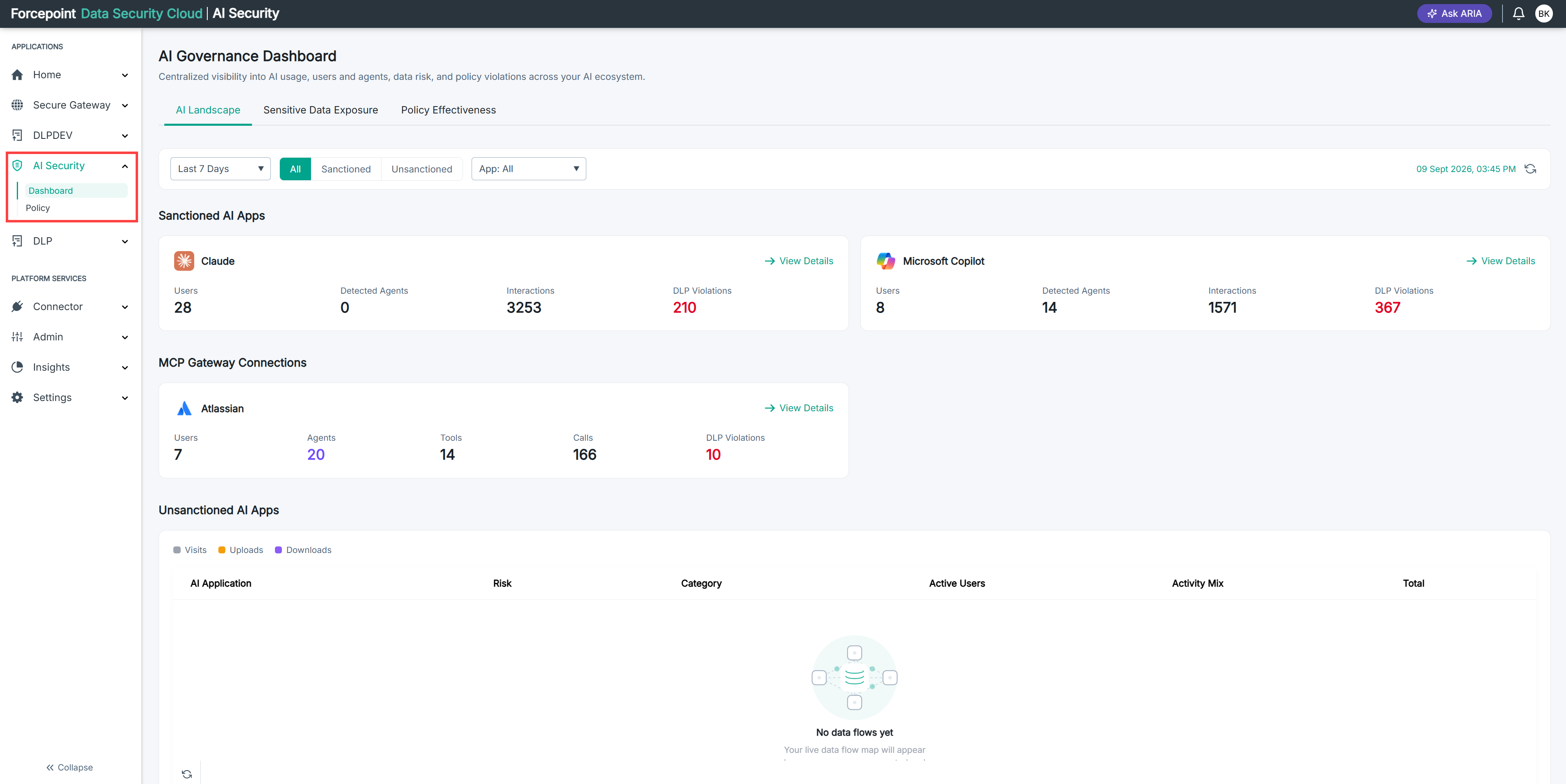
The AI Security section contains three menus.
Dashboard
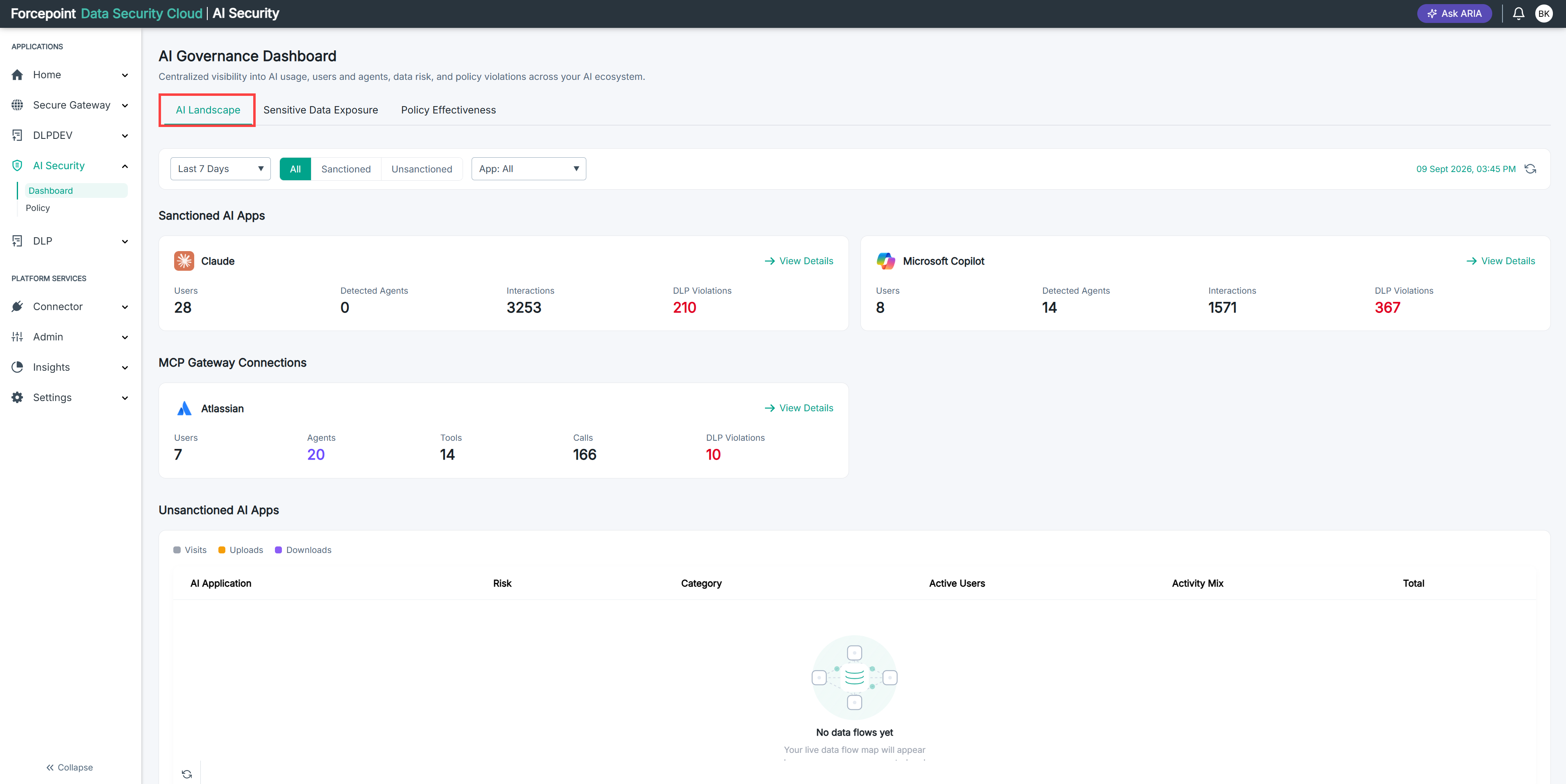
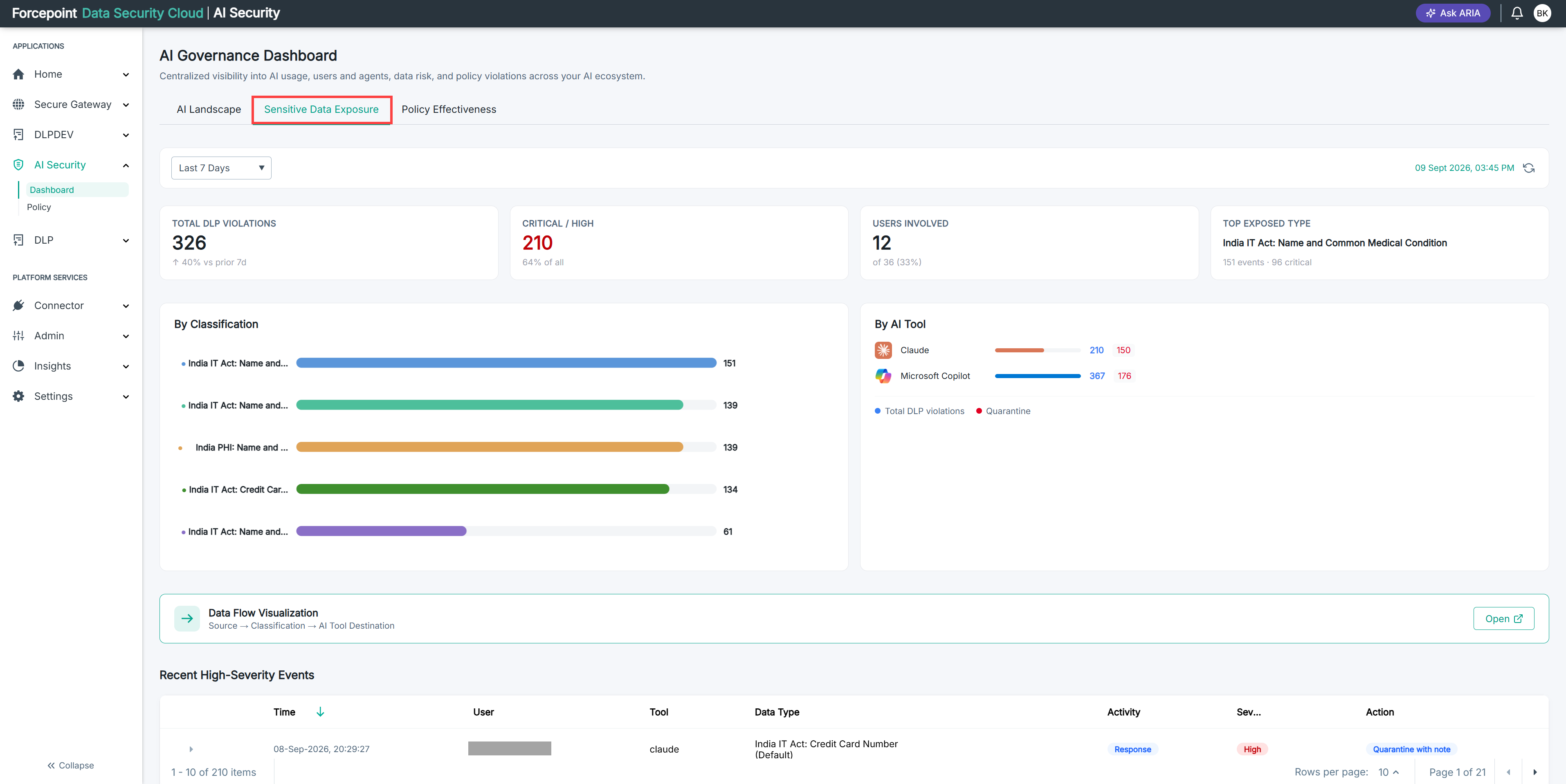
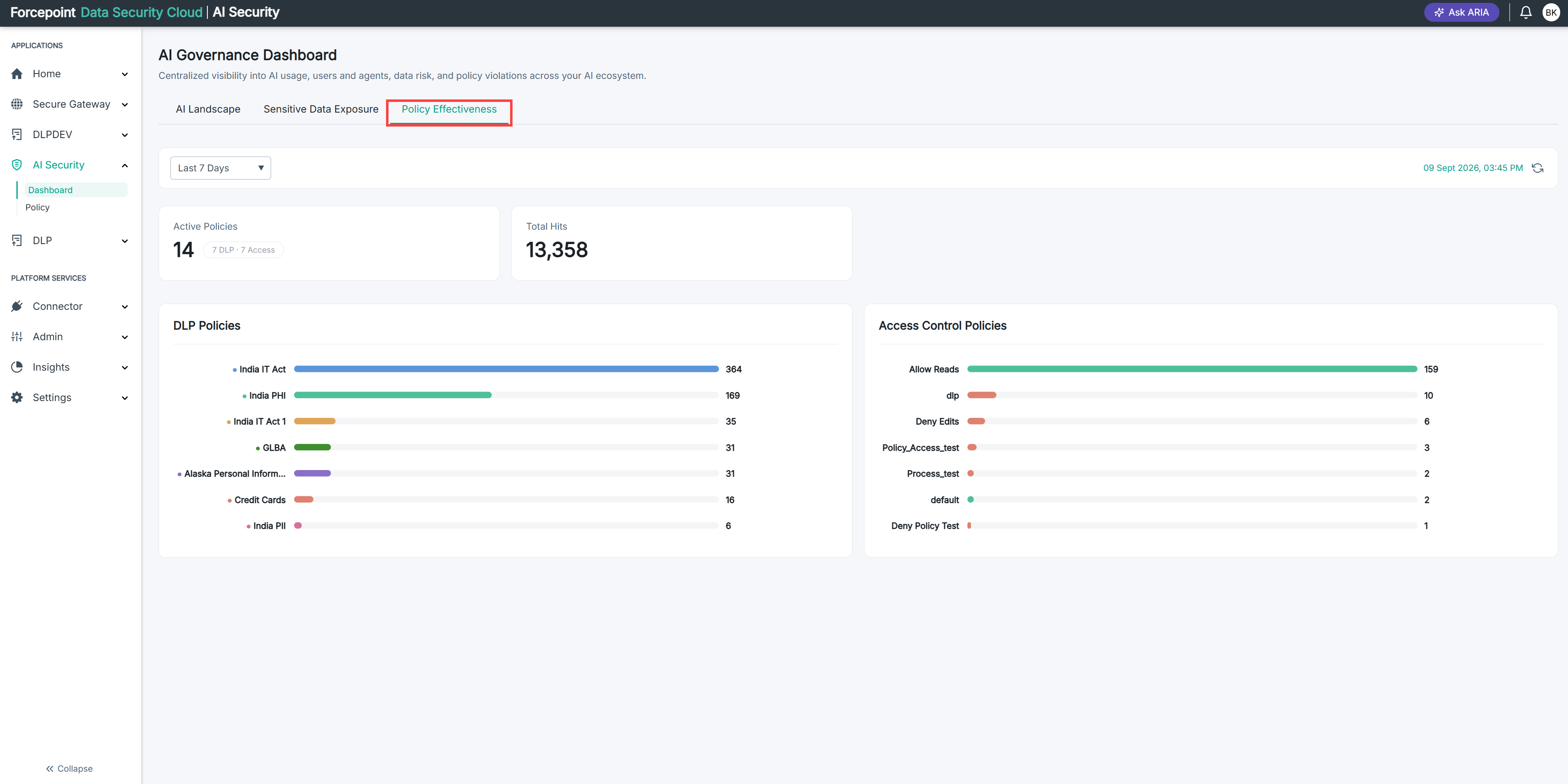
The AI Governance Dashboard is your central monitoring hub. It has three tabs.
-
AI Landscape — an overview of your sanctioned AI apps and MCP Gateway connections, with the users, agents, interactions, and DLP violations for each. The Unsanctioned AI Apps section below it lists the unapproved AI tools detected across your organization, with a Shadow AI Users count. Select any unsanctioned app to see who accessed it.
This data comes from web traffic monitored by Forcepoint Cloud Web Proxy and needs no connector. See Understanding How Shadow AI Detection Works.
-
Sensitive Data Exposure — DLP violations broken down by classification and by AI tool, with severity counts and the users involved.
-
Policy Effectiveness — how your active policies are performing, including total hits, users impacted, and which policies trigger most often.
Policy
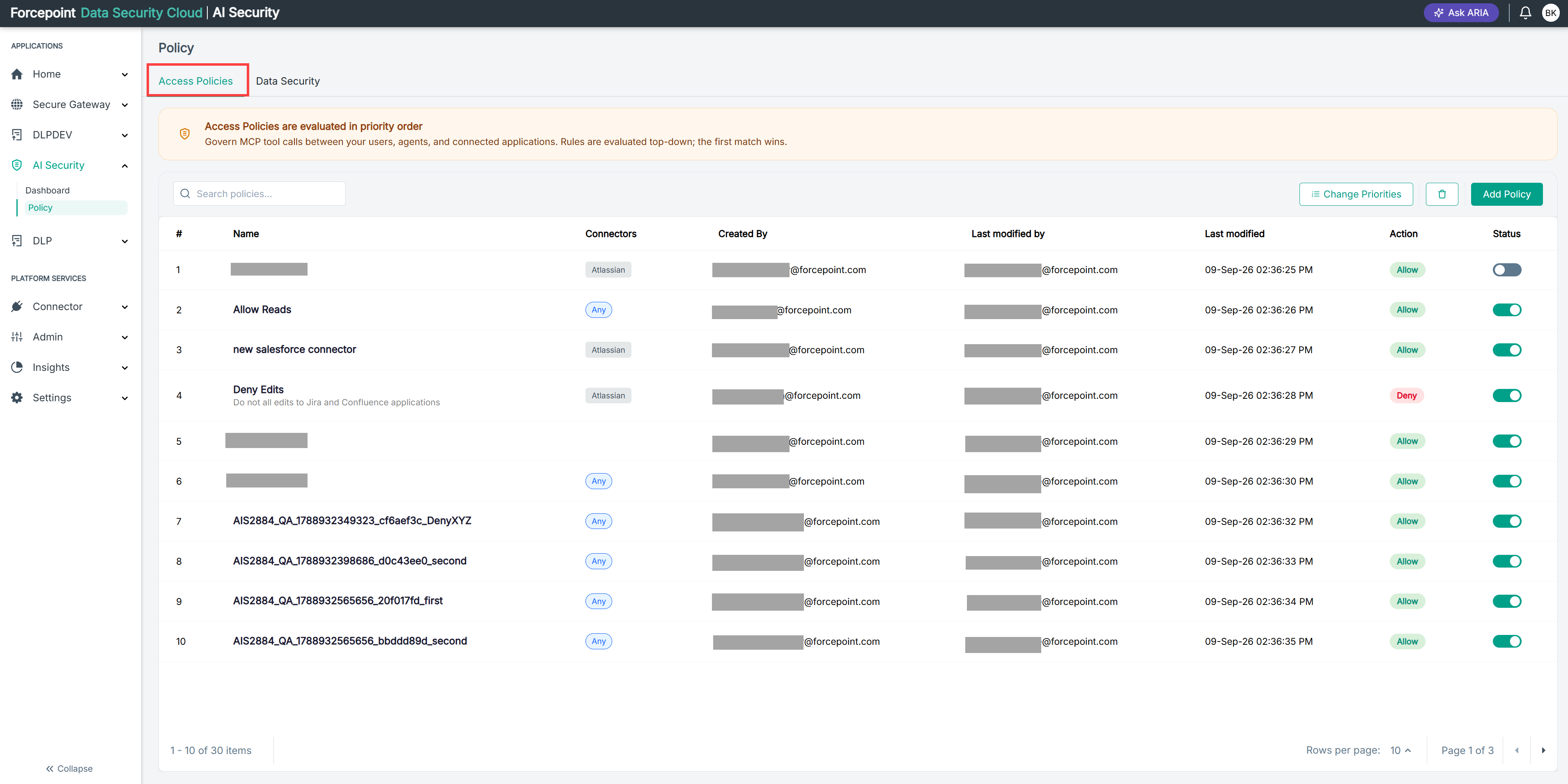
Where you create and manage access control policies for MCP Gateway connections. Policies are evaluated in priority order, and the first matching policy is applied. From this page you can add, edit, delete, and reprioritize policies.
Agent Management
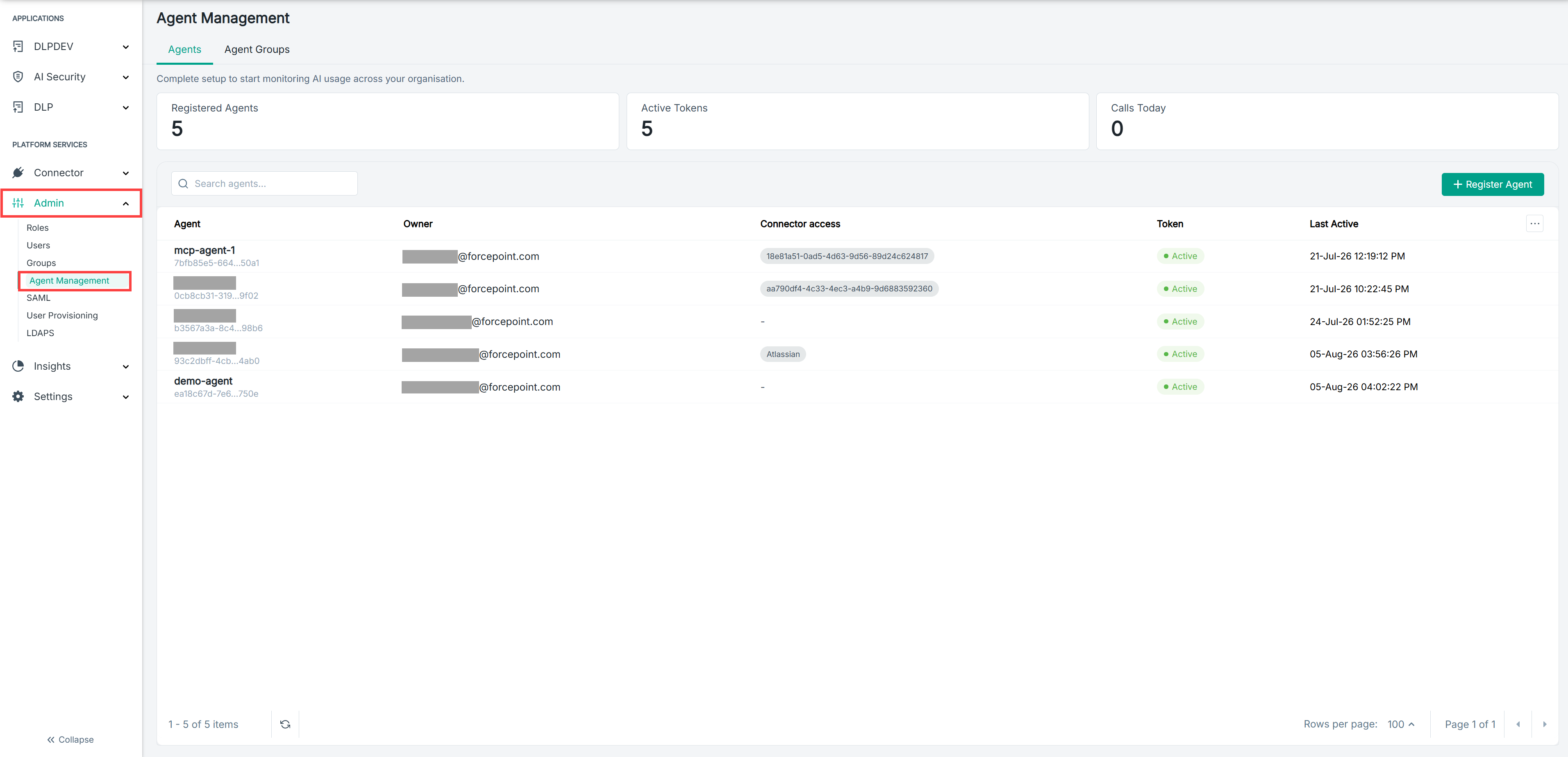
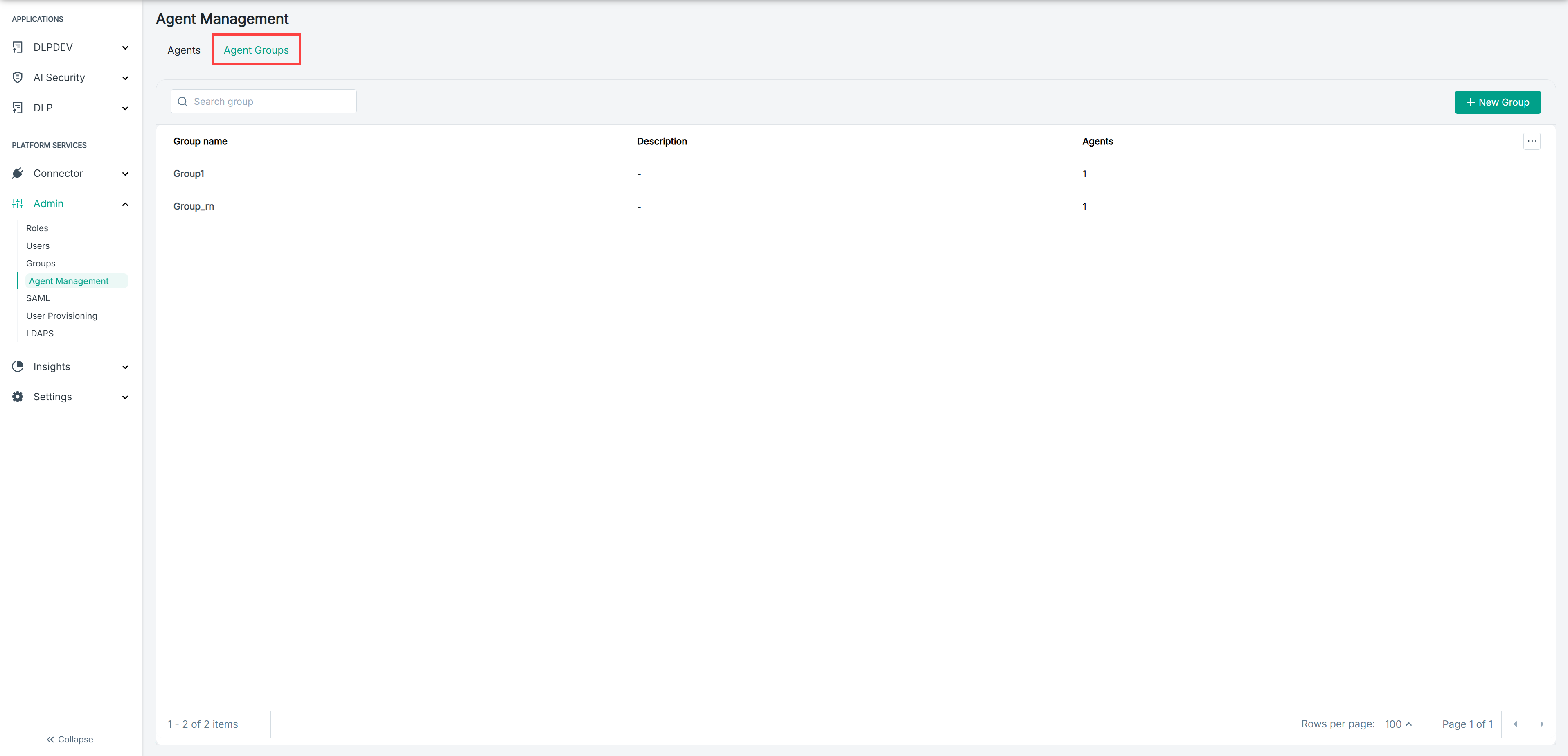
Where you register AI agents and organize them into groups. It has two tabs.
-
Agents — lists all registered agents with their owner, scope, token status, and last active date. From here you can register new agents and view their client ID and client secret.
-
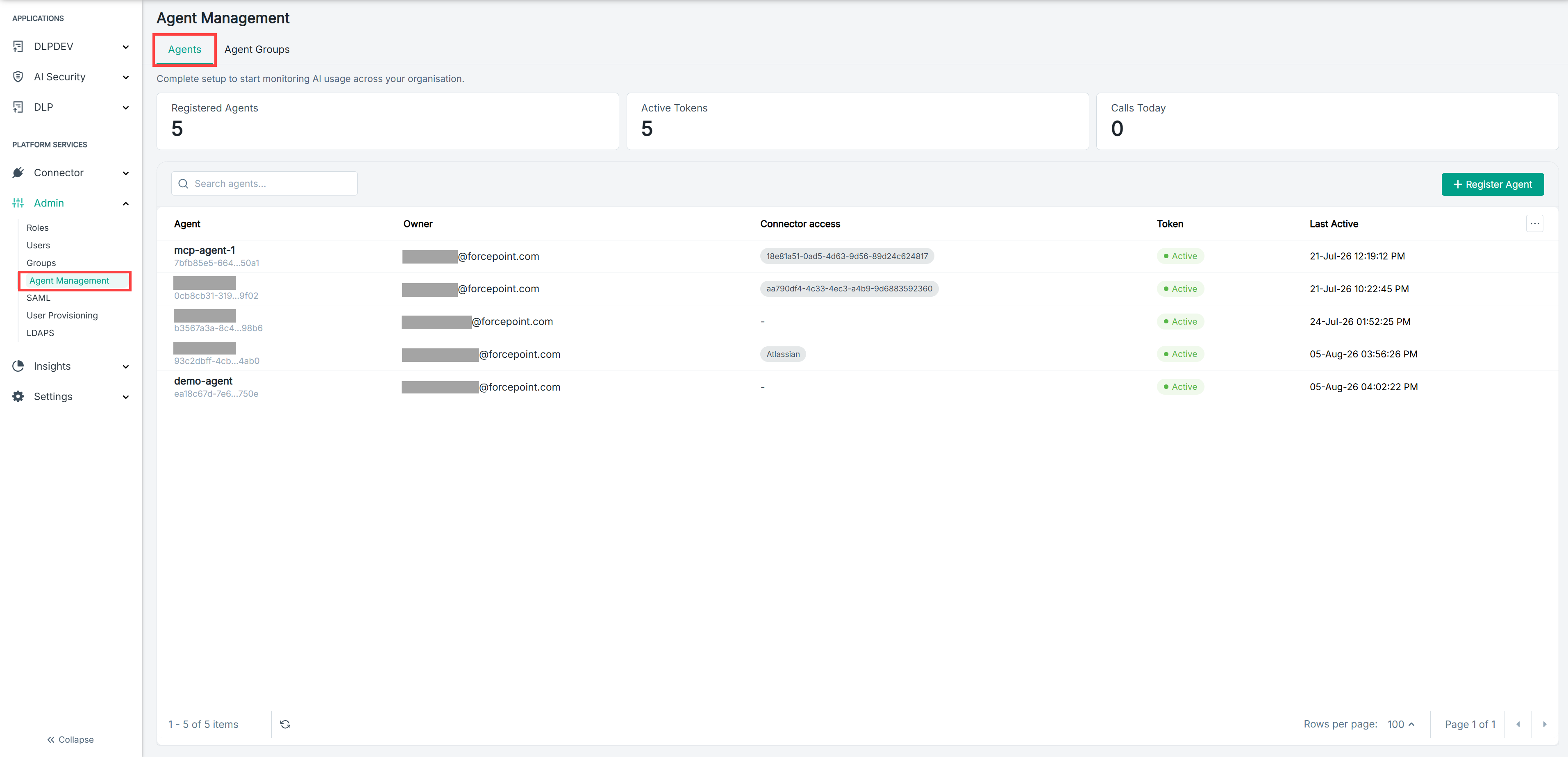
Agent Groups — lists all agent groups with the number of agents and a description for each. From here you can create new groups and assign agents to them.
Connector
The Connector section contains two menus.
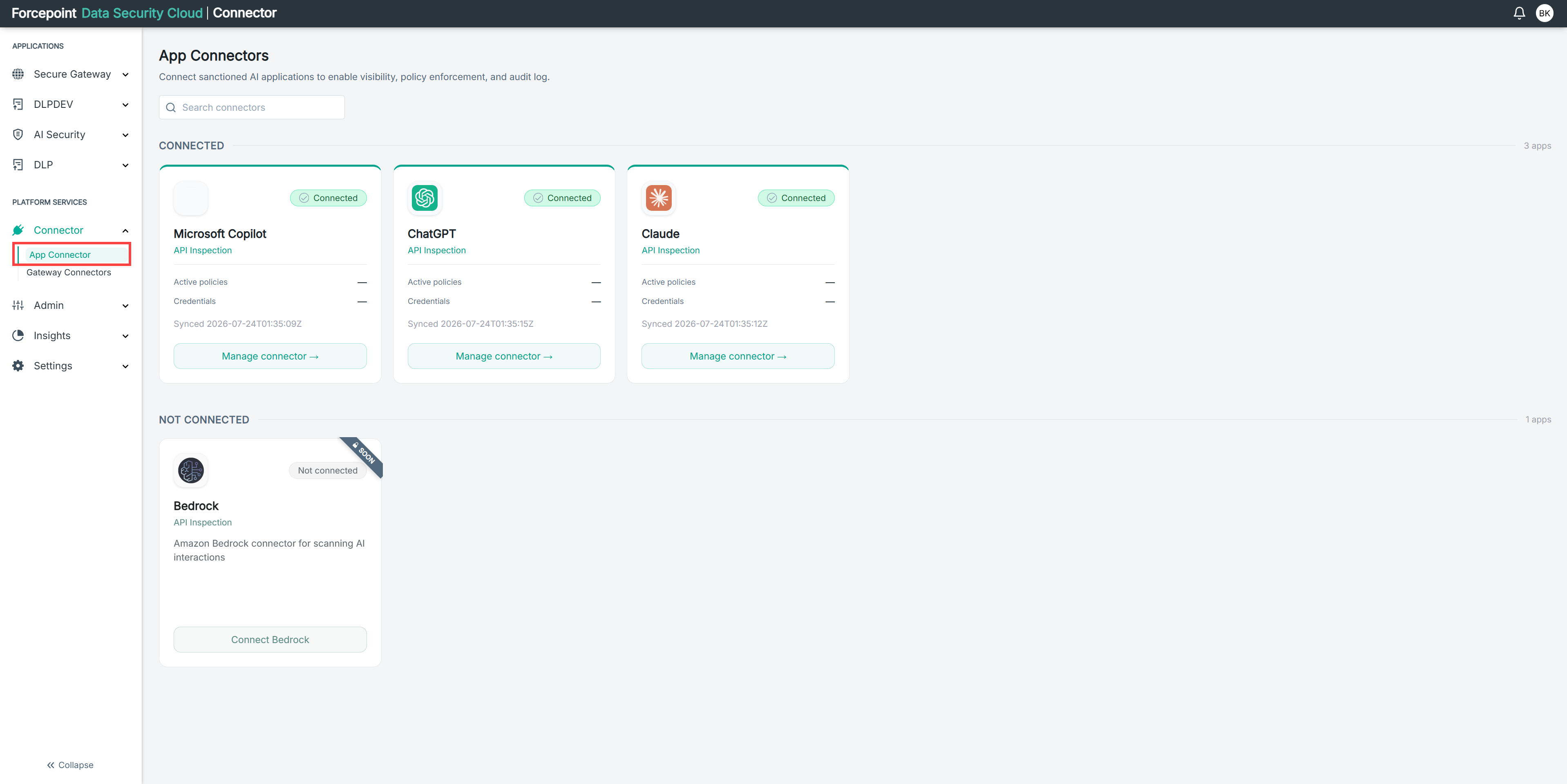
App Connectors
Where you connect and manage sanctioned AI apps such as ChatGPT Enterprise, Microsoft Copilot, and Claude Enterprise. From this page you can add a new app connector, view the live connection status of each app, and update credentials or settings for apps that are already connected.
Gateway Connectors
Where you connect business applications to the MCP Gateway. From this page you can add a new gateway connector, configure its authentication method, select which tools are exposed to agents, and manage or disconnect existing connections.