
Understanding the Gateway Connectors Page
The Gateway Connectors page is where you connect the business applications your AI agents need to reach.
An AI agent does not talk to Jira or Confluence directly. It goes through the MCP Gateway, and the gateway only reaches applications you have connected here. Connecting an application makes its tools available to your agents, and brings those tool calls under policy control.
To open it, go to Connector › Gateway Connectors.
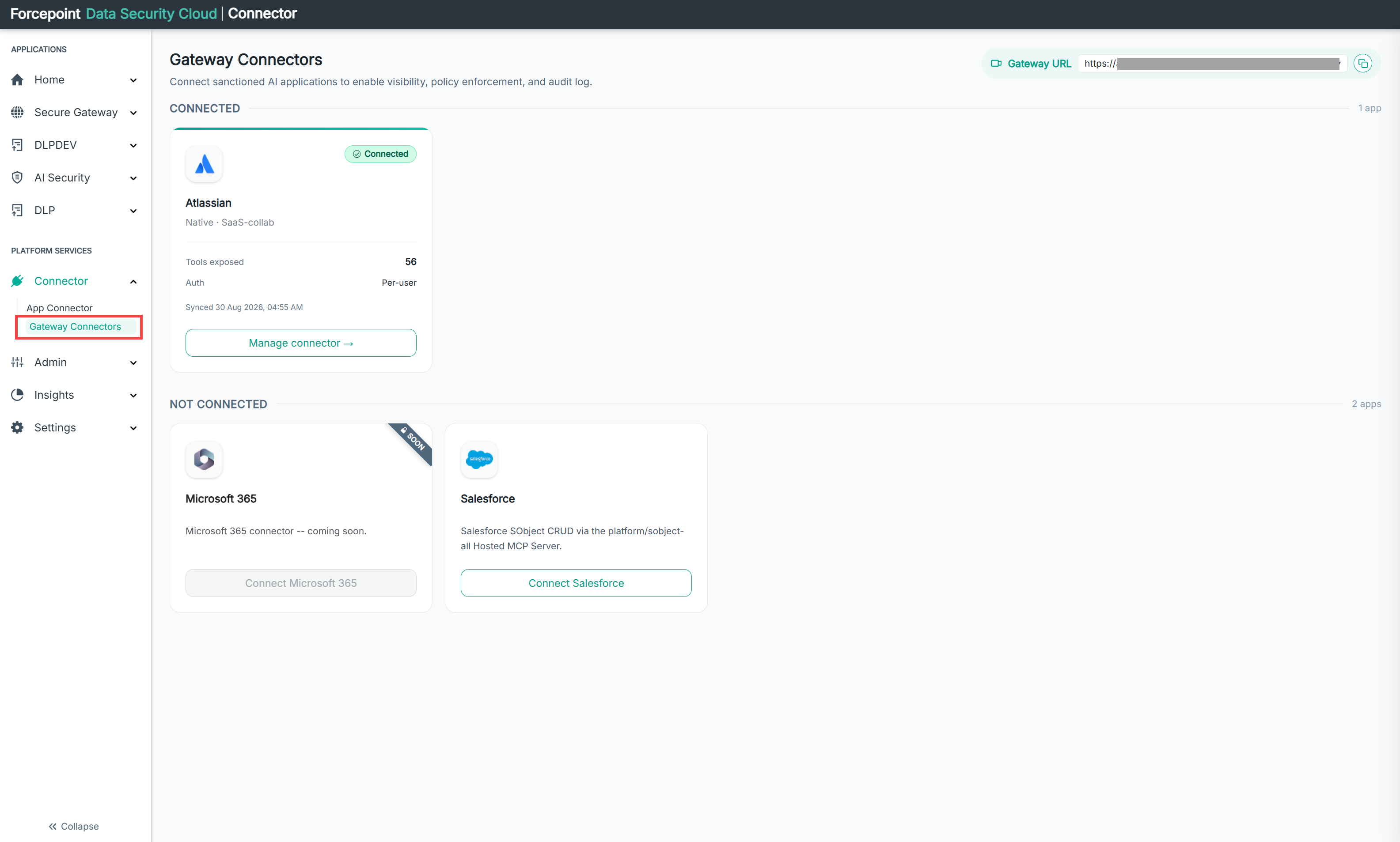
What the page contains
| Area | What it shows |
|---|---|
| Gateway URL | The address your agents use to reach the MCP Gateway, with a copy icon beside it |
| CONNECTED | Business applications already connected, with a count on the right of the heading |
| NOT CONNECTED | Applications available to connect, with a count on the right |
The gateway URL
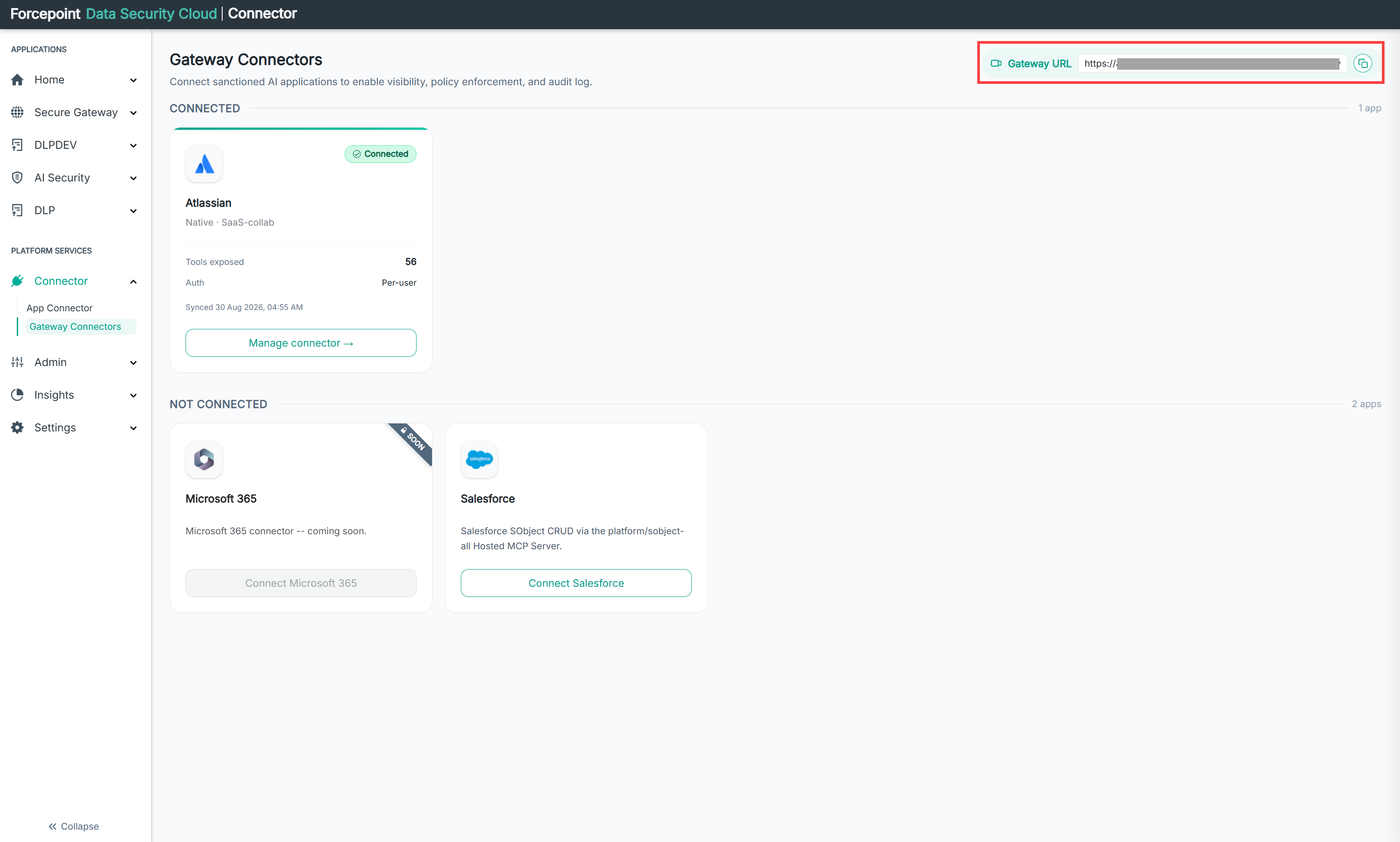
This is the single address that every agent points at. You copy it from here and paste it into the agent configuration when you register the agent.
The URL is specific to your environment, so always copy your own rather than reusing one from documentation or from a colleague.
Reading a connected card
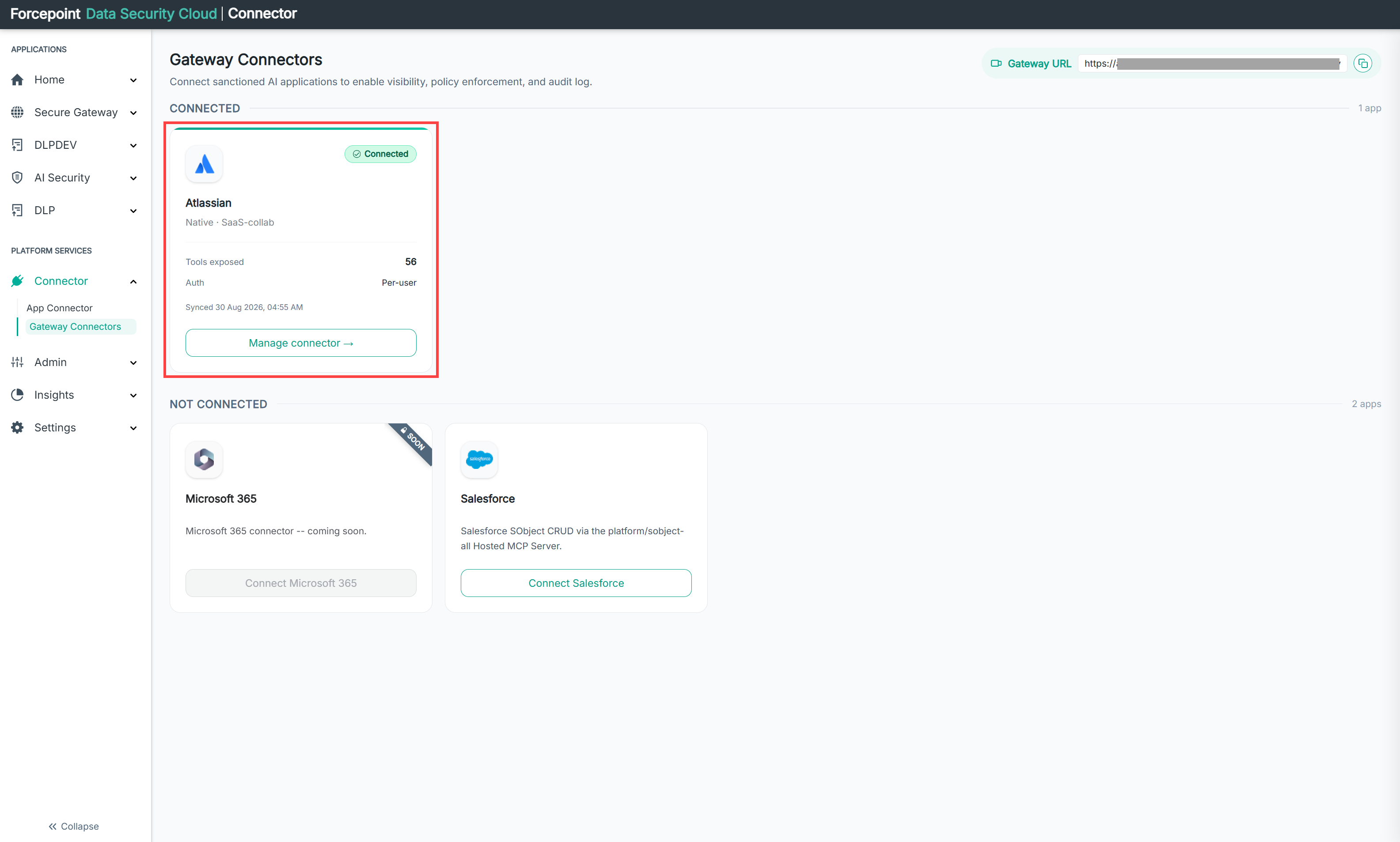
| Element | What it shows |
|---|---|
| Status badge | Connected, with a tick |
| Application name | The business application |
| Type | How the connector works and what category of application it is, for example Native, SaaS-collab |
| Tools exposed | How many individual tools this application makes available to your agents. A tool is a single operation, such as reading a Jira issue |
| Auth | How agents authenticate to the application. Per-user means each agent acts as the individual user, so the permissions of that user still apply |
| Synced | When the connector last exchanged data with the application |
| Manage connector | Opens the connector's settings, where you review the tools it exposes and change its configuration |
Reading a card that is not connected
These cards show the application name and a short description. A SOON ribbon in the corner means the connector is not yet available, and its Connect button is unavailable until it ships.
What you can do from here
- Copy the gateway URL for use when registering an agent
- See which business applications your agents can currently reach
- Check how many tools an application exposes
- Check how agents authenticate to an application
- Open Manage connector to review or change a connection
- See which connectors are coming