
Understanding the Getting Started Page
The Getting Started page is what AI Security shows before anything has been connected. It tracks how far through setup you are and gives you a route into each step.
You reach it by clicking AI Security › Dashboard. While no AI application is connected, the Configure AI Security popup opens over this page automatically, asking how you want to set things up.
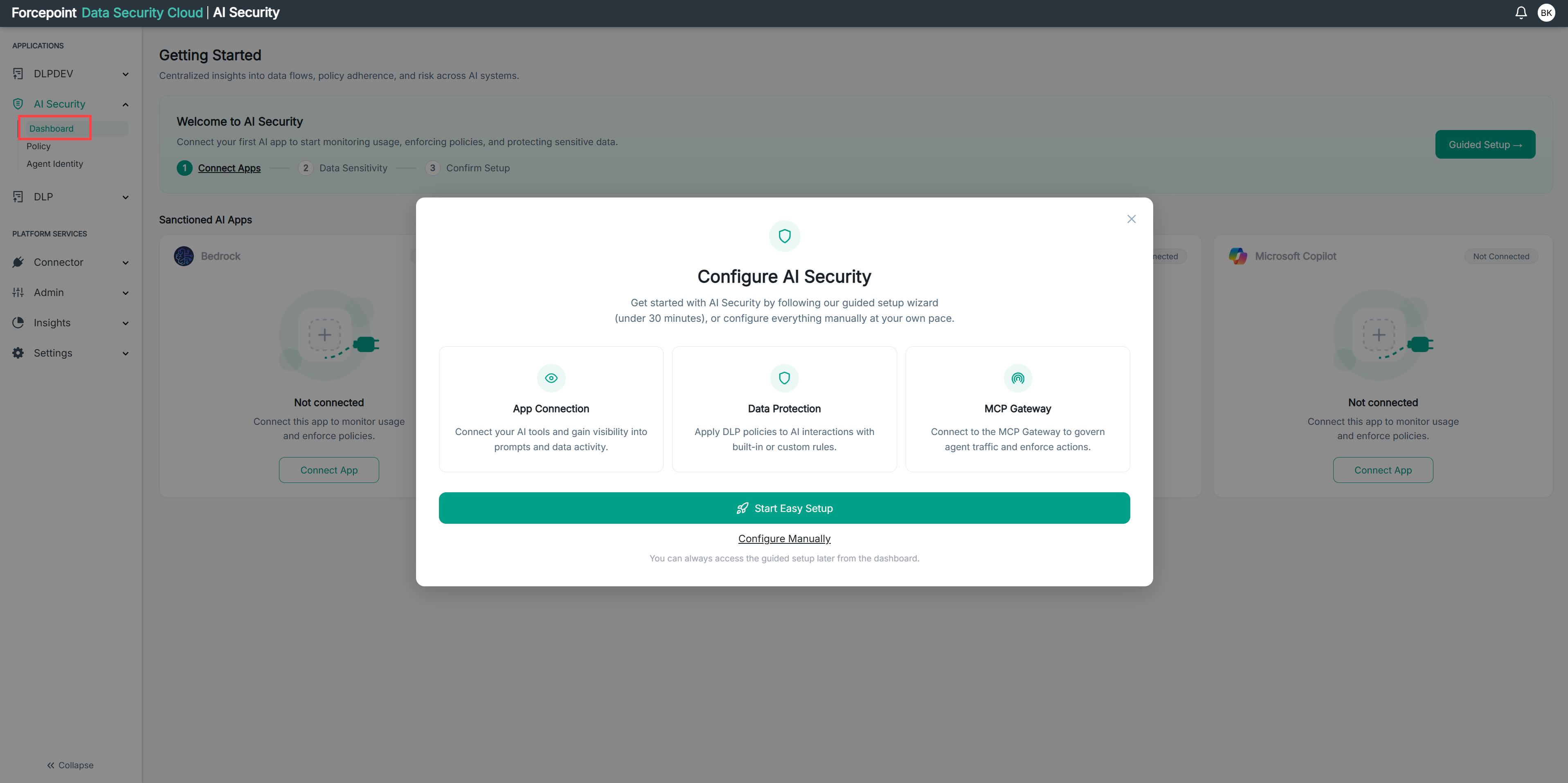
What the page contains
| Area | What it shows |
|---|---|
| Welcome to AI Security | A short explanation of what connecting your first application gives you |
| Setup progress | Three steps, with the one you are on marked |
| Guided Setup | Opens the guided setup wizard |
| Sanctioned AI Apps | A card for each AI application you can connect, with a Connect App button |
The setup progress tracker
The three steps run left to right, and the step you are on is marked.
| Step | What it covers |
|---|---|
| 1. Connect Apps | Connecting at least one AI application, so there is something to monitor |
| 2. Data Sensitivity | Deciding which categories of sensitive data matter to you |
| 3. Confirm Setup | Reviewing and completing what you have configured |
The tracker is a progress indicator rather than a set of links. Use Guided Setup to work through the steps, or the Connect App buttons to make a start on step one directly.
The application cards
Each card names an AI application and offers to connect it. Before setup they all show as not connected, with the same short line explaining that connecting the application is what allows usage to be monitored and policy to be enforced.
These are the same applications listed on the App Connectors page. Connecting one from here and connecting it from there amount to the same thing.
What you can do from here
- See how far through setup you are
- Start the guided setup
- Connect an AI application directly, without the wizard
- See which AI applications are available to connect