While configuring inline CASB, SWG and ZTNA policies for download channels, select the Sandbox data pattern type to detect and response to Zero Day threats.
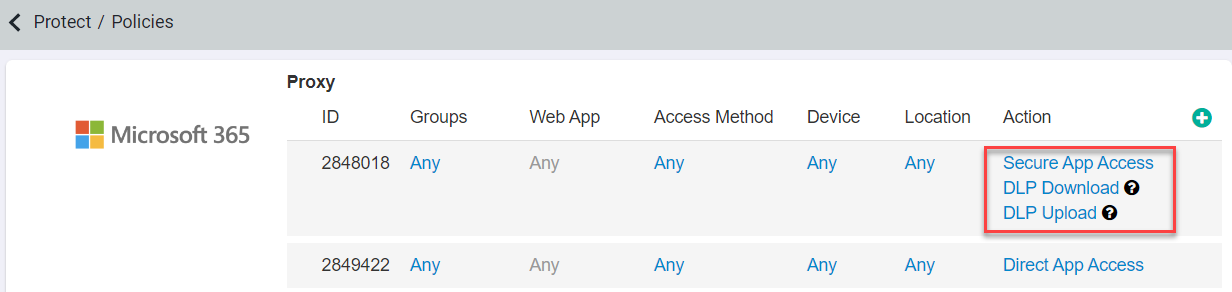
Start by navigating to the page and locate the cloud application you wish to add Sandbox scanning to. You can setup protection as a proxy policy to scan data inline. To learn about each of the option
available on Actions dialog, refer to Configuring proxy policy actions.
Steps
-
Add a new policy line or modify an existing policy line. Select into the Action column to open up the Action dialog.
-
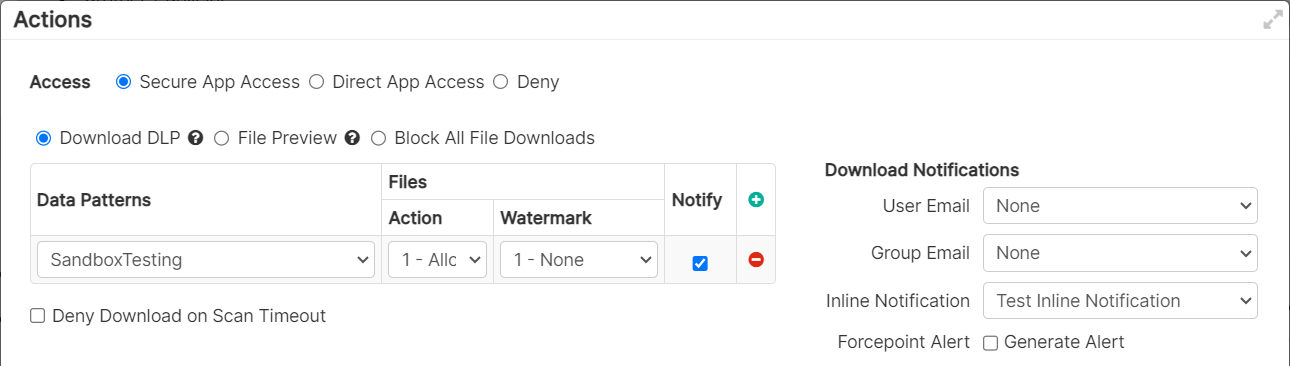
Set the Access method to Secure App Access.
-
Under the Download DLP section, add a new policy line.
-
From the Data Patterns drop-down, select the appropriate Sandbox data pattern type you created.
-
Adjust the ActiveSync Mail (Subject, Body) Actions column for applications that contain it (GSuite, O365, and Exchange).
-
From the Files Action drop-down, select one of the following action:
- Allow - Select this option to allow file download even if the sandbox found malware in the file.
- Deny - Select this option to deny file download irrespective of the Sandbox zero-day scan result when download DLP Pattern is matched.
Allow and Block are the only available policy actions since Forcepoint Data Security Cloud | SSE will not attempt to open or modify the file.
-
Apply Watermark if required.
To know in detail about Watermarking, refer to Configuring watermarking.
-
Click the Notify checkbox to enable notifications and select the notification to be sent from the Download Notifications
section.
-
To save the changes, click OK and then click Save on the Policies page.