Admins can create custom user email notifications so that they can be used while creating a policy.
Steps
-
Navigate to .
User Email page opens with all the existing user email notifications.
-
To create a user email notification, click the "+" icon.
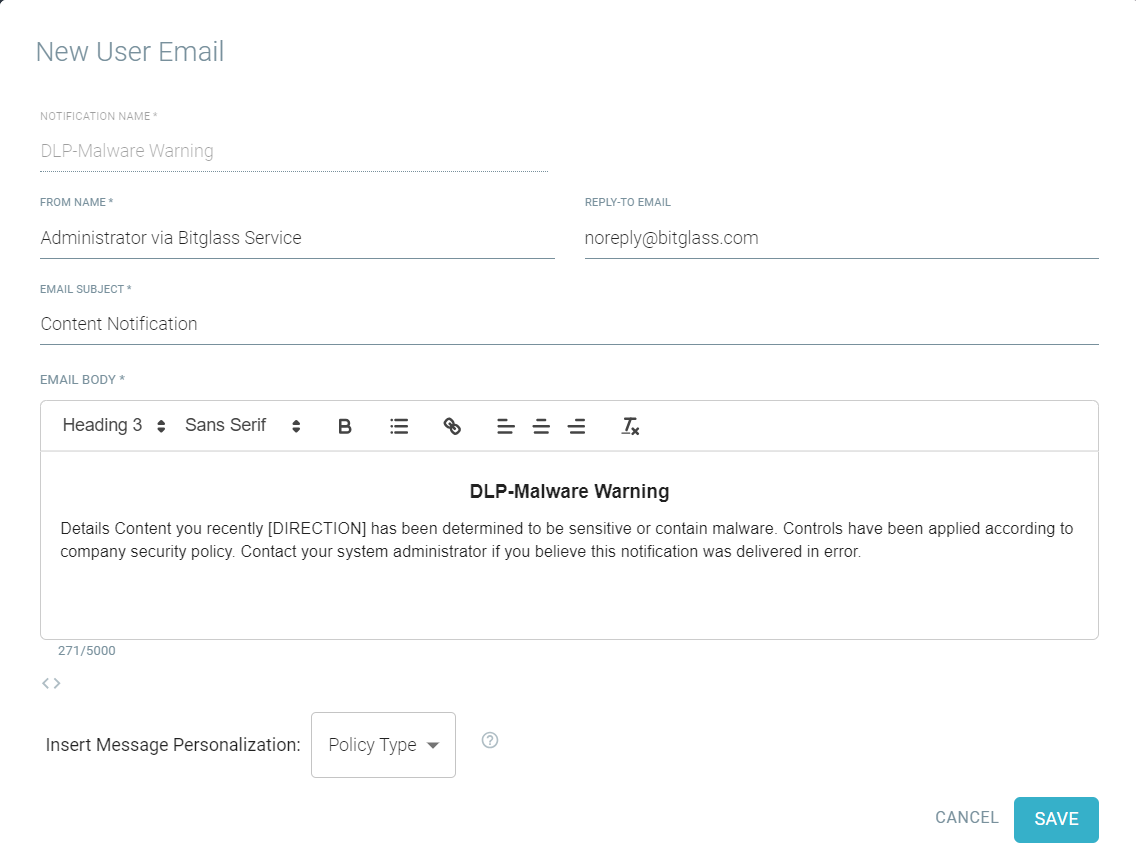
New User Email dialog opens.
-
Enter the Notification Name that helps you in identifying it.
-
Enter the From Name to be displayed when the user views who the email notification is from.
-
Enter the Reply-To Email address you wish to be listed as the reply-to.
If left blank, it defaults to no-reply@bitglass.com.
-
Enter the Email Subject line that appears on the email.
-
Enter Email Body of the email notification.
You can:
-
Use the rich text editor to format and style the content and to add links and email addresses in the notification.
You can also click  icon to enter notification content using HTML tags. To switch back to rich text editor, click
  icon.
icon.
- Insert various variables to the body of the message.
-
To insert a variable to the body of the email notification, select the appropriate option from the Insert Message Personalization drop-down list and click
add icon next to it.
Options that you can add to the body of the email are based on variables (Message Personalization) from the policy trigger (for example, application, pattern name, username, IP,
etc).
Note: When using message personalization variables, if the variable you are using is empty, then the message will display a blank field. For example, if you select the
variable IP Address but there is no available IP to display, then the message will show as the title of the variable with no value displayed IP
Address:
For a full list of personalization variables, see Understanding message personalization options.
-
To create the notification, click Save.
Result
The user email notification is created and available for selection under Policies when configuring a policy.