Steps
-
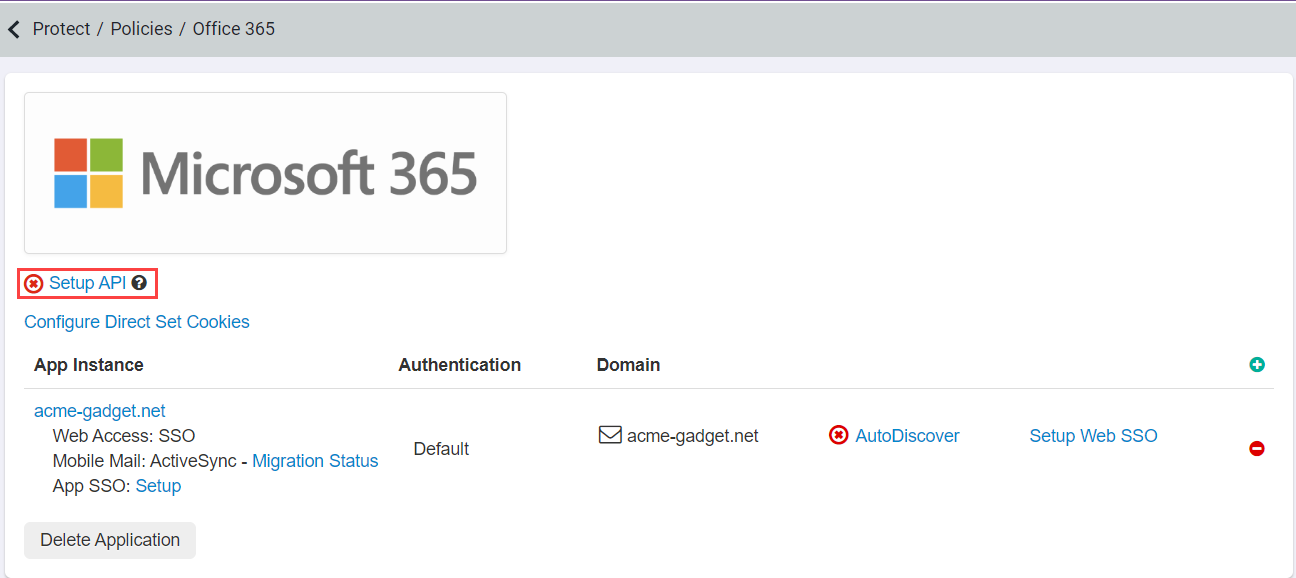
Start by navigating to the Microsoft 365 application settings page and then select Setup API.
-
On the API Setup page, select Enable API Scanning about halfway down the page and click Save in the top right.
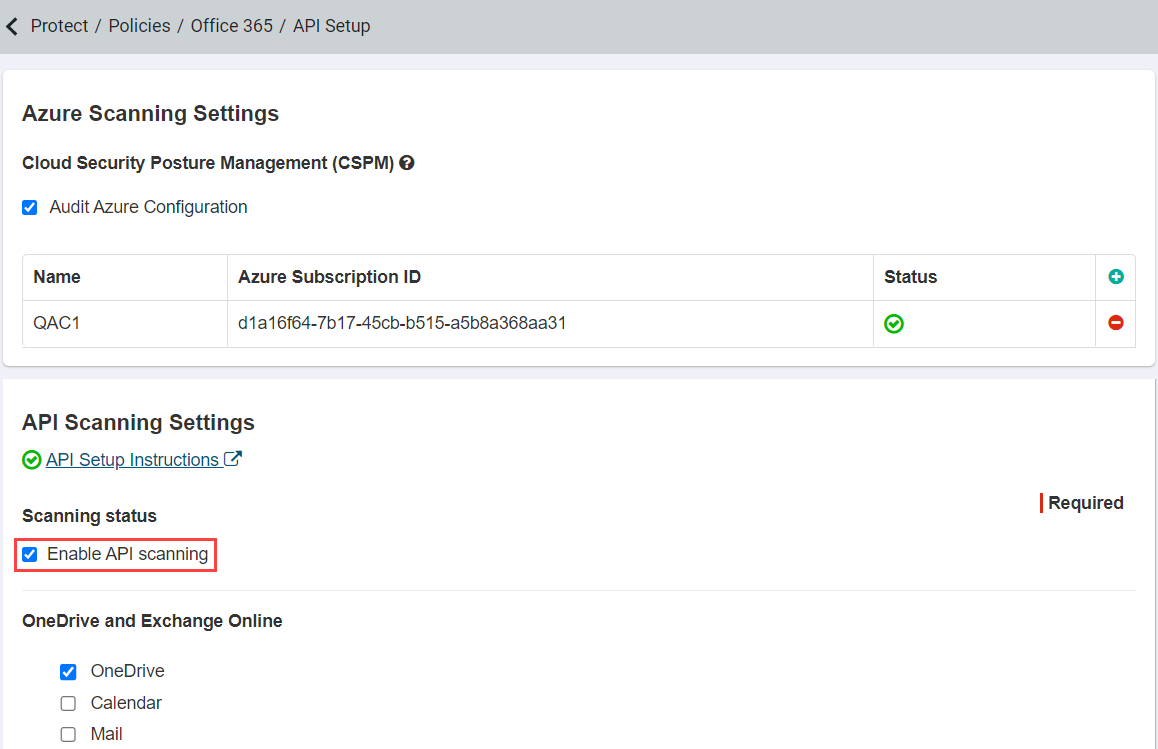
Refer to Azure: Configuring CSPM audit to learn how to setup Azure CSPM scanning.
-
Once you are done you can then authorize Forcepoint ONE SSE for
scanning by clicking the following link. Authorization is performed via an app-only token. Click this link Microsoft365 Authorization and then follow the steps below to
grant Forcepoint ONE SSE access to Microsoft 365 via API.
Note:
The admin account used to authorize the API must meet the following requirements:
- Is a Global Admin in Microsoft365
- Has Microsoft365 Enterprise E1 or higher license (and a valid OneDrive license)
-
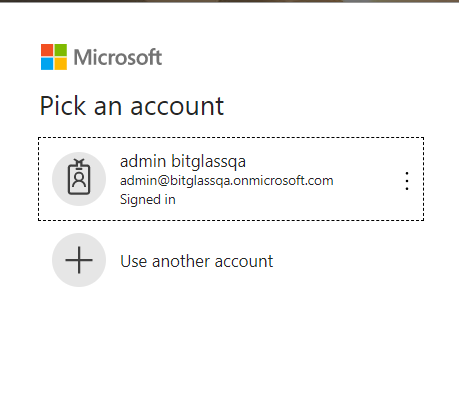
You will now be redirected to the authorization page to explicitly permit Forcepoint ONE SSE to access your account with the mentioned
privileges. Login with an Microsoft 365 admin account.