Content migration in progress, completing by midnight IST on 17 November 2026.
Selective scanning settings are the same for Box and Dropbox.
To modify or adjust the settings:
Steps
-
Navigate to .
-
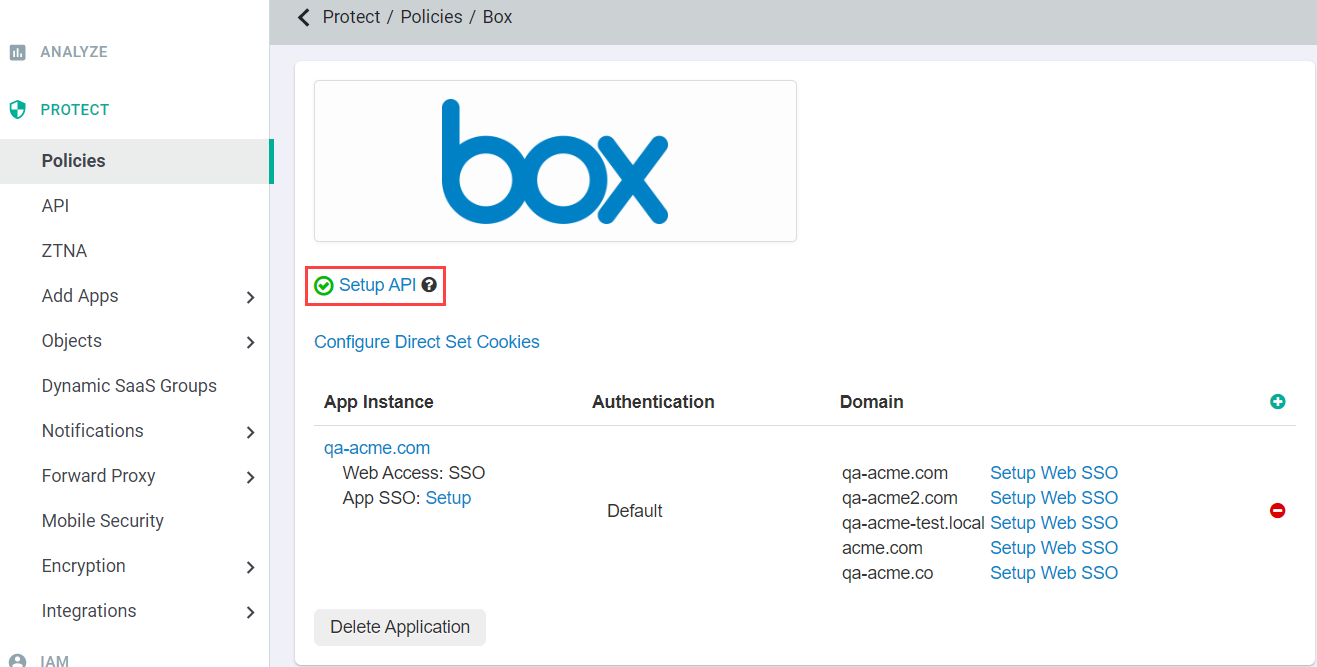
Click the API Setup link to go to the selective scanning setup page.
The Selective Scanning page
opens.

-
Set up the API to scan only a subset of users. Selecting Any under Users includes scanning of all users' files in your corporate
account.
You can include or exclude a specific group of users. However, those user groups should be present on the page. For creating users and user groups in
Forcepoint ONE SSE, refer to
Integrate identity.
- When no groups are added in the included group and excluded groups are selected, all users are scanned except the ones in the excluded group.
- When no groups are added in the excluded group and included groups are selected, all users belonging to the included group are scanned.
- When both included and excluded groups are selected, all users belonging to the included group except the ones belonging to the excluded group are scanned.
-
Select DLP Patterns created under to match on depending on the sharing status of the files.
For example, selecting
Match patterns if file is a
Public, External, Internal and selecting
DLP Patterns
indicates that
Forcepoint ONE SSE will scan all public, external, and internal files in your corporate account for DLP patterns matching what was
selected.
Note: Adding a DLP pattern on the API setup page or adjusting a DLP pattern that exists on the API setup page will initiate a new scan to rescan older files for the
new pattern match.
Important: You cannot configure data patterns alongside Forcepoint DLP data pattern.
Refer to Configuring FSM controlled policies for CASB and SWG channels to enable the Forcepoint DLP data pattern.