When configuring the global session policies, Admins can enforce two-factor authentication (MFA) for admins and users when logging into any application or as part of a policy action when suspicious login behavior is detected.
Steps
-
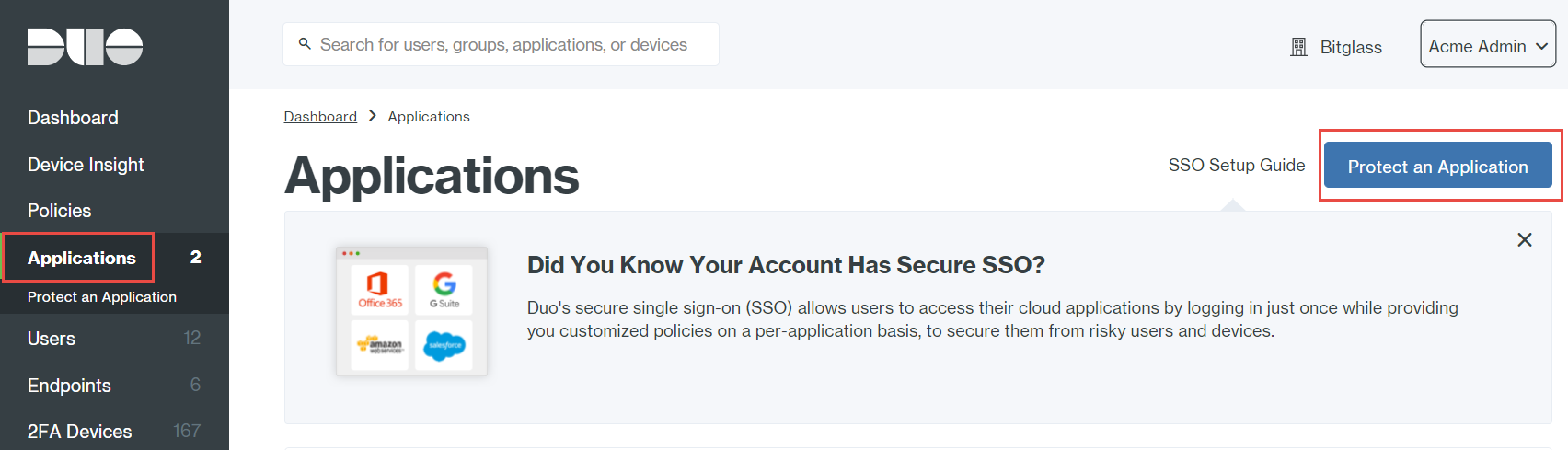
Log into DUO with an admin account and navigate to .
-
To add Admin API application, click Protect this Application located next to it.
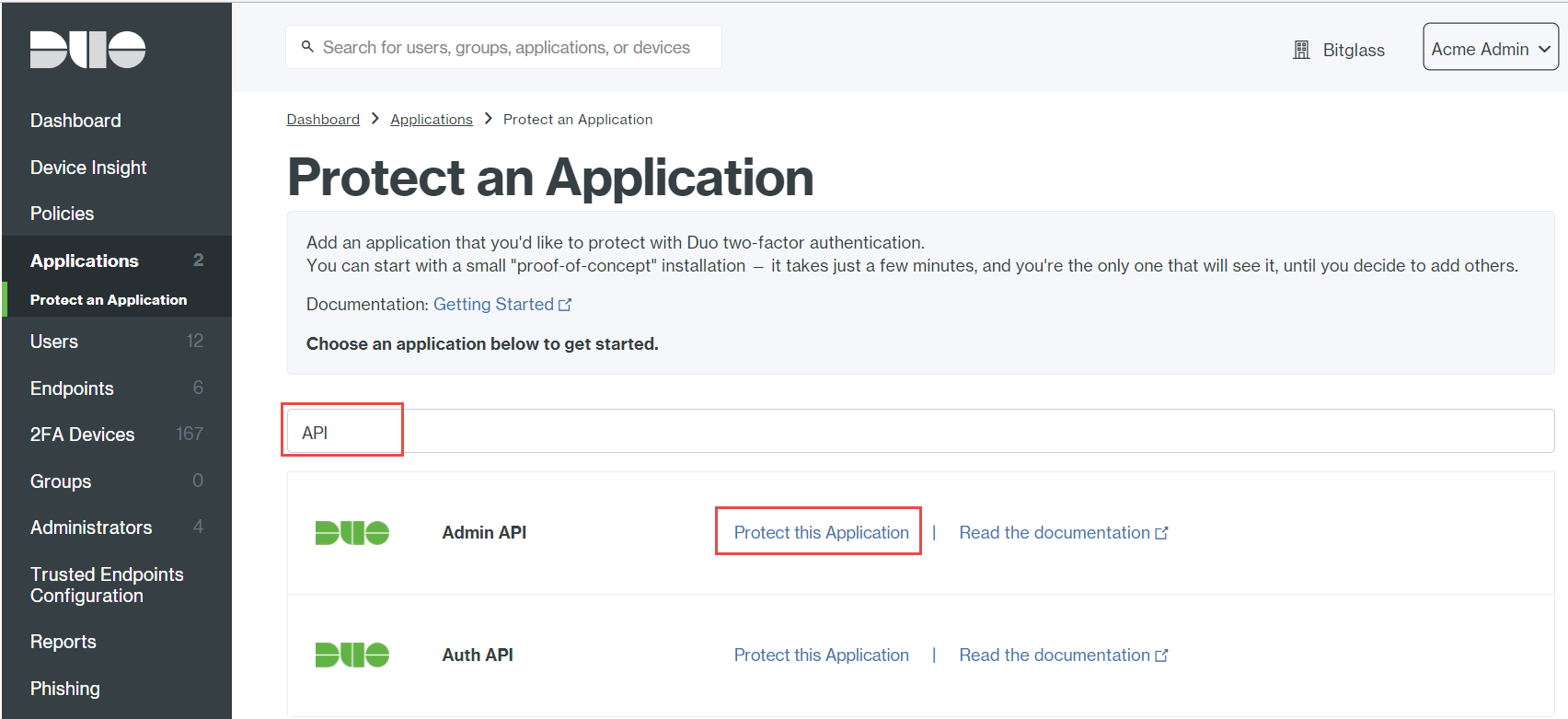
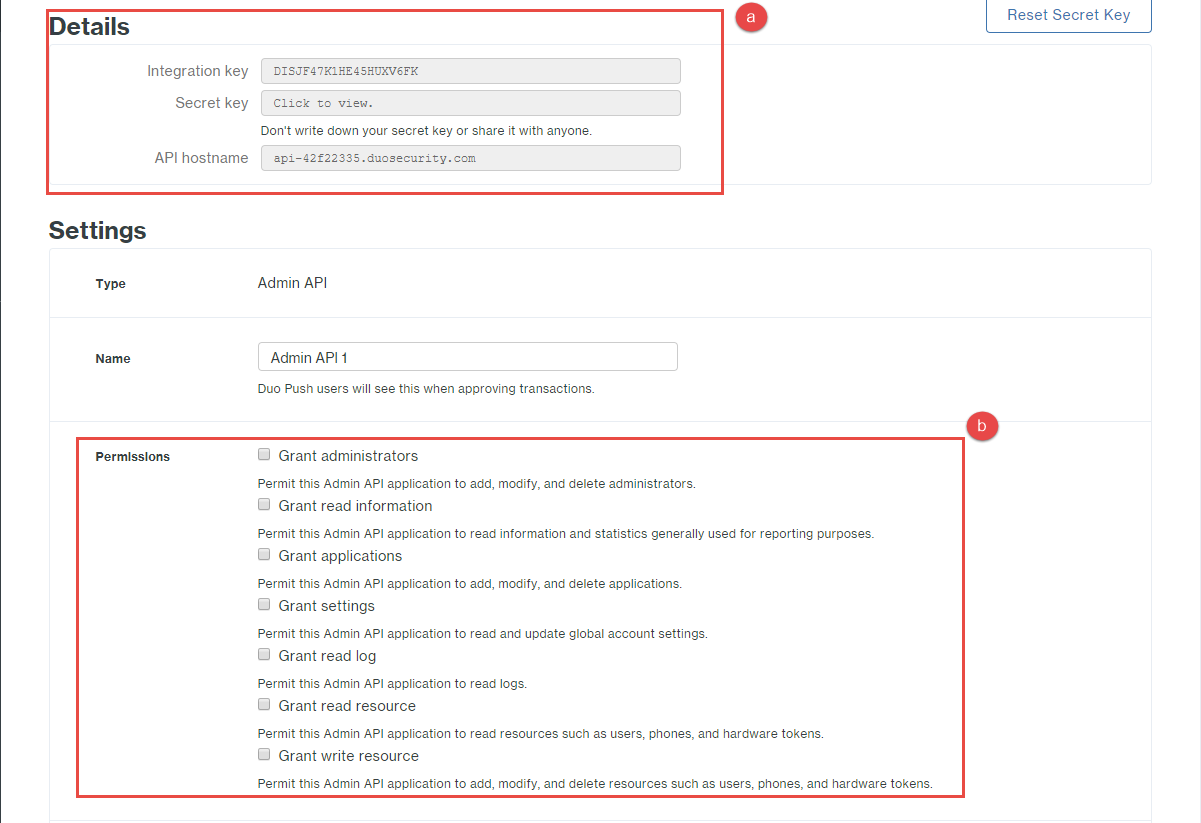
The Admin API configuration page will provide the keys and hostnames needed for configuration in Forcepoint ONE SSE as well as the Permission settings you wish to grant admins using the DUO security app.
-
Under the Settings section, select the permissions you wish to grant to the Admin and then save your changes at the bottom.
-
Under the Settings section, select the permissions you wish to grant to the Admin and then save your changes at the bottom.
-
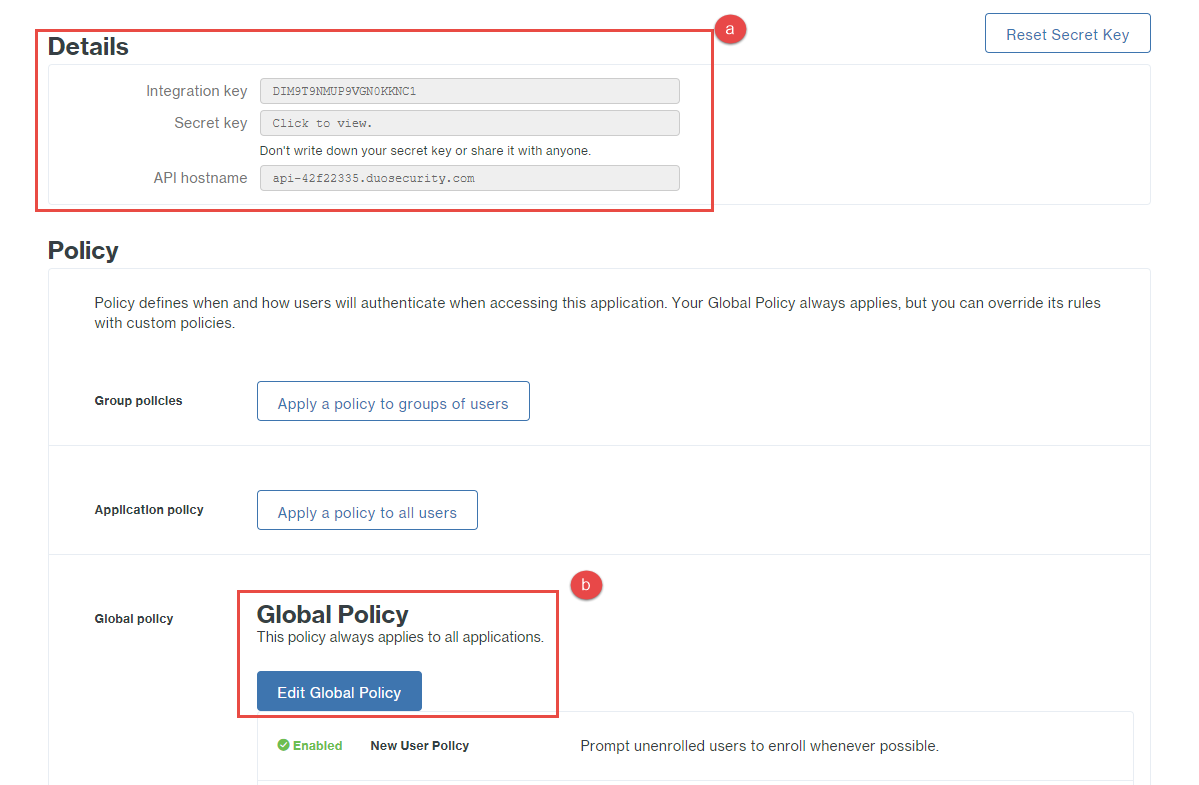
On the Protect an Application page, click Protect this Application located next to the Auth API.
-
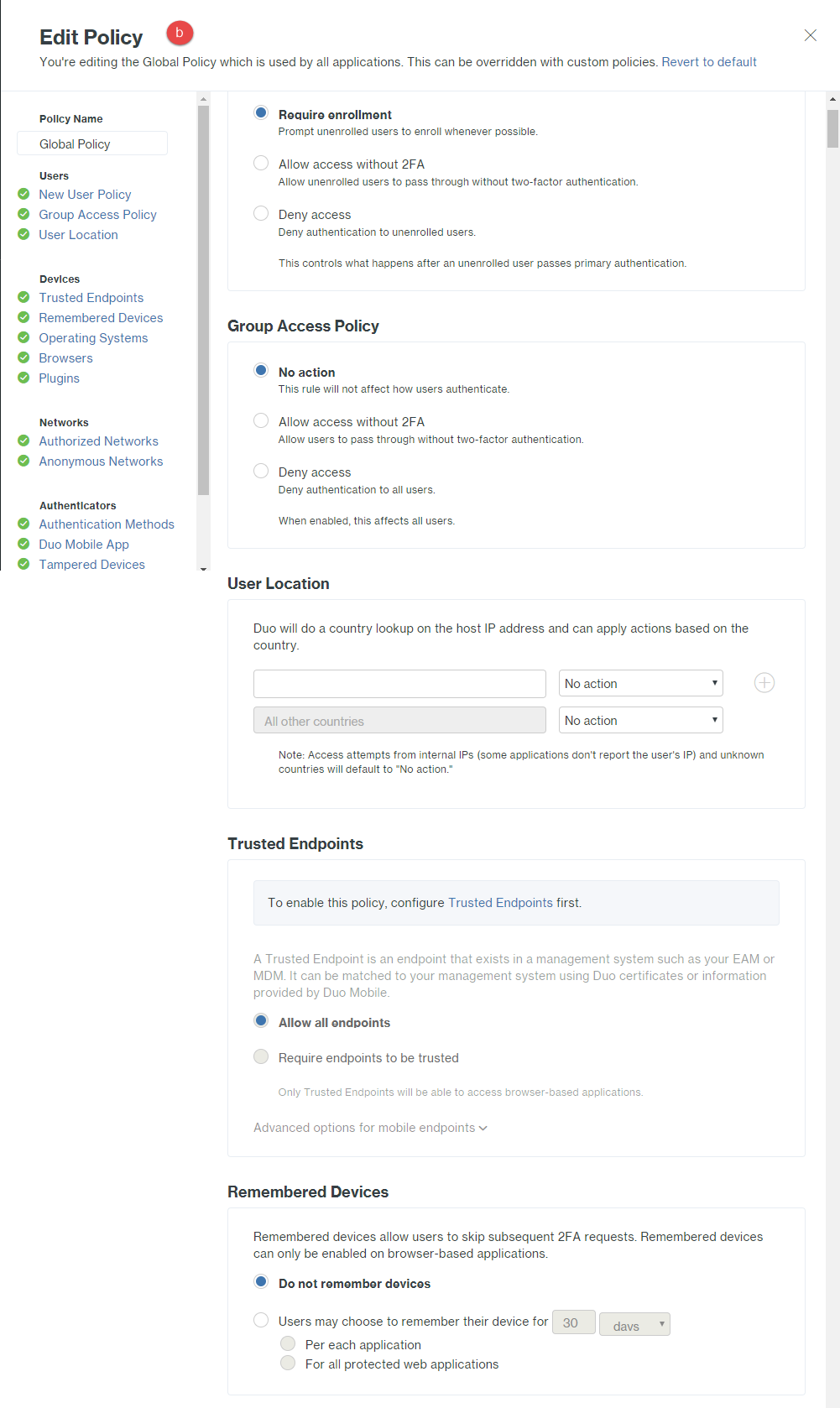
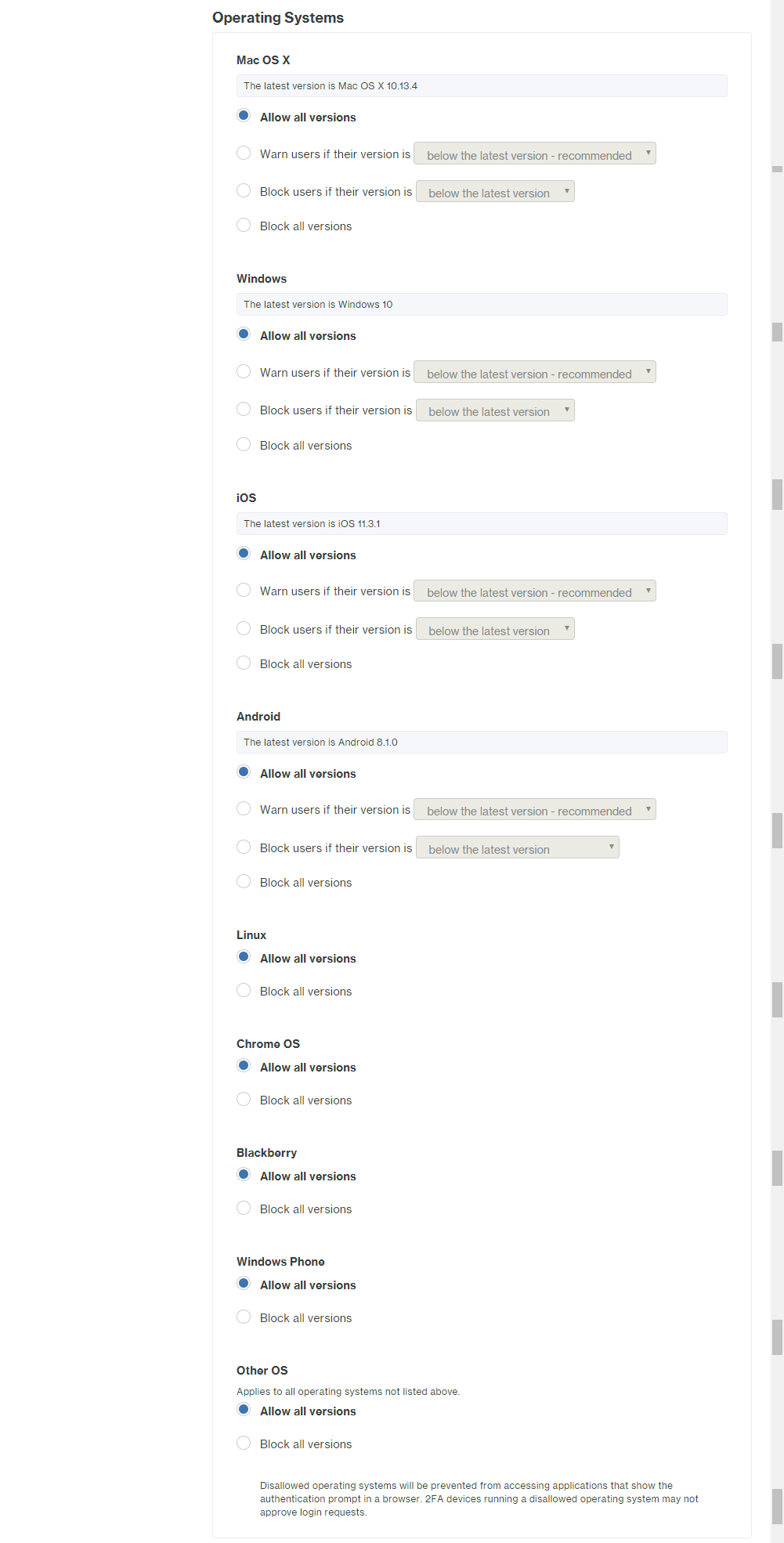
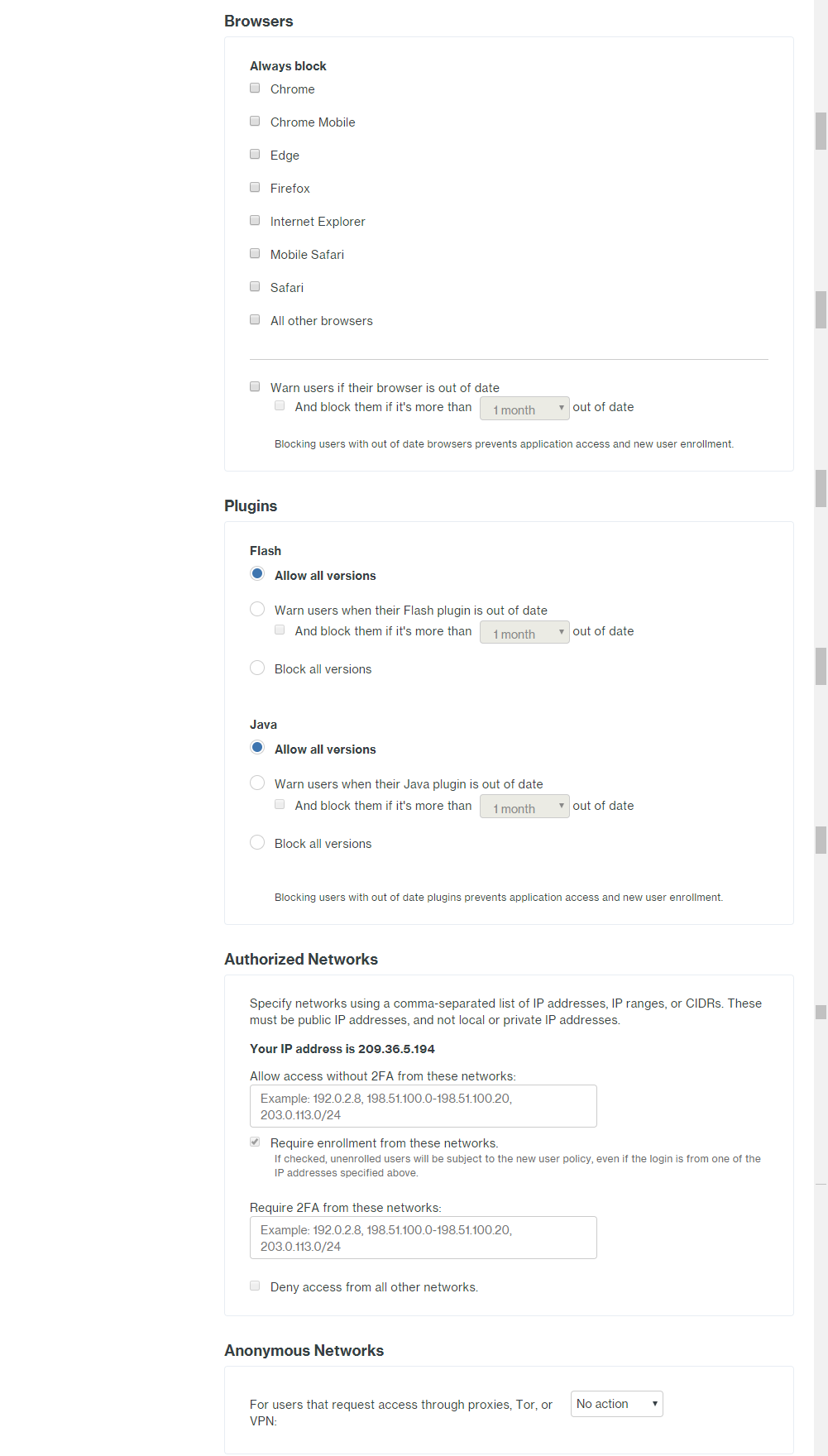
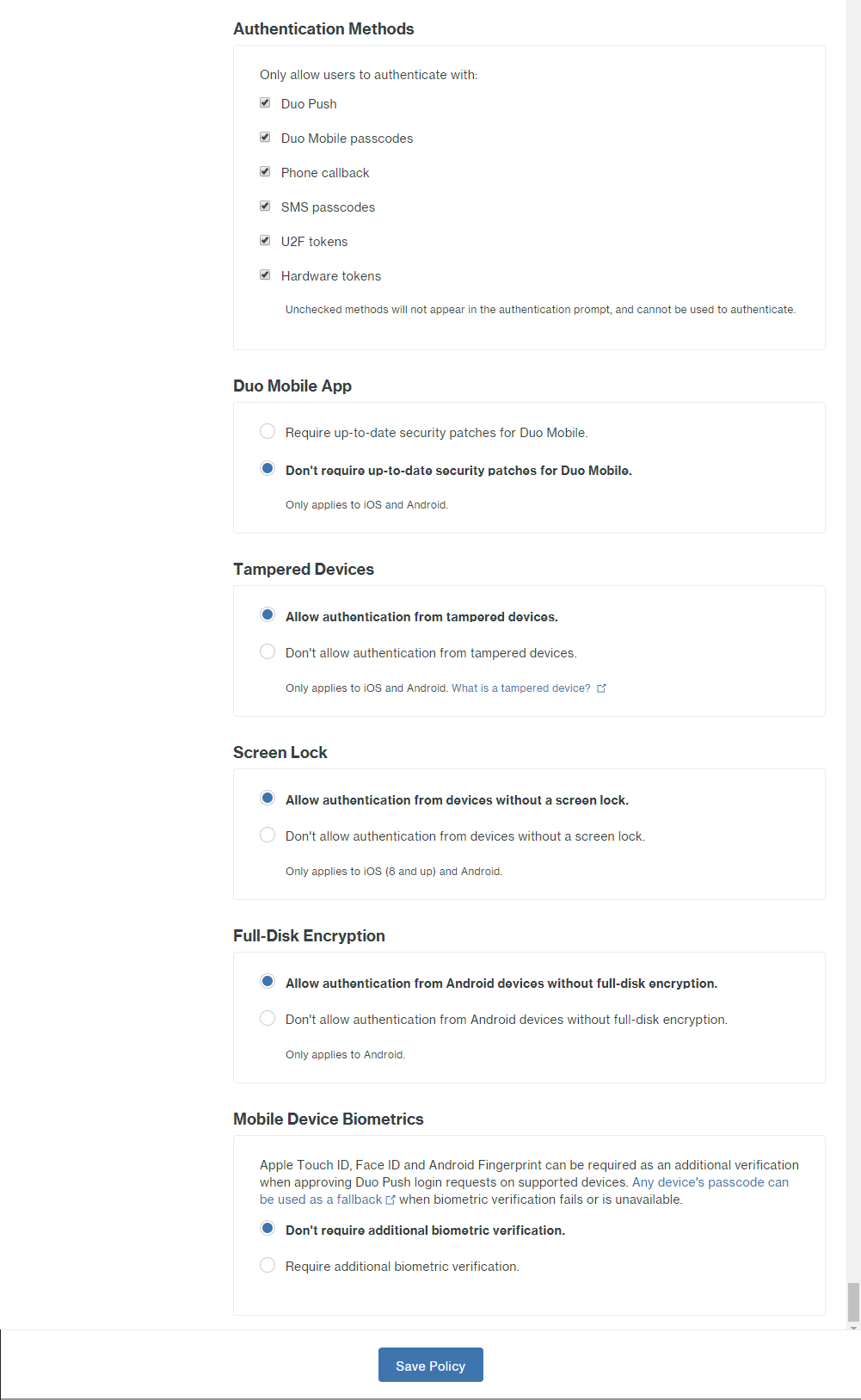
Under the Global Policy section, click Edit Global Policy and edit the policy for how you want users to be able to
enroll/authenticate. There are a lot of policy options so go through them and select what is right for your users.
With the API configuration done in DUO, you can complete the process in the Forcepoint ONE SSE admin portal. -
Under the Global Policy section, click Edit Global Policy and edit the policy for how you want users to be able to
enroll/authenticate. There are a lot of policy options so go through them and select what is right for your users.
-
On the DUO Security API Details page:
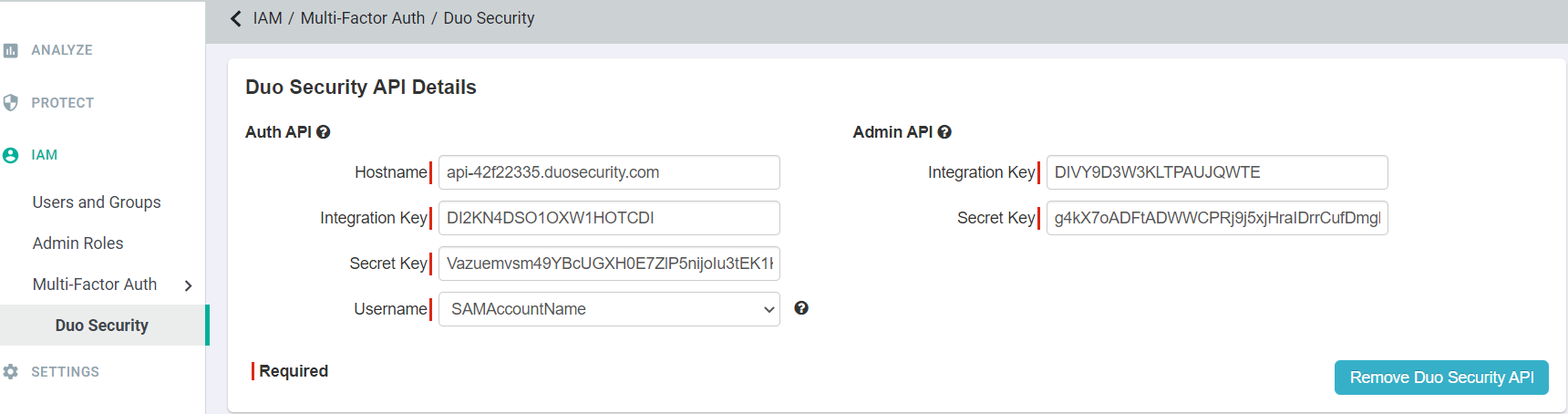
- Copy and paste the information from step 3 and 4 in Hostname, Integration Key, and Secret Key for both Auth API and Admin API.
- Set the Username field to what you will be using as their user name for Authentication UPN or SAMAccountName.
- After entering the details, click Save.
Once setup is done, you can add Multi-Factor Authentication policy under page. -
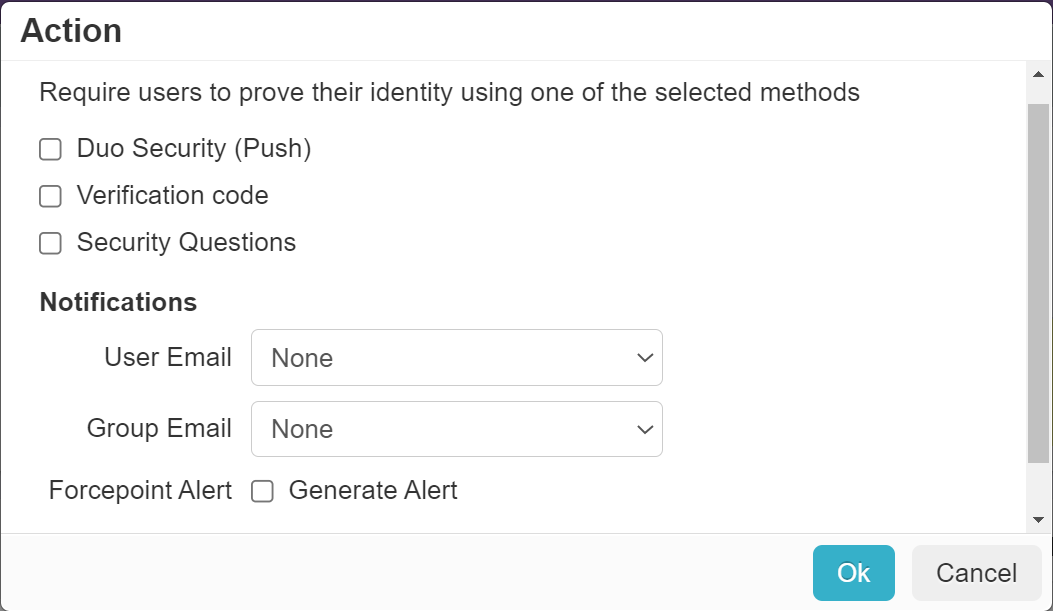
On the Login Policy tile, click the Add Action drop-down and then select the Multi-Factor Authentication action.

A default policy gets created for the Multi-Factor Authentication Login.

You can either Save the policy or you can edit the default policy variables.
-
Select Duo Security (Push) as an Action.
-
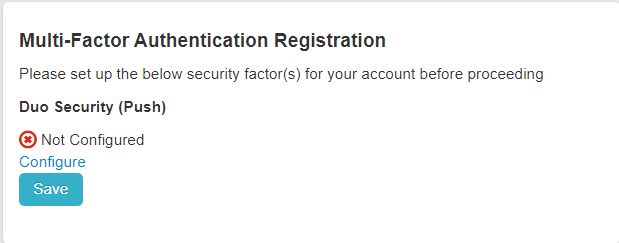
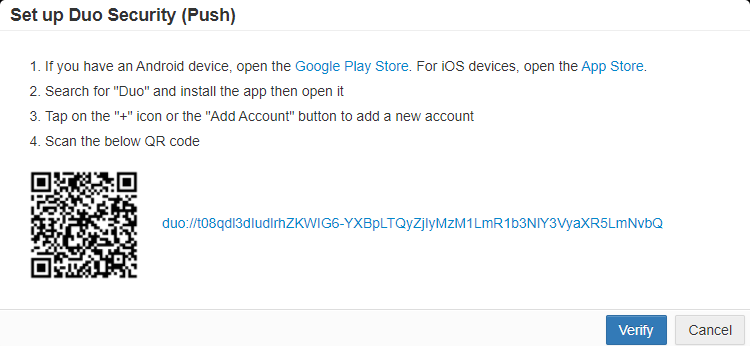
When the user attempts to login for the first time after configuration, they will be prompted to configure the Duo Security app.
Have the user click Configure and then with the Duo Security app on their phone they will need to scan the QR code presented.
-
The user or the Forcepoint ONE SSE admin can disconnect the DUO Push
setup at any time.
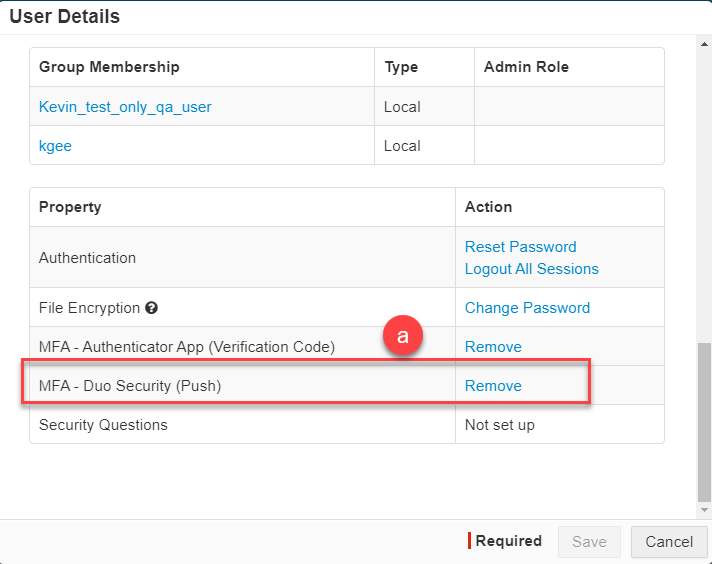
- The Forcepoint ONE SSE admin can navigate to the page and then locate the user in question and click on their name to open up the User Details dialog. Scroll to the bottom and you will see the setup options for the user. Select Remove for the MFA - DUO Security (Push) to remove their connection.
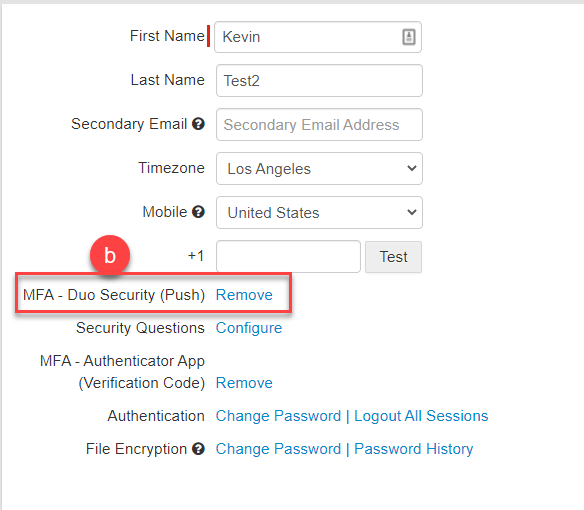
- For the user to remove their connection to their authenticator app, they must login to the Forcepoint ONE SSE portal and select edit profile. Near the bottom,
they will see their setup options and an option for the MFA - DUO Security (Push) to remove.