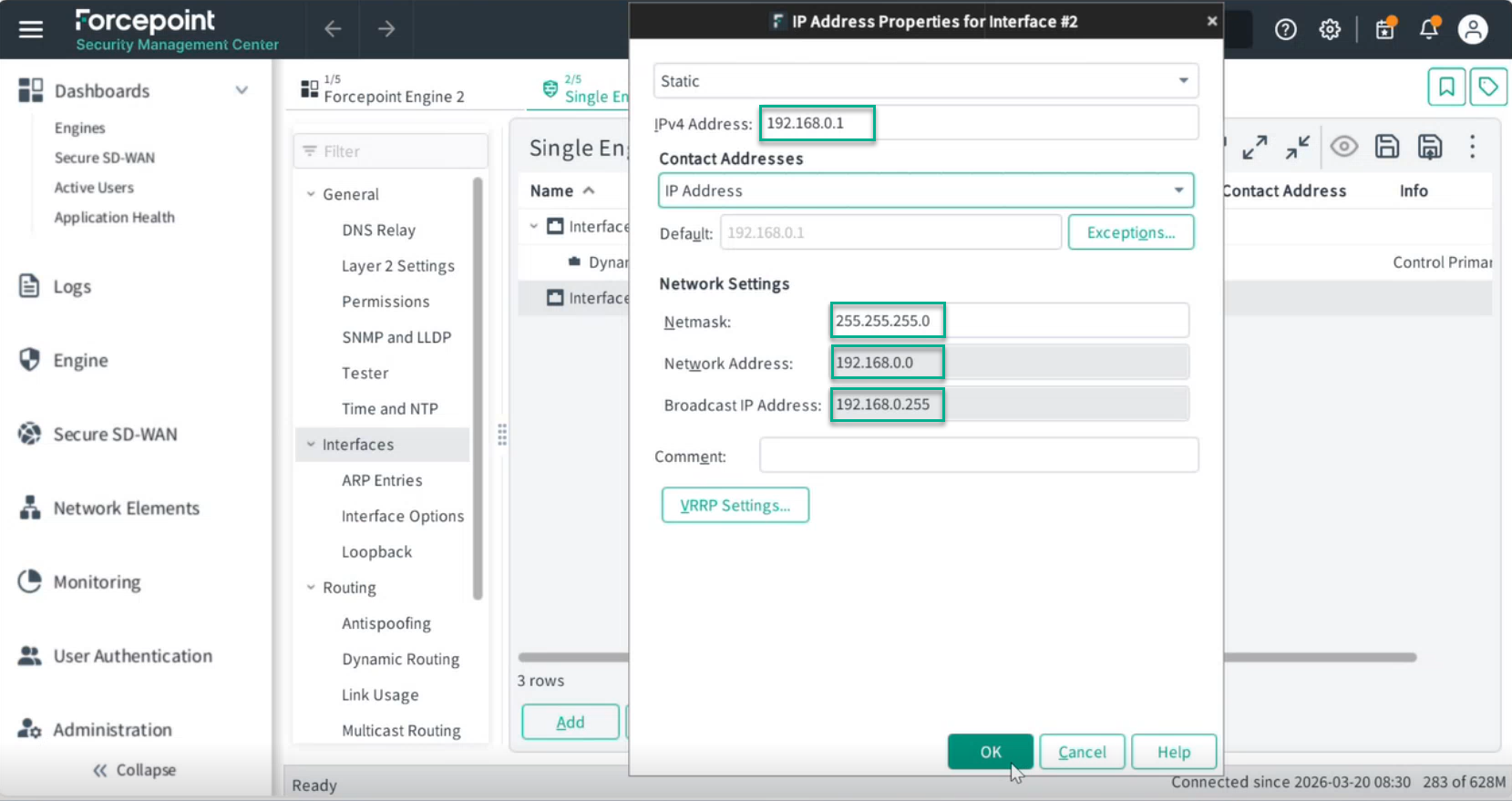
Setting Up Interface #2
Configure a static IPv4 address and network settings for Interface #2.
Steps
-
Right-click Interface 2 and, from the context menu, select .
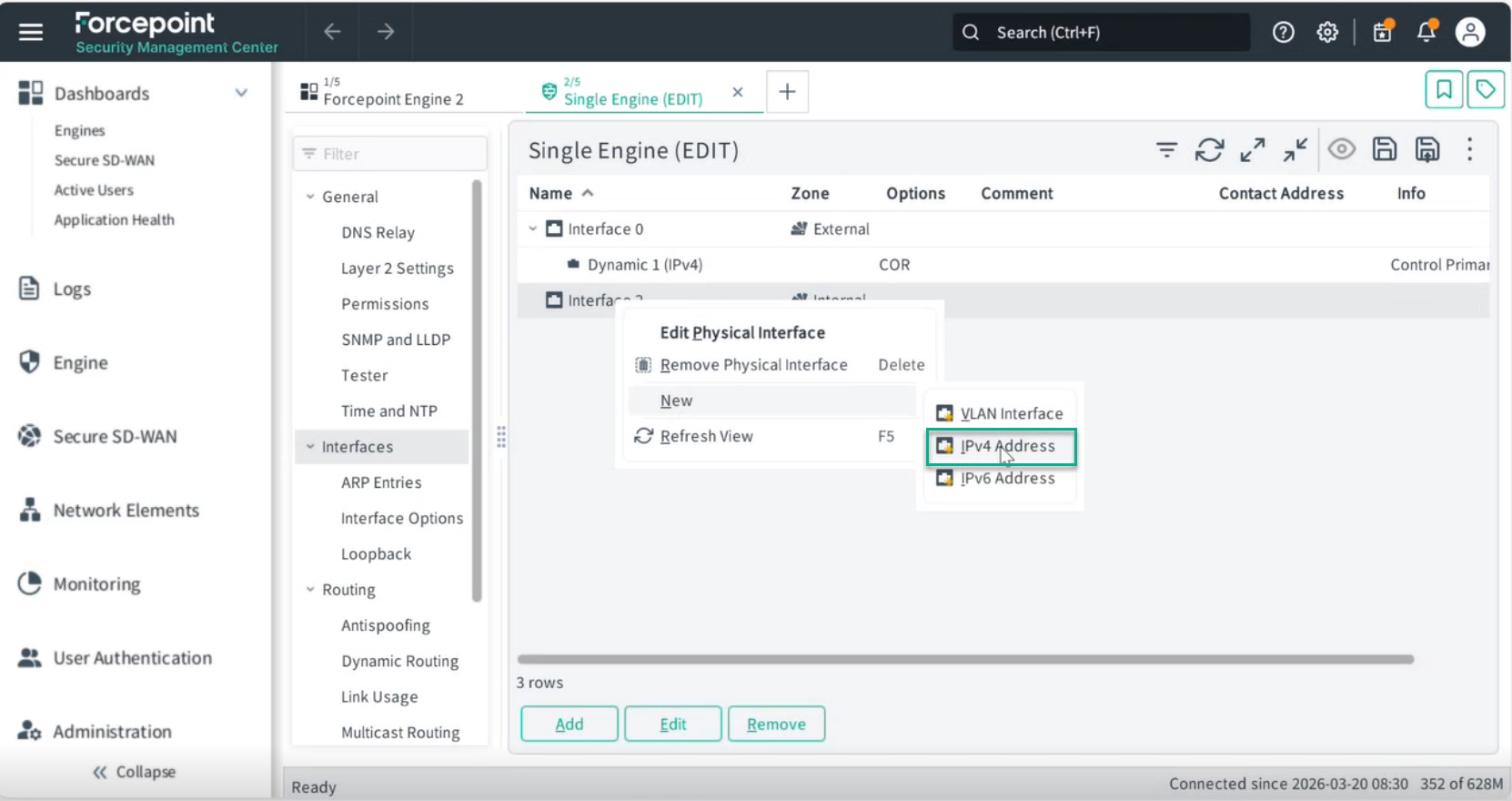 A pop-up window will appear where you can configure the settings for Interface #2.
 -
Select the IP address type as Static.
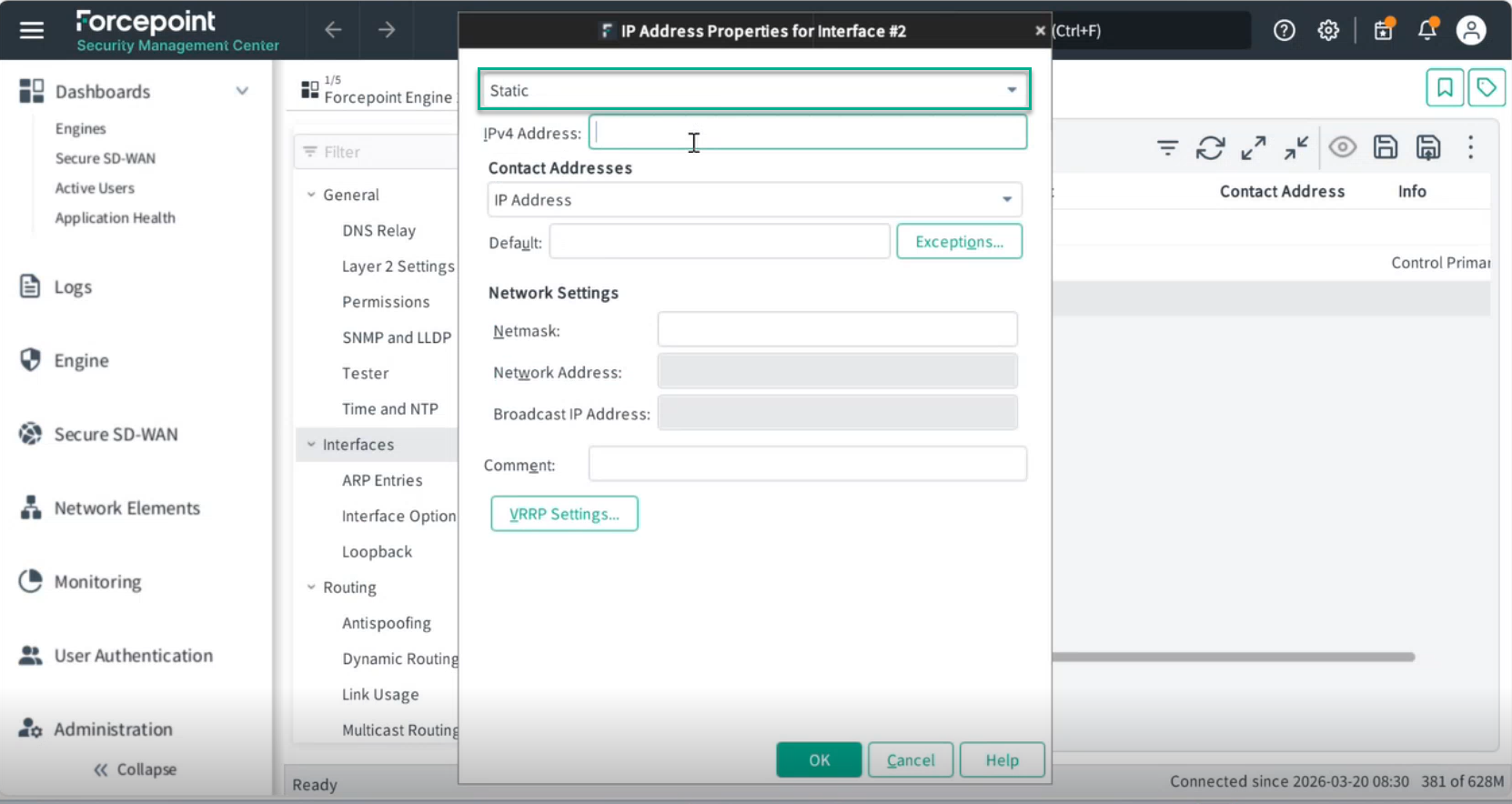
-
Click OK.