Export Policies
- Can select one, many or all policies to export from Forcepoint Security Manager.
- Continue working on the Forcepoint Security Manager while the policies are being exported.
- View the progress of the policy export.
To export the policies, complete the steps below:
- Navigate to or Discovery Policies, and click Manage Policies in the Data Security module of the Forcepoint Security Manager.
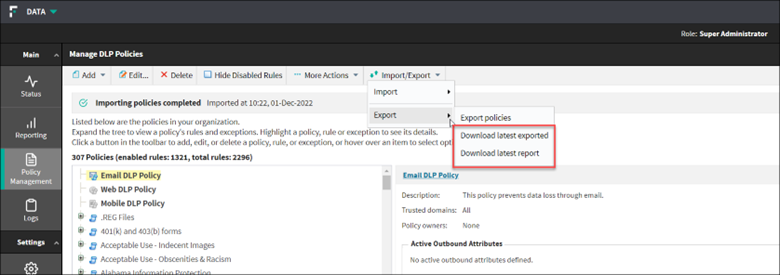
- Click Import/Export drop-down from the toolbar at the top of the content pane and select Export.The export feature has the following options:
- Export policies - export the policies.
- Download latest exported - download the latest zipped policy definition (which includes JSON files and the text file with policy names selected for latest export).
- Download latest report - download the latest policy export status report. Using this report, the admin can come to know if any of the policy definition export had failed or not.
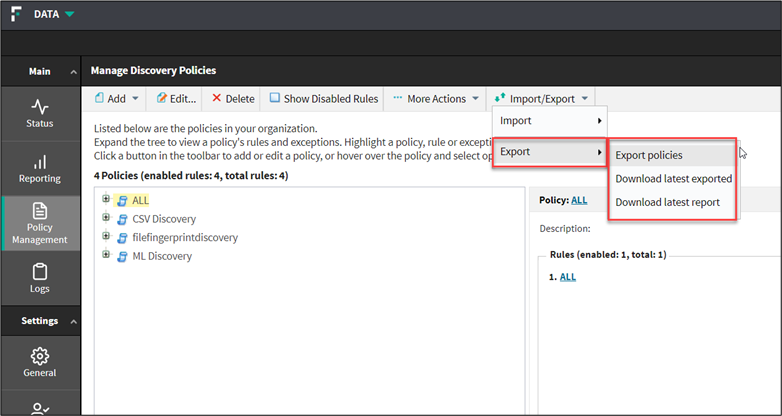
- To export policies, select Export policies.
The Export Policies dialog opens.
- Once the policies are listed, select one or more policies to export.
The number of policies selected for export will be displayed.
You can use the Select All button to select all the policies and you can clear your selections using the Clear All button.
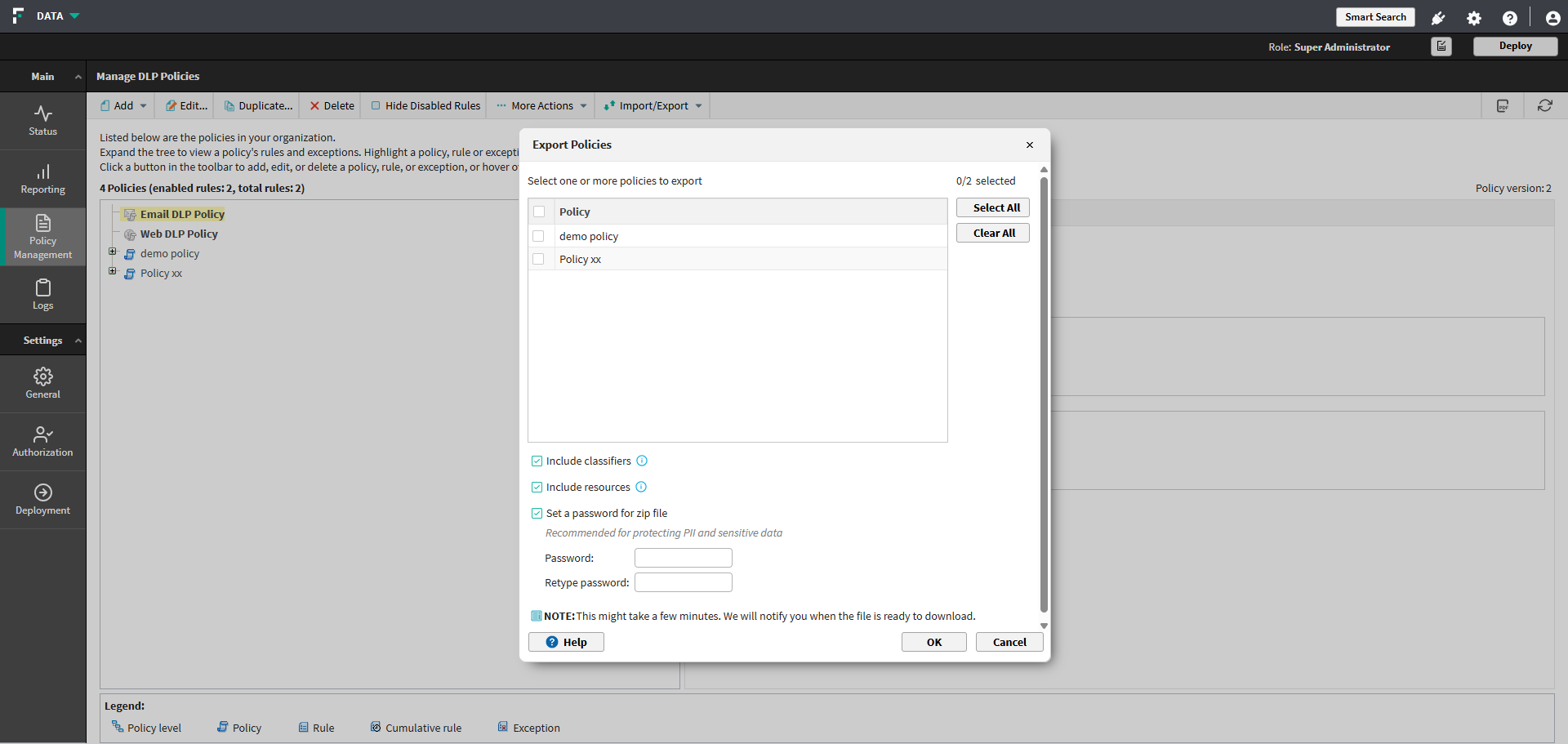 For Forcepoint DLP v10.3.2, while exporting policies, administrators can select the following options:
- To include or exclude classifiers and resources, select the following:
- Include classifiers - You can toggle this option to include or exclude supported classifiers.
- Include resources - You can toggle this option to include or exclude supported resources.Note: For information on the supported classifiers and resources, see the Policy Export and Import functionalities supported in v10.3.2 - Exporting and Importing Policy levels, Classifiers and Resources as part of a policy section.
- By including resources or classifiers:
- The system will create the specific resource or classifier even if it does not exist on the target system.
- The system will update the content of the resource or classifier that exist on the target system.Note: If the same resource or classifier or policy level exists on both source and target systems, but there are some differences between the attributes (for example, description), the source system resource or classifier or policy level attributes override the ones that exists on the target system.
- By excluding resources or classifiers: The system will implement the existing behavior.
- If a resource or classifier does not exist on the target system, the policy will not be set on the target system.
- If a resource or classifier exist on the target system - the policy will be updated with the resource or classifier available on the target system.
- By including resources or classifiers:
- To set a password to encrypt the data and secure the zip file, select the Set a password for zip file option.Note: To access its contents, use archive tools like 7-Zip, WinRAR, or WinZip. Windows File Explorer cannot open it due to strong encryption.
- To include or exclude classifiers and resources, select the following:
- Click OK.
The info bar displays the progress of the exporting policies.
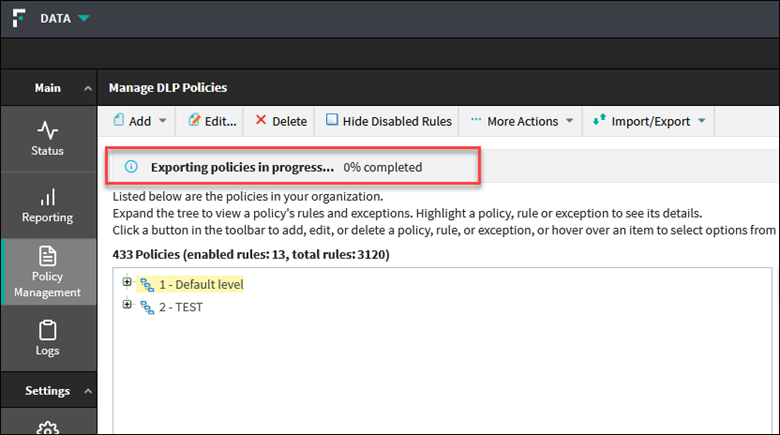
The system will notify you when the exported policies are ready to be downloaded.
- Click the Download the file button to download the exported zip file.

Note: After the exported policies are ready, the Download the file button will be available for a specific time period. After the time period expires, the user can download the exported zip file from (refer step 4). - Once the policies are listed, select one or more policies to export.
- To download the zipped policy definition, select .
The latest zipped policy definition will be downloaded (which includes JSON files and the text file with policy names selected for latest export).
- To view a status report of the policy export, select .
The latest policy export status report will be downloaded. Using this report, the admin can come to know if any of the policy definition export had failed or not.