Configuring Executive Overview Dashboard
A Global Security Administrator can configure the Forcepoint Security Manager(FSM) to send incidents data to the Forcepoint Data Security Cloud platform.
On configuring the FSM, an executive summary dashboard displaying key metrics and insights can be generated in the Forcepoint Data Security Cloud platform.
Steps
-
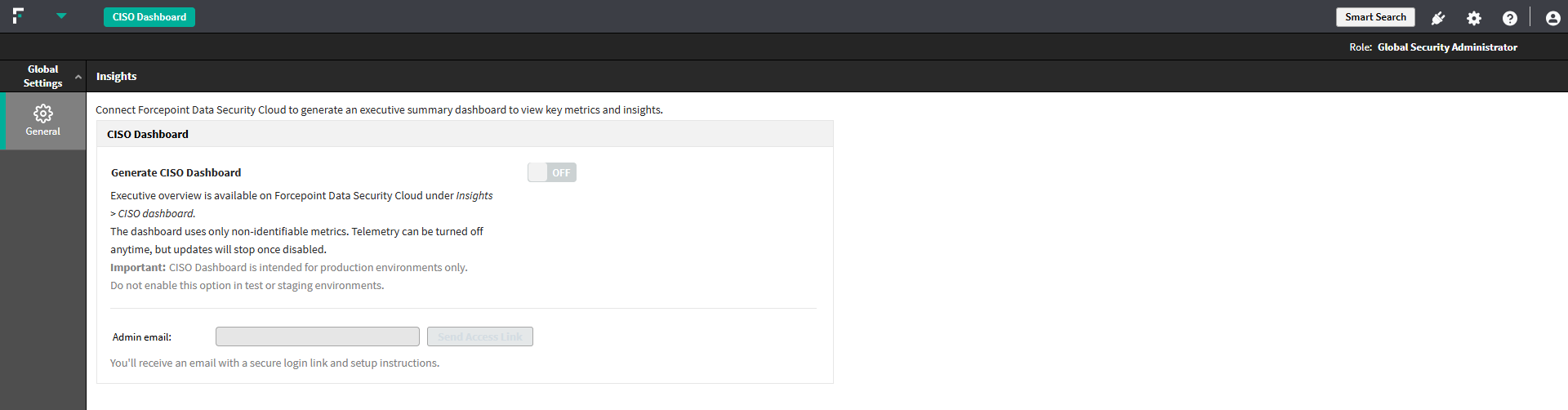
In FSM, click CISO Dashboard.
Note: This option is available only when you are configuring the dashboard for the first time.The Insights configuration page opens.
-
To generate the Executive Overview dashboard on the Forcepoint Data Security Cloud platform, turn on the Generate CISO Dashboard toggle.
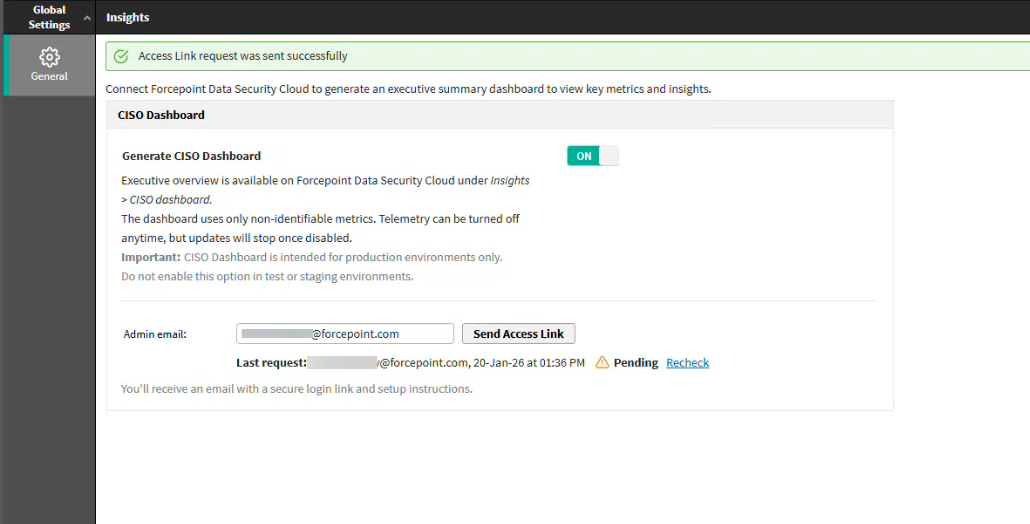
Once turned on, the CISO Dashboard button disappears. You can always access the Insights configuration page through .
-
To access the dashboard, enter the email address in the Admin email field, and click Send Access Link.
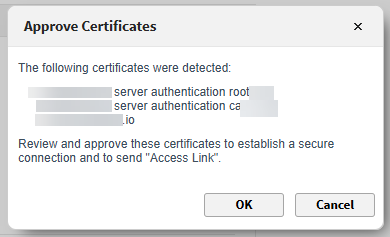
Note: If the detected certificates are not the expected ones, a pop-up is displayed prompting you to review and approve the certificates before the connection is established and the access link is sent. If you click Cancel, you will be asked to contact Forcepoint Support to certify the connection between Forcepoint Security Manager and Forcepoint Data Security Cloud.
 The Forcepoint Data Security Cloud platform sends the registration link to the email. The connection status appears as pending until you access the link and establish the connection. You can click Recheck to refresh the status.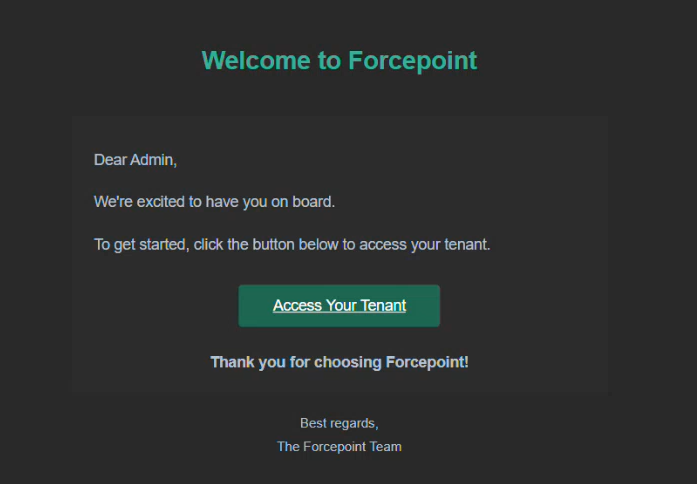
-
Click Access Your Tenant
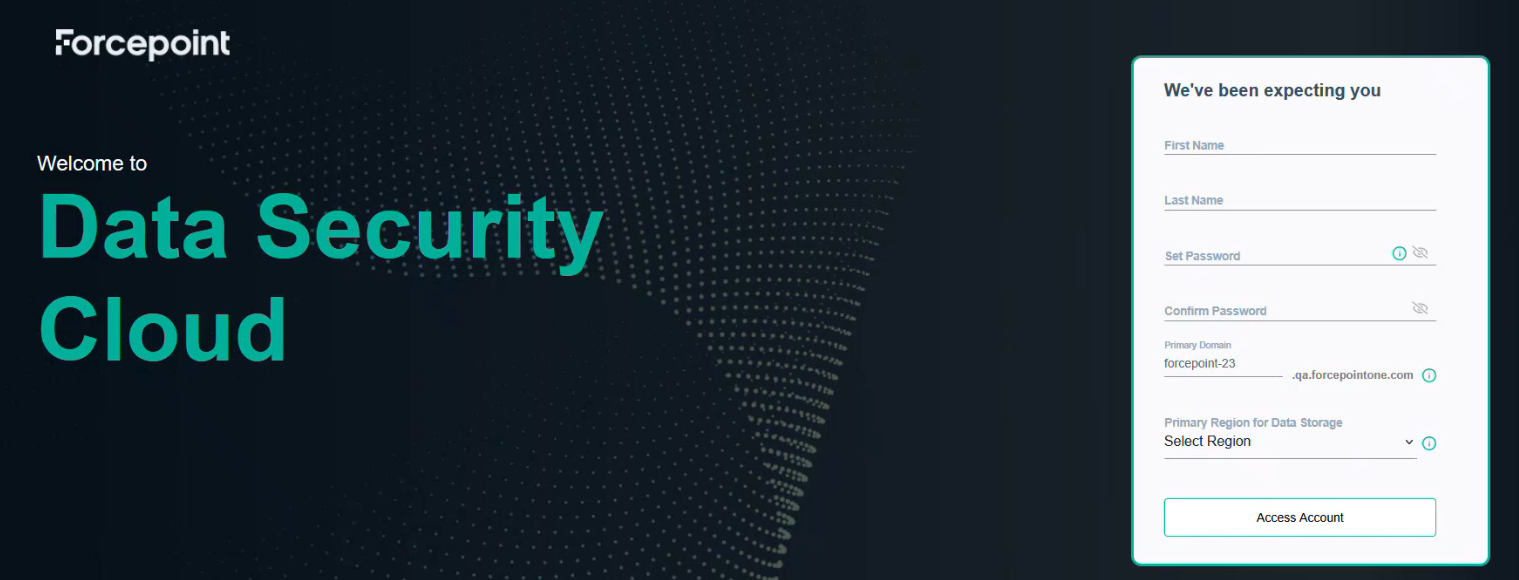
The Forcepoint Data Security Cloud platform sign in page opens.
-
To login to the Forcepoint Data Security Cloud platform, do the following:
- Enter your credentials in the First Name and Last Name fields.
- Create and confirm the password.
- In Primary Region for Data Storage, select a region.
- Click Access Account.
- A confirmation message appears stating that configuration cannot be altered post confirmation.
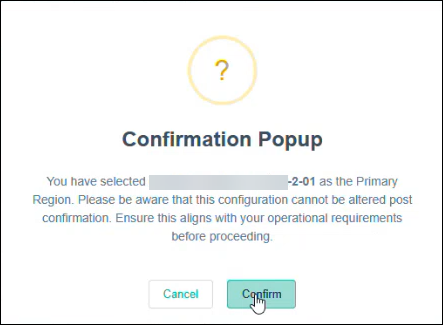
- Click Confirm.
A message appears stating successful tenant access.
- Click OK.
You will be redirected to the Forcepoint Data Security Cloud platform.
-
Enter your credentials and click Sign in.
Once connected to the Forcepoint Data Security Cloud platform, the status on the FSM Insights configuration page updates to Connected, and the link appears for you to access the Forcepoint Data Security Cloud platform.
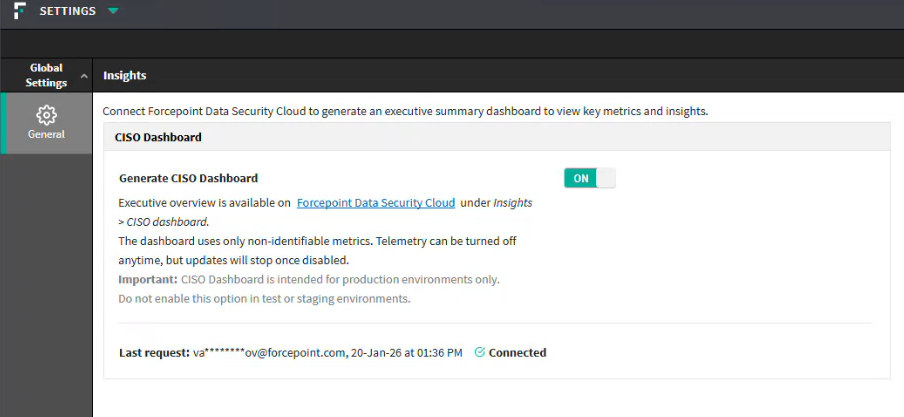
Once the data traffic is analyzed and incidents are processed, the data is sent to the Forcepoint Data Security Cloud platform.
On the Forcepoint Data Security Cloud platform, the incident details can be viewed on the Transaction Viewer page and the insights metrics are displayed on the Executive Overview page. For detailed information, refer the Executive Overview Dashboard Solutions Guide.