Standard Forcepoint DLP options
Steps
-
Select Network email to monitor email going through the network or a supported cloud infrastructure such as Microsoft Azure.
By default, email is analyzed on all network destinations.
- Click Edit to select the destinations (such as computers, policies, or domains) this policy should analyze.
- Click Direction to select the traffic direction(s) to monitor.
- Inbound (network email only)
- Outbound (Email Security Cloud supports only this direction)
- Internal
Protectors monitor all traffic directed to them. All transactions are regarded as outbound.
-
Select Endpoint email to monitor email on endpoint machines (requires Forcepoint DLP Endpoint).
By default, email is analyzed on all endpoint destinations.
- Click Edit to select the domains this policy should analyze.
- Click Direction to select the traffic direction(s) to monitor.
- Inbound (network email only)
- Outbound (Email Security Cloud supports only this direction)
- Internal
For a complete list of endpoint email applications that Forcepoint DLP supports, see Forcepoint DLP Endpoint applications.
-
Select Web to prevent or monitor users posting sensitive data to networks, domains, business units, URL categories including Forcepoint AI Security
categories, directory entries, countries, or custom computers.
By default, posts to all web destinations are analyzed.
-
Click Edit to select the destinations to include in or exclude from analysis.
Several SaaS domains are excluded by default under Business Unit: Excluded Resources. For more information, see the Business Units section.
-
Click Channels to select or clear individual web channels.
Channel Analyzes FTP File transfer sites Chat Instant messenger applications Plain text Unformatted textual content HTTP Websites, blogs, and forums via HTTP HTTPS Websites, blogs, and forums via secure HTTP Endpoint HTTP Websites, blogs, and forums accessed by endpoint machines over HTTP Endpoint HTTPS Websites, blogs, and forums accessed by endpoint machines over HTTPS
For a complete list of endpoint browsers supported by Forcepoint DLP, see the Selecting endpoint destination channels to monitor section.
-
Click Edit to select the destinations to include in or exclude from analysis.
-
Select MCP Gateway to analyze transactions between AI agents and MCP Gateway Connectors passing through the MCP Gateway.
By default, transactions from all MCP Gateway Connectors are analyzed.
- Click Edit to select the MCP Gateway Connectors this policy should analyze.
- Select at least one operation to monitor: User/AI Agent request or MCP connector response.
Configure MCP Gateway Connectors on the Main > Policy Management > Resources page.
-
Select DLP Cloud API (used by AI Security and CASB systems) to analyze operations from and to cloud applications such as OneDrive for Business and
Box.
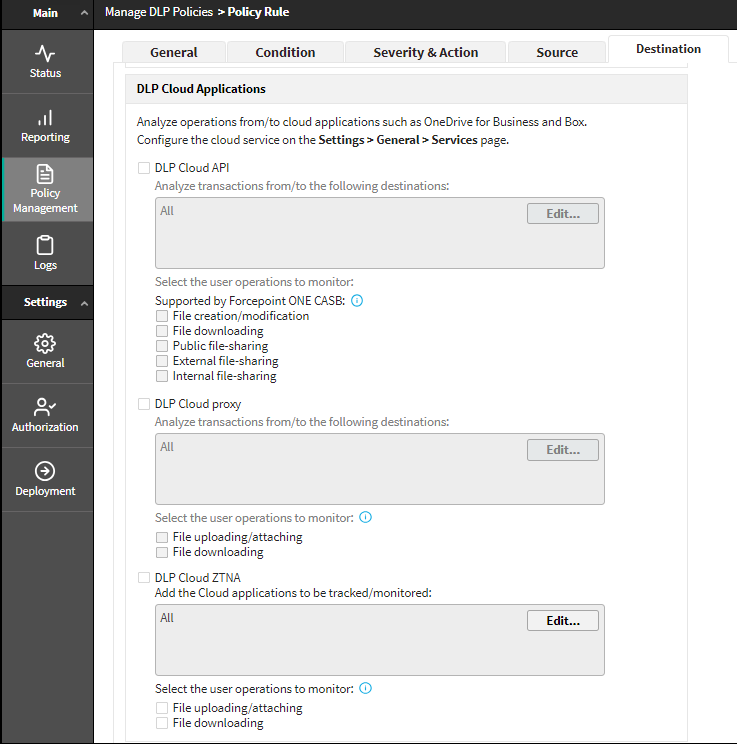
By default, all cloud channels are cleared. When the channel is selected, all destinations are analyzed.
- Click Edit to select the destinations this policy should analyze.
-
Select at least one user operation to monitor.
The following are supported by DLP Cloud API and AI Security (AI Detection & Response):
- File creation/modification
- File downloading
- Public file-sharing
- External file-sharing
- Internal file-sharing
- AI Prompt
- AI Response
Note: AI Prompt and AI Response are only available for AI Security (AI Detection & Response) solution.
Important:For CASB solution the following conditions must be met:- Cloud Applications service is activated (Settings > General > Services)
- Forcepoint Security Manager is connected to Data Protection Service (Settings > General > Services)
- The policy was deployed to this service successfully.
For AI Security (AI Detection & Response) solution conditions, go to the Integrating Forcepoint AI Security with Forcepoint DLP On-Prem.
-
Select DLP Cloud proxy.
By default, all destinations are analyzed.
- Click Edit to select the destinations this policy should analyze.
- Select at least one user operation to monitor: File uploading/attaching or File downloading.
Important:Analysis occurs only when the following conditions are met:
- The Cloud Applications service is activated (Settings > General > Services).
- Forcepoint Security Manager is connected to Data Protection Service (Settings > General > Services).
- The policy was deployed to this service successfully.
-
Select Endpoint Printing to analyze files that endpoint users send to local or network printers (requires Forcepoint DLP Endpoint).
By default, all printers are analyzed.
- Click Edit to select the printers to analyze.
-
Select Endpoint Applications to analyze content that is cut, copied, pasted, or otherwise handled by users on endpoint applications.
By default, no application groups are selected.
-
Click Edit to select the application groups to analyze.
Not all operations (cut, copy, paste, and so on) relate to all applications. The operations that are monitored are specified for each group.
If you choose All activities on the rule's condition page and choose an online application here, you are requesting to monitor all content that is downloaded to endpoints. The same is true if you specify the Download operation in the online application group, then select this group.
To prevent the system from analyzing content that is cached on the endpoint, the following occurs:
- When files are saved to the browser's cache folders, the crawler analyzes only .exe, .csv, .xls/.xlsx, .pdf, .txt, .mht, and .doc/.docx files.
- When files are saved to any other local folder, it analyzes all file types.
For a list of applications that the system supports out of the box, see Forcepoint DLP Endpoint applications. You can also add custom applications.
Note:The list you create here is overridden by trusted application settings you configured under Resources > Endpoint Applications. Groups that are trusted on that page are not enforced even if they are included in the policy.
-
Click Edit to select the application groups to analyze.
-
Select Endpoint Removable Media to analyze content that is copied to media such as thumb drives, external hard drives, and other USB devices on endpoint
machines.
By default, all removable media is included.
- Click Edit to select the media to analyze.
For a complete list of supported endpoint removable devices, see the Selecting endpoint destination channels to monitor section.
Linux-based endpoints cannot share removable media devices through NFS.
-
Select Endpoint LAN to analyze content that is copied to networks or computers over the LAN.
By default, outbound traffic for all networks is covered—that is, traffic going from the endpoint to all LANs.
- Click Edit to select a network to analyze.
- Specify a list of allowed destination IP addresses or hostnames for LAN copy.
Endpoint LAN control is applicable to Windows file sharing only.
Users may connect to a destination machine using the hostname, IP address, or mapped drive, for example. Forcepoint DLP does not resolve the multiple names for a single destination. To block or allow access to a machine, specify each of the identifiers a user might specify: for example, FQDN, hostname, mapped drive, and so on. Alternatively, always block or allow access using hostname and require users to use hostname.
Data from an endpoint client can be intercepted.
If access to the LAN requires user credentials, files larger than 10 MB are handled as huge files which are only searched for file size, file name, and binary fingerprint. Files smaller than 10 MB are fully analyzed. The huge file limit for other channels is 100 MB.