You can configure the user directory to enable administrators to log in to the Security Manager using their network accounts.
Note: Once a network account is created, updates to user details such as username or email address are not automatically synchronized with directory changes. To apply any updates, the
existing account must be deleted and a new one created using the revised directory information.
Steps
-
In the User directory server field in the User Directory page, select one of the following server:
- Active Directory
- Generic Directory
- Lotus Notes
- Microsoft Entra ID
- Novell eDirectory
- Oracle Directory Service
-
If you had selected Microsoft Entra ID, do the following:
-
Register your system as an application in the Microsoft Entra admin center. In Azure Portal, go to and grant the following API permissions to enable the Microsoft Entra ID user directory import:
- Directory.Read.All
- Group.Read.All
- ProfilePhoto.Read.All
- User.Export.All
- User.Read.All
- User.ReadBasic.All
- User.read
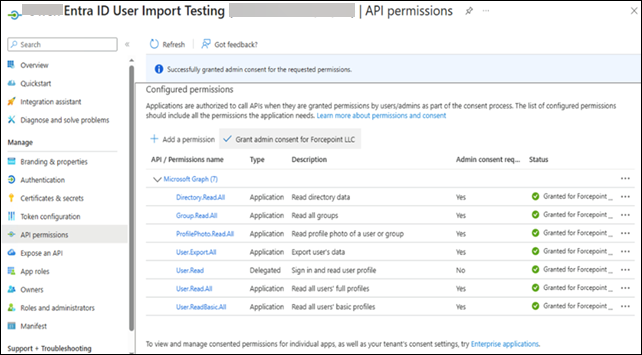
-
Enter the application details in Connection Settings:
- Tenant ID
- Client ID
- Client secret
-
Click Test Connection to verify that Forcepoint DLP can connect to the directory server.
Note: For the network accounts using Microsoft Entra ID, you must enable Single Sign-On under .
-
If you had selected other directory servers, do the following:
-
Enter the IP address or host name values to identify the directory server.
-
Enter the communication Port for the directory.
-
Enter a User distinguished name and Password for the administrative account that the software should use to retrieve user
name and path information from the directory.
- The account must be able to query and read from the directory, but does not need to be able to make changes to the directory, or be a domain administrator.
- In the field User distinguished name, enter the account details as a single string. You can use the format “CN=user, DC=domain” or, if your
organization uses Active Directory, “domain\username”.
-
To confirm that the directory exists at the specified IP address or name and port number, and that the specified account can connect to it, enter password, and then click
Test Connection.
Note: Administrator must re-enter the password before trying to save changes.
-
Click OK to save changes.
-
Enter the Root naming context that the Security Manager should use to search for user information. This is required for generic LDAP directories,
Lotus Notes/ Domino, and Oracle Directory Service, and optional for Active Directory and Novell eDirectory. If you supply a value, it must be a valid context in the
domain.
If the Root naming context field is left blank, the software begins searching at the top level of the directory service.
Note: Avoid having the same user name in multiple domains. If the software finds duplicate account names for a user, the user cannot be identified transparently.
-
If the LDAP schema includes nested groups, select the check box Perform additional nested group search.
-
To encrypt communication with the directory service, select the check box Use SSL encryption.
-
If the directory service uses LDAP referrals, select the check box to indicate whether the software should follow the referrals.
-
For Generic Directory, configure the following additional settings:
-
Click OK.
The settings are saved.
Note: If you change your user directory settings at a later date, existing administrators become invalid unless you are pointing to an exact mirror
of the user directory server. If the new server is not a mirror, you may not be able to distinguish between your new and existing users.