Create Custom Profile
The Create Profile editor can be used to create custom profiles. If the administrator wants, then they can select the Inherit default profile option provided with each widget to apply the values from the default profile.
Profile Details
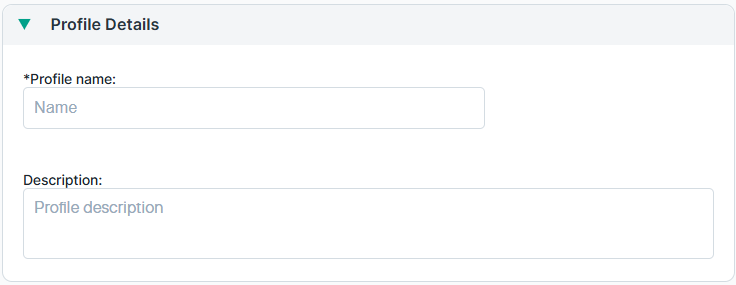
Profile name: Each profile is stored using the provided name.
Description: Brief description of the profile.
Applies to:
Use this section to define the scope to exclude or include in the profile. The scope defines the endpoints or organizational units which should be subjected to this profile.
The selection list is limited to 100 entries. Use search to find additional endpoints or OUs.

In the Search option, enter the resource name, then click  to add to the list
for either inclusion or exclusion. You can also use the Add all or Remove all options to remove or add multiple entries. Similarly, you can use
the
to add to the list
for either inclusion or exclusion. You can also use the Add all or Remove all options to remove or add multiple entries. Similarly, you can use
the  to remove entries that were added earlier for either exclusion or inclusion.
Also, from the Select OS: option select the operating system running on the endpoint machine.
When including an OU or endpoint in the "Include" list all other OUs and endpoints are excluded. The "Exclude" list overrides the "Include" list. It is used, for example, to select an OU but exclude specific endpoints that belong to this OU.
General
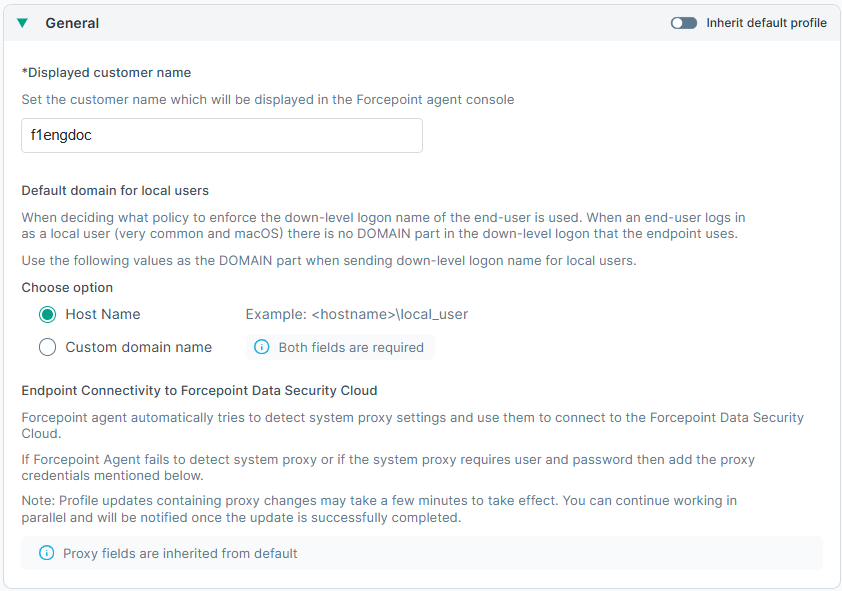
- Displayed customer name: Set the customer name that is displayed on the Forcepoint agent console.
- Endpoint Connectivity to Forcepoint Data Security Cloud: Allows manual configuration of proxy settings for proxies that require authentication.
Over the air updates
Displays which agent software versions are pushed to the endpoints. Values are inherited from default profile settings. Over the air updates can be enabled or disabled from the Default profile. Also, administrators can either opt for automatic updates or select specific agent versions to update from the Default profile. If Update to a specific version is selected, then the drop-down can be used to select the exact agent version of the agent to update to.
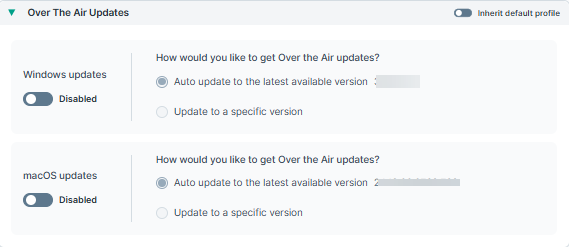
Administrators can choose to enable the option Inherit default profile if they want to inherit the settings from the default profile.
Data Protection
The Data Protection widget enables users that have Data Protection license to disable or enable it. Administrators can choose to enable the option Inherit default profile if they want to inherit the settings from the default profile.
Managed by: The data protection license applies both to On-Prem and SaaS DLP licenses. Those users who have only one of the licenses will see only the respective option (On-Premise or Cloud) under Managed by field. Users that have both the licenses will be able to select whether the profile is managed by On-Premise or Cloud.
Default Action for Confirm: In case, the user does not respond to a confirmation pop up, what action should be taken.
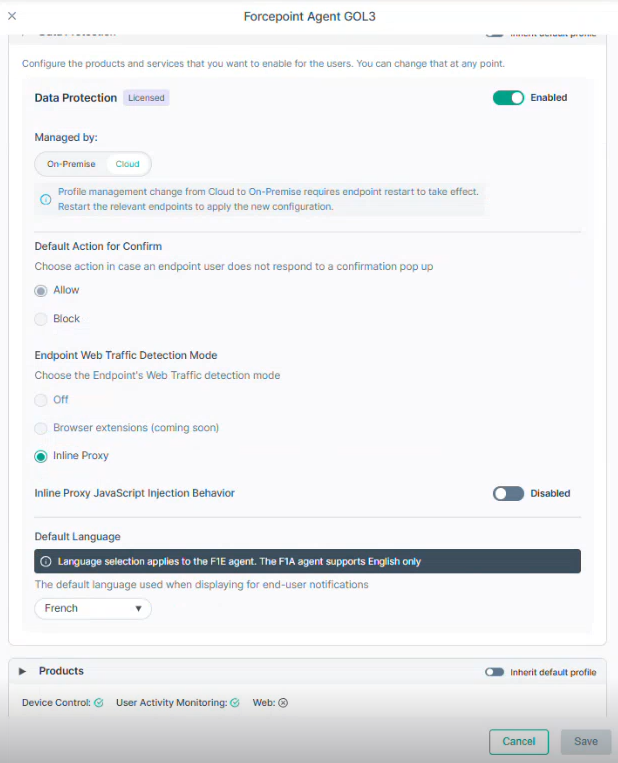
The Endpoint Web Traffic Detection Mode sets whether to use Inline Proxy or Browser Extension. Since the Forcepoint agent currently supports only the Inline Proxy mode, the mode cannot be changed. When support for the Browser Extension mode is enabled for the agent, it will be possible to set the mode.
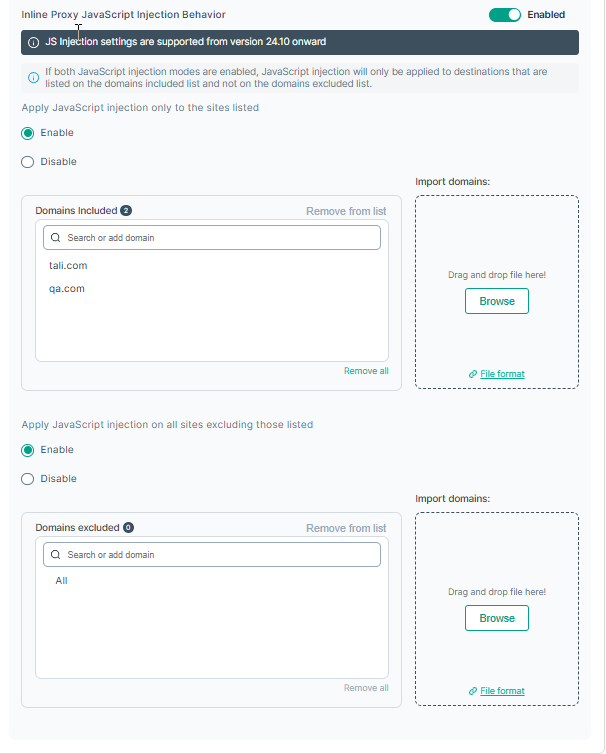
When the mode is set to Inline Proxy, the Inline Proxy JavaScript Injection Behavior attribute is displayed. Enable it to set the Javascript injection behavior.
You can also learn more about the Inline Proxy capability, from the Inline Proxy FAQ.
When the Inline Proxy JavaScript Injection Behavior attribute is ON, you can set a list of domains in which JavaScript inspection is applied, and a list of domains in which JavaScript inspection is bypassed. The options are:
- If both lists are disabled, no JavaScript Inspection is applied (same behavior as when JavaScript Injection Behavior is OFF).
- If only the Apply JS Injection only to the sites listed list is enabled, JavaScript inspection is applied only to the domains in the list.
- If only the Apply JS Injection on all sites excluding those listed list is enabled, JavaScript inspection is applied to all domains except the domains in the list.
- If both lists are enabled, JavaScript Injection is applied only to domains that are included in the Apply JS Injection only to the sites listed list and not included in the Apply JS Injection to all sites excluding those listed list.
In the following field, enter the domains that should be detecting file uploads by JavaScript injection or should not be detecting file uploads by JavaScript injection.
You can also import the domains using a .txt file, and the values in the file should be comma-separated. The format of the domains file should be like the following
example:
domain1.com,domain2.com,domain3.com,domain4.com domain5.com,domain6.com
Administrators can choose to enable the option Inherit default profile if they want to inherit the settings from the default profile.
- English
- Dutch
- French
- German
- Italian
- Japanese
- Korean
- Portuguese
- Russian
- Simplified Chinese
- Traditional Chinese
- Spanish
Application Bypass
Administrators can exclude specific applications from DLP monitoring on Windows and macOS endpoints.
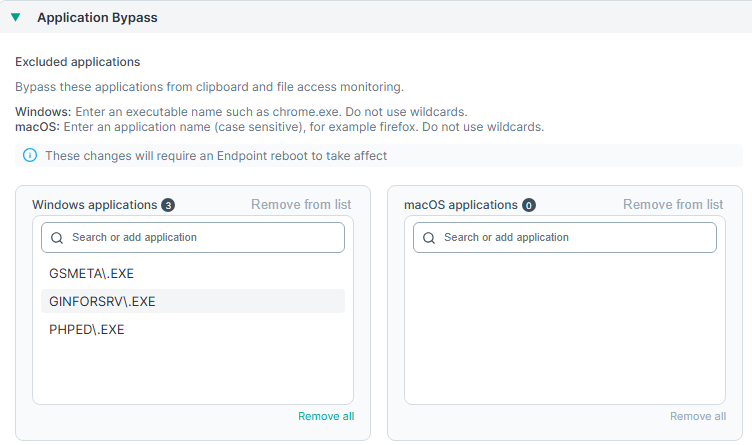
In the Search option, enter the application name, then click Add <app> to list to add applications to the list.
- For Windows, enter an executable name such as chrome.exe.
- Do not use wildcards.
Select the application name from the list and click Remove from list to remove the application.
Administrators can choose to enable the option Inherit default profile if they want to inherit the settings from the default profile.