
Connecting Microsoft 365 as a Gateway Connector
Connect Microsoft 365 to the MCP gateway so that your AI agents can work with your Microsoft 365 files and data, within the limits of the access policies you create.
Before you begin
Before you begin, complete the prerequisites for gateway connectors. For more information, see Checking the Prerequisites Before Connecting a Gateway Connector.
In addition, complete the following Microsoft 365 prerequisites:
- Agent Tools application in your Microsoft Entra tenant: The Microsoft 365 connector reaches Microsoft 365 through the Agent Tools resource, which has the application (client) ID
ea9ffc3e-8a23-4a7d-836d-234d7c7565c1. This resource must exist in your tenant as an enterprise application. If it is missing, the Microsoft Entra administrator must create it before you connect. - Admin consent for the Agent Tools resource: A Microsoft Entra administrator must grant admin consent for the Agent Tools resource (
ea9ffc3e-8a23-4a7d-836d-234d7c7565c1). Without this consent, users cannot complete the Microsoft 365 sign-in. - Microsoft 365 global administrator sign-in: Before any other user tries to use the Microsoft 365 connector, a Microsoft 365 global administrator must sign in first, through the end-user portal, as an end user. During this first sign-in, the administrator grants consent on behalf of all users in the organization.
- No app registration in Microsoft 365: Microsoft 365 is connected through the Forcepoint application, so you do not need to register an application or configure a callback URL in the Microsoft 365 admin center.
To check whether Agent Tools exists in your tenant:
- Sign in to the Microsoft Entra admin center.
- Go to Enterprise applications.
- Filter the list by Application type: Microsoft Applications.
- Search for
Agent Toolsor for the application IDea9ffc3e-8a23-4a7d-836d-234d7c7565c1.
If the application is listed, it is already provisioned. If it is not listed, an administrator must create it by using one of the following methods.
To create Agent Tools by using Graph Explorer: The administrator needs the Application.ReadWrite.All permission and the Cloud Application Administrator role or higher.
-
Open Graph Explorer and sign in as the administrator.
-
Set the request method to POST.
-
Enter the request URL
https://graph.microsoft.com/v1.0/servicePrincipals. -
In the request body, enter the following text:
{"appId":"ea9ffc3e-8a23-4a7d-836d-234d7c7565c1"} -
Run the query.
-
Confirm that the response code is
201and that thedisplayNameisAgent Tools.
To create Agent Tools by using Cloud Shell or PowerShell: Run one of the following commands. Cloud Shell in the Azure portal needs no local installation.
-
Azure CLI:
az ad sp create --id ea9ffc3e-8a23-4a7d-836d-234d7c7565c1 -
PowerShell:
New-MgServicePrincipal -AppId ea9ffc3e-8a23-4a7d-836d-234d7c7565c1
Steps
-
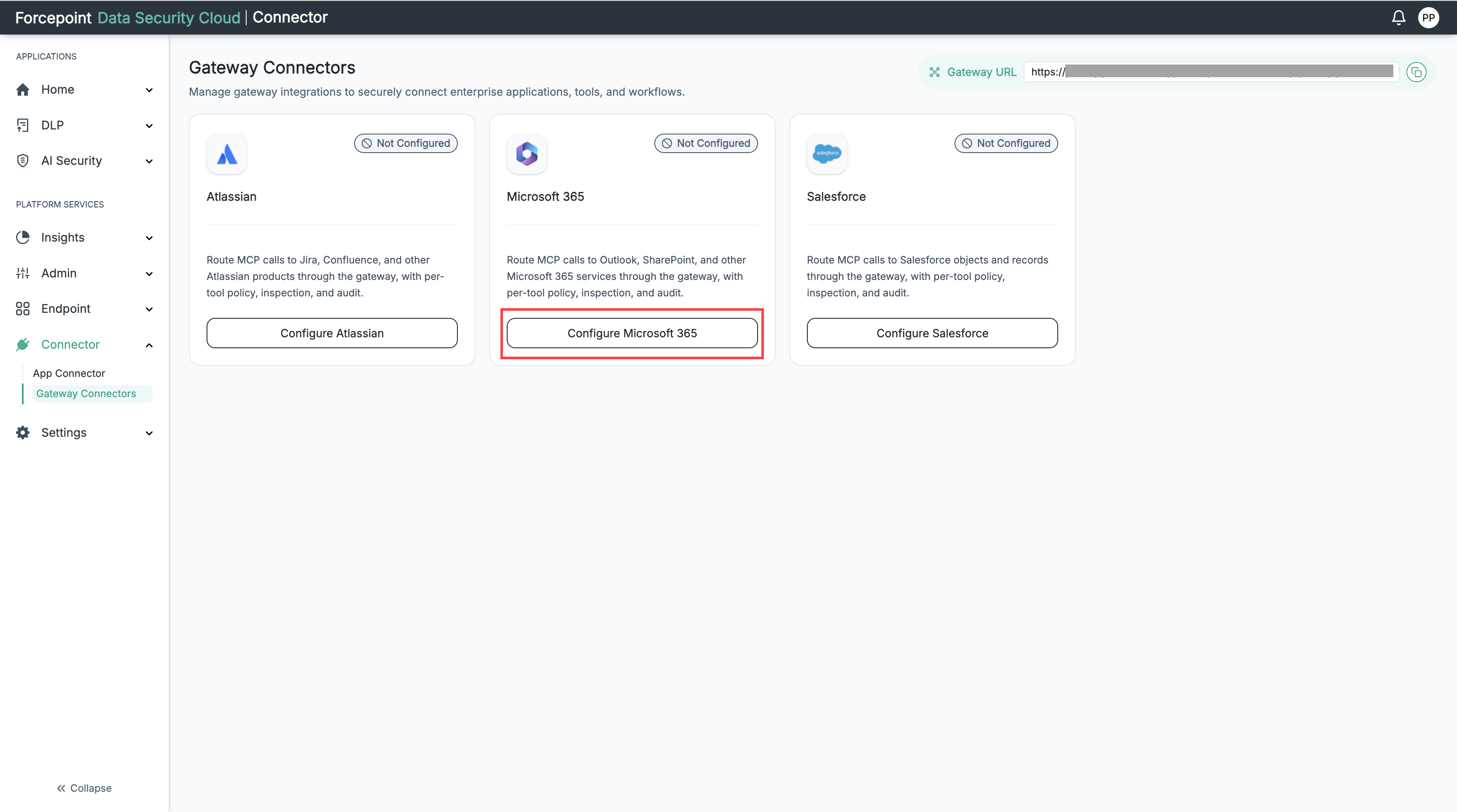
In the left navigation pane, select Connector › Gateway Connectors.
The Gateway Connectors page opens.
-
On the Microsoft 365 card, select Configure Microsoft 365.
The following figure shows the Connect Microsoft 365 Connector panel.
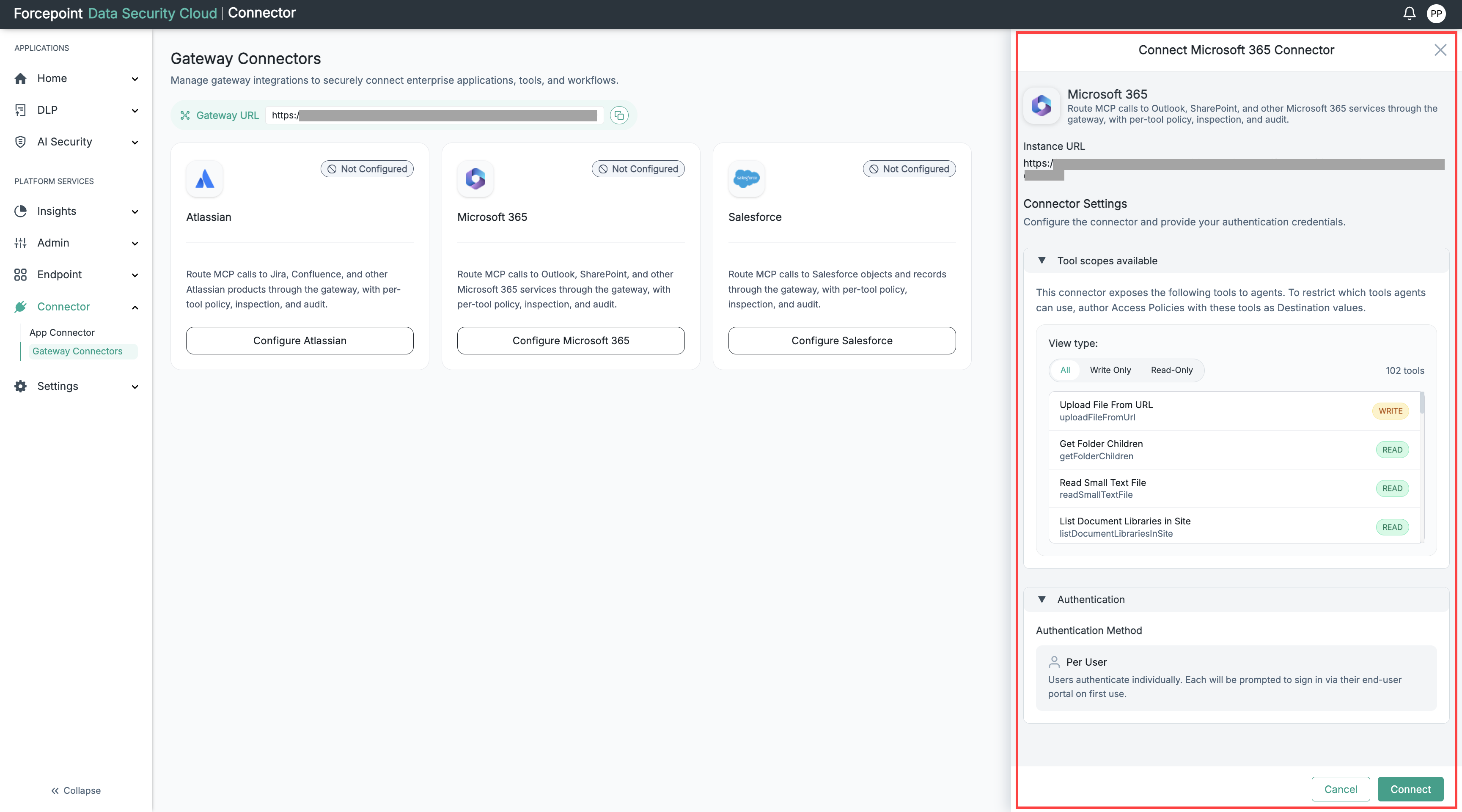
The Connect Microsoft 365 Connector panel opens.
-
Under Tool scopes available, review the tools that Microsoft 365 exposes to agents.
-
Optional: To filter the list, select Write Only or Read-Only.
To show all tools again, select All.
-
Under Authentication, review the Authentication Method.
Microsoft 365 uses Per User authentication.
-
Select Connect.
Result
On the Gateway Connectors page, the Microsoft 365 card shows the Configured status.
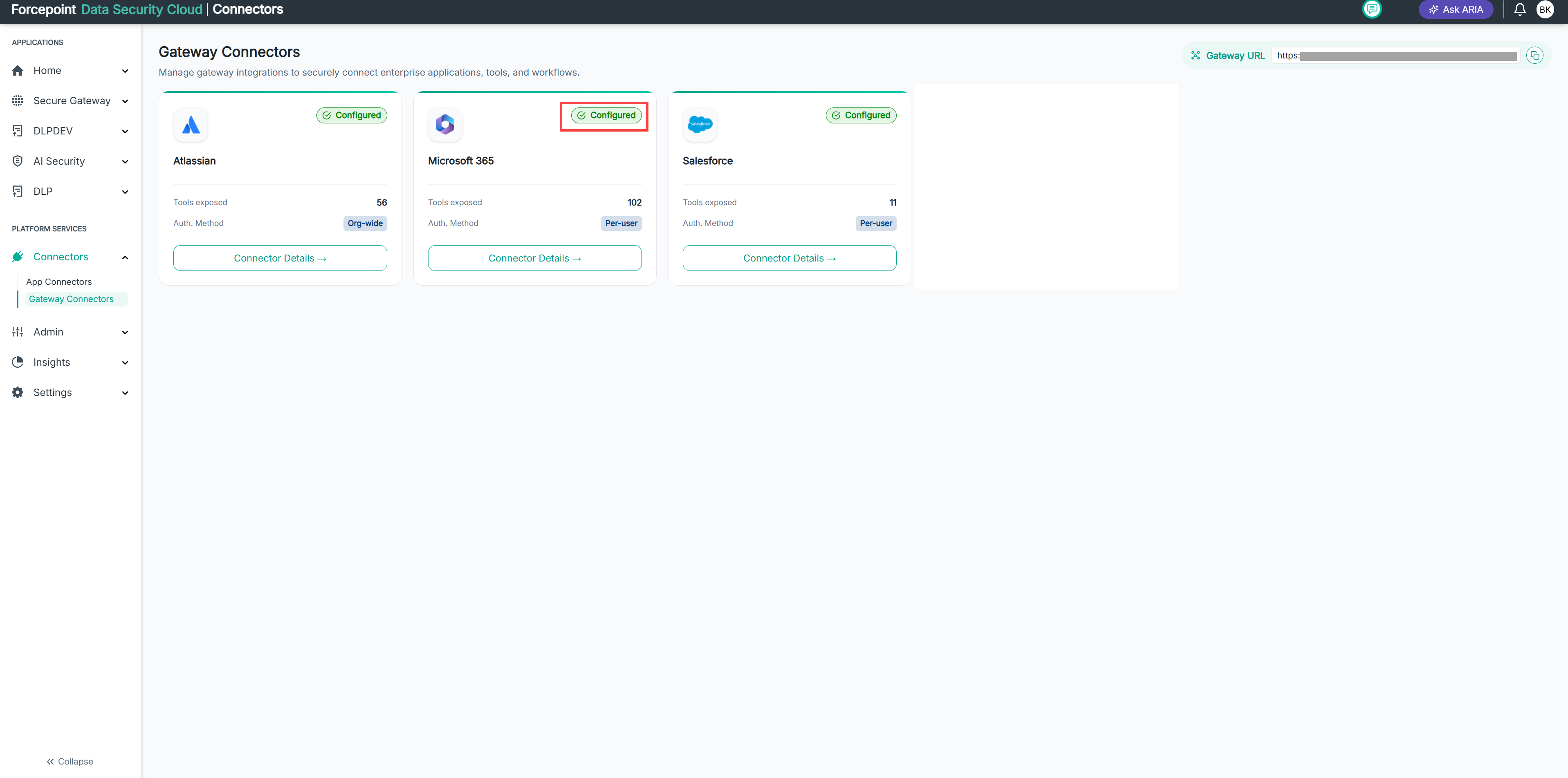
The card also shows:
- Tools exposed: The number of Microsoft 365 tools available to agents.
- Auth. Method: The authentication method in use, Per-user.
To view or manage the connector, select Connector Details.
Next steps
Create an access policy that includes the Microsoft 365 tools your agents can use. For more information, see Creating an Access Policy.