
Understanding the Manage Connector Panel for Microsoft Copilot
The Microsoft Copilot Connector Details panel shows how AI Security is authorised against Microsoft 365, which services it scans, and where files go when a data security action runs.
This panel holds more than the equivalent for Claude or ChatGPT. Copilot works across your Microsoft 365 content, so the connector governs not only the application but the services it reaches, and it can be paused without being removed.
To open it, go to Connector › App Connector and click Manage connector on the Microsoft Copilot card.
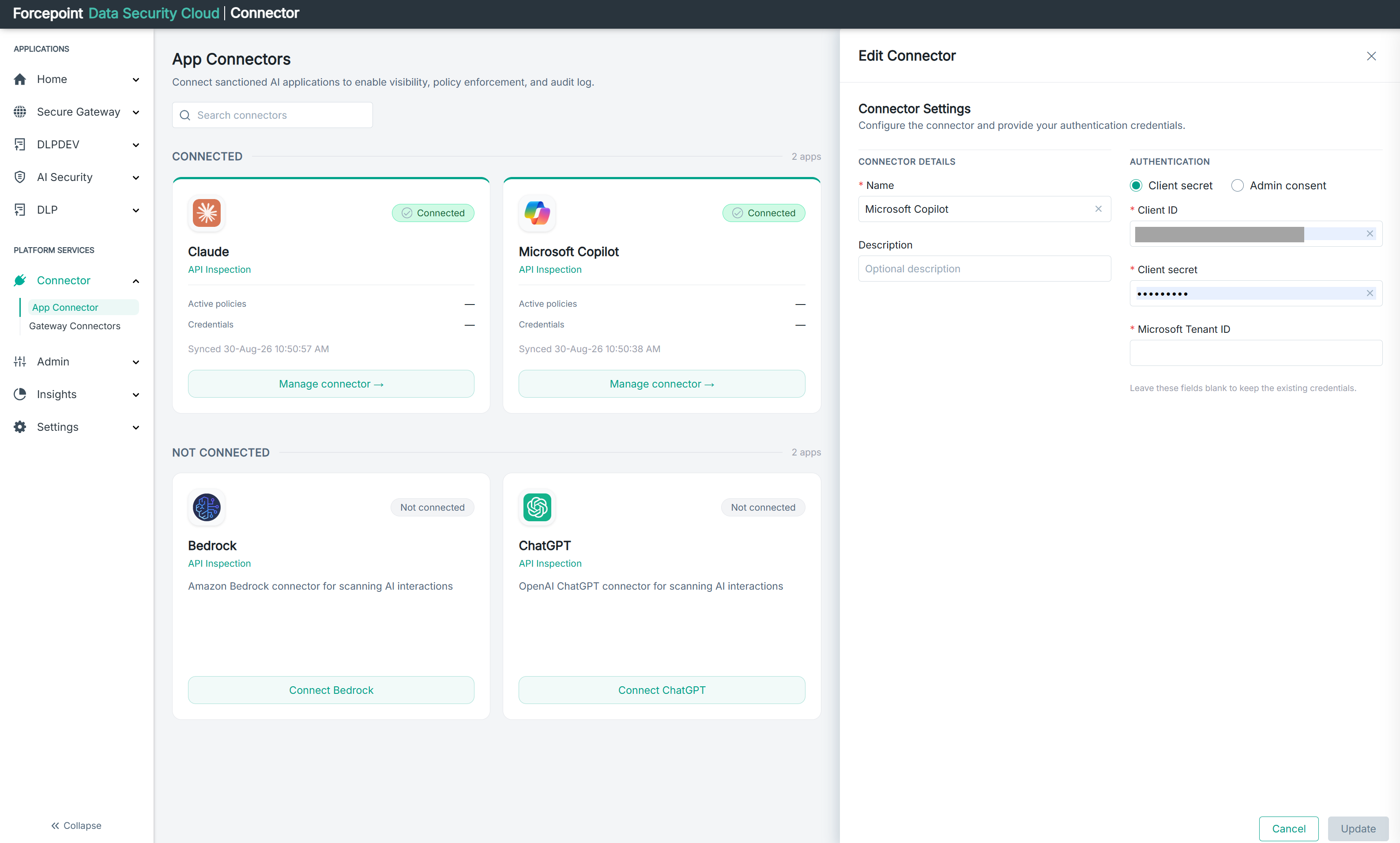
What the panel contains
| Area | What it shows |
|---|---|
| Status badge | Whether the connection is working, shown beside the application name |
| CONNECTION DETAILS | How AI Security is authorised, and when it last synced. Edit opens the authorisation for updating |
| Status | A toggle that pauses or resumes inspection for this application |
| Scan Configuration | Which Microsoft 365 services are scanned, and how widely |
| DLP Action Settings | Where files are placed when a data security policy acts on them |
| Remove Connector | Deletes the connection and its settings |
| Discard and Save | Abandon or keep your changes |
Connection details
| Field | What it tells you |
|---|---|
| Authorization | How AI Security authenticates to Microsoft 365, for example through OAuth with Microsoft Entra |
| Last Sync | When the connector last exchanged data successfully |
Copilot is authorised rather than reached at an endpoint with a key, which is why this section shows an authorisation method where Claude and ChatGPT show an API endpoint and a health status.
Pausing inspection
The Status toggle stops the connector working without removing it. Its own description states the consequence: disabling the connector pauses all inspection and policy enforcement for Copilot.
That is a significant thing to switch off. While the connector is inactive, Copilot activity is neither inspected nor governed, and nothing on the dashboard will report it as a gap. Use it while investigating a problem, and put it back.
Pausing is reversible and keeps the configuration. Remove Connector does not.
Scan configuration
This section decides which Microsoft 365 services Copilot activity is scanned in, and how much of each.
| Service | What it covers |
|---|---|
| OneDrive | Files held in user accounts |
| SharePoint | Files held in SharePoint sites |
Each service has its own toggle and a SITE SCOPE setting. All Sites covers everything; Select narrows the scan to sites you nominate.
Narrowing the scope reduces what is scanned, which reduces noise but also reduces coverage. Anything outside the scope is not inspected.
DLP action settings
These two paths tell AI Security where to put files when a data security policy triggers a remediation action.
| Field | What happens |
|---|---|
| Quarantine Directory Path | The file is removed from where it was and moved here for review |
| Copy Directory Path | A copy is saved here for review, and the original stays where it is |
What you can do from here
- Check how AI Security is authorised against Microsoft 365
- Pause inspection for Copilot without removing the connection
- Choose which Microsoft 365 services are scanned
- Narrow a scan to particular sites
- See where remediated files are placed
- Remove the connection