
Configuring Remediation Settings
Set the folder where AI Security copies data that violates a DLP policy for a connected AI application.
Before you begin
Deploy the API connector for the AI application. The Remediation Settings button appears on the application's card only after its API connector is deployed.
Have the details of the destination ready:
- OneDrive: the UPN of the user who owns the OneDrive, and the directory path.
- SharePoint: the exact site collection, and the directory path.
If the Microsoft Copilot connector is not deployed, have a Microsoft administrator account ready to sign in with. For details about the Microsoft Copilot connector, see Connecting Microsoft Copilot.
AI Security does not need to scan Microsoft Copilot to apply a remediation action. It uses the Microsoft Copilot connector credentials only to write copies to the OneDrive or SharePoint folder that you specify.
Remediation settings are set separately for each connector. Repeat this task for each application whose violating data you want copied.
Steps
-
Go to Connector › App Connector.
The App Connectors page opens.
-
On the card of the application, select Remediation Settings.
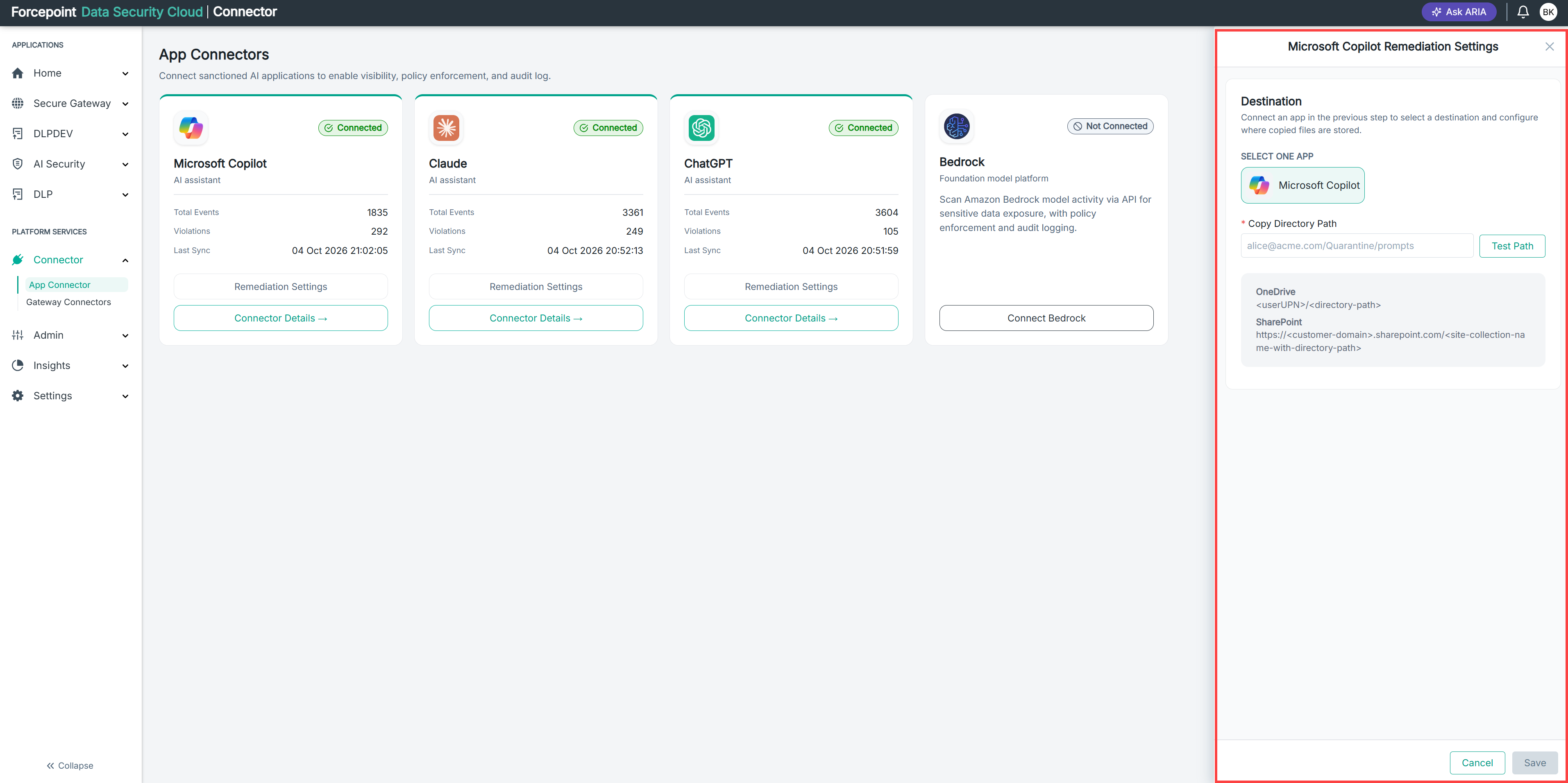
The Remediation Settings panel for that application opens, for example Claude Remediation Settings. The panel has two sections: Storage location and Destination Folder. If Microsoft Copilot is not connected, the panel shows Connect Copilot.
The Remediation Settings panel for Claude is shown in the below image.
-
If Microsoft Copilot is not connected, connect it.
Skip this step if the Microsoft Copilot connector is already deployed. For example, if you have deployed both the Microsoft Copilot and ChatGPT connectors, AI Security already has the credentials it needs, so you do not have to sign in again.
-
Select Connect Copilot.
-
Sign in with your Microsoft administrator account.
After authentication succeeds, the settings for the Microsoft Copilot connector open.
-
Optional: If you do not want AI Security to scan Microsoft Copilot, turn off Scan Content.
-
Select Save.
Microsoft Copilot is connected.
-
On the card of the application you started from, select Remediation Settings again.
The Remediation Settings panel for that application opens.
-
-
Under Storage location, select SharePoint or OneDrive.
The Copy Directory Path field shows an example and the path format for the location you selected.
-
Under Destination Folder, in Copy Directory Path, enter the path to the folder where AI Security copies the data.
Use the format for the storage location you selected:
- OneDrive:
<userUPN>/<directory-path>, for examplealice@acme.com/Quarantine/prompts - SharePoint:
https://<customer-domain>.sharepoint.com/<site-collection-name-with-directory-path>
- OneDrive:
-
Select Test Path.
AI Security checks that the path matches one of the expected formats.
-
Select Save.
Result
When a policy with the Safe copy or Quarantine with note action matches, AI Security copies the data that violated the policy to this folder.
Next steps
To check whether a remediation action ran, see Checking the Result of a Remediation Action.