
Understanding Remediation Settings
Remediation settings let you set, for each connector, the destination folder where AI Security copies data that violates a DLP policy on the Apps API channel for sanctioned AI apps.
AI Security uses an API connector to scan prompts, responses, file uploads, and file downloads from sanctioned AI apps, and sends them to DLP. The API connectors use the existing Apps API channel in DLP. DLP matches the data against the DLP policies for that channel. When a rule matches, DLP applies the action set in that rule.
The action plan in a DLP rule lists remediation actions that AI Security does not always carry out as configured. For some actions, AI Security applies a different action instead. Nothing in the user interface shows this, so check this topic before you choose an action.
Operations supported for remediation
In a DLP rule, under Destination, select Apps and the API type, and then select the operations you want to inspect. The Apps API channel is shared by more than one product, so the list combines operations for AI applications and for files. Which of these operations AI Security monitors depends on the AI application. See Support by AI application section given below.
The operations for the Apps API channel are shown in the below image.
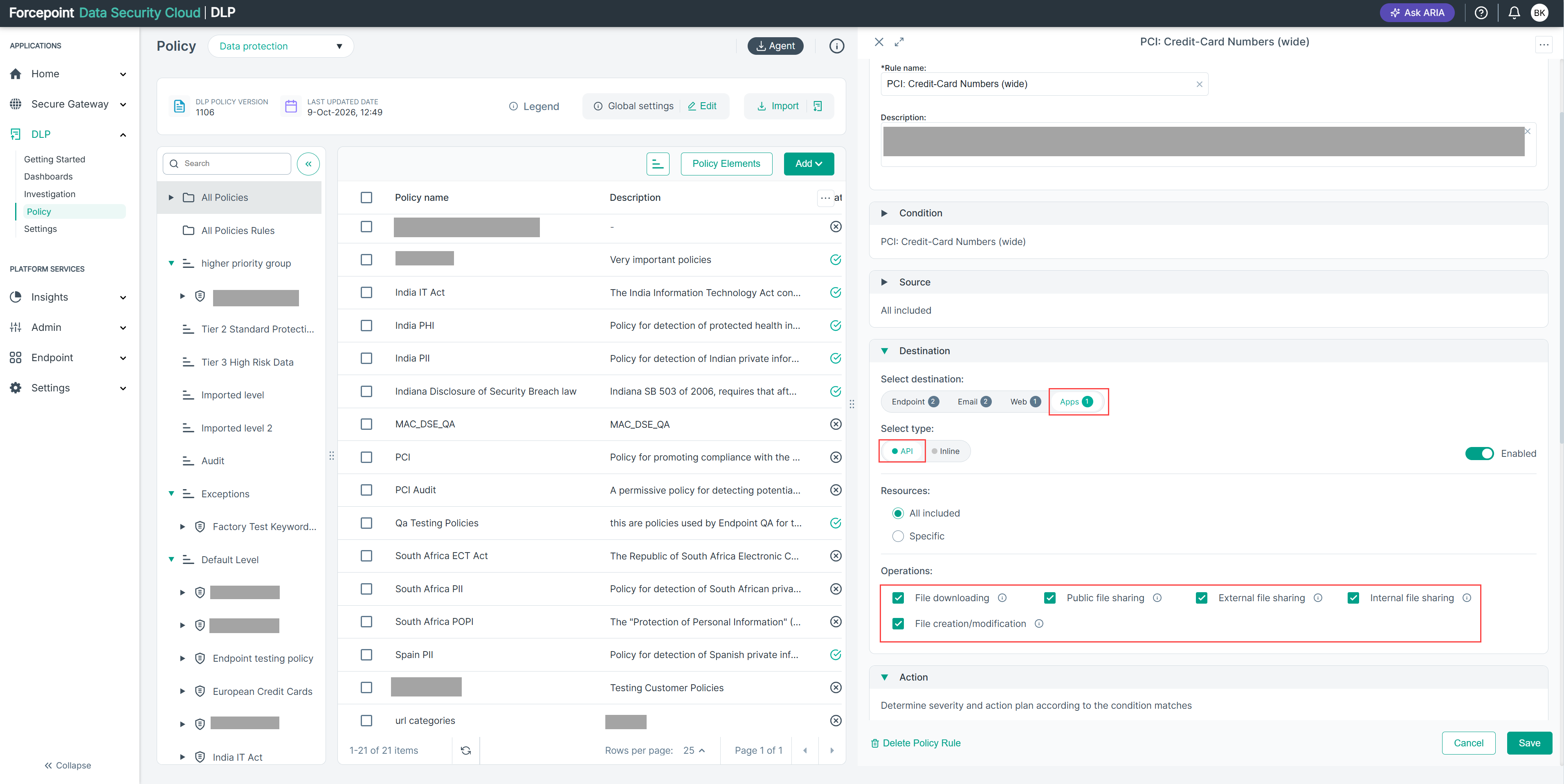
| Operation | What it covers |
|---|---|
| AI Prompt | The prompts that users send to the AI application. |
| AI Response | The responses that the AI application returns to users. |
| File downloading | Files that users download from the AI application. |
| Public file sharing | Files shared publicly, so that anyone with the link can open them. |
| External file sharing | Files shared with users outside your organization. |
| Internal file sharing | Files shared with users inside your organization. |
| File creation/modification | Files that users upload to the AI application, or create or change in it. |
Actions available for each operation
You choose the remediation action in the action plan of the DLP rule. In the action plan, under DLP Channels › Apps, each API operation has a drop-down list of actions. The drop-down list shows every action except the one currently selected.
The actions for the AI Prompt operation are shown in the below image.
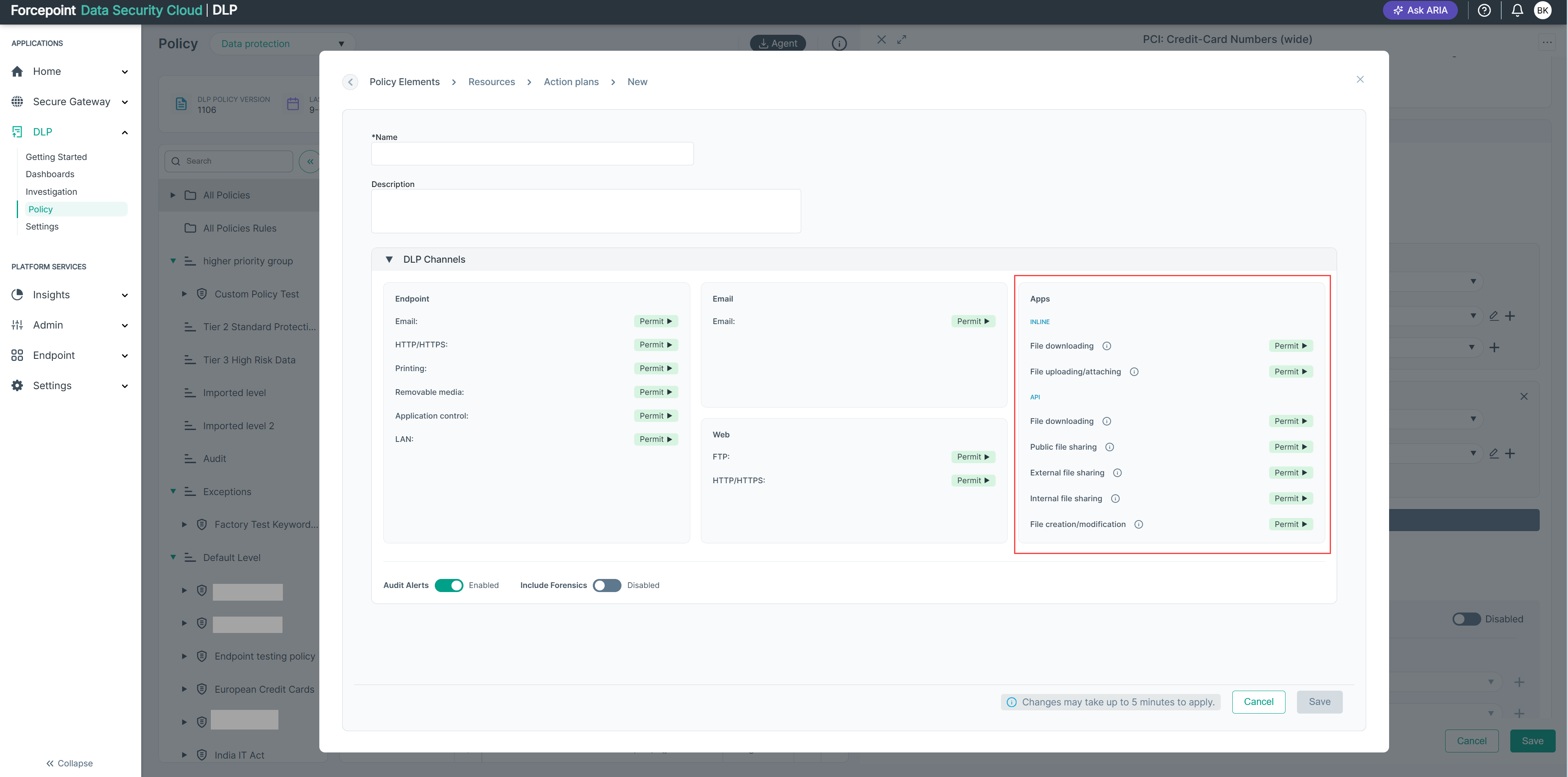
The table shows which actions apply to each operation. Unshare external and Unshare all apply only to the file operations. Delete AI content applies only to AI Prompt and AI Response.
| Operation | Permit | Safe copy | Quarantine with note | Unshare external | Unshare all | Delete AI content |
|---|---|---|---|---|---|---|
| AI Prompt | Yes | Yes | Yes* | No | No | Yes* |
| AI Response | Yes | Yes | Yes* | No | No | Yes* |
| File downloading | Yes | Yes | Yes* | Yes | Yes | No |
| Public file sharing | Yes | Yes | Yes* | Yes | Yes | No |
| External file sharing | Yes | Yes | Yes* | Yes | Yes | No |
| Internal file sharing | Yes | Yes | Yes* | Yes | Yes | No |
| File creation/modification | Yes | Yes | Yes* | Yes | Yes | No |
* Remediation actions that AI Security will support in a later release.
What AI Security does for each action
An action being available in the action plan does not mean that AI Security carries it out. AI Security carries out Permit and Safe copy for all three AI applications, and Unshare external and Unshare all for Microsoft 365 Copilot files. For Quarantine with note and Delete AI content, it applies a different action instead.
| Action | What the action means | What AI Security does |
|---|---|---|
| Permit | Allows the activity. | Audits the event. AI Security takes no other action. |
| Safe copy | Copies the data that violated the policy to a destination folder. The original stays where it is. | Copies the sensitive data to the destination folder you set in Remediation Settings. |
| Quarantine with note | Copies the data that violated the policy to the destination folder, deletes the original, and leaves a note in its place. If the AI application cannot leave a note, the user is notified by email instead. | Handles it as Safe copy, because AI Security cannot quarantine data yet. The data is copied to the destination folder, and the original stays in its source folder or project. Quarantine is coming soon for files in all three AI applications and for ChatGPT conversations. |
| Unshare external | Removes access to the matched file for every external user it was shared with. | Removes external access to the matched file in Microsoft 365 Copilot. Not supported for Claude or ChatGPT, which have no file-level sharing. |
| Unshare all | Removes access to the matched file for every user, internal and external. | Removes all access to the matched file in Microsoft 365 Copilot. Not supported for Claude or ChatGPT, which have no file-level sharing. |
| Delete AI content | Deletes the content that violated the policy. | Not supported yet for any AI application. AI Security does not delete anything. It permits and audits the event instead. Delete is coming soon for Claude files and ChatGPT conversations. |
For example, if a rule sets AI Prompt to Delete AI content and a prompt contains sensitive data, AI Security does not delete the prompt. It only audits the event.
Support by AI application
What AI Security monitors and the actions it carries out depend on the AI application and on the kind of content: files, or conversations. A conversation is a prompt or a response.
Activity monitored
The activities map to the operations in the DLP rule: Created covers AI Prompt, AI Response, and new files in File creation/modification; Modified covers changed files in File creation/modification; Downloaded covers File downloading; and Shared covers Public file sharing, External file sharing, and Internal file sharing.
| AI application | Content | Created | Modified | Downloaded | Shared |
|---|---|---|---|---|---|
| Microsoft 365 Copilot | Files | Yes | Yes | Yes | Yes |
| Conversations | Yes | No | No | No | |
| Claude Enterprise | Files | Yes | Yes* | No | No |
| Conversations | Yes | No | No | No | |
| ChatGPT Enterprise | Files | Yes | No | No | No |
| Conversations | Yes | No | No | No |
* For Claude Enterprise, AI Security detects modification only for workspace documents and artifact revisions. Chat attachments and files generated by the model have no modification signal.
Actions supported
The columns use the action names from the DLP action plan. Permit logs the event so that it is visible in AI Security.
| AI application | Content | Permit | Safe copy | Unshare external and Unshare all | Quarantine with note | Delete AI content |
|---|---|---|---|---|---|---|
| Microsoft 365 Copilot | Files | Yes | Yes | Yes | Coming soon | Not applicable |
| Conversations | Yes | Yes | No | No | No | |
| Claude Enterprise | Files | Yes | Yes | No | Coming soon | Coming soon |
| Conversations | Yes | Yes | No | No | No | |
| ChatGPT Enterprise | Files | Yes | Yes | No | Coming soon | Not applicable |
| Conversations | Yes | Yes | No | Coming soon | Coming soon |
Coming soon means support is planned for a later release. No means AI Security does not support it. Not applicable means the action does not apply to that content.
- A safe copy of a conversation captures only the prompt or response that matched the policy, not the whole conversation.
- Claude Enterprise and ChatGPT Enterprise cannot write a file back into the application, so the safe copy is stored only in the destination folder.
- Microsoft 365 Copilot does not support deleting conversations yet.
Destination folder for Safe copy and Quarantine with note
AI Security copies data for Safe copy and Quarantine with note to the destination folder you set in Remediation Settings, separately for each AI application. You can copy the data to a SharePoint location or a OneDrive location.
What remediation needs
For remediation to work, these things must be in place, in this order:
- The API connector for the AI application is deployed.
- Microsoft Copilot is connected, so that AI Security can write to OneDrive or SharePoint.
- A destination folder is set in the Remediation Settings of the AI application.
- A DLP policy for the Apps API channel uses an action plan with Safe copy or Quarantine with note.
Where remediation settings are available
The Remediation Settings button appears on an application's card, under Connector › App Connector, once the application's API connector is deployed. Each application has its own panel, for example Claude Remediation Settings.
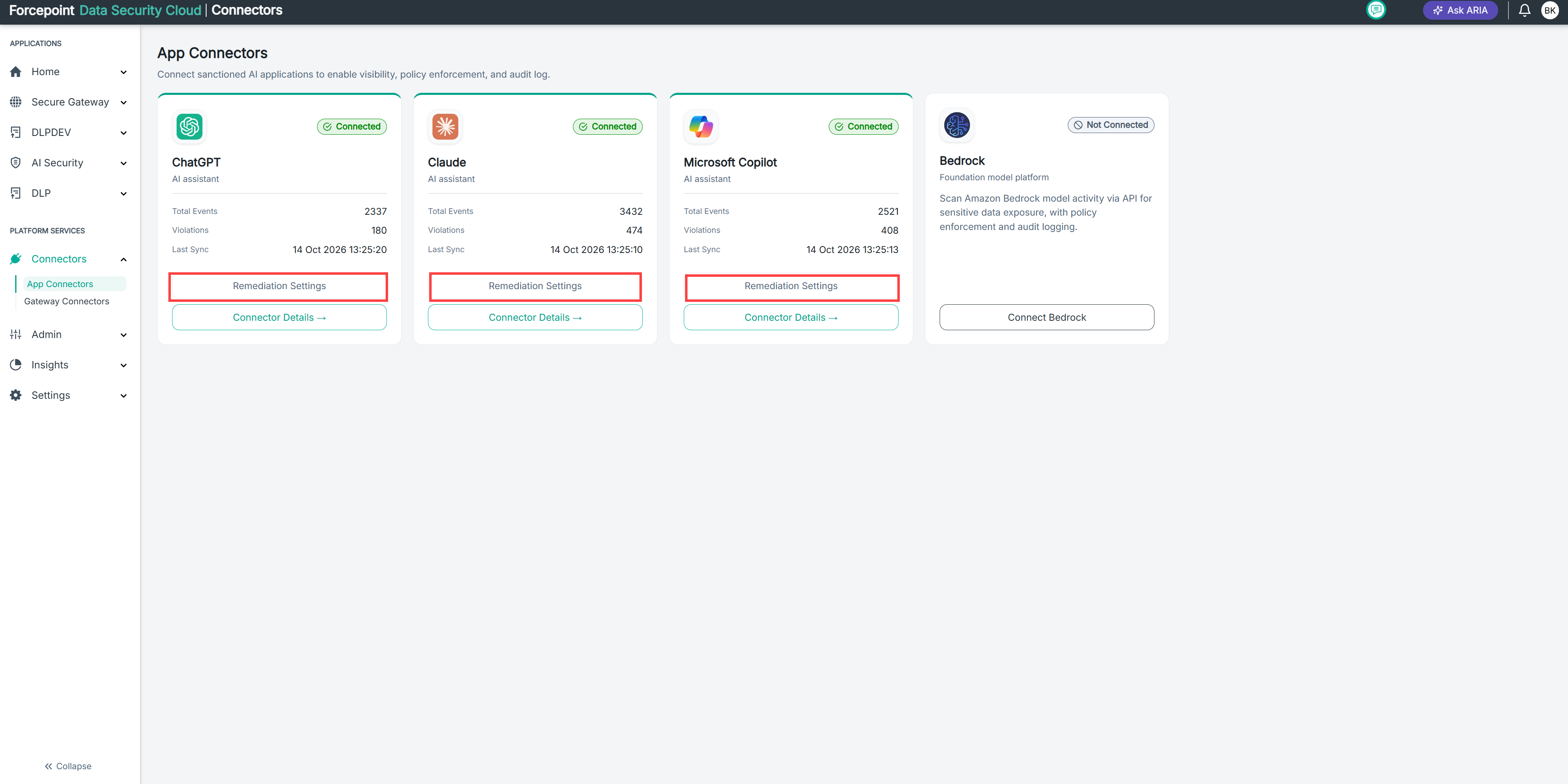
The panel has two sections:
- Storage location: where AI Security places files when a policy applies the copy or quarantine action. Select SharePoint or OneDrive.
- Destination Folder: the folder where AI Security copies the files. Enter it in Copy Directory Path.