
Connecting Salesforce as a Gateway Connector
Connect Salesforce to the MCP gateway so that your AI agents can read and change Salesforce records through it, under the access policies you set.
Before you begin
Before you begin, make sure that you have:
- Completed the prerequisites for gateway connectors. For more information, see Checking the Prerequisites Before Connecting a Gateway Connector.
- The Client ID and Client Secret of your organization's Salesforce OAuth client. If you do not have them, create them by completing the External Client App steps that follow this list.
- The name of the Salesforce environment you want to connect.
Create an External Client App in Salesforce
To get the Client ID and Client Secret, create an External Client App in Salesforce:
-
Sign in to Salesforce as an administrator.
-
In Setup, open External Client App Manager.
-
Select New External Client App.
-
Under Basic Information, enter the following details:

- External Client App Name: A name that identifies the app, such as
Forcepoint AI Security Gateway. - API Name: Salesforce fills in this name from the app name.
- Contact Email: The email address of the administrator responsible for the app.
- Distribution State: Local.
- External Client App Name: A name that identifies the app, such as
-
Under API (Enable OAuth Settings), select Enable OAuth.
-
In the Callback URL box, enter the callback URL for the region of your tenant.
-
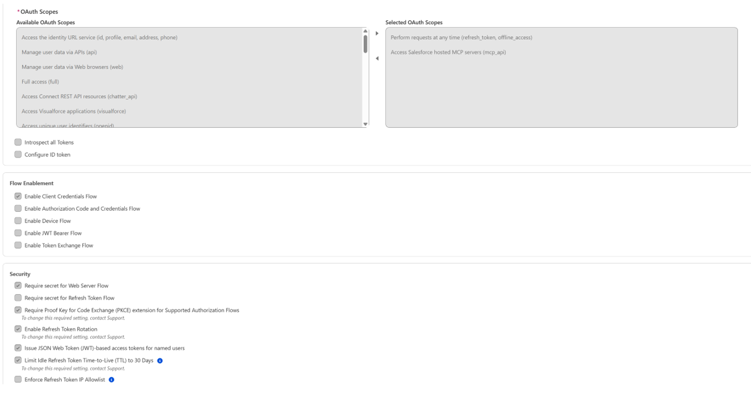
Under OAuth Scopes, move the following scopes from Available OAuth Scopes to Selected OAuth Scopes:
- Perform requests at any time (refresh_token, offline_access)
- Access Salesforce hosted MCP servers (mcp_api)
-
Under Security, make sure that the following options are selected:
- Require secret for Web Server Flow
- Require Proof Key for Code Exchange (PKCE) extension for Supported Authorization Flows
- Enable Refresh Token Rotation
- Issue JSON Web Token (JWT)-based access tokens for named users
-
Select Create.
-
On the Policies tab, select Edit.
-
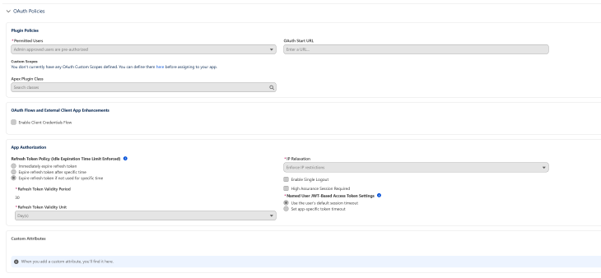
Under OAuth Policies, set the following options:
- Permitted Users: Admin approved users are pre-authorized.
- Refresh Token Policy: Expire refresh token if not used for specific time, with a Refresh Token Validity Period of
30and a Refresh Token Validity Unit of Day(s). - IP Relaxation: Enforce IP restrictions.
- Named User JWT-Based Access Token Settings: Use the user's default session timeout.
-
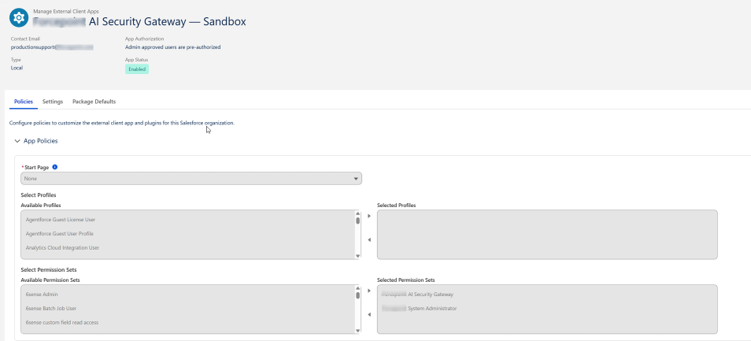
Under App Policies, in Select Profiles or Select Permission Sets, add the profiles or permission sets of the users who will use the Salesforce connector.
-
Select Save.
-
On the Settings tab, under App Settings, select Consumer Key and Secret.
-
Copy the credentials:
- Copy the Consumer Key.
- Copy the Consumer Secret.
You enter the Consumer Key as the Client ID and the Consumer Secret as the Client Secret when you configure the connector in the following steps.
Steps
-
Open Connector › Gateway Connectors.
-
On the Salesforce card, select Configure Salesforce.
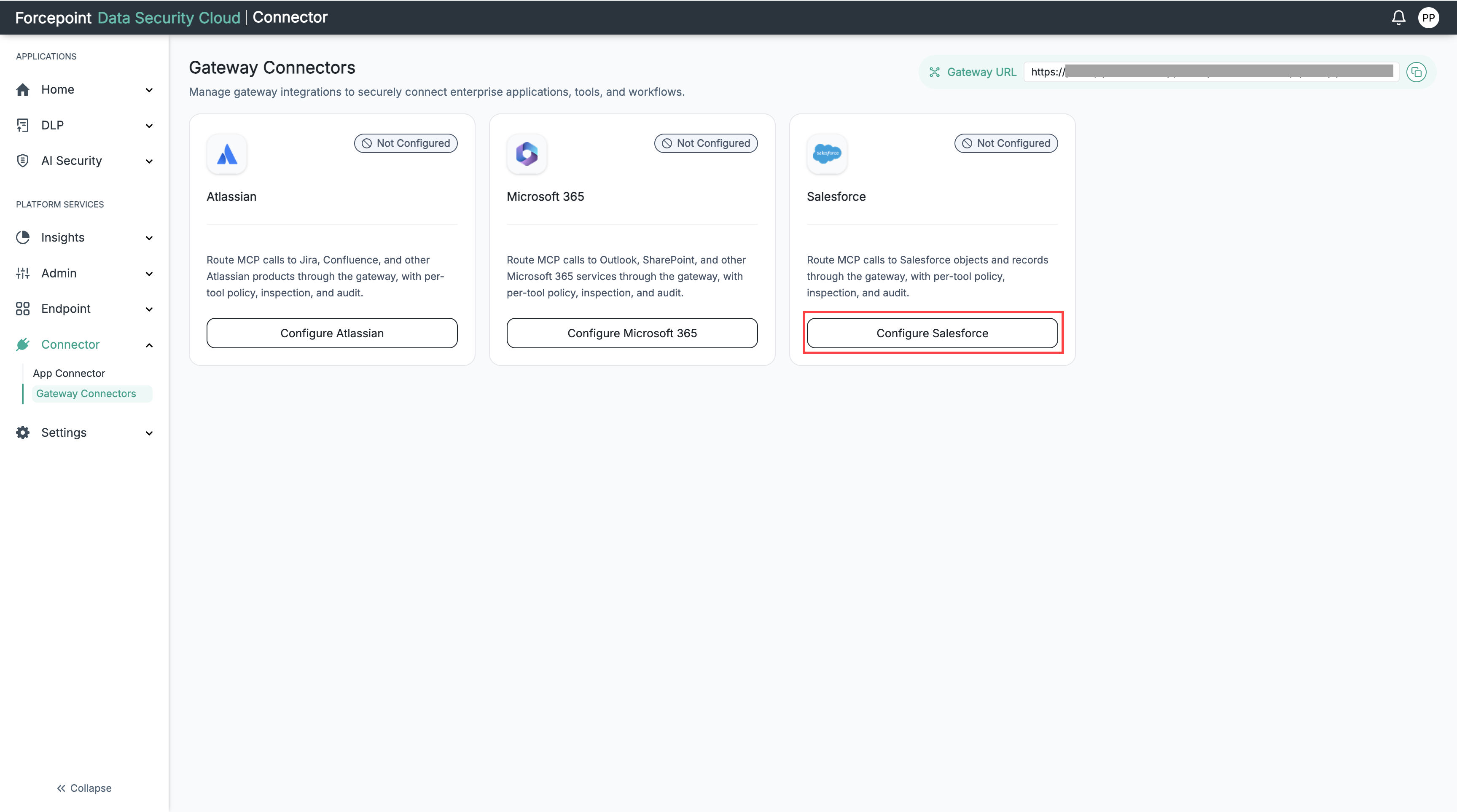
The following figure shows the Connect Salesforce Connector panel.
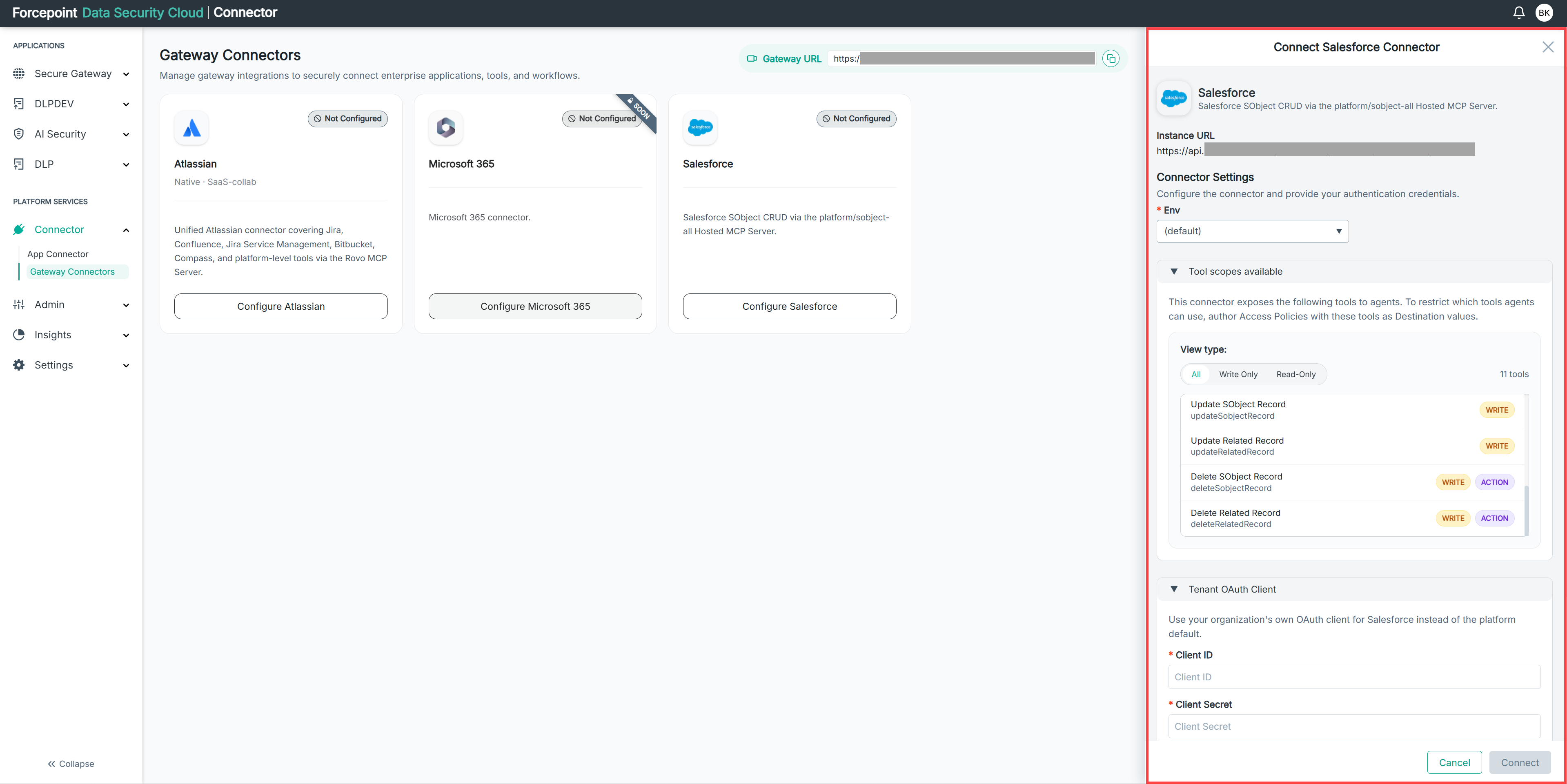
The Connect Salesforce Connector panel opens.
-
From the Env list, select the Salesforce environment you want to connect.
-
Under Tool scopes available, review the tools that Salesforce exposes to agents.
-
Optional: To filter the list, select Write Only or Read-Only.
To show all tools again, select All.
-
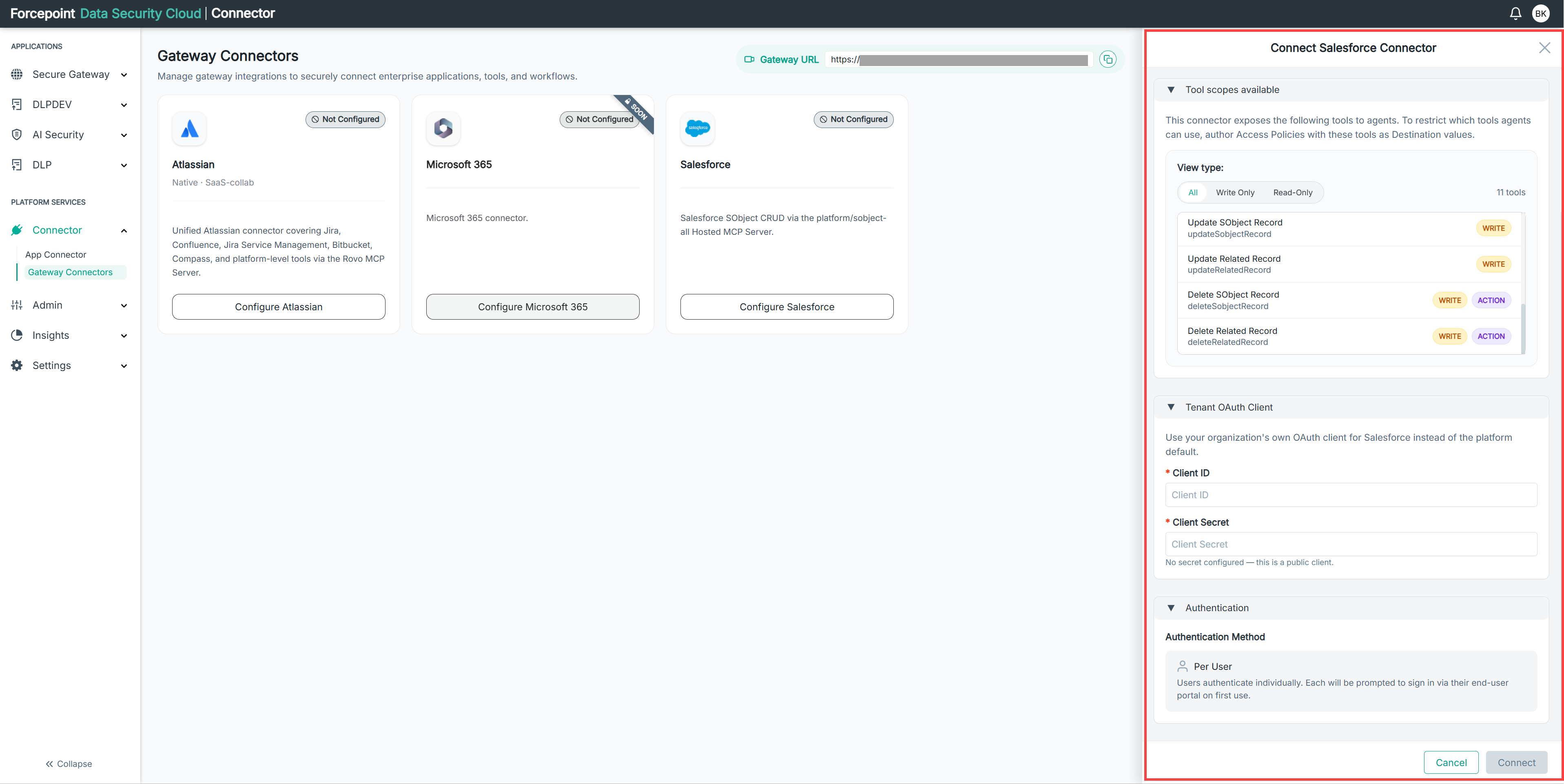
Under Tenant OAuth Client, in the Client ID box, enter the client ID of your organization's Salesforce OAuth client.
-
In the Client Secret box, enter the client secret.
-
Under Authentication, review the Authentication Method.
Salesforce uses Per User authentication.
-
Select Connect.
Result
On the Gateway Connectors page, the Salesforce card shows the Configured status.
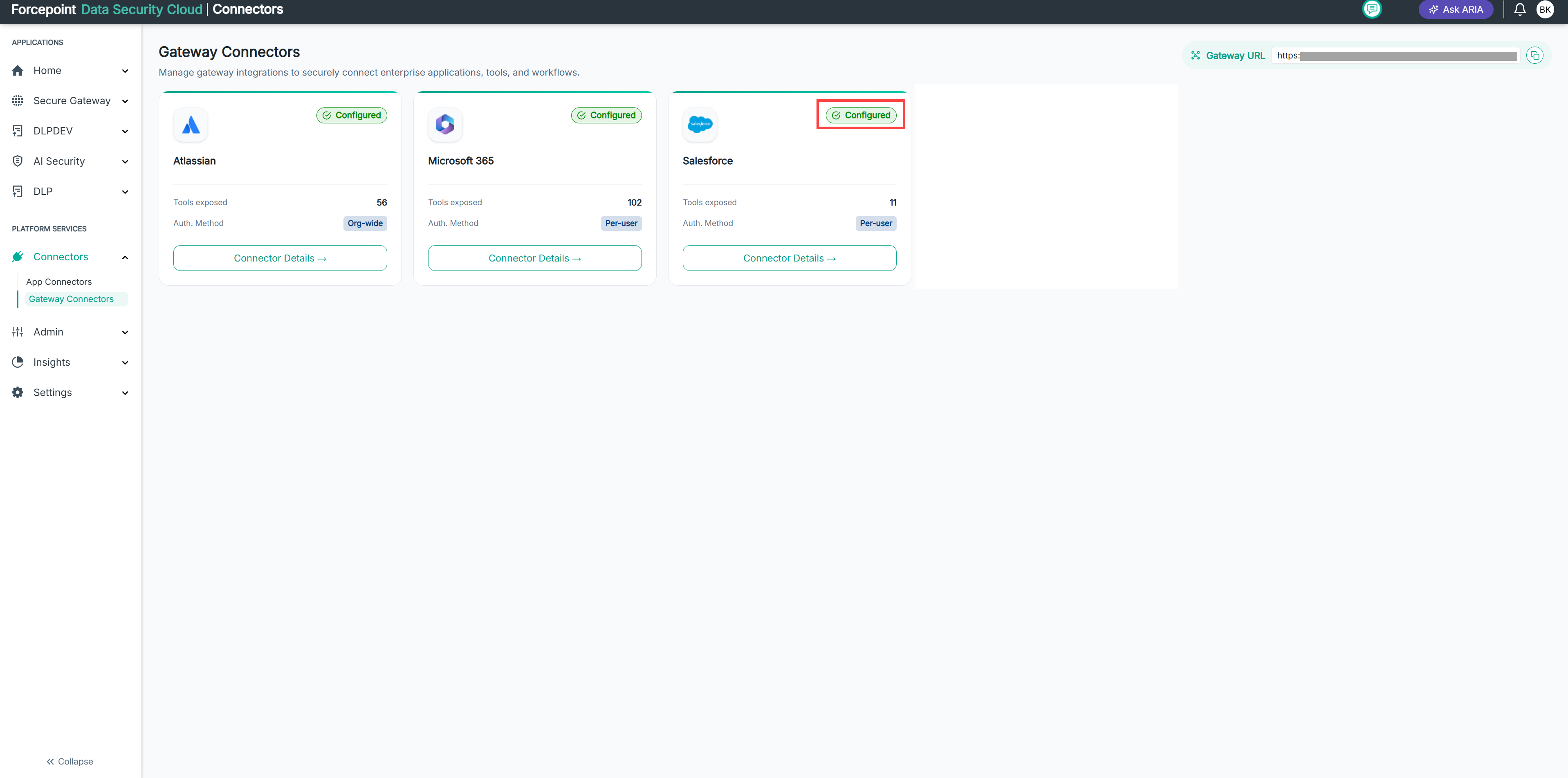
The card also shows:
- Tools exposed: The number of Salesforce tools available to agents.
- Auth. Method: The authentication method in use, Per-user.
To view or manage the connector, select Connector Details.
After the connector is configured, Salesforce appears as an app on the homepage of the end-user portal for all users. Each user then signs in to Salesforce from the end-user portal. For more information, see Signing in to Salesforce as an end user section given below.
Next steps
Create an access policy that includes the Salesforce tools your agents can use. For more information, see Control Access With Access Policies.
Signing in to Salesforce as an end user
Connect your own Salesforce account to the MCP gateway from the end-user portal, so that agents can work with Salesforce on your behalf.
Every user, including users who are not administrators, connects their own Salesforce account to the MCP gateway from the end-user portal. The gateway gets the user's OAuth credentials through this sign-in and uses them whenever an agent, such as an AI assistant or any other AI tool connected to the gateway, works with Salesforce on that user's behalf.
Steps
-
Open the end-user portal.
The Salesforce app appears on the homepage.
-
On the Salesforce app, select Sign in.
-
Sign in with your Salesforce account.
Result
Salesforce confirms that the sign-in was successful, and the app shows that you are connected.
Disconnecting the Salesforce connector
Disconnect the connector when you no longer want users to connect Salesforce to the MCP gateway.
Steps
-
Open Connector › Gateway Connectors.
-
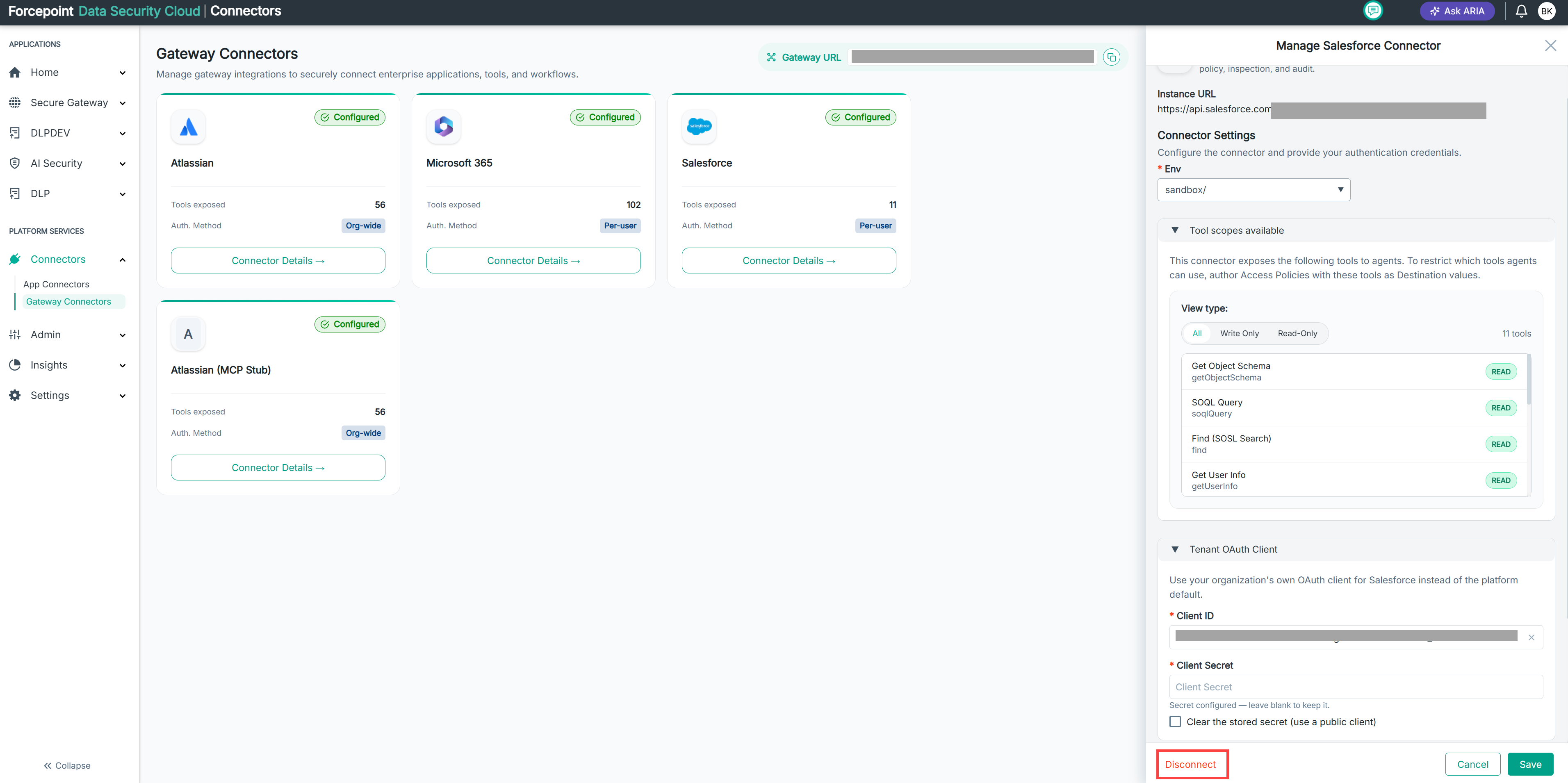
On the Salesforce card, select Connector Details.
-
Select Disconnect.
Result
The connector returns to the not-configured state. Salesforce no longer appears as an app on the homepage of the end-user portal, so users cannot sign in to it or use it through the gateway.