
Reviewing Access Control Policy Performance
Use the Access Control Policies chart to see which of your access policies are firing, and in which direction.
This chart ranks the policies that govern what your AI agents may reach through the MCP Gateway. Unlike the DLP chart, it shows both the direction of each policy and how its activity has moved against the previous period.
Steps
-
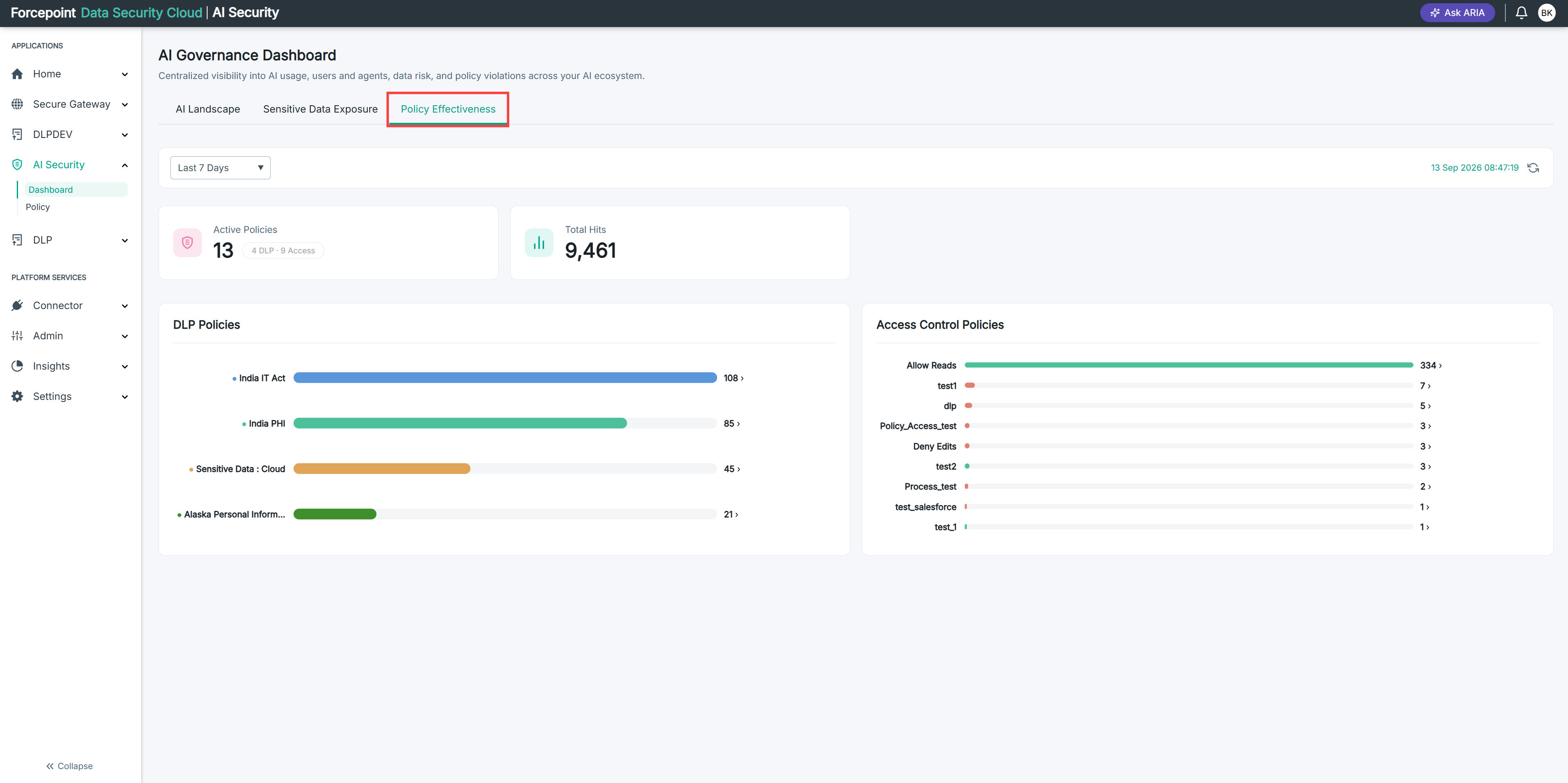
Open the Policy Effectiveness tab and set the period you want. See Opening and Filtering the Effectiveness Tab.
-
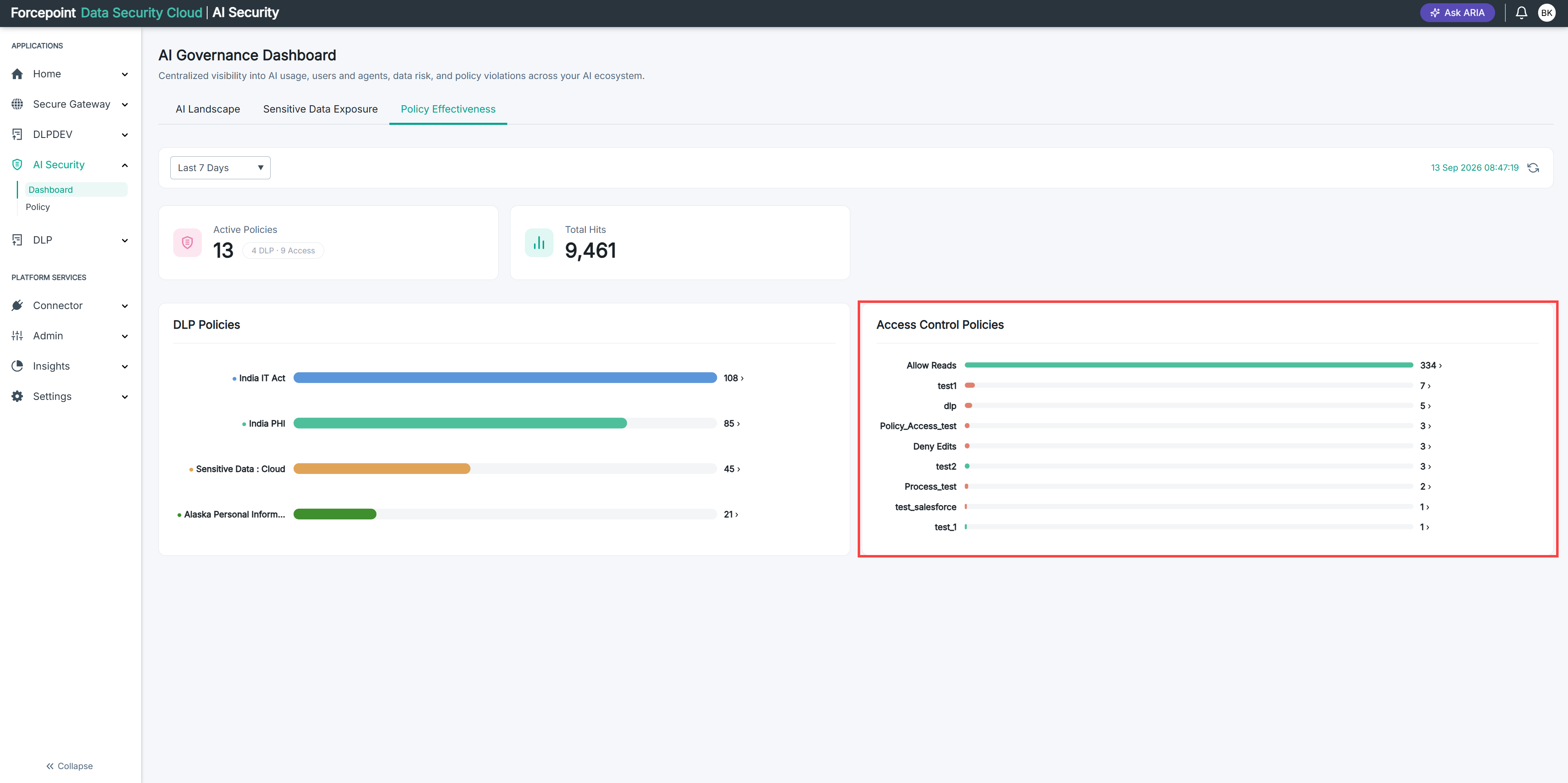
Find the Access Control Policies chart on the right of the page.
-
Read the colour of each bar.
Green marks a policy that allows the calls it matches. Red marks a policy that denies them.
You can see at a glance whether your access activity is mostly permitted or mostly blocked.
-
Read the policy at the top of the chart.
This is your most-triggered access policy for the period.
-
Click the bar of any policy you want to investigate.
The details page for that policy opens, showing its verdict, its hit trend, the people whose calls it matched, and the individual tool calls involved.
You can see exactly which operations the policy is acting on.
-
Click Policy Effectiveness in the breadcrumb to return to the chart.
-
Note any policy at or near zero hits.
-
Open the Access Policies tab to check the position of that policy in the evaluation order.
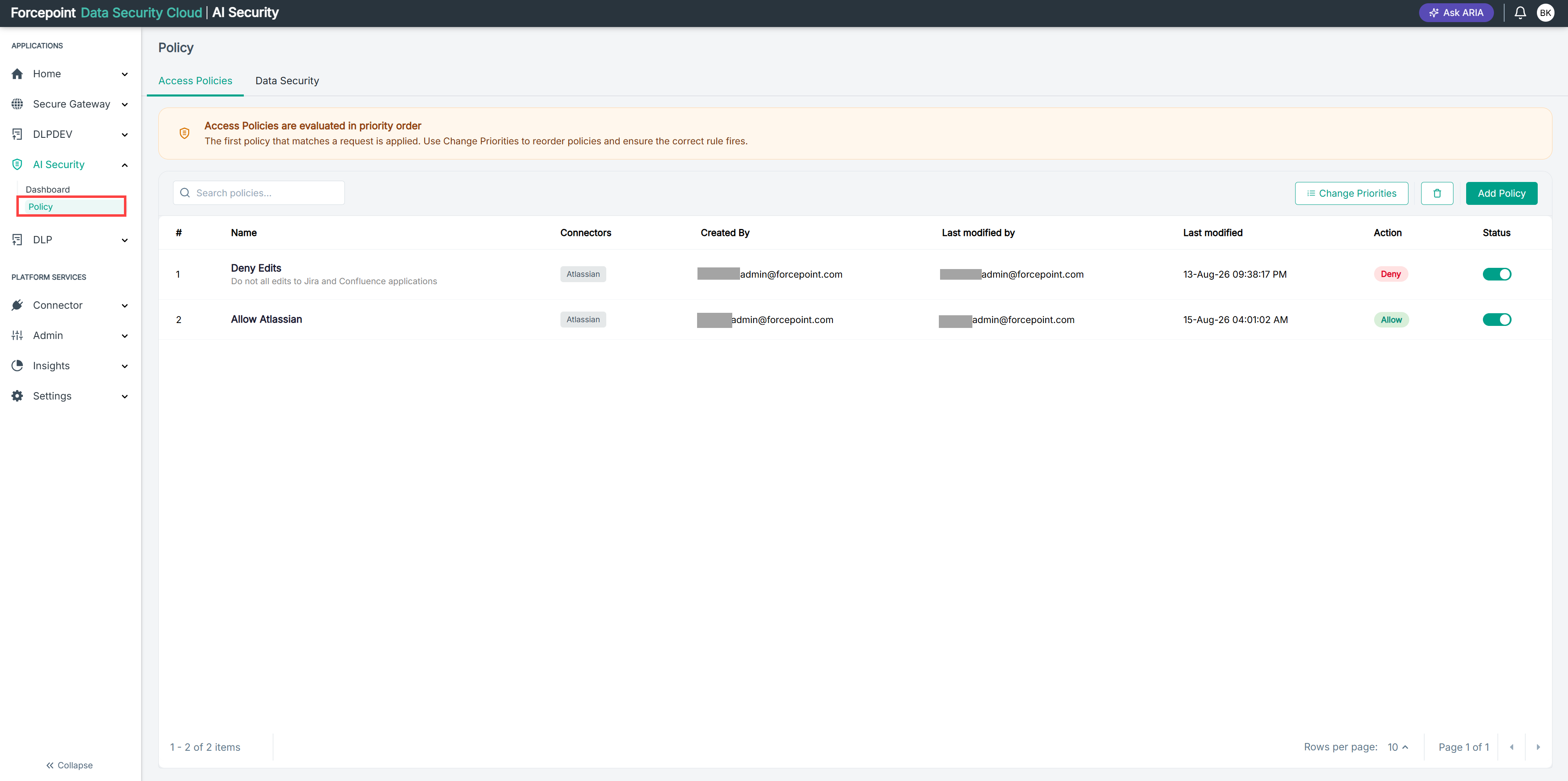
Go to AI Security › Policy. Because policies are evaluated top-down and the first match wins, a policy that never fires may simply be sitting below a broader policy that matches first.
You know whether a dormant policy is scoped wrongly or is being shadowed by one above it.
Result
You know which access policies are active, whether they are allowing or denying, how their activity has changed, and whether any dormant policy is being blocked by the evaluation order.