
Registering an App in Microsoft Entra for Copilot
Register an application in Microsoft Entra and grant it the permissions AI Security needs to monitor Microsoft 365 Copilot activity.
Before you begin
You need Global Administrator access in Microsoft Entra ID. You cannot complete this task from Forcepoint Data Security Cloud.
For an explanation of each permission you add here, see Understanding the Permissions Microsoft Copilot Requires.
The app registration gives AI Security an identity in your Microsoft tenant. This task produces two of the three values the connector needs: the application (client) ID and the directory (tenant) ID. You generate the client secret separately.
For a video walkthrough of this procedure, see the Copilot Connector video.
Steps
-
Open the Microsoft Entra admin center.
-
Go to Home.
-
On your tenant card, copy the tenant ID.
You enter this value in Forcepoint Data Security Cloud when you connect the connector.
-
Go to App registrations.
-
Select New registration.
-
Enter a name for the application.
-
Leave Supported account types set to Single tenant only.
A redirect URI is not required.
-
Select Register.
-
Go to Overview.
-
Copy the application (client) ID.
-
Go to API permissions.
User.Readis already listed as a Delegated permission. Microsoft Entra adds it automatically when you register an application. Leave it in place. -
Select Add a permission.
-
Select Microsoft Graph.
-
Select Application permissions.
-
In Select permissions, type the name of a permission to filter the list.
The Microsoft Graph permission list is long. Searching for each permission is quicker than browsing it.
-
Select the following permissions, searching for each one in turn.
AgentIdentity.Read.AllAiEnterpriseInteraction.Read.AllFiles.Read.AllFiles.ReadWrite.AllGroup.Read.AllReports.Read.AllSites.Read.AllSites.ReadWrite.AllUser.Read.All
-
Select Add permissions.
The nine Microsoft Graph permissions are now listed under Configured permissions.
-
Select Add a permission again.
This adds the Office 365 Management API permission. The Microsoft Graph permissions you added above do not cover activity data.
-
Select Office 365 Management APIs.
-
Select Application permissions.
-
Select
ActivityFeed.Read. -
Select Add permissions.
-
Select Grant admin consent for your organization.
The button shows the name of your tenant.
-
On the Grant admin consent confirmation dialog, select Yes.
-
Check the Status column.
Every permission shows a green check mark and reads Granted. If any permission shows Not granted, grant admin consent again.
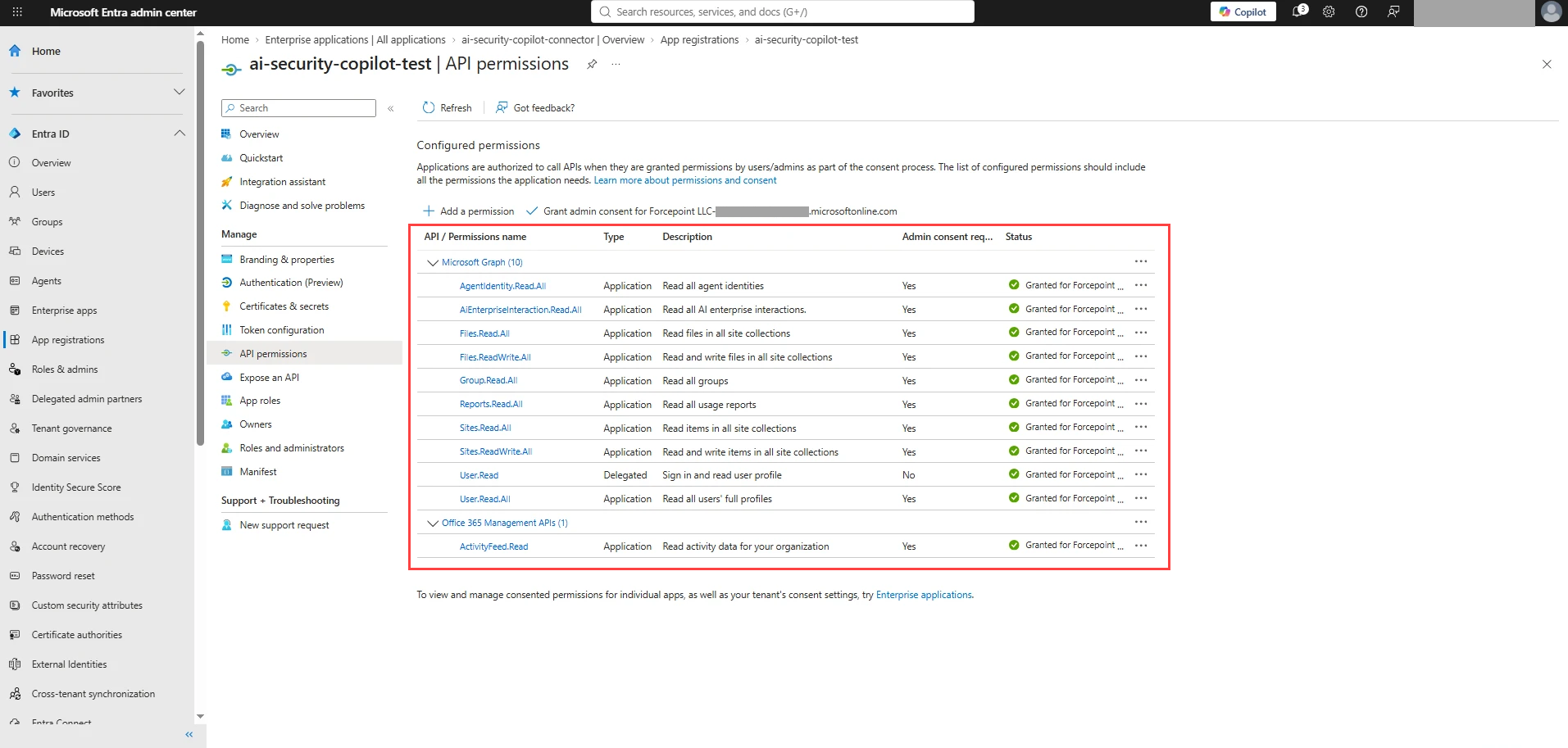
Result
The application is registered in Microsoft Entra with every permission the connector needs, and you have the tenant ID and the application (client) ID.
Next steps
Generate a client secret in the registration. See Generating a Client Secret in Microsoft Entra.