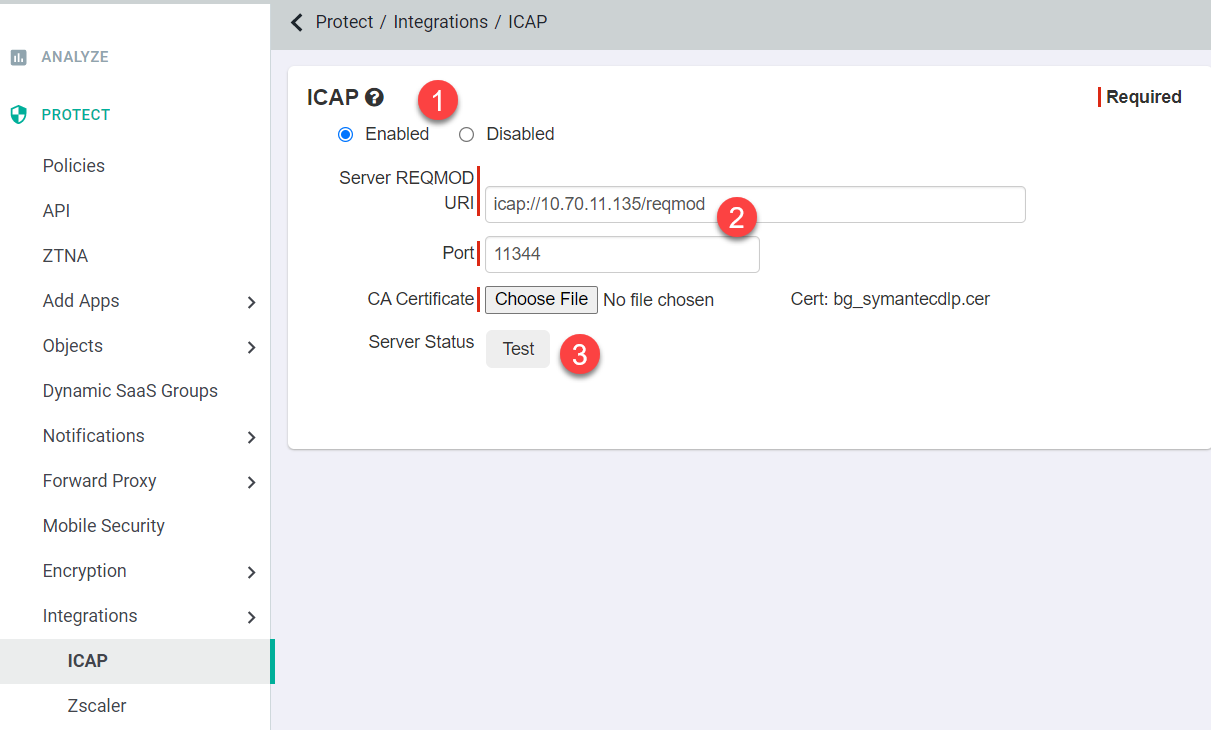
Configuring ICAP server

Customers must first enable the Internet Content Adaptation Protocol (ICAP) feature and configure the server settings before being able to send files to the Data Loss Prevention (DLP) system.

Steps

  1. Navigate to Protect > Integrations > ICAP and select Enabled (ICAP is disabled by default).
  2. Enter the DLP systems Server REQMOD URI path and upload the certificate authority (CA) certificate that will be used to validate the certificate presented by the target system.
    Note: Port 1344 is setup by default.
  3. Click the Test button to verify the server status (connectivity and capabilities of the ICAP server).

    The UI response will display Server Status, the code received, service (optional response displayed only if provided by the server), and ISTag received from the server.

    Server status is marked as Healthy only if the most recent ICAP Status response is 1xx or 2xx. Refer to Understanding logging and alerting for ICAP view more information on ICAP status codes.