Configuring OCR on Email Security Gateway / Protector / Web Content Gateway with Policy Engine 10.4
Steps
-
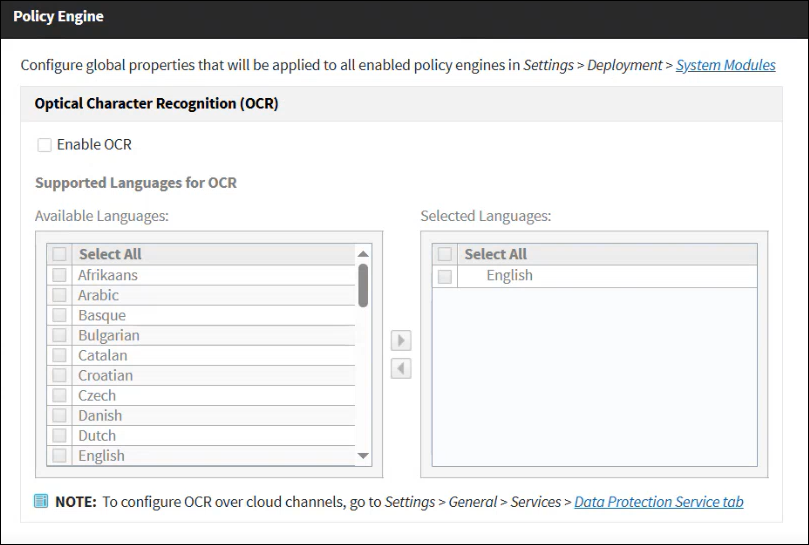
Option one: Defining global OCR configuration for all policy engines
- Go to , and then select Enable OCR.
- In the Supported Languages for OCR section, you can select the desired languages from the Available Languages
list.
-
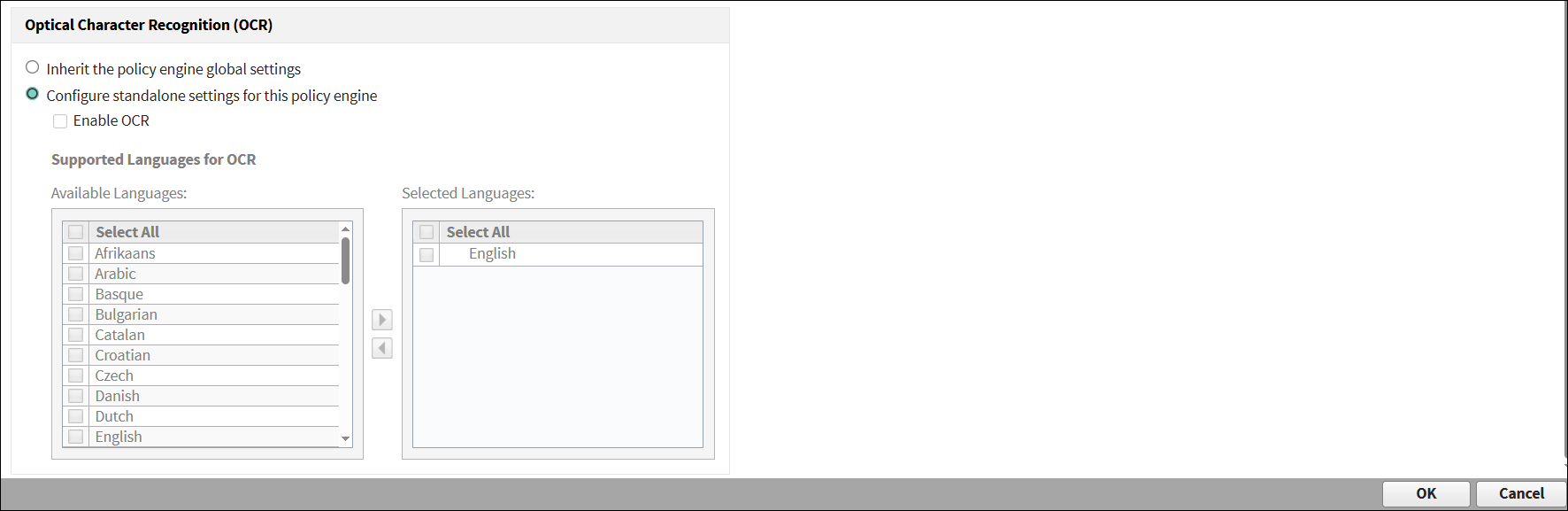
Option two: Updating the following fields for the selected module in the Policy Engine Details page.
- Inherit the policy engine global settings - Select the existing global configuration.
- Configure standalone settings for this policy engine - Select the settings to enable OCR and choose the desired languages.
 Note: The maximum file size that can be scanned by OCR is 25MB, and the minimum is 5KB.