Deployment of Synergy Office Add-ins (macOS & Web Plugins/New Outlook)
Prerequisites
- Office 365 Admin Center: Ensure that you have access to it.
-
On all user machines:
- Agent is installed: For details see Windows Installation, or macOS installation.
- Connection to servers: Access to servers at the following addresses is required: https://appsforoffice.microsoft.com and https://manifest.master.k3s.getvisibility.com. Without access to these resources, problems with displaying button icons and extension operation may occur.
-
Windows:
- Office Version: Office 365 subscription plans.
- Browser: Microsoft Edge (latest version) or/and Google Chrome (latest version).
-
Mac:
- Office Version: Office 365 subscription plans.
- Browser: Safari (latest version) or/and Google Chrome (latest version).
-
Web:
- Office Version: Office on the web (formerly Office Online) or Office 365 subscription plans.
- Browsers:
- Microsoft Edge (latest version)
- Google Chrome (latest version)
- Mozilla Firefox (latest version)
- Apple Safari (latest version)
Contact Forcepoint Support to enable MacOS & Office Web Plug ins on your deployment. This must be completed before proceeding to Installation.
Installation
-
Use one manifest for Word, Excel and PowerPoint:
- Create a new file named
manifest.xml. - Visit next one manifest, copy the content into the
manifest.xmlfile or save Url:- Getvisibility Edition:
https://manifest.master.k3s.getvisibility.com/v1/gv/manifest.xml - Forcepoint Edition:
https://manifest.master.k3s.getvisibility.com/v1/fp/manifest.xml
- Getvisibility Edition:
- Create a new file named
-
Use one manifest for Outlook:
- Create a new file named
outlook-manifest.xml. - Visit next one manifest, , copy the content into the
outlook-manifest.xmlfile or save Url.- Getvisibility Edition:
https://manifest.master.k3s.getvisibility.com/v1/gv/manifest.outlook.xml - Forcepoint Edition:
https://manifest.master.k3s.getvisibility.com/v1/fp/manifest.outlook.xml
- Getvisibility Edition:
- Create a new file named
-
Log in to Office 365 Admin Center:
- Go to
https://www.microsoft.com/en-ie/microsoft-365/business/office-365-administrationand sign in. - Click on Admin.
- Navigate to .
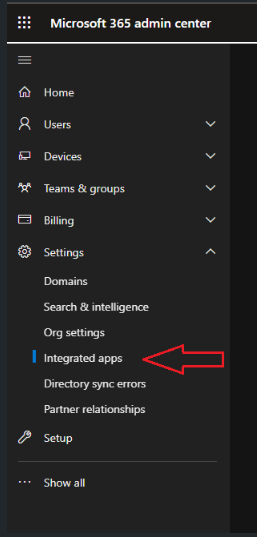
- Go to
- Upload one manifest for Word, Excel and PowerPoint:
- Within Deployed apps, click Upload custom apps.
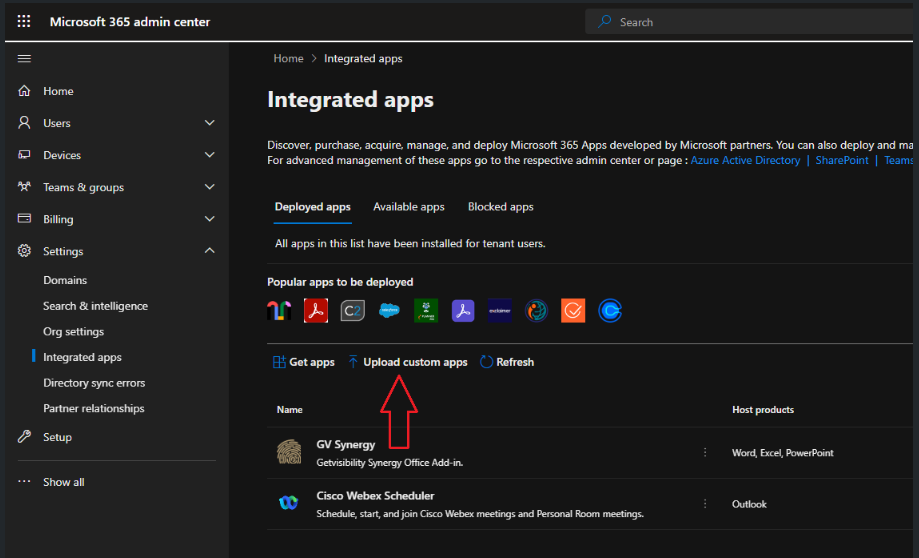
- Choose Office Add-in as the App type.
- Upload the
manifest.xml filecreated in Step 1 or use saved URL.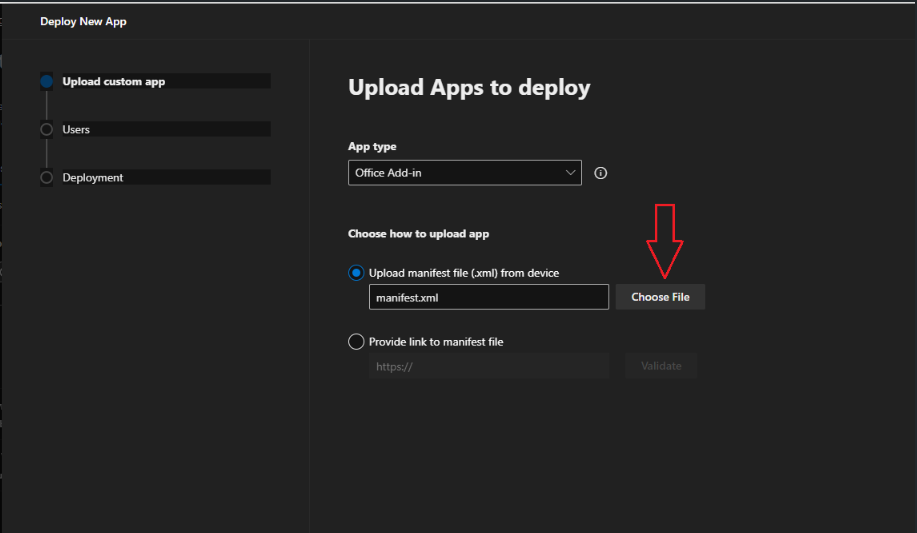
- Click Next.
- Select the appropriate deployment targets.
- Continue clicking Next to completion.
- Within Deployed apps, click Upload custom apps.
- Upload one manifest for Outlook:
Repeat Step 4 (a-f) using the
outlook-manifest.xmlfile created in Step 2.