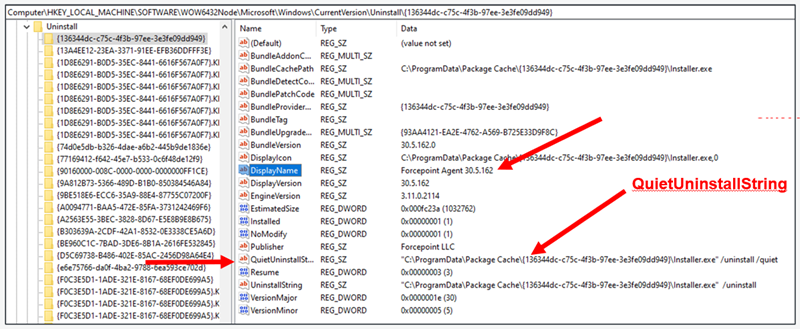
To uninstall the agent using the command line, do the following:Note: The GUID will change on each release so you need to follow the steps below to get the version specific
GUID.
Steps
-
Go to the Uninstall path: HKLM\Software\WOW6432Node\Microsoft\Windows\CurrentVersion\Uninstall
-
Search for Forcepoint Agent.
-
To uninstall with cli, run the path found in the UninstallString: "C:\ProgramData\Package Cache\{f68e45bb-1477-4fbb-aa45-4cdbfe37efa4}\Installer.exe"
/uninstall
A confirmation dialog may appear, prompting you to proceed with the uninstallation.
-
Click Yes.
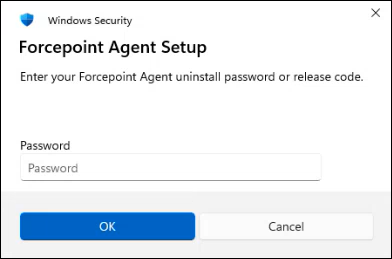
A message appears to enter the release code.
-
Enter the release code generated previously, and then click OK.
Note: If you want to prevent the release code popup you can update your uninstall string to include the release code. For
example:
C:\ProgramData\Package Cache\{f68e45bb-1477-4fbb-aa45-4cdbfe37efa4}\Installer.exe" /uninstall /quiet /norestart RELEASECODE=<your-release-code>
The /quiet flag suppresses the UI so the release code prompt does not appear.
The /norestart flag ensures the device will not restart without user prompt.
The RELEASECODE=<your-release-code> flag allows the release code to be supplied silently so the uninstall can proceed (replace
<your-release-code> with the release code for your environment), this is required when the uninstall is run with the /quiet
flag and not run as a system user as would be the case when doing this via MDM.